Microsoft has cleaned up a lot with the new interface of the Microsoft Teams admin center. The navigation looks fresher, and shots that used to be scattered are now grouped thematically much more logically.
The first is the "Teams and Channels" area. This is the hub for your collaboration environment: it's where you'll find all the tools that affect the structure, behavior, and lifecycle of teams.
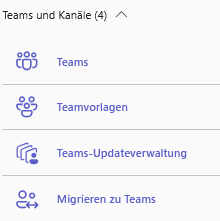
When you open the menu, this area is divided into four central submenus:
- Teams
- Team Templates
- Teams update management
- Migrate to Teams
1. Teams (Settings)
In the Teams settings area (within Teams and channels), you define the fundamental behavior of the client for the entire tenant.
Visibility and creation
This first block determines the "openness" of your organization and the structure of data storage.
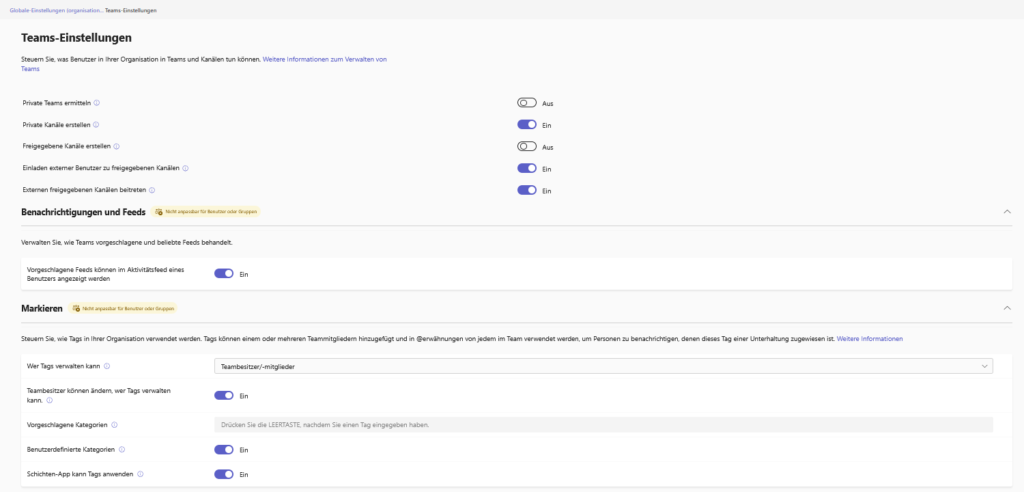
- Identify private teams:
- Setting: On / Off (Recommendation: Off)
- Explanation: When this toggle is turned on, private teams that a user doesn't belong to will also appear in search results and the Join Team gallery.
- Data protection risk: If this is active, sensitive project names (e.g. "Project Staff Reduction" or "Takeover of Company XY") can be read by every employee. For privacy and confidentiality reasons, this feature should remain disabled in most organizations to prevent "metadata leaks."
- Create private channels:
- Function: Allows users to create channels that are only visible to a subset of team members.
- Governance note: Private channels create their own, separate SharePoint site collection in the background. This can complicate governance and lifecycle management of files. Leave this enabled if you need silos within teams, but train your users on how to use them.
- Shared channels (Shared Channels / Microsoft Teams Connect):
- Here we can see a differentiated configuration in the screenshot:
- Create (Off): Users are not allowed to create their own shared channels.
- Invite Join (On): However, users are allowed to invite external users to existing channels or join external channels.
- Security Context: This function enables collaboration with external parties without switching guest accounts. However, it depends on the settings in the Entra ID (formerly Azure AD). Without configured "B2B Direct Connect" policies in the Entra ID, these switches in the Teams admin center will remain ineffective or result in error messages.
- Here we can see a differentiated configuration in the screenshot:
Feeds and suggestions
An area that is often overlooked, but one that influences the "digital wellbeing" of employees.
- Suggested feeds:
- Function: Microsoft uses AI to suggest content in the activity feed that could be relevant to the user, even if they have not been directly tagged.
- Works council aspect: Since algorithms analyze user behavior ("profiling"), this function is often deactivated in strict data protection environments or when the works council has concerns. In addition, switching off helps to reduce sensory overload in the activity feed.
Tagging
Tags (e.g. @Vertrieb or @Schichtleiter) are powerful, but have a high potential for disruption and abuse (social engineering).
- Who can manage tags:
- Options: "Team Owners Only" or "Team Owners and Members".
- Security Best Practice: Globally, set this to "Team Owners Only".
- Why? If every member can create tags, you risk chaos and phishing scenarios. A malicious or compromised account could create a tag like @AlleMitarbeiter or @Admin and use it to send trustworthy-looking bulk messages.
- Team owners can change who can manage tags:
- This switch returns control to the team owners (delegation). If you want to enforce centralized compliance, disable this. If you want to encourage "self-service" (as enabled in the screenshot), let the owners choose.
- This switch returns control to the team owners (delegation). If you want to enforce centralized compliance, disable this. If you want to encourage "self-service" (as enabled in the screenshot), let the owners choose.
- Suggested vs. Custom Categories:
- You can prevent sprawl by disabling custom categories and specifying centrally checked terms instead. This ensures a uniform nomenclature in the company.
- You can prevent sprawl by disabling custom categories and specifying centrally checked terms instead. This ensures a uniform nomenclature in the company.
- Shifts app:
- Essential for companies with frontline workers (production, care, retail): Tags are automatically created based on the current roster. This means that a ping to @DiensthabenderArzt only ever reaches the person who is really working.
Email Integration
This feature bridges the gap between the classic email world and modern Teams chat, but is a common gateway for spam and unchecked files.
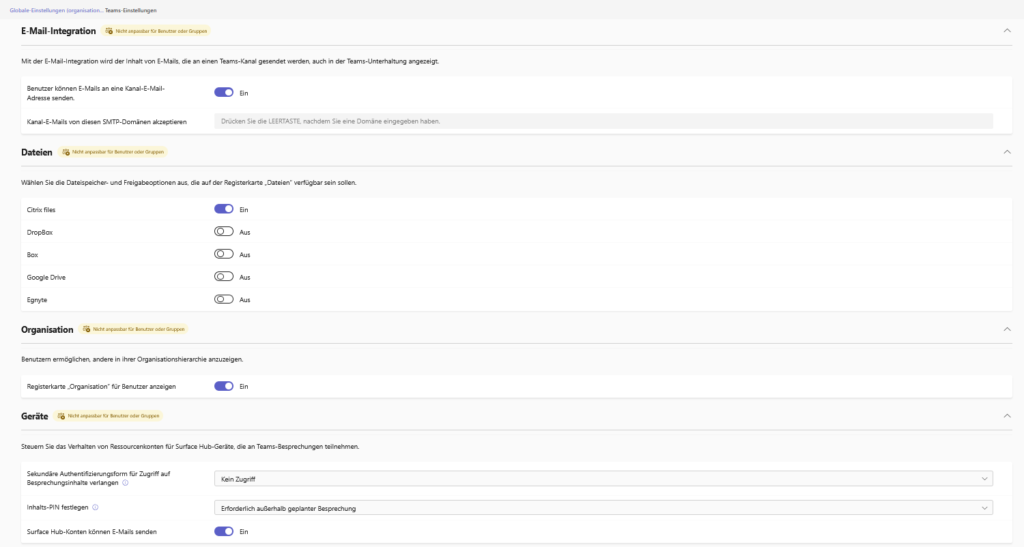
- Users can send emails to a channel email address:
- Function: Each channel in Teams has its own email address. If this is activated, internal and (depending on the setting) external people can post emails directly to the channel.
- Security Risk: Without further restriction, anyone who guesses or knows the channel's cryptic email address can post content there.
- Accept channel email from these SMTP domains:
- Best Practice: Never leave this field empty!
- Security: A blank field often means that all domains are accepted. To block phishing and malware distributors, you should explicitly enter only your own company domains (e.g . ) and those of trusted partners. This prevents external attackers from injecting malicious code or spam directly into the Teams interface via a leaked channel address.
File Storage Third-Party Providers
This is where you decide on your data sovereignty. By default, Teams uses SharePoint Online and OneDrive for Business, both platforms that are under your full control and compliance monitoring.
Third-party providers (Citrix, Dropbox, Box, Google Drive, Egnyte):
- Governance decision: In the screenshot, only Citrix Files is enabled, all others are disabled. This is a typical scenario for companies that pursue a specific hybrid strategy.
- The "shadow IT" problem: Only activate these providers if you officially manage them in the company (Enterprise licenses). Otherwise, you risk massive data exfiltration: Employees could move sensitive company data to their personal Dropbox or Google Drive accounts, where your data loss prevention (DLP) policies and backups don't work.
- Recommendation: In most strict compliance environments, all of these switches are on Off to force data storage in the Microsoft 365 ecosystem; only Citrix Files can be activated due to the specific possibilities.
Organization Search
These settings affect how transparent your organizational structure is and how easy it is for users to find others.
- To display the Organization tab:
- Use Benefits: Visualizes the organizational chart maintained in the AD directly in the chat. Very helpful in large corporations to see: "Who is the supervisor of interlocutor X?".
- Use Benefits: Visualizes the organizational chart maintained in the AD directly in the chat. Very helpful in large corporations to see: "Who is the supervisor of interlocutor X?".
- Restricting directory searches with Exchange Address Book Policy (ABP):
- Scenario: This is essential for organizations with information barriers .
- Example: In an investment bank, the trading department is often not allowed to know what the analysis department is working on – or even see it in the directory. Schools also use this so that students cannot contact teachers from other classes indiscriminately. If you activate this, the ABPs defined in Exchange also apply to the Teams search.
Devices (Surface Hub Teams Rooms)
Specific security settings for shared devices in conference rooms. Since these devices are often located in physically accessible rooms, the protection of the session is critical.
- Secondary form of authentication for access to meeting content:
- Function: Prevents someone from simply running into the room and accessing the meeting's files. For example, users need to verify via their mobile phone (Microsoft Authenticator) to gain access to their personal OneDrive files at the hub.
- Function: Prevents someone from simply running into the room and accessing the meeting's files. For example, users need to verify via their mobile phone (Microsoft Authenticator) to gain access to their personal OneDrive files at the hub.
- Set your content PIN:
- Setting: "Required outside of scheduled meeting".
- Security: Prevents spontaneous users without a PIN from gaining access to a session in progress or just ended. This protects whiteboard sketches and documents from being viewed by the next meeting participant.
- Security: Prevents spontaneous users without a PIN from gaining access to a session in progress or just ended. This protects whiteboard sketches and documents from being viewed by the next meeting participant.
- Setting: "Required outside of scheduled meeting".
- Surface Hub accounts can send email:
- This is necessary so that the whiteboard can be sent to all participants by email at the end of the meeting.
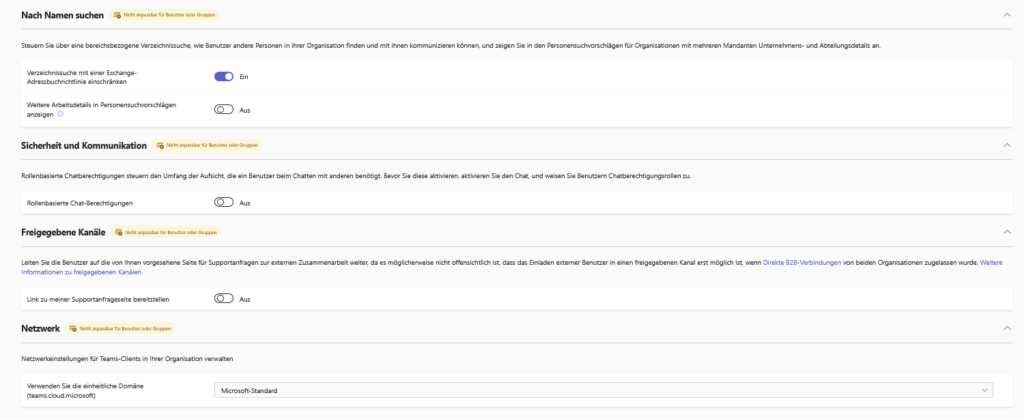
Search by name (directory restrictions)
Here you define how transparent the global address book is for the end user.
- Restrict directory searches with an Exchange Address Book Policy (ABP):
- Setting: A
- Meaning: This is an advanced governance setting. When enabled, Teams uses the address book policies (ABPs) defined in the Exchange.
- Use Case: This is essential for organizations that require strict information barriers (e.g., financial services companies where investment banking and analysis must be separate, or schools where students are not supposed to see all teachers). If the switch is active, a user will only see people in the Teams search who are included in their assigned "Global Address List" (GAL) and not the entire tenant.
- Setting: A
- View more work details in People search suggestions:
- Setting: Off
- Data protection: If you want to do data minimization, leave this disabled. If it is activated, the quick search shows details such as department or job title in addition to the name. Deactivating them can help to make internal "headhunting" or spying on departmental structures more difficult.
- Setting: Off
Security and Communication (Supervised Chat)
- Role-based chat permissions:
- Setting: Off
- Context: This function is primarily designed for the education sector . It enables "supervised chats", where students can only chat when a teacher (supervisor) is present, for example.
- Business Environment: In 99% of corporate environments, this switch remains off. Activating it without correct role assignment would massively disrupt communication, as users would suddenly no longer be able to write freely with each other.
- Setting: Off
Shared Channels (Support Governance)
Shared channels work technically differently than classic guest access (B2B Direct Connect). This often leads to confusion for users when an invitation fails.
- Provide a link to my support request page:
- Setting: Off
- Recommendation: Toggle this to On if you're using Shared Channels!
- The reason: In order for users to join external shared channels, both organizations (your company and the partner's) must have configured the trusted connection in the Entra ID (Cross-Tenant Access Settings). If this is missing, the user receives an error message.
- Process optimization: Leave a link to an internal wiki page or ticket form here. In this way, the user learns: "Ah, I first have to apply to IT to allow us to work with company X via shared channels," instead of giving up in frustration.
- Recommendation: Toggle this to On if you're using Shared Channels!
- Setting: Off
Network settings
Use the unified domain (teams.cloud.microsoft):
- Setting: Microsoft Standard
- Background: Microsoft is currently consolidating the URLs of its cloud services under the top-level domain
cloud.microsoft. In the long run, this simplifies whitelist management in firewalls and proxy servers. - Admin-To-Do: Make sure your network infrastructure (firewalls, VPNs, proxies) allows the wildcard domain
*.cloud.microsoftto avoid disconnections if the client switches to the new architecture.
- Background: Microsoft is currently consolidating the URLs of its cloud services under the top-level domain
New: Security prompt when saving
Once you've made your adjustments in the Teams settings and click Save, you'll notice a significant change in the workflow. In the past, settings were often pushed directly into the client without much question. Now Microsoft is pushing a security level in between.
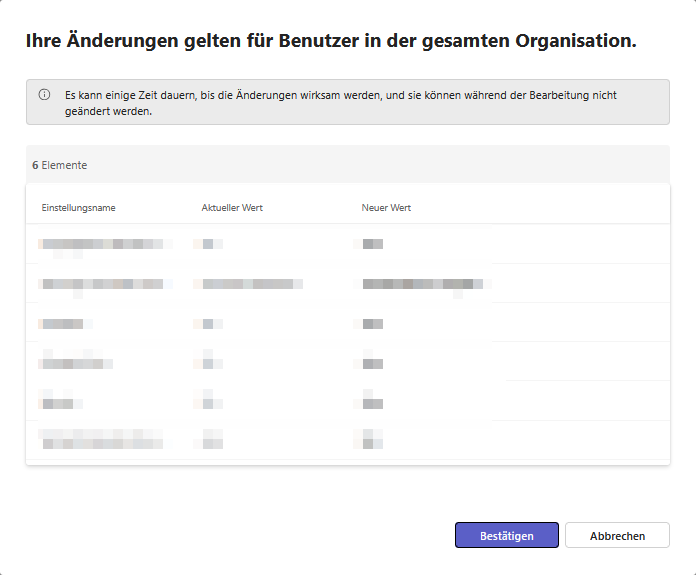
A confirmation window will open entitled:
Your changes will apply to users across the organization.
It may take some time for the changes to take effect, and they cannot be changed while editing.
This brings you the following advantages:
- The before-and-after comparison: In a clear table you can see exactly which settings you have touched. The columns "Current value" and "New value" show you the difference. This is your "last chance" to detect careless mistakes before they take effect.
- Awareness of the range: The dialog makes it unmistakably clear that you are flipping global switches that affect every user.
- Notice of delay: You are advised that the changes take a certain amount of time to take effect (propagation time) and that they cannot be changed again during processing.
Only with a click on "Confirm" is the process finally initiated. A small but fine UX step that protects administrators from accidental misconfigurations.
2. Team Templates
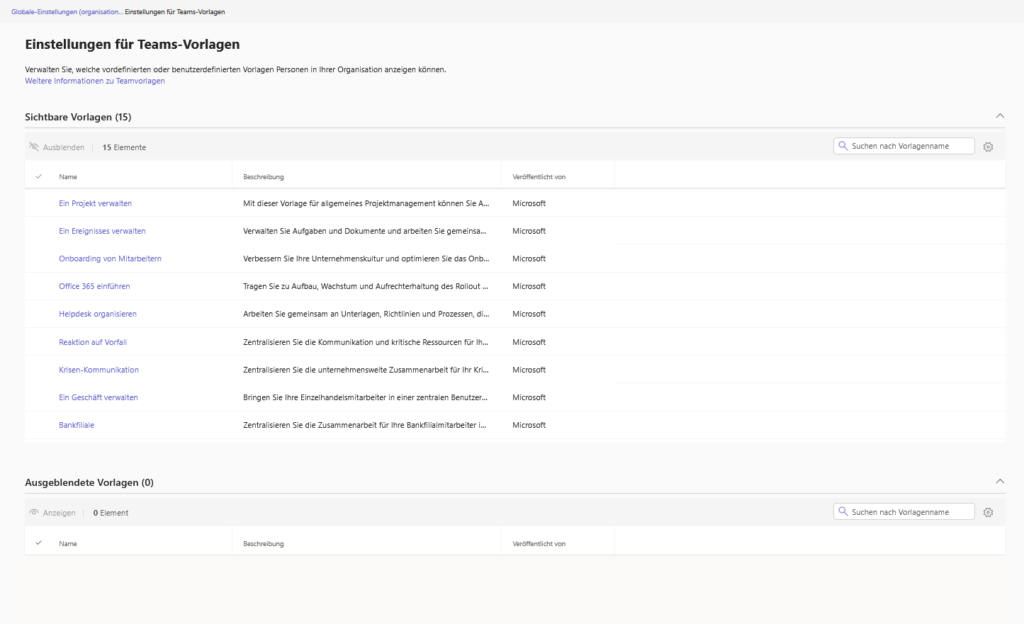
This area is used for standardization and "hygiene" in the "Create Team" dialog of your users. Instead of every user starting from scratch or being overwhelmed by a flood of irrelevant templates, you curate the offer here.
- Control visibility: As you can see in the menu, Teams distinguishes between "Visible templates" and "Hidden templates". So you define the catalog from which your users can help themselves.
- Tidying up is mandatory: By default, Microsoft includes a variety of industry-specific templates, which you can see in the screenshot – such as "Bank Branch", "Manage a Business" or "Incident Response". Let's be honest: If your business isn't a bank, the Bank Branch template will only confuse your users.
- Admin-To-Do: Go through this list and use the "Hide" feature to remove anything that doesn't fit your business case. This makes the selection much clearer for your colleagues.
- The benefits: By providing appropriate templates (e.g., "Manage a project" or "Onboard employees"), you automatically ensure a consistent structure (channels, apps, tabs) and save teams time when setting up new workspaces.
3. Teams update management
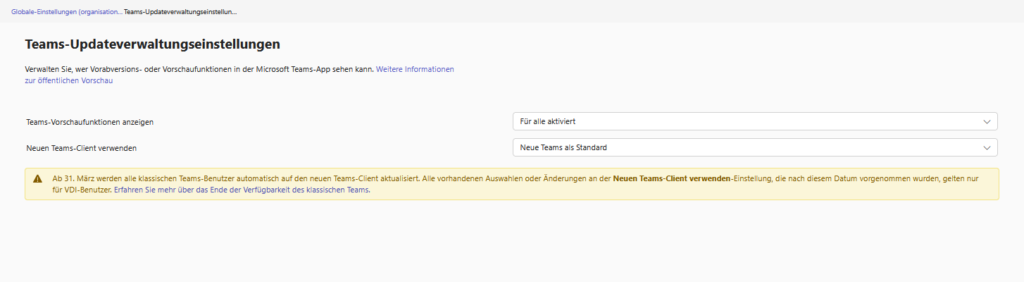
In this menu, you control the speed of innovation of your company. Here you determine whether your users have access to brand new features even before they are officially rolled out to everyone, and manage the (now almost complete) switch to the new Teams architecture.
Teams Preview Features (Public Preview)
- The function: With the "Show Teams preview features" setting, you allow users to use features that are still in public preview.
- Strategy: Don't turn this on globally for everyone! Preview features may contain errors or change at short notice.
- My tip: Give these rights specifically to a group of "power users" or your IT department. This allows you to test new features and write instructions before the rest of the company is confronted with them. This prevents surprises at the helpdesk.
New Teams client
- The status quo: The "Use new Teams client" setting has changed in meaning. As the notice text in the admin center reveals, all classic Teams users have been automatically updated since March 31 . The "Classic Teams" has reached its end-of-life.
- Relevance for VDI: Today, this switch is primarily only relevant if you manage a VDI environment (Virtual Desktop Infrastructure, e.g. Citrix or Azure Virtual Desktop). For physical desktop installations, Microsoft has already taken control and enforced the new client as the standard.
4. Migrate to Teams
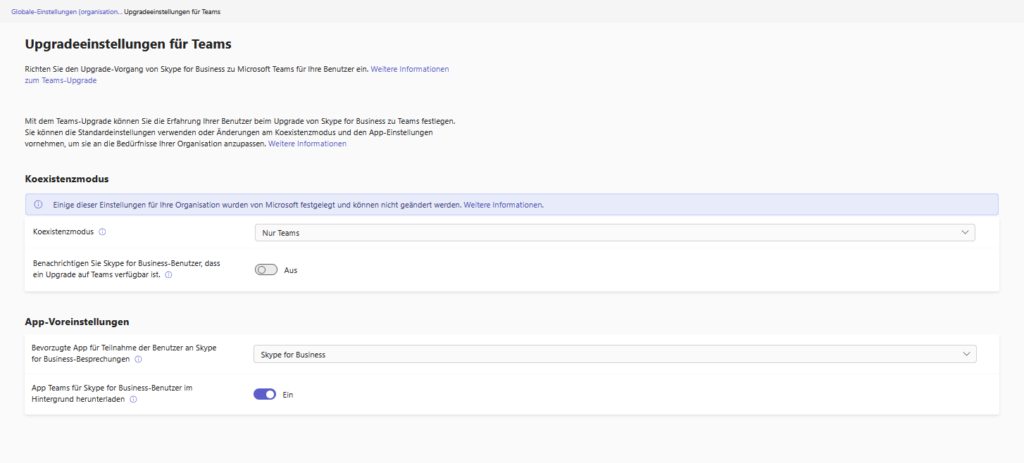
This menu item is a relic from the time of the big changeover from Skype for Business to Teams. For most modern cloud-only environments, it is hardly relevant today, as Skype for Business Online is long gone. Nevertheless, it appears in the new interface and deserves a short explanation.
- The background: Here, you theoretically control the so-called "coexistence mode" – i.e. how Skype for Business and Teams run side by side.
- Coexistence mode:
- You'll often see a message here: "Some of these settings for your organization have been set by Microsoft and can't be changed."
- This is because Microsoft has now forcibly switched almost all clients to the "Teams Only" mode. This means that Teams is the only app for chats, calls and meetings.
- When is that still important? Only if you're still running a complex Skype for Business Server environment (on-premises) that's hybrid connected to the cloud, you can control modes like Skype for Business with Teams Collaboration or Islands.
- App Preferences:
- Preferred app for meetings: This switch used to regulate whether a click on a Skype link opens the Skype app or Teams. In the "Teams Only" mode, Teams takes care of everything anyway.
- Background download: The "Download Teams app for Skype for Business users in the background" option was a migration aid to automatically push the Teams client to computers while users were still using Skype.
Conclusion on this point: If you have a cloud-only environment and everything here is grayed out or set to "Teams Only": Just ignore this area. It is only important for admins with local Skype servers in the basement.

Sei der Erste und starte die Diskussion mit einem hilfreichen Beitrag.
Leave a comment
Dein Beitrag wird vor der Veröffentlichung kurz geprüft — fachlich, respektvoll und auf den Punkt ist hier genau richtig.