
Data has an expiration date, or an eternity obligation. The trick is to manage both automatically.
Hand on heart: Can you guarantee that every business email from the last 10 years is available in an audit-proof manner, even if an employee deleted it from the trash yesterday?
Many administrators mistakenly rely on the backup here. However, a backup is used to restore in the event of failures (disaster recovery), not to archive in a legally compliant manner. In IT, we are in the balancing act every day: The GoBD forces us to keep data for years, while the GDPR requires deletion ("right to be forgotten").
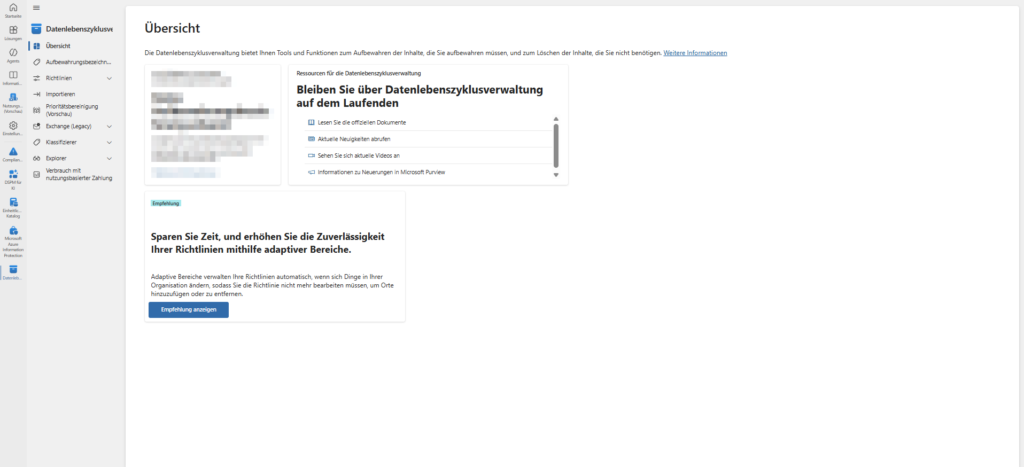
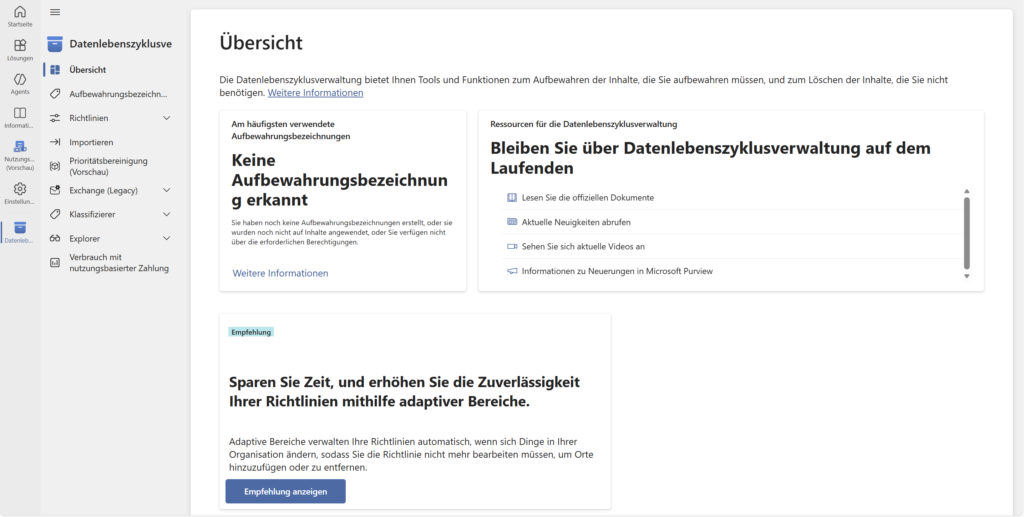
This balancing act can no longer be managed manually. That's where Microsoft Purview Data Lifecycle Management (DLM) comes in.
In this editorial, we get the complete overview of the strategy behind it. We clarify the crucial differences between backups and archives, shed light on licensing issues and look at when you need to reach for the rough "watering can" (Policies) or the fine "scalpel" (Labels).
Backup is not an archive: The confusion of terms
Before we get into the configuration in the portal, we need to clear up a fundamental misconception that I hear all the time in IT departments: "We don't need a retention policy, we have a Veeam/Datto/AvePoint backup that goes back 10 years."
This is often technically correct (the data is there), but dangerous from a compliance point of view and operationally a nightmare.
The two pillars of data security
To truly secure a Microsoft 365 environment, you need to cover two completely different scenarios. They can be divided into disaster recovery (backup) and compliance (retention):
- Das Backup (Disaster Recovery)
- Focus: Restoring business operations after an outage.
- Scenario: An employee accidentally deletes a folder, ransomware encrypts SharePoint, or Microsoft has a service outage.
- Objective: We want to restore the status of "Yesterday 14:00" exactly as it is (RPO/RTO).
- Problem: A backup is a snapshot. It is unsuitable for legal searches (eDiscovery). No one wants to mount 3,000 backup tapes (or cloud snapshots) to look for the email with the subject "Secret Project."
- The Retention Policy (Data Lifecycle & Compliance)
- Focus: Legal certainty, data sovereignty and eDiscovery.
- Scenario: Tax audit (GoBD), legal hold or the GDPR deletion obligation for applicant data.
- Objective: Data must be immutable for a defined period of time.
- Advantage: The data remains indexed live in the tenant. You don't have to "restore" anything to show an auditor — a simple search in the compliance center is all it takes.
How Exchange Online solves this technically: The "Recoverable Items" folder
Retention policies are completely invisible to the end user. This is the big advantage over classic archives, where users often had to move data manually.
When you put a retention policy (e.g., "Keep 7 years") on a mailbox, the following happens in the background:
- Deletion: The user deletes an email and empties the Recycle Bin ("Hard Delete"). For him, the mail is gone and the storage space is freed up in his view.
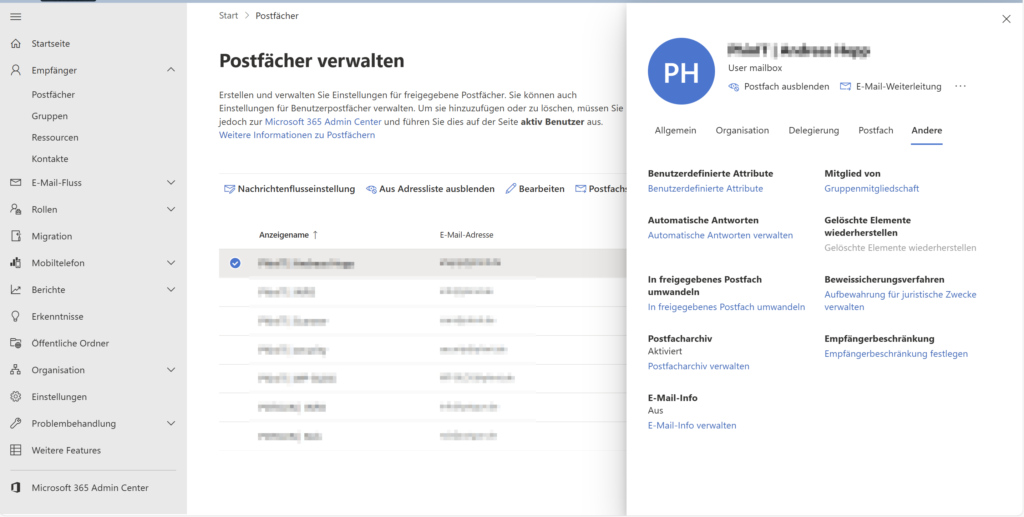
- Interception: Exchange intervenes. Instead of physically wiping the data from the hard drive, the system moves the item to the hidden system folder "Recoverable Items", more specifically to the DiscoveryHolds subfolder.
- Editing (Important!): Not only deletion is monitored. If a user changes an e-mail or a document, Exchange also saves the original version in the background thanks to "Copy-on-Write" (CoW).
- Storage: The data will remain there until the 7 years have expired. They are invisible to the user, but can be found by the admin at any time via Content Search or eDiscovery .
This means that retention protects against manipulation. Even if a compromised user account attempts to destroy evidence, the policy prevents physical deletion from the database.
💡 Legal deadlines & technical implementation
Before we configure, we need to clarify the "who" and "how long". This is where German bureaucracy meets Microsoft logic.
1. The legal basis (GoBD) | In Germany, the GoBD sets the pace:
- 6 years: For commercial and business letters (normal business correspondence).
- 10 years: For balance sheets, invoices and tax-relevant documents.
2. The Target: Static (E3) vs. Adaptive (E5) | How does the guideline end up with the user? Microsoft makes a strict distinction here according to license:
- Static areas (Business Premium / E3): The classic method. You select groups or users individually.
- Who uses this: All with Microsoft 365 Business Standard, Business Premium, or Enterprise E3.
- Disadvantage: High maintenance effort with granularity. If you select "All users", new employees are automatically included. But if you only want the "Finance" department (without an E5 license), you have to select users individually and add each new employee to the policy manually.
- Adaptive Areas (E5 / Compliance Add-on): The automatic way. You define dynamic rules such as
Abteilung = 'Finance'orLand = 'DE'.- Who uses this: Only users with E5 or the Information Governance add-on package.
- Advantage: Zero-touch administration. If an employee changes departments, the right policy takes effect immediately.
Disclaimer: I am not a lawyer. Please always clarify the binding deadlines with your legal department or the data protection officer before activating automatisms.
License jungle: How much does security cost?
Before we configure, we need to talk briefly about licenses. In the Purview cosmos, Microsoft makes a strict distinction between the pure retention of mass data (data lifecycle management) and the management of highly critical documents with evidential value (records management).
The following rule of thumb applies to your budget and planning:
Flat rate & static is standard (E3 / Business). Automatic, Dynamic & Audit-proof is Premium (E5).
To make sure you don't buy the wrong license, I've broken down the features into two scenarios (Enterprise & SME) here.
1. Enterprise: The difference between E3 and E5
In the Enterprise world, the separation is clear: Do you want the "watering can" (store everything) or the "scalpel" (find only important things automatically)?
| Microsoft | 365 | E5 (or Information Governance Add-on) |
| Basic Retention ("Keep everything in Exchange/Teams for 10 years") | ✅ Included | ✅ Included |
| Static Scopes (Manual selection of users/groups) | ✅ Included | ✅ Included |
| Manual Retention Labels (User selects label "Contract" by click) | ✅ Included | ✅ Included |
| Adaptive Scopes ("Automatically record all users from the Finance department") | ❌ Not Included | ✅ Included |
| Auto-Apply labeling (Set label based on keywords or sensitive content) | ❌ Not Included | ✅ Included |
| Records Management Features (Proof of deletion, disposition review, file plans) | ❌ Not Included | ✅ Included |
2. Special case of SMEs: Business Standard vs. Business Premium
Many administrators mistakenly assume that compliance features are reserved only for the "big guys". That's not true: Even with Microsoft 365 Business Standard and Business Premium (up to 300 users), you have access to retention policies.
But be careful: There is a critical "memory trap" at Business Standard.
| Function | Business Standard | Business Premium |
| Basic Retention Policy | ✅ Included | ✅ Included |
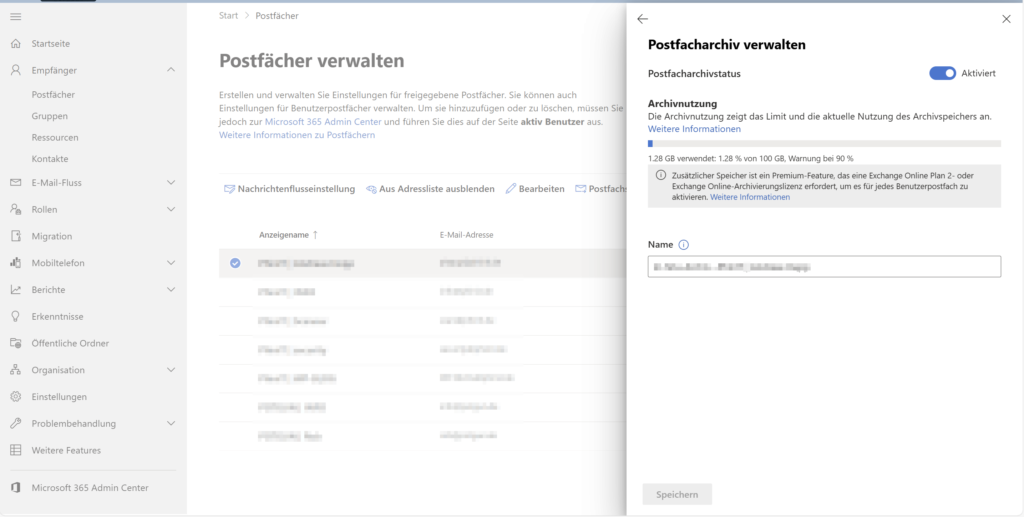
| Exchange Online Archive (Auto-Expanding Archive) | ❌ Yes (Only 50 GB mailbox) | ✅ Yes (1.5 TB archive) |
| Manual labels | ✅ included | ✅ |
| Automation (Auto-Apply) | ❌ No | ❌ No |
| Adaptive Scopes | ❌ No | ❌ No |
Why Business Standard can be dangerous for GoBD
If you configure a policy in Business Standard ("Keep all emails for 10 years"), it technically works immediately.
The problem: The mailbox in Business Standard is hard to 50 GB . If you force users to keep emails for over a decade (including the deleted emails in the background!), this limit will be reached very quickly. If the mailbox is full, the user can no longer send or receive emails – and you have a support ticket.
The solution: Business Premium
This is where Microsoft 365 Business Premium comes into its own. It includes (just like Enterprise E3) the license for Exchange Online Archiving.
- This allows you to enable an archive policy that automatically moves old emails (e.g. older than 2 years) to an online archive.
- This archive offers up to 1.5 TB of storage space.
- Conclusion: For serious, long-term storage (GoBD 10 years), Business Standard is a technical risk (storage space). Business Premium is the safe bet here.
Upgrade tip: If you already have Business Standard, you can also book the "Exchange Online Archiving" license individually as an add-on without having to migrate all users to Premium.
Manual vs. Automatic: The Human Factor (and License)
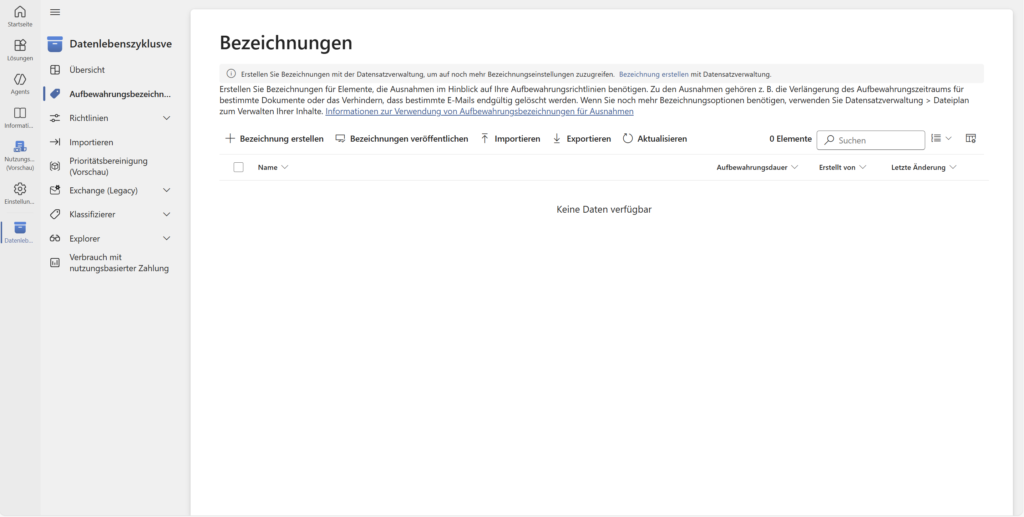
A key difference when working with labels is the question: Who sticks the label on the file? Microsoft draws a hard license line here.
- Manual (Standard | E3 / Business Premium):D you provide the labels centrally (e.g. "Management 10 years", "Internal 5 years"). However, the user must actively remember to select the correct label in Word, Outlook, or Teams.
- The risk: The human factor. Users forget to label or classify incorrectly.
- The risk: The human factor. Users forget to label or classify incorrectly.
- Automatic (Premium | E5 / Compliance Add-on):D he system does the work. It scans content in the background. If it finds the word "framework agreement" or patterns such as credit card numbers, the label is automatically applied. This guarantees complete compliance without user interaction.
At a glance: Policy vs. Label | So that you never think about which tool is the right one again, here is the direct comparison:
| Retention Label | function | |
| Destination | of the container (mailbox, site, team) | The item (file, email) |
| Logic | "Watering Can" (Everything is treated the same) | "Scalpel" (Individual Control) |
| Scope | of protection Prevents deletion only | Prevents deletion & optional editing (as record) |
| Visibility | Invisible in the background | Visible to the user (as tag/column) |
| Mobility | Applies only stationary at the storage location | Travels with the file (even when moving) |
| Main purpose | Basic protection (safety net) | Specific compliance (contracts, personnel files) |
Part 1: The Global Retention Policy
Enough of the theory and license tables. How do we implement this technically? The first step is usually the "watering can": We want to create a retention policy that secures your Exchange mailboxes and Teams chats across the board.
In this deep dive guide, I'll walk you through the wizard in the Purview Portal step by step. We clarify critical questions:
- Why you need to enable SharePoint to truly secure Teams .
- The decision between "Static" (E3) and "Adaptive" (E5).
- The logic trap: The difference between "retain only" and "retain and delete".
👉 To the guide: Setting up a retention policy
Part 2: The Scalpel for Documents (Retention Labels)
A global guideline is good, but sometimes too rough. What do you do if there are employment contracts (keep forever) next to application documents (delete after 6 months) in the same SharePoint library? This is where storage labels come into play. You stick directly to the file and travel with it.
In this article, I'll show you:
- When you should use labels instead of policies (granularity & records management).
- How to configure labels that trigger event-based (e.g., "10 years after contract ends").
- What settings you need to enable disposition reviews .
👉 Tutorial: Creating Retention Labels
Part 3: Making labels visible (Label Policy)
Created labels, but your users can't find them in Outlook or Word? That's normal. A label is like a product in the warehouse – it's no use as long as it's not on the shelf. To allow your users to choose the labels, you need to publish them through a label policy .
This is where most of the stumbling blocks lurk in testing. I'll explain to you in this guide:
- How to release labels specifically to departments.
- Why you sometimes wait days in Outlook (and what the "10 MB hurdle" has to do with it).
- How to check if the policy has been successfully distributed.
👉 to the instructions: Publishing labels
Conclusion: Your tenant is now an adult
Congratulations! By setting up these mechanisms, you have taken the step from "wild data collection" to professional data lifecycle management .
What we've achieved today is the foundation for a clean and secure Microsoft 365 tenant:
- Legal certainty (GoBD): You can sleep more soundly knowing that business-relevant emails and receipts are backed up for 10 years – regardless of whether a user empties the trash.
- Data protection (GDPR): Automatic deletion rules (e.g. for applicant data or temporary project files) allow you to meet the legal requirements for data minimization without having to manually "clean out".
- Cleanliness & Costs: Your tenant doesn't waste endlessly. This keeps the search results in SharePoint relevant and saves expensive storage space in the archive in the long run.
But just storing (or erasing) data is just the beginning. In the world of Microsoft Purview , the wheels are interlocking – next up are topics like Data Loss Prevention (DLP) and Sensitivity Labels.

Sei der Erste und starte die Diskussion mit einem hilfreichen Beitrag.
Leave a comment
Dein Beitrag wird vor der Veröffentlichung kurz geprüft — fachlich, respektvoll und auf den Punkt ist hier genau richtig.