

Effective controls are essential when managing groups in Microsoft Entra.
A “group” is rarely just a list of names, but often includes teams, SharePoint pages, and entire file repositories. Without maintenance, massive data protection risks arise here (shadow IT, orphaned data).


We configure three things here:
The creation (Who may?), the end (When will it be deleted?) and the order (Which names are taboo?).
1. General | Tackling the uncontrolled growth at the root
The first step to a clean environment is to control the source. By default, every user is allowed to create anything. We are changing that to ensure that groups are only created in a controlled manner and with a clear purpose.
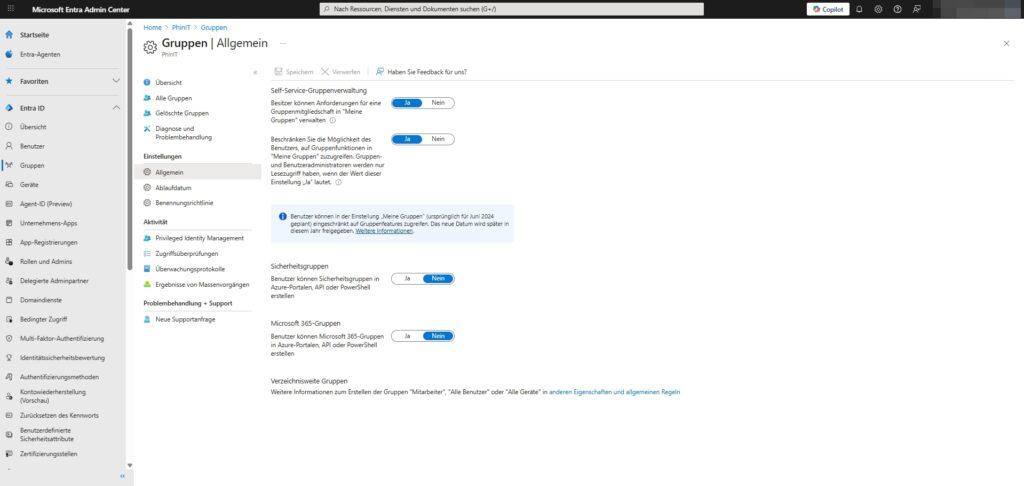
Path: Identity > Groups > All Groups > General
Here are the crucial switches for security:
- Security groups: “Users can create security groups in Azure portals, API, or PowerShell” → No
- Microsoft 365 Groups: “Users can create Microsoft 365 Groups in Azure portals, API, or PowerShell” → No
Why is this important? If you leave these settings on Yes, users can build their own Access Control Lists (ACLs) or create new SharePoint pages without IT knowing. By deactivating (“No”), you force the organization into an orderly process.
Note on self-service management: At the top of this menu, you can also control whether owners can manage membership requests in My Groups. For strict governance, it is often advisable to also restrict access to group functions in “My Groups” in order to keep administration central.
2. Expiration Date | The automatic deletion concept
The “right to be forgotten” and the data economy of the GDPR also apply to teams and groups. A project that has been completed for two years should no longer retain any data. Entra ID offers an automatic life cycle for this purpose.
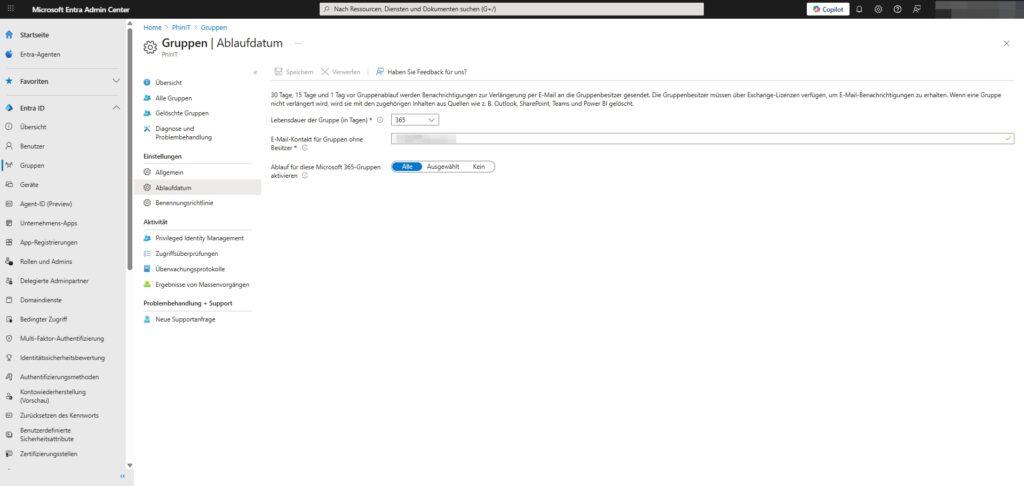
Path: Identity > Groups > All Groups > Expiration Date
Here you define when an inactive or non-renewed group is automatically deleted.
Recommended configuration:
- Group lifetime (in days): → 365 (or 180, depending on the policy).
- Email contact for groups without owners: → [Central IT Distribution List/Help Desk]
- Important: If the original creator left the company, the notification would go nowhere and the group (including data in Outlook, SharePoint, Teams, and Power BI) would be inadvertently deleted. Be sure to enter a fallback address here!
- Enable expiration for these Microsoft 365 groups: → All (or Selected for pilot phases).
Here’s how the process works: 30 days, 15 days, and 1 day before the group expires, owners (if they have Exchange licenses) receive an email. You can extend the group with one click. If no one reacts, the group is deleted along with all its contents.
3. Naming Policy | No false names
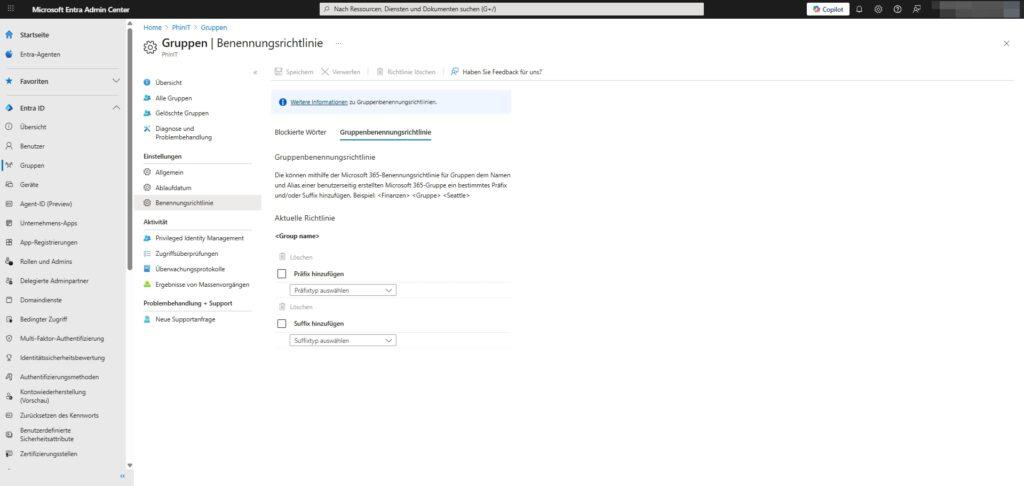
Names are smoke and mirrors? Not in data protection. Misleading group names (e.g. “HR-Confidential” created by an intern) can lead to fatal errors in file sharing.
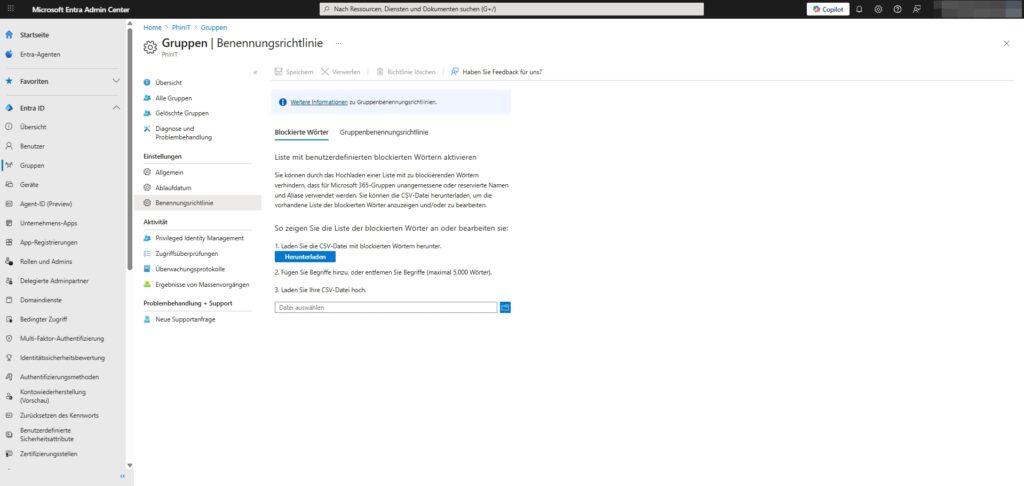
Path: Identity > Groups > All Groups > Naming Policy
Under the Blocked Words tab, you can upload a list to ban certain terms.
Procedure:
- Download the CSV template.
- Enter terms that are not allowed to be used (e.g. “management”, “HR”, “board”, “salary”, swear words).
- Upload the file again (maximum 5,000 words).
This prevents users (if they are allowed to create groups) or admins from accidentally choosing names that suggest incorrect authorization or are inappropriate.
Administrative Control & Memberships
If users are no longer allowed to create groups, the creation is done by you or a help desk team (ITIL process). This sounds like more work, but it has decisive advantages for the GDPR:
- Approval: You check beforehand whether a new data collection is really necessary (data economy).
- Ownership: Each group gets a clear “owner” who is responsible for the content.
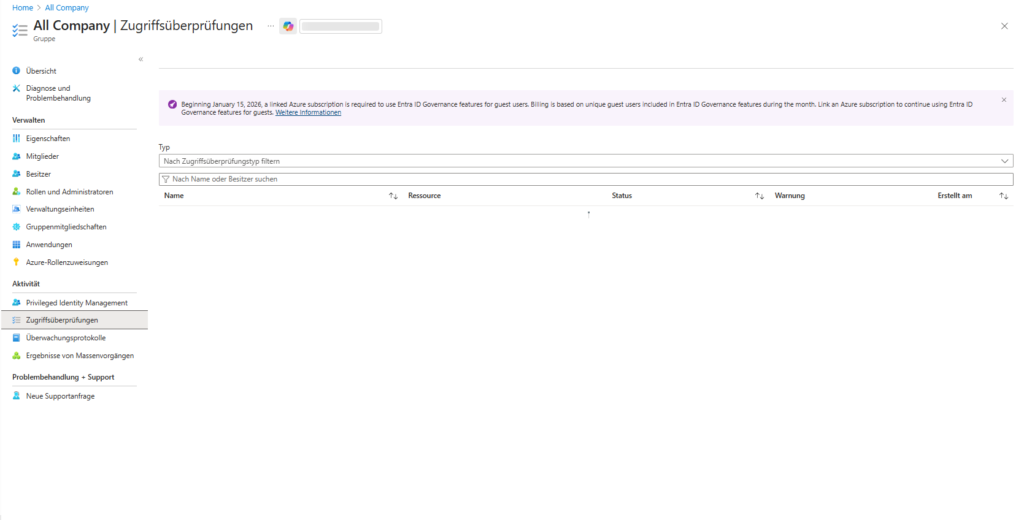
Prof tip: Regular reviews (Access Reviews) For sensitive groups (e.g. “management” or “HR data”), simply setting them up is not enough. If you have Entra ID P2 licenses, use the




Be the first to comment