

Password-based SSH logins are the primary attack vector for brute force attacks on Linux servers. As soon as port 22 is open, bots hammer against authentication. The only sustainable architectural decision is to deactivate passwords in favor of asymmetric cryptography (public key procedure).
In this guide, we configure a Debian server so that the login is done exclusively via a cryptographic key pair. We use the workflow of server-side generation and import into the Windows client (PuTTY).
Generate Key Pair
We start directly on the server. Here we generate an RSA key pair with a bit length of 4096. This length is necessary to remain resistant to factorization attacks in the long term (standard 2048 bits is now considered the minimum, 4096 is future-proof).
Log in as the user you want to secure (here: root) and execute the following command:
ssh-keygen -t rsa -b 4096The tool asks for the location and a passphrase.
- Location: Confirm the default (
/home/user/.ssh/id_rsa). - Passphrase: Here you define a password that encrypts the private key locally. If your private key is stolen, it is worthless without this passphrase. Be sure to set a strong password here.
The output confirms the creation of the fingerprint and the Randomart image.
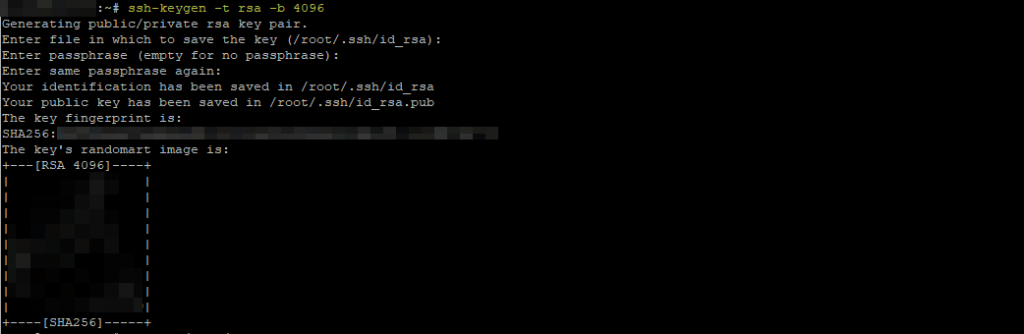
Check the creation of the files:
ls -l ~/.ssh/id_rsa: Private Key. It’s your proof of identity. It must never fall into the hands of strangers.id_rsa.pub: Public Key. This is stored on the server and may be publicly known.

Authorize Public Key
In order for the SSH daemon(sshd) to accept the key, the contents of the public key must be written to the file authorized_keys . When logging in, the daemon checks whether the client has the appropriate private key for one of the public keys listed here.
cat ~/.ssh/id_rsa.pub >> ~/.ssh/authorized_keysImportant: SSH is extremely strict when it comes to file permissions. If the file authorized_keys or folder .ssh is writable by other users, the daemon refuses to serve (Strict Modes) for security reasons. We therefore set the rights restrictively:
chmod 700 ~/.ssh
chmod 600 ~/.ssh/authorized_keys700: Only the owner is allowed to open the directory.600: Only the owner is allowed to read/write the file.

Transfer private key to the client
Since we have generated the key pair on the server (server-side generation), we now need to bring the private key (id_rsa) securely to the Windows client.
Use WinSCP or a similar SCP client for this.
- Connect to your server.
- Navigate to
/home/[BENUTZER]/.ssh/. (If the folder is invisible:STRG + ALT + Hin WinSCP). - Download the file
id_rsato your local Windows PC.
Architect-Note: Treat the file id_rsa as your credit card information. Ideally, delete them from the server after the transfer so that only the public key is there.

Harden SSH daemon (disable passwords)
As long as password authentication is active, the key does not provide any security gain against brute force. We now configure the daemon so that it only accepts keys.
Open the configuration:
sudo nano /etc/ssh/sshd_configFind and change (or uncomment) the following parameters. Disabling the root login is an additional “defense-in-depth” measure, as the user “root” exists on every system and is therefore a popular target.
PubkeyAuthentication yes
PasswordAuthentication no
PermitRootLogin no
Save the file (STRG+O, Enter) and close it (STRG+X).
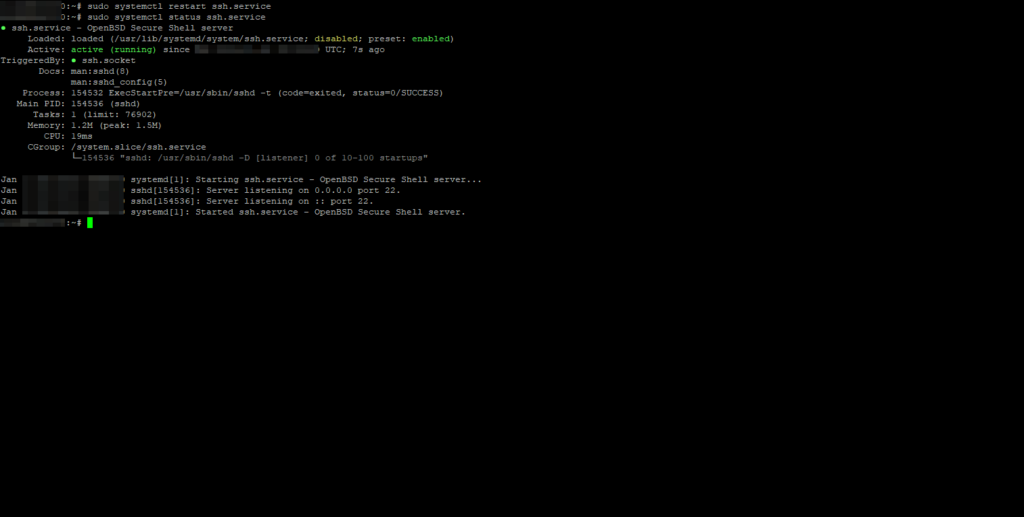
In order for the changes to take effect, the service must re-read the config. Existing connections will not be disconnected, but test access in a new terminal window before closing the current one.
sudo systemctl restart ssh.service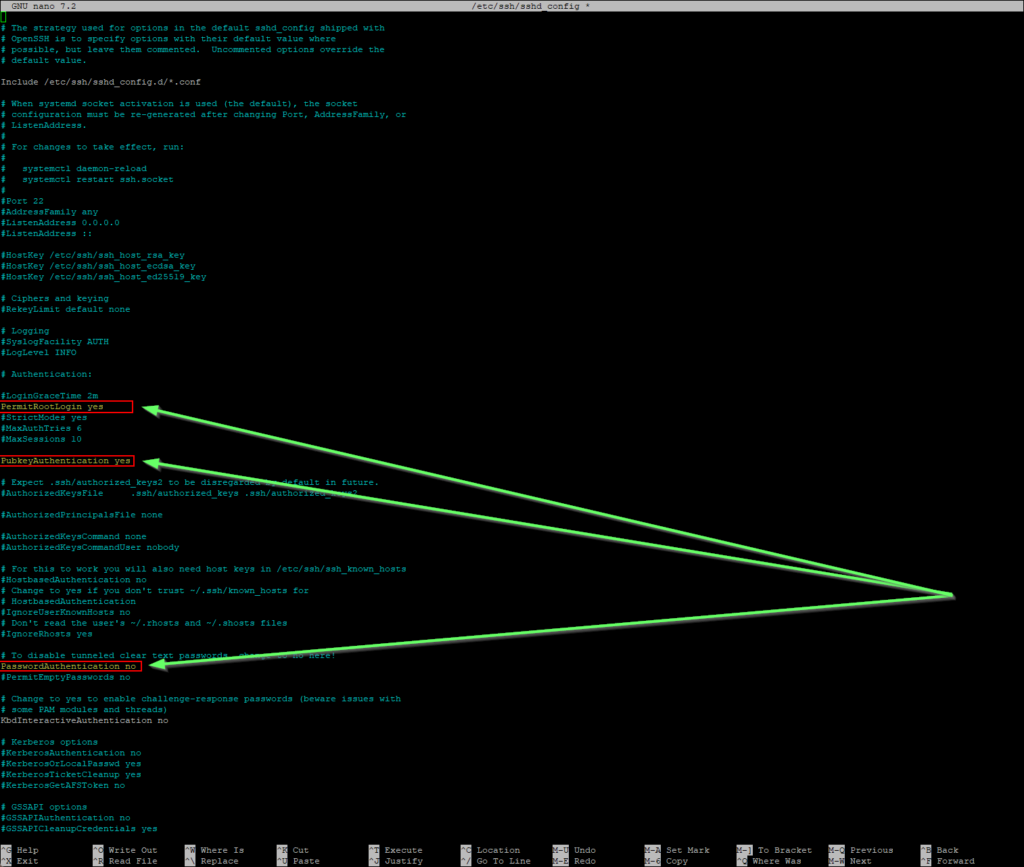
Client Configuration with PuTTY
If you use PuTTY to connect, please note that this tool requires its own key formats. The created OpenSSH key(id_rsa) is not compatible and must first be converted to the PuTTY format(.ppk).
On the other hand, if you use PowerShell, you can use the private key directly in its original format, as it was created.
– Conversion with PuTTYgen

- Start the PuTTY Key Generator (PuTTYgen).
- Click on Load and select “All Files (*)” in the file filter.
- Select your downloaded
id_rsafile. - Enter your passphrase (if assigned in step 1).
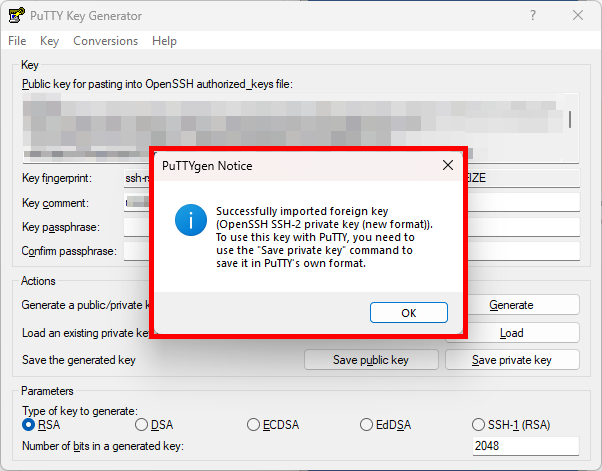
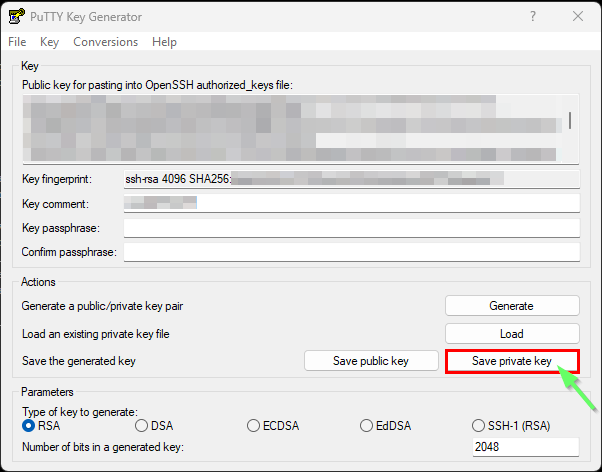
The tool has now imported the key. Save it in PuTTY format:
- Save the file as
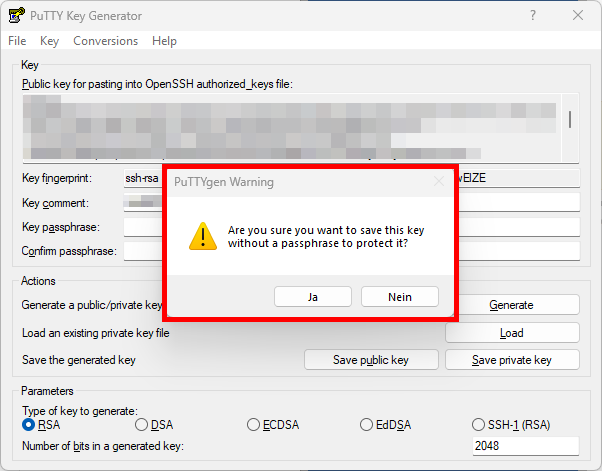
private_key.ppk. - Click Save private key.
– Establishing a connection with PuTTy
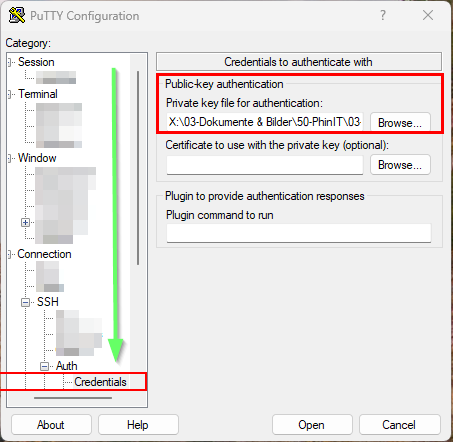
Now we configure the session in PuTTY.
- Open PuTTY.
- In the tree menu on the left, navigate to:
Connection -> SSH -> Auth -> Credentials. - Under “Private key file for authentication”, select the file you just created
.ppk.
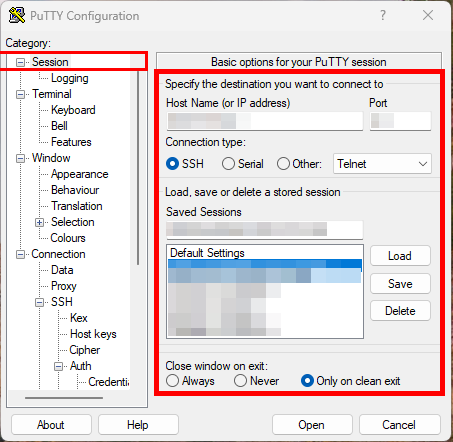
- Go back to Session, enter IP and port, and optionally save the session.
- Click on Open and if it is the first connection, confirm the fingerprint with yes.

Establishing a Connection | The password request of the server is no longer necessary. Instead, the SSH key is used.
Only in the case of protected keys do you now have to enter their passphrase (local decryption).
– Connecting with PowerShell

Instead of installing PuTTY, you can use the built-in SSH client on current Windows systems. The big advantage: Your id_rsakey works immediately, no conversion is necessary.
To do this, simply use the following command in PowerShell:
ssh -i .\id_rsa USERNAME@IP des SERVERSTroubleshooting: File permissions
@@@@@@@@@@@@@@@@@@@@@@@@@@@@@@@@@@@@@@@@@@@@@@@@@@@@@@@@@@@
@         WARNING: UNPROTECTED PRIVATE KEY FILE!          @
@@@@@@@@@@@@@@@@@@@@@@@@@@@@@@@@@@@@@@@@@@@@@@@@@@@@@@@@@@@
Permissions for 'id_rsa' are too open.
It is required that your private key files are NOT accessible by others.
This private key will be ignored.
Load key "id_rsa": bad permissions
USERNAME@xxx.xxx.xxx.xxx: Permission denied (publickey).
If this error message appears, the permissions of your private key file are not set restrictive enough. You have two options to fix this:
- Option A (Simple): Move the key file to your Documents folder. Windows rights inheritance automatically gives the file the correct permissions there.
- Option B (Manual): Change the security settings of the file manually. Make sure your current Windows user is listed as the owner and has full control . All other users should be removed.
Conclusion & Safety Assessment
With this change, you have massively reduced the attack surface of your Debian server. Automated scripts that test password lists against your port 22 now run into the void (“Permission denied”).
Important safety information:
- Backup: Never lose your private key. Since
PasswordAuthenticationit says onno, you permanently lock yourself out of the system without a key (unless you have console access via the hoster). - Key Management: Ideally, generate a separate key for each device. If a laptop is stolen, all you have to do is remove its specific public key on the server from the
authorized_keysserver without having to reconfigure all other accesses.

