

Microsoft 365 Copilot is an AI-powered tool that is deeply integrated into the Microsoft 365 environment.
It uses large language models to process natural language, link it to content in the Microsoft Graph such as emails, documents, chats, calendars, and contacts, and provide contextual suggestions, text, summaries, and evaluations in Office applications.
Copilot | Introduction
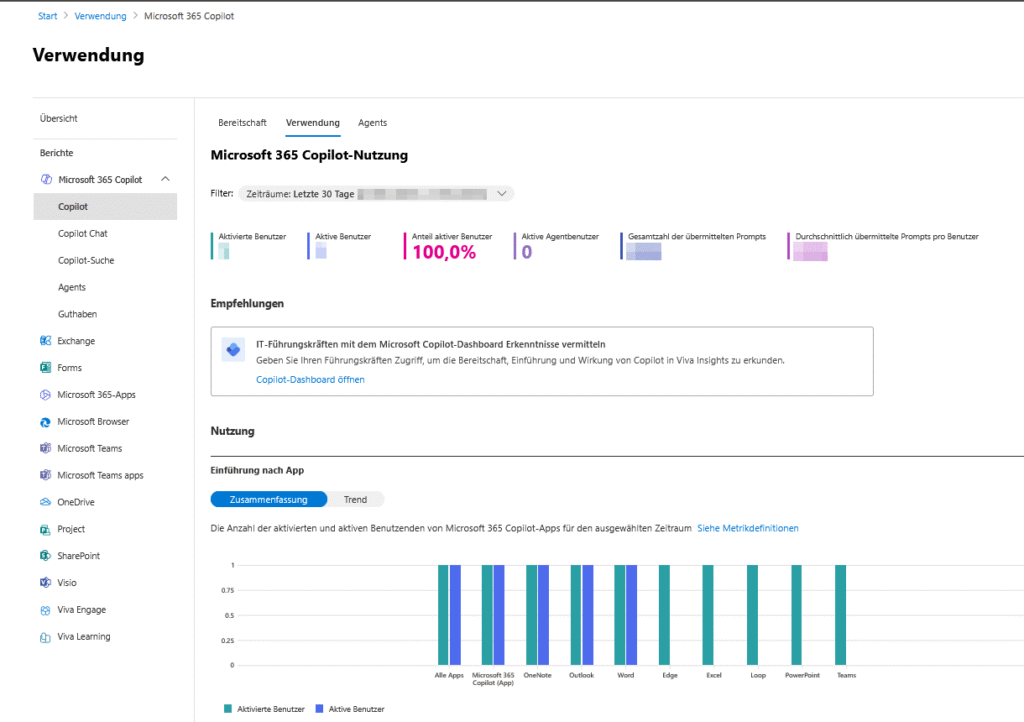


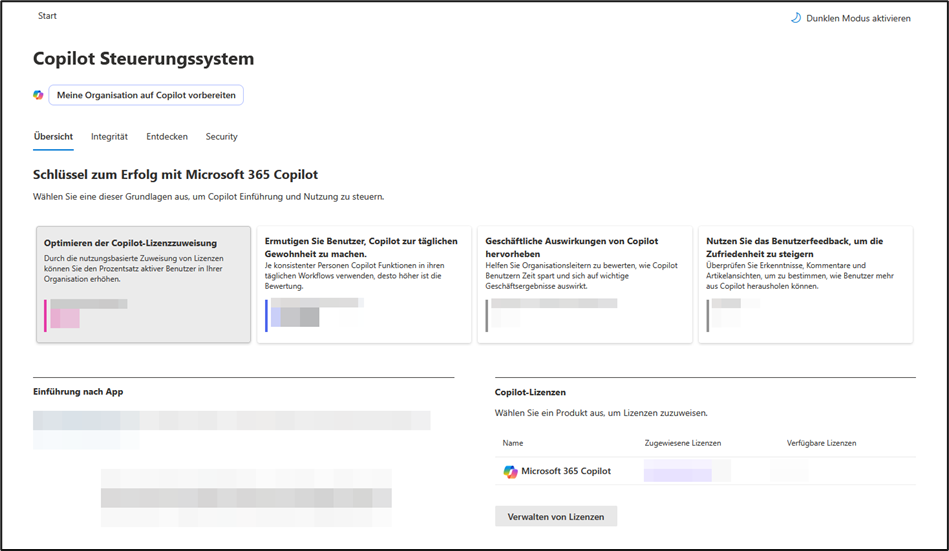
Various control mechanisms are available for the successful introduction and use of Copilot.
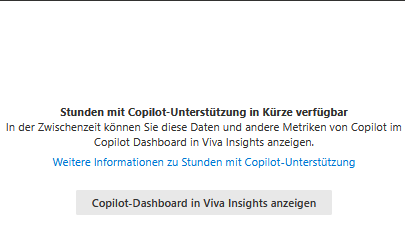
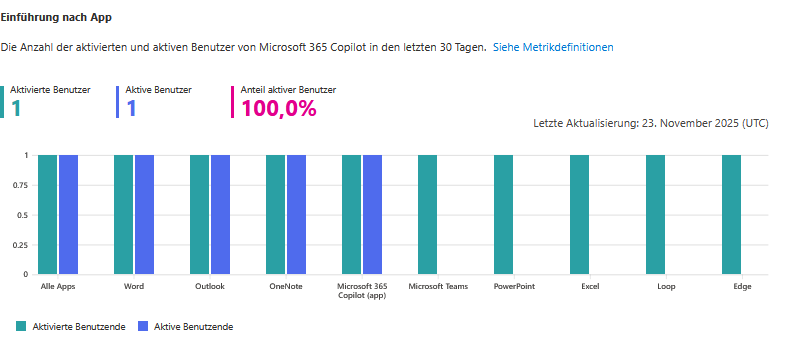
For example, the rollout can be monitored via the active user rate, an AI adoption score, or the number of hours supported by Copilot. An overview of the sponsors and the introduction by app also offer insights into usage within the last 30 days.
It may take some time for initial usage data to be visible, as reports take up to 72 hours to refresh.
Copilot | License management and updates


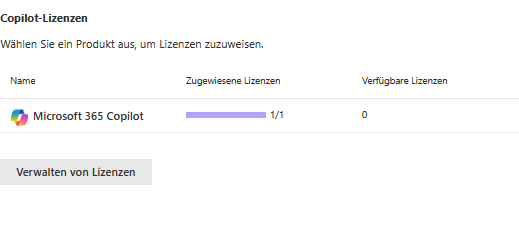
Copilot licenses are managed centrally by selecting products and assigning licenses. Information about update channels and the status of the connected user interfaces, as well as OneDrive, will be provided as soon as the data is available.
For new organizations, this monthly data is displayed from the first month of use. Changes, new features, and known service issues are communicated regularly, so administrators stay up to date.
Increased efficiency and automation

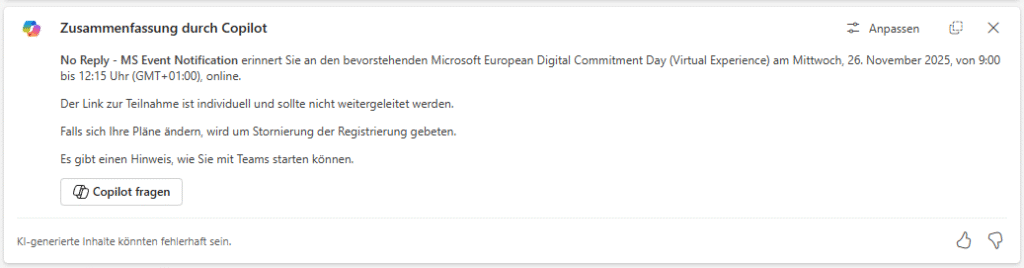
Microsoft 365 Copilot helps you work faster and smarter. By integrating them into the apps, workflows can be optimized, inboxes can be managed efficiently, information can be found in a targeted manner and initial drafts can be created.
In addition, recurring processes such as the induction of new employees or invoicing can be automated, making it easier to concentrate on the essentials.
Security, privacy, and compliance

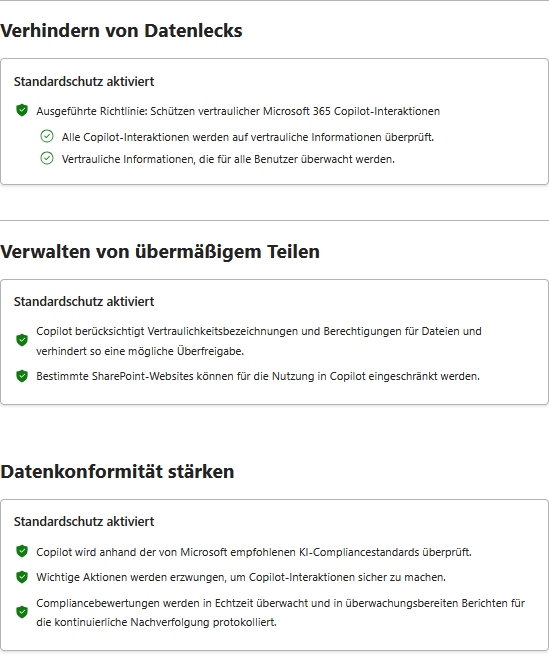
Copilot inherits the security, compliance, and privacy policies established in Microsoft 365. The company remains in control: Copilot only accesses content for which the respective person has at least read permission.
The permissions are based on the existing access models, such as SharePoint or Teams permissions. It is particularly noteworthy that Microsoft does not use the inputs (prompts) or the generated responses to train the underlying AI models. Copilot operates within the Microsoft 365 service boundary and uses Azure OpenAI services, not the publicly available OpenAI services.
Storage and deletion of interaction data
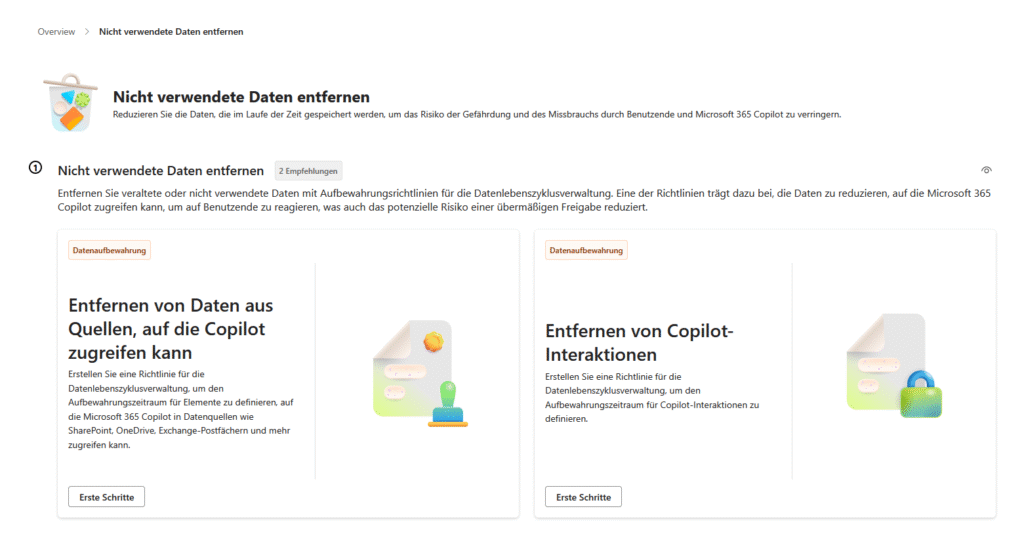
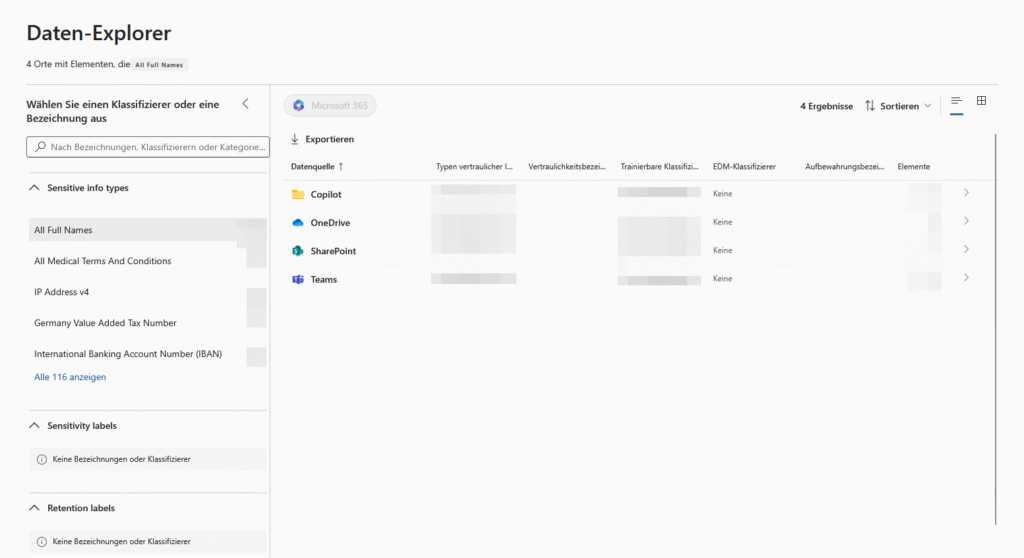
All input and generated responses, including any citations, are stored as part of the Copilot activity history in the tenant-owned area of Exchange Online. This storage is encrypted and in accordance with the contractual obligations, in particular the Product Terms and the Data Protection Addendum. Microsoft Purview can be used to search this data and manage it using retention policies. Users also have the option to delete their own Copilot activity history themselves.
Settings
Location of Interaction Data: The content of all interactions with Copilot, including prompts, responses generated, and semantic index, will be retained in accordance with applicable data residency obligations. This is done either in the applicable Local Region Geography or in accordance with the Preferred Data Location (PDL) set for the respective tenant.
LLM processing and data flow: When using Copilot, the entered text is sent to the large language model (LLM) in the geographically closest Azure OpenAI datacenter for processing. If there is a particularly high utilization, it can happen that LLM requests are also redirected to other regions. For customers from the EU, additional protective measures take effect within the framework of the EU Data Boundary: All data traffic originating from the EU remains within the EU region. In contrast, traffic from other parts of the world can be transferred for processing either to the EU or to other regions. If the service is used outside the EU or optional functions are activated, it is possible that data will also be processed in regions outside Europe.
Third-party extensions and integration: Microsoft 365 Copilot enables the activation of graph connectors and so-called “agents”, which allows external data sources such as CRM systems to be integrated. Admins have the ability to granularly control which agents are allowed within the organization in the admin center. However, before using such external agents, it is essential to carefully review the respective privacy and terms of use and ensure that the data processing complies with the company’s own compliance requirements.
User access

Opal (Frontier)

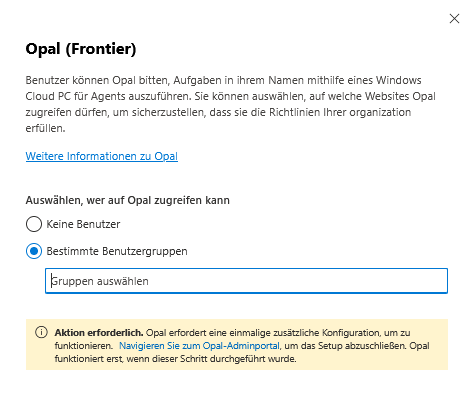
Opal is a feature in the Frontier program for Microsoft 365 Copilot. Users can ask Opal to automatically complete tasks for them on a secure Windows Cloud PC, such as collecting evidence for audits or submitting timesheets. Administrators determine which websites Opal is allowed to access.
To use Opal, you must first complete a one-time setup in the Opal admin portal. Among other things, Intune and Microsoft 365 Copilot licenses are required. Activation takes place in the Microsoft 365 admin center, after which the configuration continues in the Opal Admin Portal (create Cloud PCs, share websites, store instructions and launch templates).
currently only available in the Frontier Early Access program with Microsoft 365 Copilot license!
Microsoft Copilot for Security

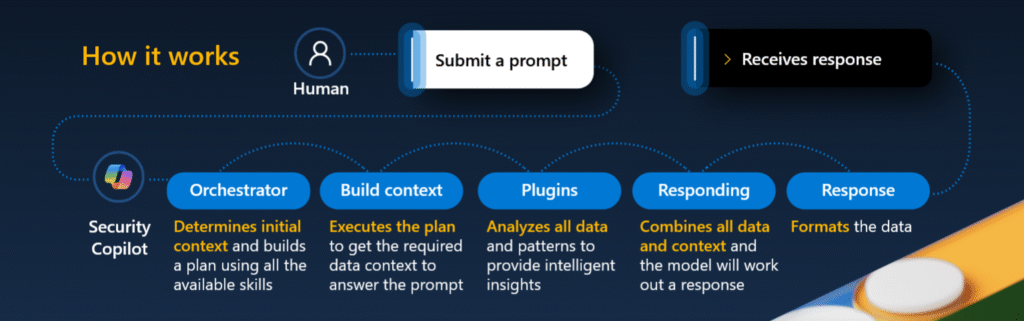
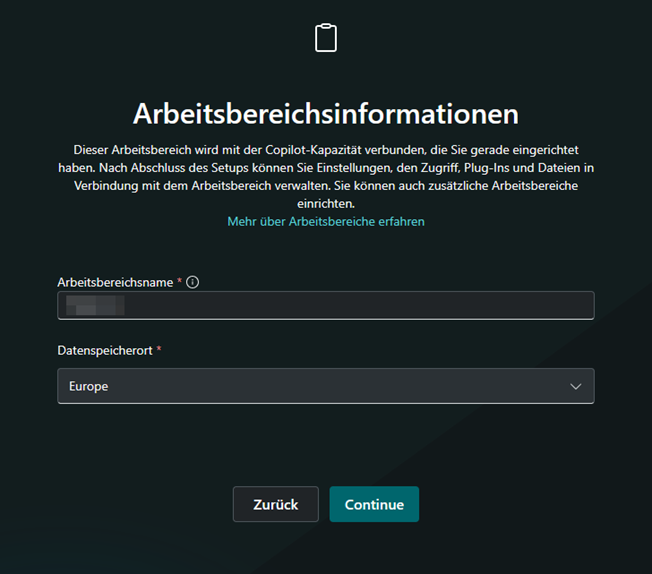
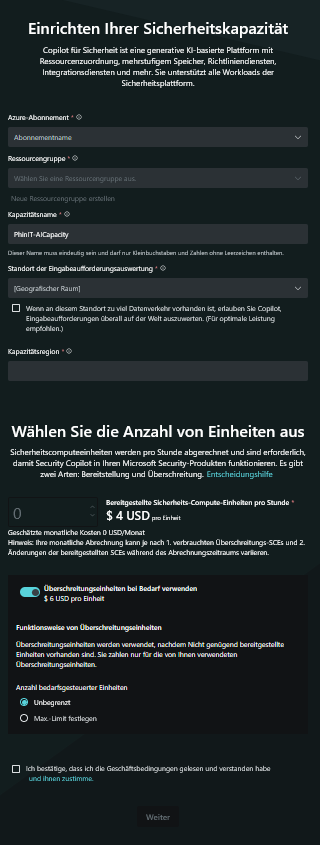
Microsoft Copilot for Security is an AI-based assistant for security teams. You’ll need an Azure subscription, a resource group, and a unique capacity name.
Select the region and specify how many security compute units (SCUs) you want to deploy.
A provisioned SCU costs $4 per hour. For short-term additional needs, you can use additional
Microsoft 365 Copilot self-service purchases

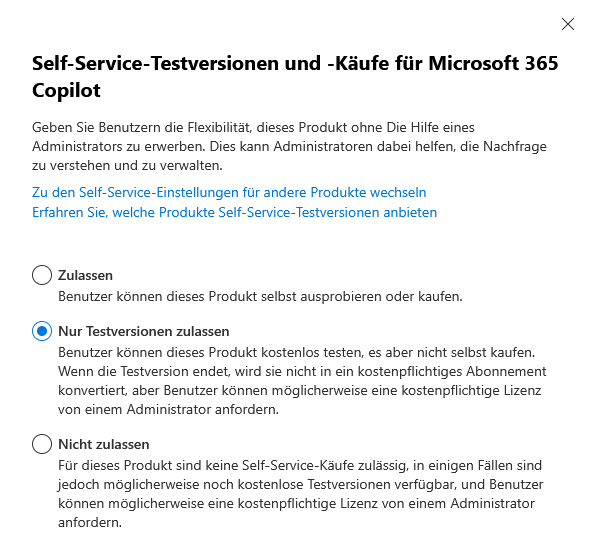
Self-service trials and purchases for Microsoft 365 Copilot give users the ability to test or purchase the product on their own, without the intervention of an administrator.
The advantage of this feature is that end users can access new tools flexibly and instantly, which promotes adoption and adoption within the organization. At the same time, the self-service option helps administrators identify and manage the actual demand for Microsoft 365 Copilot in the company by monitoring usage and license statistics.
Enabling self-service purchases can be controlled centrally from the Microsoft 365 admin center. Administrators keep track of purchases made and can define policies for the use or purchase of licenses if necessary.
Pin Microsoft 365 Copilot apps to the Windows taskbar

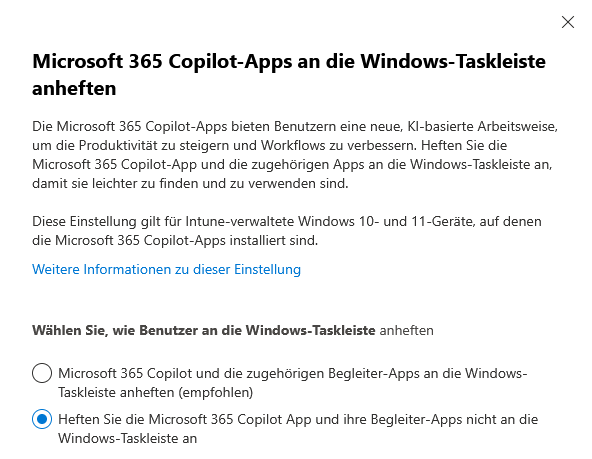

The Microsoft 365 Copilot apps give users a new, AI-powered way to increase productivity and make everyday workflows more efficient. To make it quick and easy to access the Microsoft 365 Copilot app and other associated apps, it’s a good idea to pin them to the Windows taskbar.
- This will take you directly to the most important features of Microsoft 365 Copilot.
- The pinned apps are always visible and available with one click, which makes daily use easier.
- This approach is especially useful for devices that are managed through Intune and already have the Microsoft 365 Copilot apps installed, both on Windows 10 and Windows 11.
Pinning the Microsoft 365 Copilot apps to the taskbar ensures that the AI-based tools are always at hand in everyday work and helps to seamlessly support the integration of new ways of working.
Microsoft 365 Copilot in admin centers

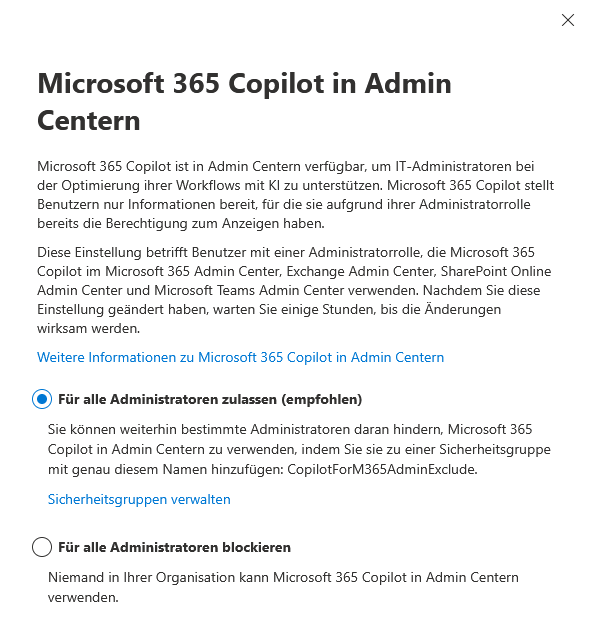
The integration of Microsoft 365 Copilot across the various admin centers enables IT admins to more efficiently manage and use AI-powered capabilities within the organization. Access rights are strictly respected: administrators only see the content and information for which they are authorized according to their role. Deployment takes place in the Microsoft 365 admin center, Exchange admin center, SharePoint Online admin center, and Microsoft Teams admin center.
After changing the settings, it can take a few hours for the adjustments to be fully implemented. To specifically restrict the use of Microsoft 365 Copilot, it is possible to add certain administrators to a security group called CopilotForM365AdminExclude. Members of this group are excluded from accessing Copilot in the admin centers. These security groups are managed through the appropriate admin interfaces, so you can maintain control over access rights at all times.
If no one in your organization is a member of the eligible security groups, Microsoft 365 Copilot can’t be used in the admin centers. This ensures IT security and compliance at all times.
Pin Microsoft 365 Copilot Chat

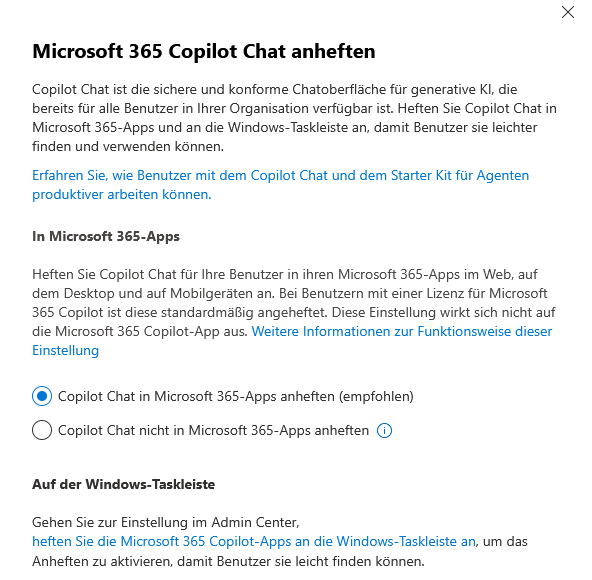
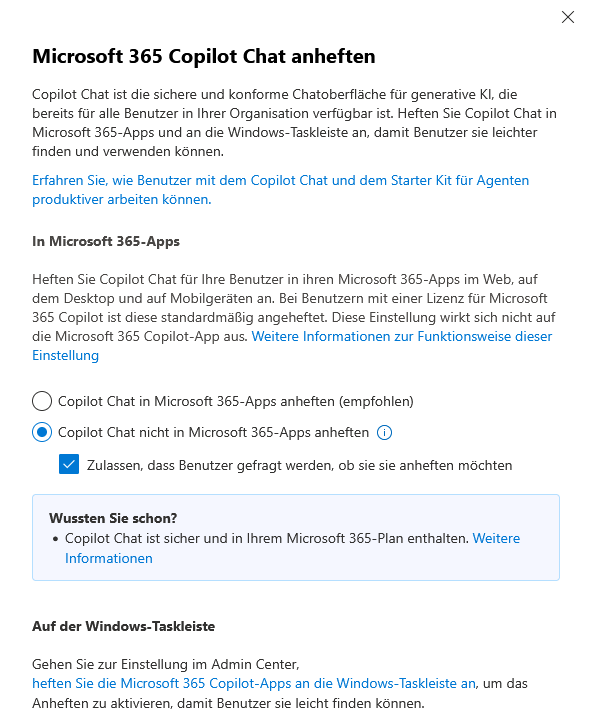
Copilot Chat is a secure, compliant chat interface for generative AI and is available to all users in your organization. Pin Copilot Chat to Microsoft 365 apps (web, desktop, mobile) and the Windows taskbar for quick access.
For authorized users, Copilot Chat is pinned by default in the apps. You can make the settings for this in the Admin Center. This will increase productivity and facilitate access to AI-powered features.
Copilot pay-as-you-go billing

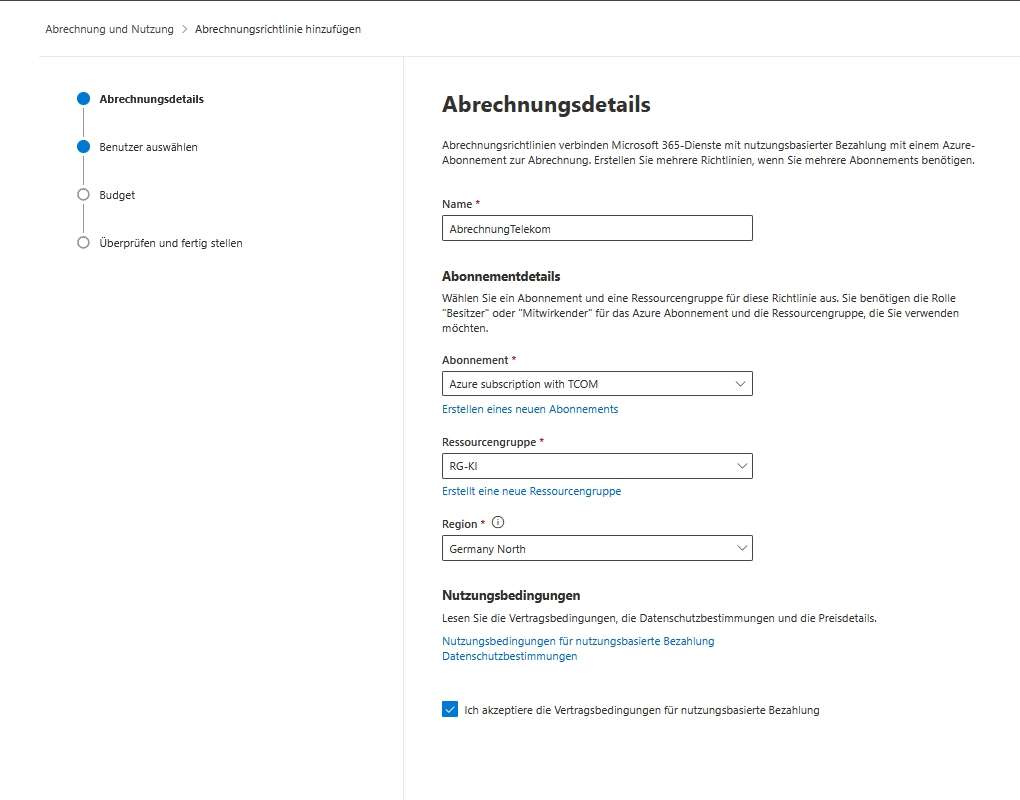
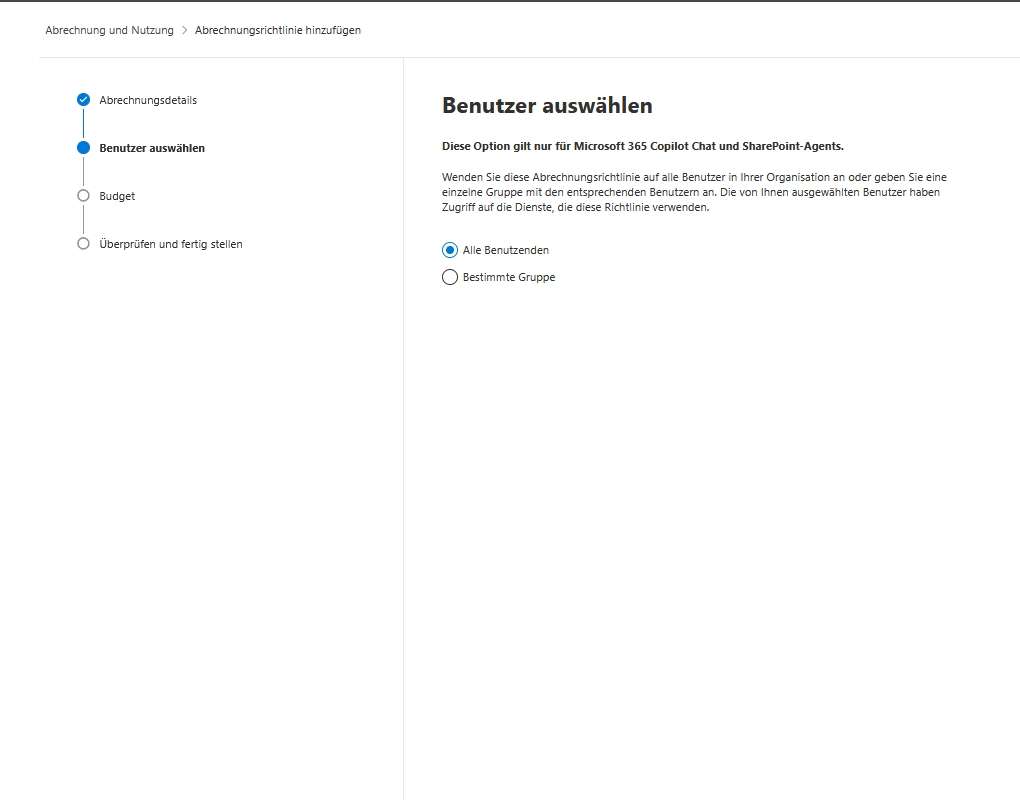
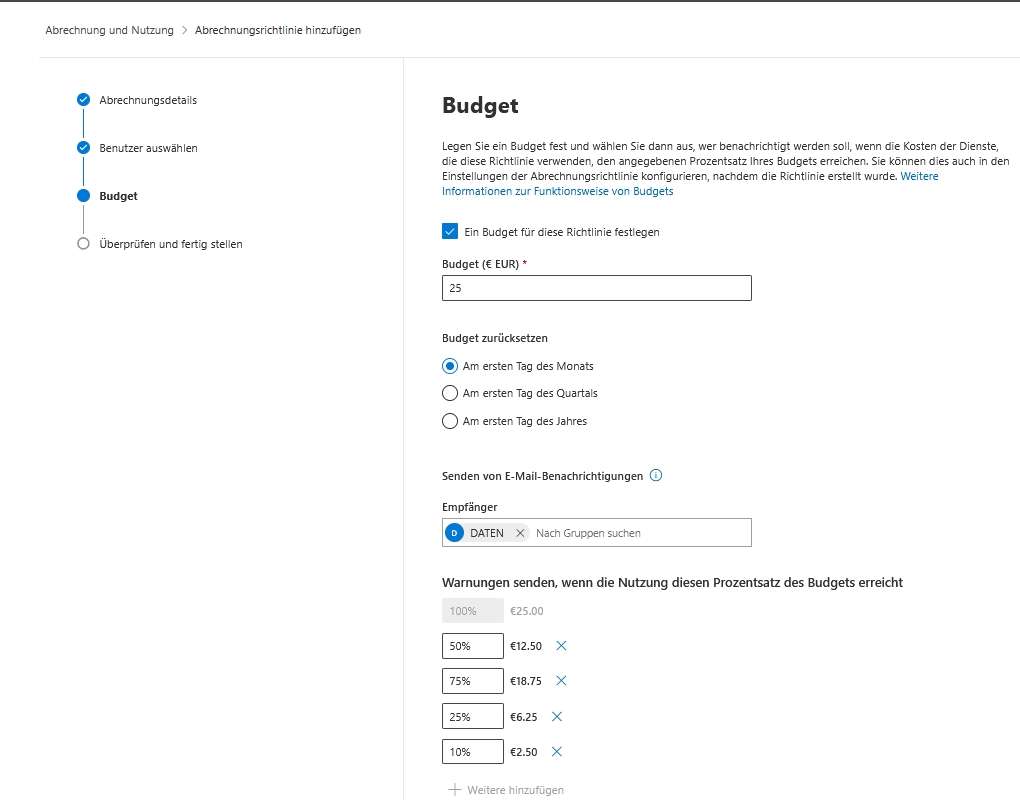
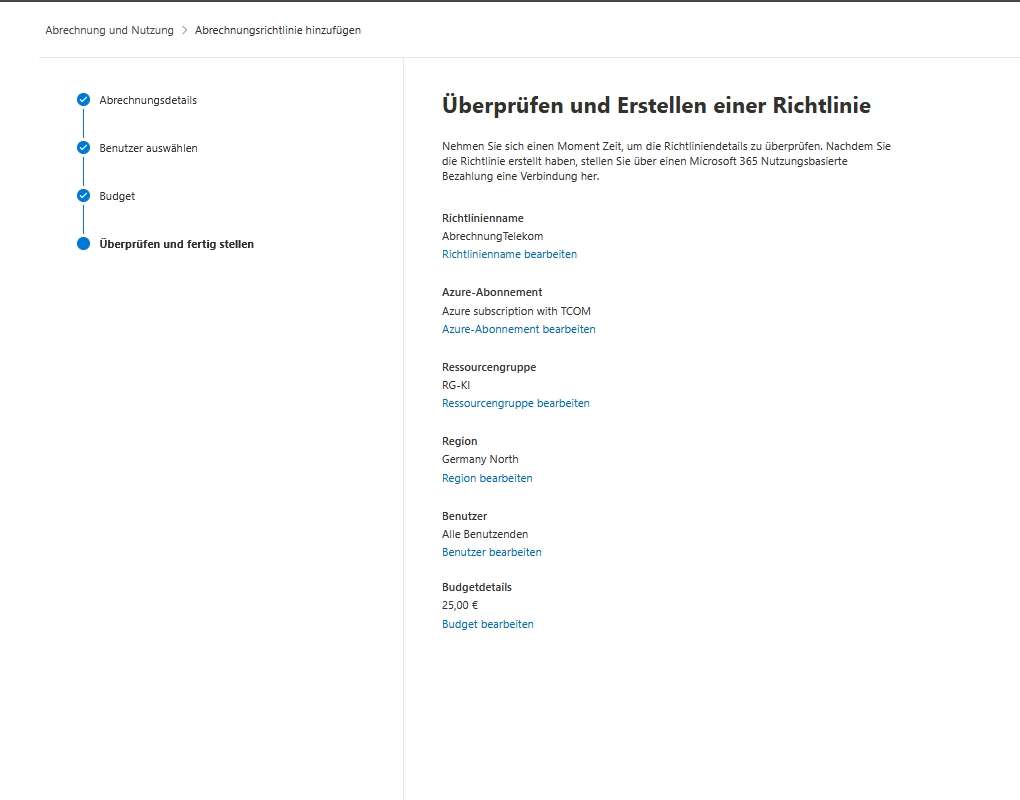
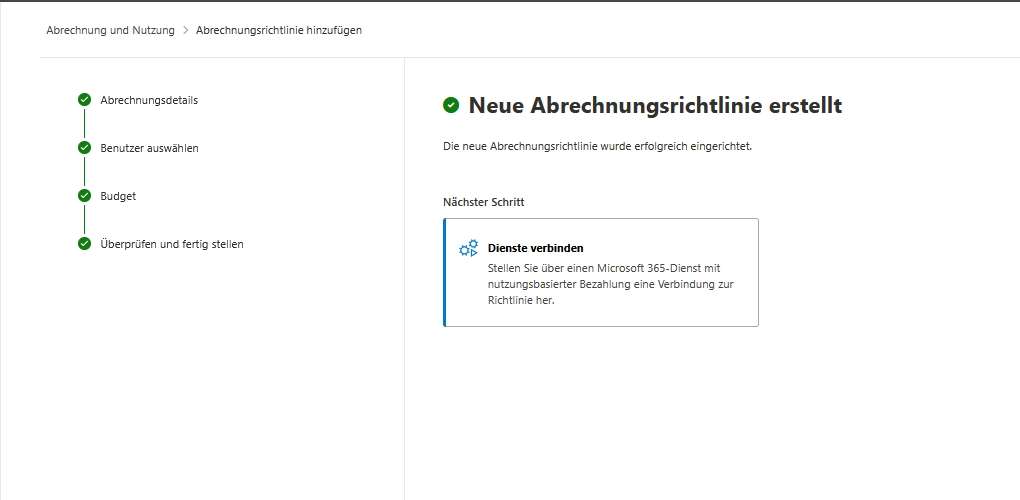
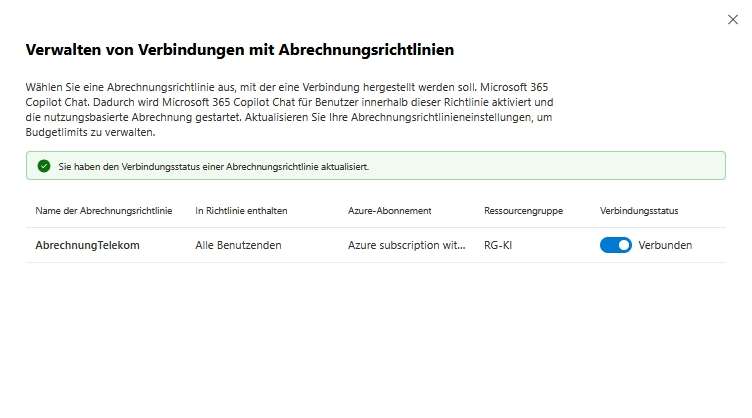
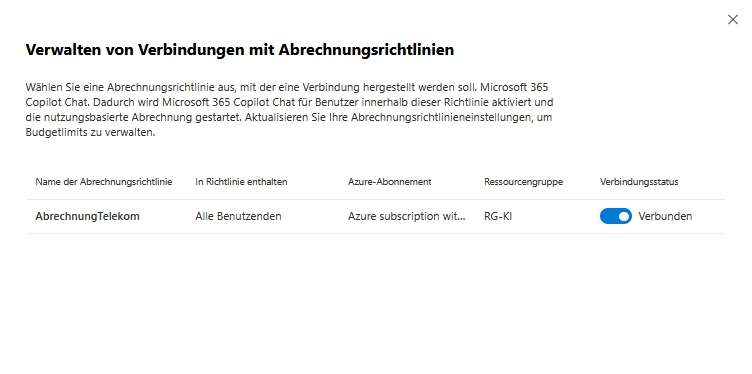
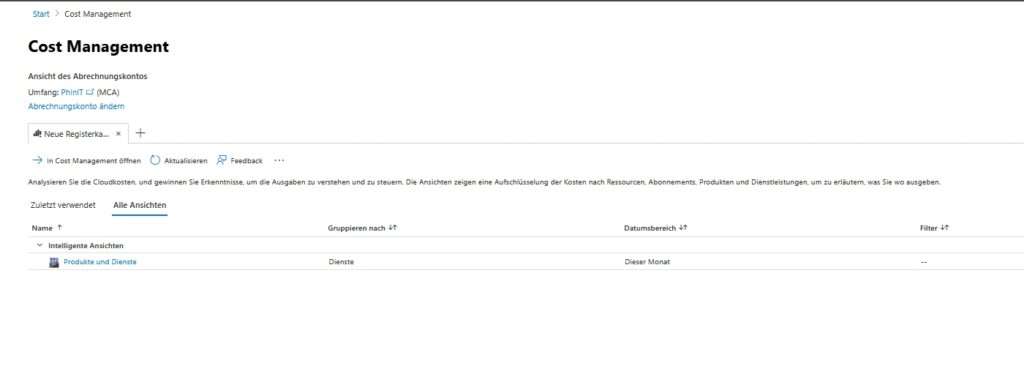
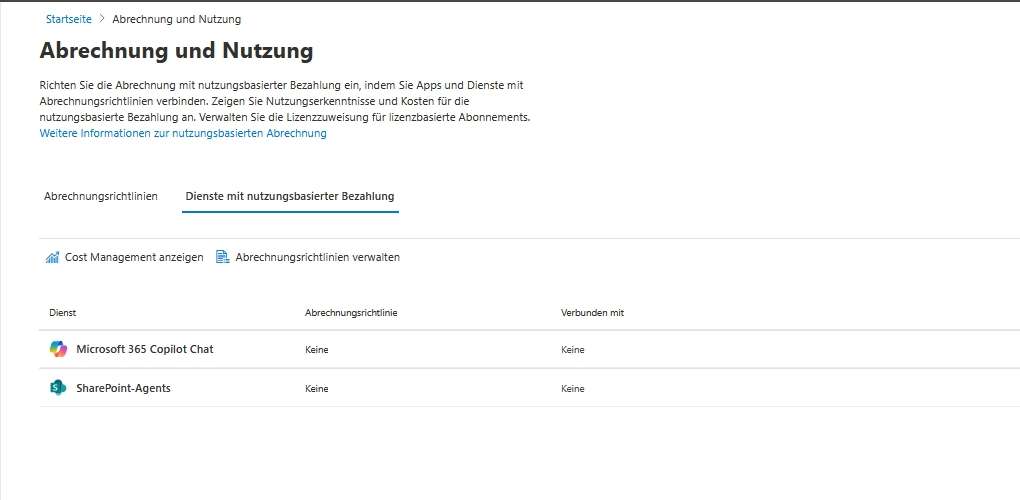
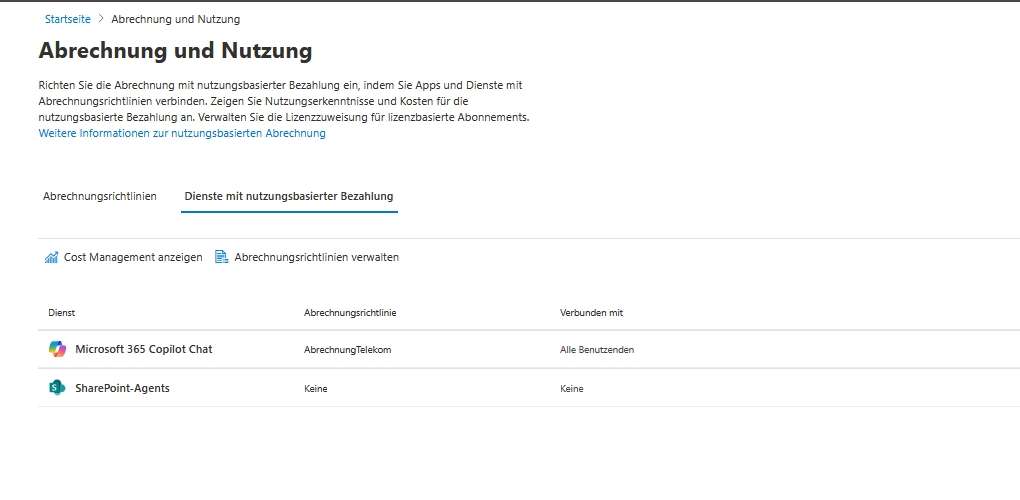
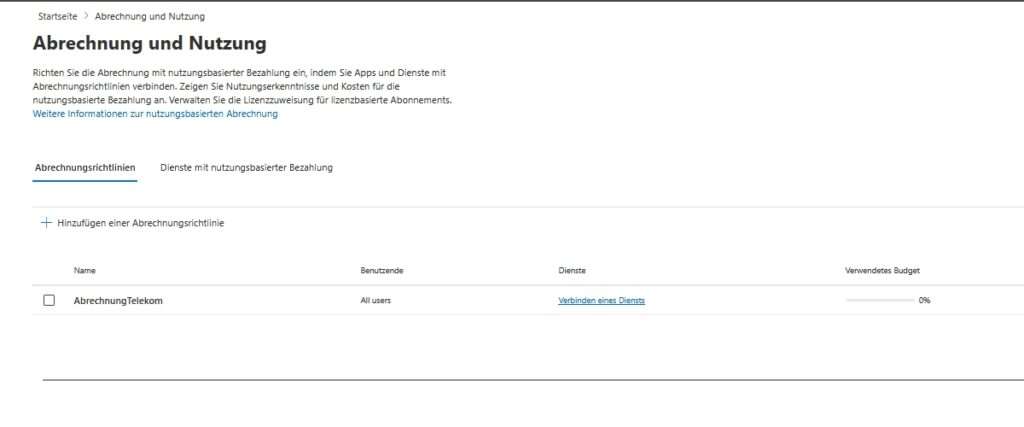
For companies that prefer flexibility and cost transparency, Microsoft 365 Copilot offers a pay-as-you-go plan. Admins set up billing in the Microsoft 365 admin center by creating a billing account and connecting billing policies to the desired services. This allows for accurate allocation of costs to projects or departments.
IT administrators can monitor usage and associated costs in real-time through built-in dashboards. Here, they gain insight into consumption patterns, current spending, and forecasts, ensuring budget control and cost optimization at all times. For companies with fixed user groups, the license assignment for license-based Copilot subscriptions can also be managed centrally.
The pay-as-you-go plan offers benefits such as on-demand cost, easy scaling, and the elimination of unused licenses. Typical use cases include seasonal projects, pilot phases, or the targeted deployment of Copilot features to specific teams. Administrator roles allow you to granularly control permissions for billing management, monitoring, and license assignment.
In the billing process, the Copilot features used are billed monthly, with pricing details and billing reports transparently visible in the admin center. Monitoring capabilities help IT administrators efficiently manage usage, identify outliers early, and meet compliance requirements.
Copilot in Edge


Copilot in Edge provides your organization with AI-powered chat designed specifically for handling corporate data and protecting privacy. To enable the AI features for Copilot in Edge, add a configuration profile in the Microsoft Edge settings.
This allows administrators to control which features are available to users and ensure that all data protection and compliance requirements are met. In addition, the integration of Copilot in Edge can be flexibly adapted to the individual needs of the organization.
Copilot in Bing, Edge, and Windows

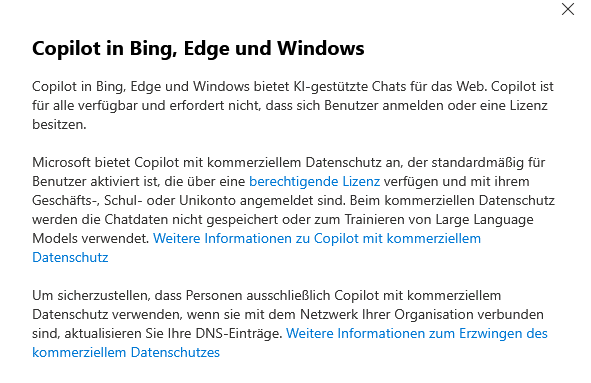
Copilot in Bing, Edge, and Windows offers AI-powered chats for the web. Copilot is available to everyone and does not require users to sign up or have a license.
Microsoft offers Copilot with commercial privacy, which is enabled by default for users who have a qualifying license and are signed in with their work or school account. With commercial data protection, the chat data is not stored or used to train large language models. For more information about Copilot with commercial privacy, visit the official Microsoft website.
To ensure that people only use Copilot with commercial privacy when connected to your organization’s network, update your DNS records accordingly. For more information on enforcing commercial data protection, see the Microsoft documentation.
Copilot Frontier


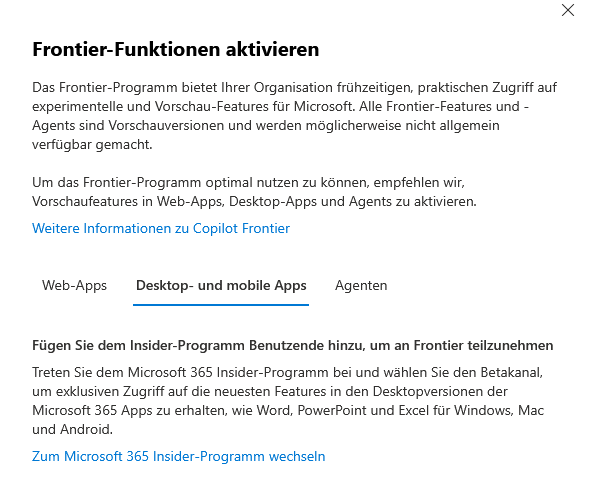
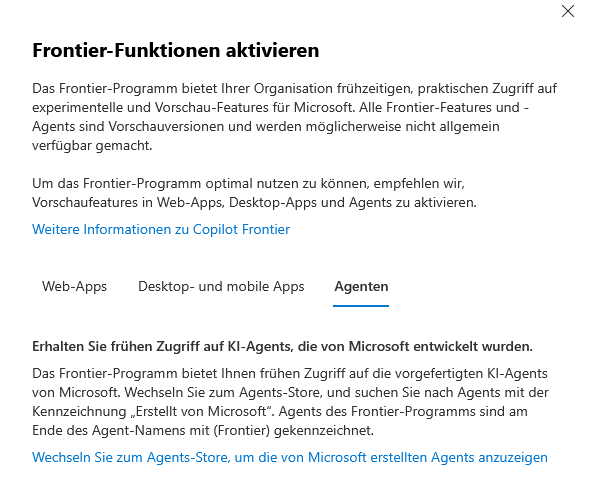
The Frontier program gives your organization the opportunity to test experimental and innovative preview features from Microsoft at an early stage. All Frontier features and agents are in preview and may not be available permanently. To get the most out of the Frontier program, you should enable the preview features in web apps, desktop apps, and agents. This enables you to experience the latest AI innovations directly, give feedback to the product teams and thus actively shape further development.
With Frontier, you get exclusive early access to groundbreaking features and share your experience with the community. New features like Microsoft Agent 365, Copilot Pages, Sales Development Agent, and AI-enabled cloud PCs are ready for you to explore. Take the opportunity to test the latest agents and Microsoft 365 Copilot innovations and further develop your organization’s productivity.
For more information and step-by-step instructions on how to enable Frontier features, see the additional resources and the Microsoft Tech Community.
Data access

Web search for Microsoft 365 Copilot and Microsoft 365 Copilot Chat

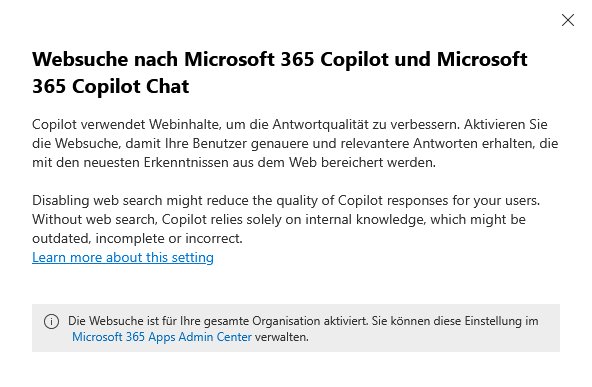
Copilot uses web content to improve the quality of responses. Enable web search so your users can get more accurate and relevant answers, enriched with the latest insights from the web.
If web search is disabled, it can affect the quality of Copilot responses for your users. Without web search, Copilot relies solely on internal knowledge that may be outdated, incomplete, or incorrect.
People Skills in Microsoft 365 Copilot

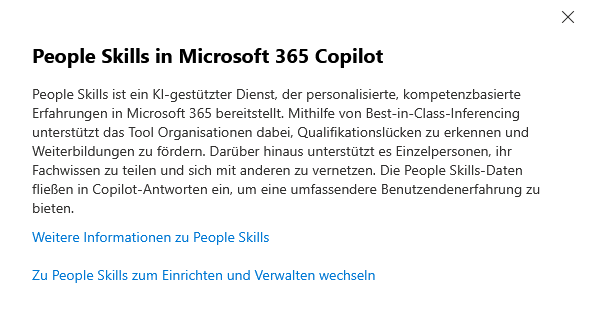
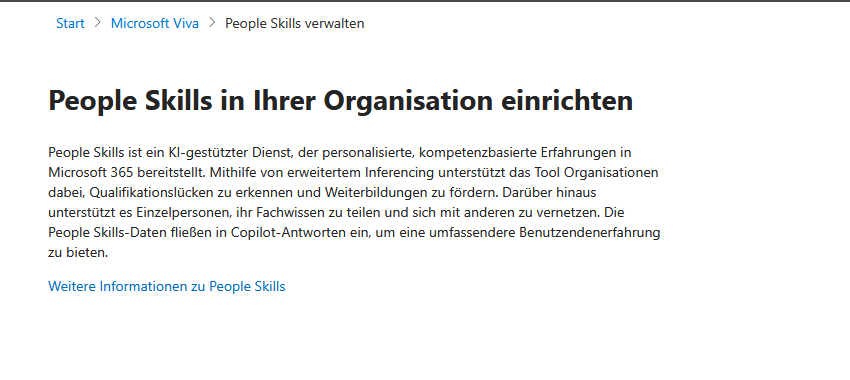
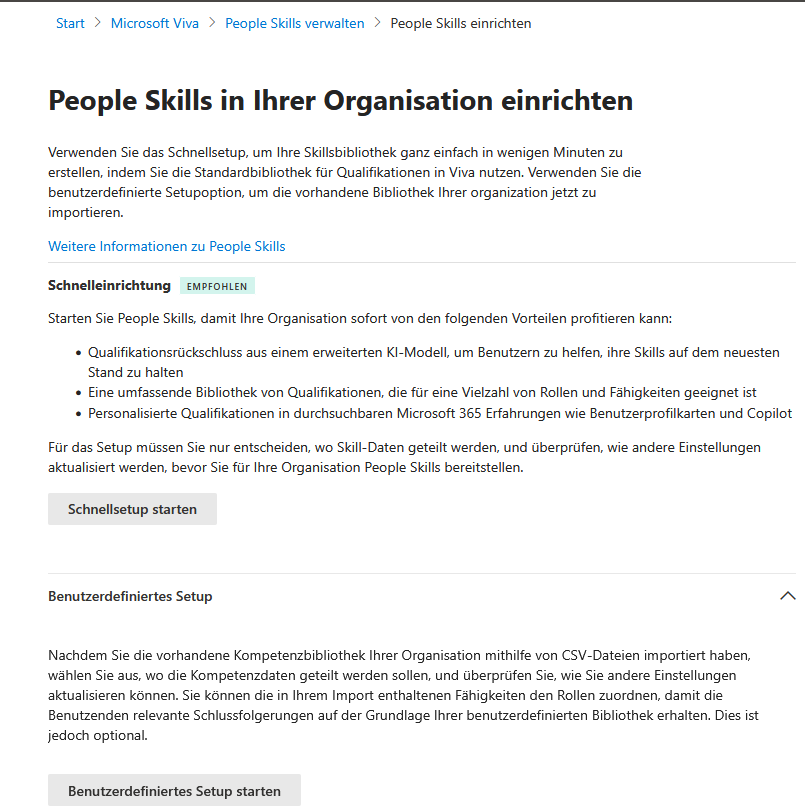
People Skills is an AI-powered service in Microsoft 365 that automatically generates individual skill profiles for your users. These profiles are created using a flexible, built-in skill taxonomy and serve as a database for skills-driven capabilities in Microsoft 365 Copilot, Viva, and other Microsoft 365 services.
- For managers: People Skills provides valuable insights to prepare and accelerate the AI transformation in the company in a targeted manner.
- For employees: Users receive personalized competence profiles, can network with others and discover new development opportunities.
Licensing: People Skills is already included in Microsoft 365 Copilot and Viva licenses. No additional licenses are required. The scope of services varies depending on the service plan (e.g. Foundation or Advanced).
Where are People Skills used? The skill data appears directly in Microsoft 365, such as Profile, Copilot Responses, Org Explorer, People Companion, Viva Learning, and Copilot Analytics. In this way, both individuals and organizations benefit from a better understanding and management of existing competencies.
AI providers for other major language models

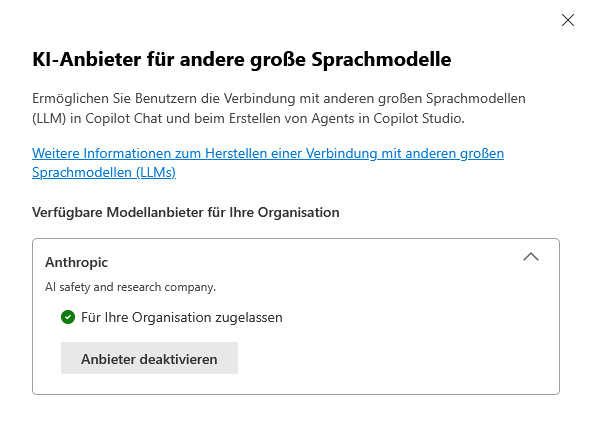
Microsoft 365 Copilot and Copilot Studio enable organizations to onboard other large language models (LLMs) in addition to Microsoft models. These include, in particular, Anthropic’s Claude models, which are hosted outside of Microsoft’s infrastructure. This integration offers advanced capabilities such as summarizing content, answering complex questions, synthesizing information, and helping with idea generation.
Because your data is processed outside of Microsoft when using external LLMs – such as Anthropic’s Claude models – different privacy policies and contractual frameworks apply. Before activating, IT administrators should carefully review their privacy policies and compliance requirements.
Please note that the use of external LLMs may require additional checks in terms of data protection, data storage and compliance. It is advisable to consult with the legal or data protection department before activating it.
Recommendations for Microsoft 365 Copilot licensing

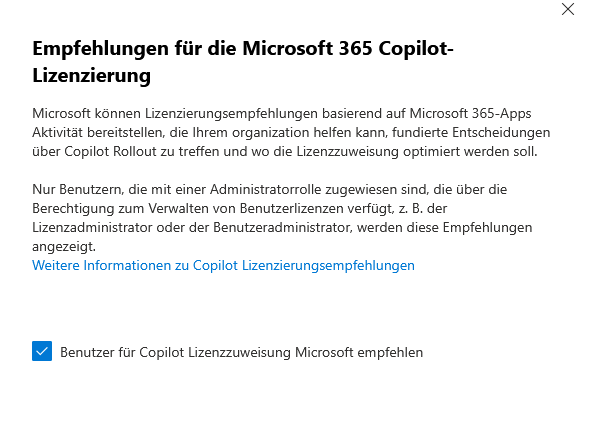
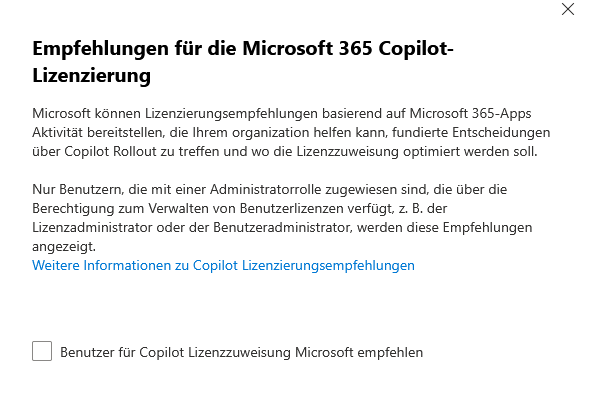
Microsoft can provide licensing recommendations based on activity in Microsoft 365 apps. These recommendations help your organization make informed decisions about adopting Copilot and optimize license assignment in a targeted manner. This gives you information about which areas or teams make sense to use Copilot and where licenses can be used efficiently.
Please note that these recommendations are only displayed to users with an appropriate administrator role. This includes, but is not limited to, license administrators or user administrators who have the authority to manage user licenses.
It is a good idea to regularly review license reports and recommendations to ensure optimal license utilization and avoid unnecessary costs.
Data security and compliance

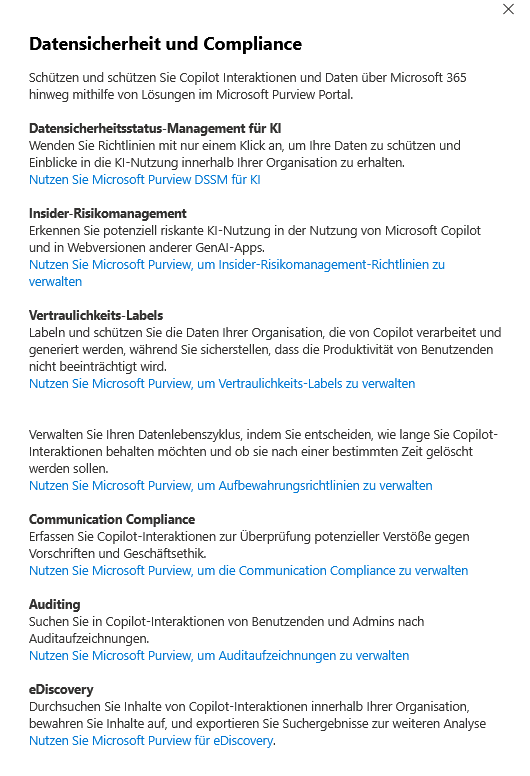
With Microsoft Purview, organizations can reliably protect Copilot data in Microsoft 365 and meet compliance requirements in a targeted manner.
The platform provides centralized policies for data security, monitoring of AI interactions, and early risk detection through insider risk management.
Sensitive content is classified and protected with sensitivity labels, while retention policies secure data lifecycle management.
Communication Compliance monitors message flows, audit logs document activities, and eDiscovery supports the targeted search for relevant Copilot content.
Copilot in Power Platform and Dynamics 365

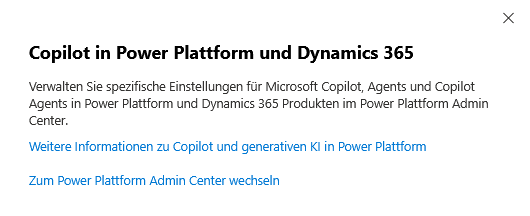
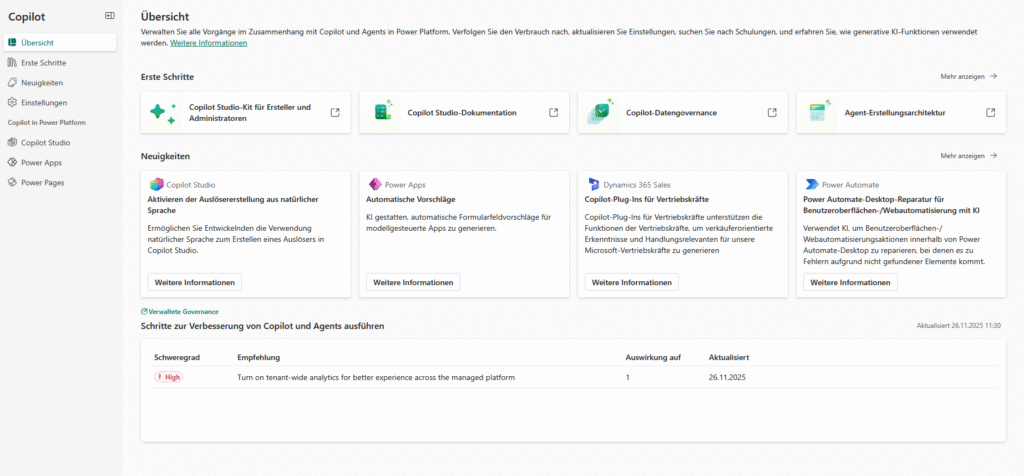
To manage Microsoft Copilot, agents, and Copilot agents in Power Platform and Dynamics 365, use the Power Platform admin center. Here, administrators can make specific settings to adapt the use of Copilot specifically to the requirements of the respective product landscape and company policies. This includes, but is not limited to, assigning roles and permissions, configuring privacy options, and monitoring AI interactions and agent activity.
In the admin center, you can also set individual policies for data processing and storage, so you can ensure compliance requirements for Copilot applications within Power Platform and Dynamics 365. The central administration makes it possible to flexibly activate or restrict Copilot functions and thus maintain control over sensitive company data. A regular review of the settings is recommended to continuously ensure the safety and efficiency of the Copilot solutions used.
Agents

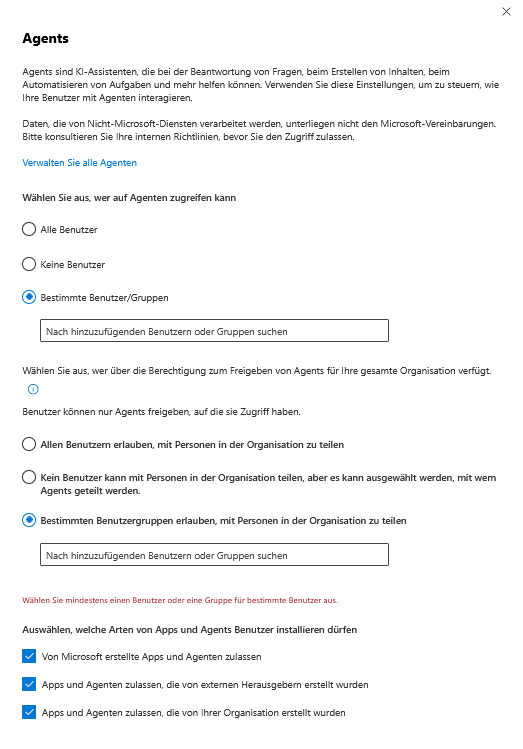
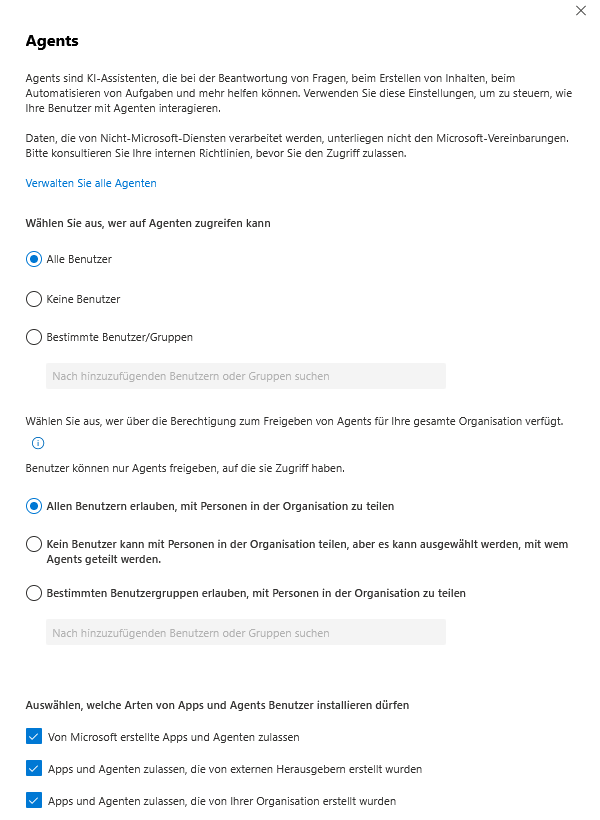
Agents are specialized, AI-based assistants within Microsoft Copilot that are designed to automate or support targeted tasks and processes for users. For example, they can merge information from different data sources, map standard processes or enable individual workflows.
Administrators have extensive control over how users interact with agents. This includes the targeted selection of which users or groups are allowed to access certain agents. Sharing permissions can be used to control which agents are deployed organization-wide or can only be used by certain teams.
Important: If agents or apps are used that transmit or process data to non-Microsoft services, that data is not subject to the Microsoft agreements. In such cases, the company’s internal guidelines and requirements for data protection and data use should always be consulted.
Copilot Actions

Copilot Video Generation

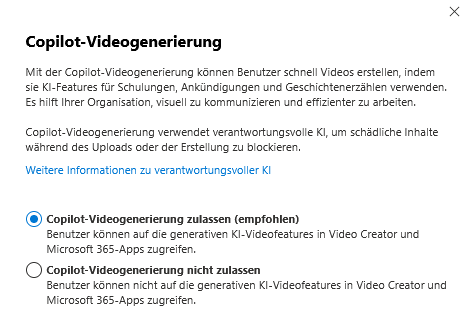
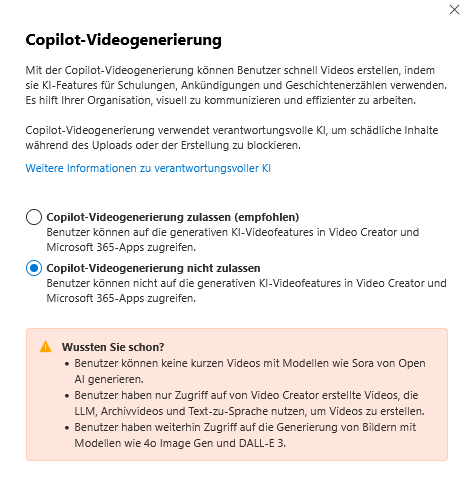
Copilot video generation allows users to quickly create videos by using AI features for training, announcements, and storytelling. It helps your organization communicate visually and work more efficiently.
Copilot video generation uses responsible AI to block harmful content during upload or creation. In addition, the feature enables easy integration of corporate policies by allowing administrators to define who gets access to video generation and how the content created may be used. This ensures that video production is in line with internal data protection and compliance requirements.
Copilot image generation


With Copilot image generation, users can ask Copilot to create, design, and edit images to visualize ideas and improve their projects. AI-supported image generation supports various use cases, such as the rapid development of graphics for presentations, the design of training materials or the creative development of design proposals.
Administrators can control who in the organization has access to this feature and how generated content can be used, so that internal policies on data protection and compliance are always followed.
Copilot in Teams meetings


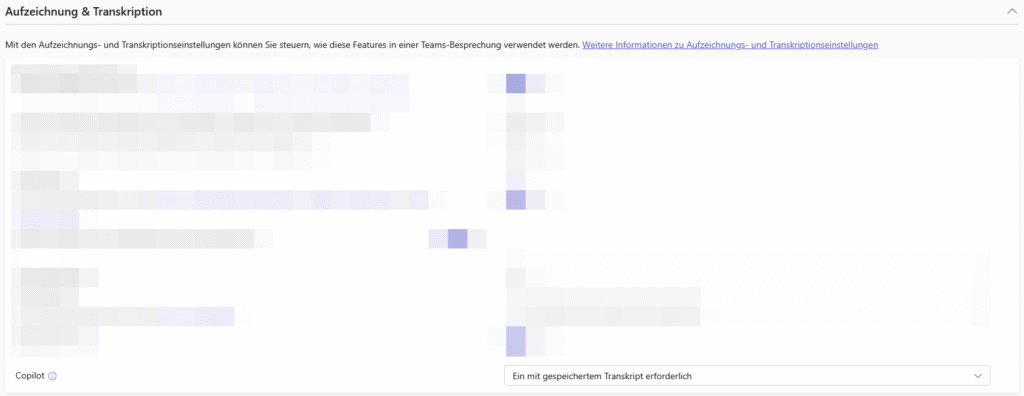
Integrating Copilot and AI capabilities into Microsoft Teams Rooms increases efficiency and collaboration. A Teams Room Pro license is required for all functions; Users also need suitable Microsoft 365 and, if necessary, Copilot licenses.
AI features include meeting assistants, live transcripts, closed captions, noise reduction, and speaker recognition. Intelligent Speaker and Speaker Mapping only work with current Windows devices.
Regular updates are mandatory. Licenses and features are managed in the admin center, settings such as transcription and speech isolation should be active.
Other settings

Copilot Diagnostic Logs

Applies to Microsoft 365 Copilot
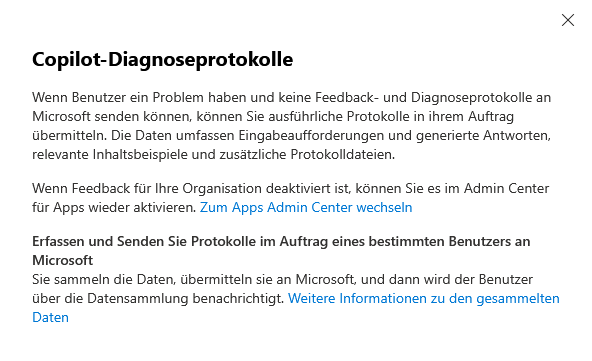
If users have a problem and can’t send feedback and diagnostic logs to Microsoft, you can submit verbose logs on their behalf. The data includes prompts and generated responses, relevant content samples, and additional log files.
If feedback is turned off for your organization, you can turn it back on in the admin center for apps. Go to the Apps admin center
Collect and send logs to Microsoft on behalf of a specific user. You collect the data, submit it to Microsoft, and then the user is notified of the data collection.
Copilot Custom Dictionary

Applies to “Copilot in Microsoft Teams & Microsoft Teams“
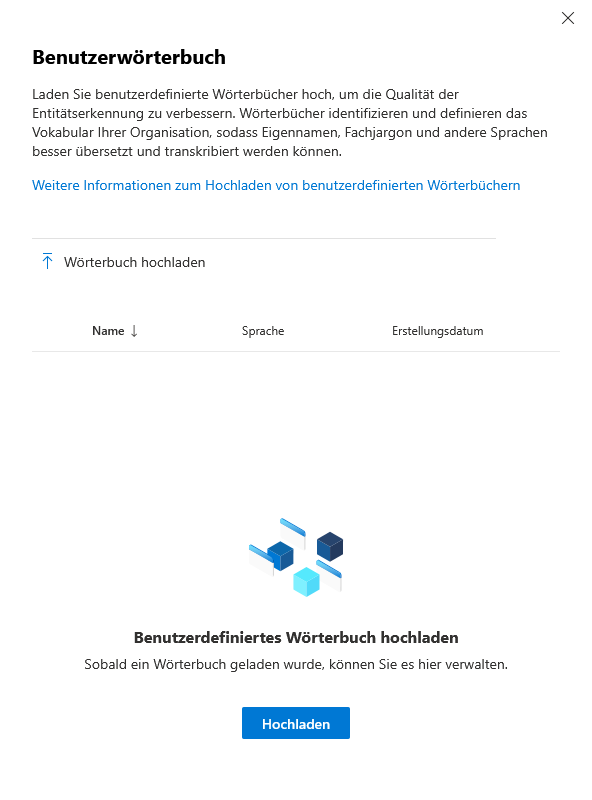
Upload custom dictionaries to improve the quality of entity recognition. Dictionaries identify and define your organization’s vocabulary so that proper names, jargon, and other languages can be better translated and transcribed.
The integration of such dictionaries ensures that Copilot and other AI-powered functions correctly recognize and process industry-specific terms, product names, or departmental abbreviations.
Admins can manage and update these dictionary files centrally in the admin center to ensure consistent and high-quality speech recognition across all Teams Rooms and applications.
Privacy and usage control settings
Administrators have extensive options for controlling the use of Microsoft 365 Copilot in a targeted manner and flexibly adapting it to company-specific data protection requirements:
- License Assignment:
You can assign or revoke Copilot licenses to individual users or even entire groups. This allows the group of users who gain access to Copilot to be limited and controlled according to their needs. - Connected Experience Guidelines:
The privacy controls for connected experiences, where content is analyzed, directly affect the availability of Copilot. If these features are completely disabled, the Copilot features will not be available in the Word, Excel, PowerPoint, OneNote, and Outlook applications. - Optional Connected Experiences:
If additional connected experiences, such as web search, are disabled, the corresponding Copilot features are dropped. This allows administrators to specifically control which functions are available in the company. - Purview Integration:
Microsoft Purview can be used to monitor and control the handling of sensitive information. With data loss prevention, sensitivity labels, e-discovery and retention policies, co-pilot interactions can be monitored and regulated in a targeted manner. Copilot can also define separate retention and deletion policies tailored to AI applications. Storage takes place in special, hidden Exchange folders and is managed centrally via the compliance tools.
Opt-out and transparency options
The use of Copilot can be controlled specifically at the individual level or for specific groups. To do this, it is possible to revoke the Copilot license for individual users or entire groups or to configure corresponding group policies. In this way, access to Copilot can be controlled as needed and adapted to the respective data protection requirements in the company.
In addition, employees have the option of managing their own Copilot activity history independently. Via the My Account portal, they can delete saved prompts and Copilot responses and thus maintain their data sovereignty.
Another important aspect is transparency towards the workforce. It is essential to inform all those affected about the activation or deactivation of Copilot functions and the respective effects on data protection. This includes, in particular, the provision of the necessary information in accordance with Art. 13 GDPR, information on the storage period of prompts and responses as well as information on existing opt-out options. Only through comprehensive communication and documentation can the legal requirements be met and the trust of employees strengthened.
Prompt Injection Protection and Responsible AI Design
Prompt injection attacks pose a serious threat to the security and integrity of AI systems, as they aim to circumvent the existing protections and security boundaries of the model. Microsoft 365 Copilot counters this risk with advanced technical measures: Special “jailbreak” and prompt injection filters are integrated into the system and detect malicious inputs in order to block them automatically.
Despite these technical protective measures, it is advisable to take additional precautions at the organizational level. This includes, in particular, the targeted training of employees. Users should be regularly sensitized not to enter sensitive data such as passwords or confidential company information in Copilot prompts. A conscious and critical approach to external content – such as e-mails, documents or websites – is also essential, as this can offer potential attack surfaces.
To further increase the protection of particularly sensitive information, we recommend using Microsoft Purview Data Loss Prevention (DLP) policies and sensitivity labels. These make it possible to control the handling of sensitive data (such as health data, HR information or legal documents) in a targeted manner and to ensure that such information can neither be introduced into Copilot prompts nor output by the system.
Further links
| Description of the link | URL |
| Data, Privacy, and Security for Microsoft 365 Copilot – describes what data Copilot uses, how inputs are processed, and that prompts/responses are not used to train the LLMs; also discusses the routing of LLM calls within the region and the additional EU data boundary protections. | https://learn.microsoft.com/en-us/copilot/microsoft-365/microsoft-365-copilot-privacy |
| Data Residency for Microsoft 365 Copilot and Copilot Chat (Microsoft 365 Enterprise) – specifies that the content of Copilot interactions and the semantic index are stored in the tenant’s Local Region Geography / Preferred Data Location. | https://learn.microsoft.com/en-us/microsoft-365/enterprise/m365-dr-workload-copilot?view=o365-worldwide |
| Data, privacy & security for web search (Bing integration) – explains Copilot’s optional web search function: for search queries, only a heavily shortened search term derived from the prompt is sent to Bing; full prompts, entire documents, and user-related IDs are not transmitted | https://learn.microsoft.com/en-us/microsoft-365-copilot/manage-public-web-access |
| Learn about retention for Copilot & AI apps – describes retention and deletion policies for Copilot prompts and responses; these are stored encrypted in a hidden Exchange mailbox folder per user and can be managed via Purview. | https://learn.microsoft.com/en-us/purview/retention-policies-copilot |
| Overview: Privacy controls for Microsoft 365 Apps (Connected Experiences) – explains the privacy controls for Office apps, including options to disable connected experiences to analyze content or load online material; disabling such processes can restrict Copilot in Word, Excel, etc. | https://learn.microsoft.com/en-us/microsoft-365-apps/privacy/overview-privacy-controls |
This post is also available in:
 English