ArtikelRahmen V5 MS365 CoPilot V5

After we have dealt with the basic dashboard in the first part (data protection in Copilot), we now get down to the nitty-gritty: The Copilot settings. While the overview shows us who is using Copilot, here we define how the AI handles data and where your tenant’s boundaries are.

For IT administrators, this area is the most important tool to maintain the balance between maximum AI productivity and strict European data protection regulations. In this article, we’ll look at how to make the most of the EU Data Boundary , control access to the web, and securely manage the connection of external agents.

User access


In the User Access tab, you control how Copilot appears in different interfaces of your company and who gets access to special preview features. This is where you determine whether users can purchase licenses on their own and how deeply the AI is integrated into the admin interfaces.


Settings | User access

Opal (Frontier)


grafik 182

This feature allows select users to take advantage of Opal’s experimental AI support within Microsoft 365 Copilot.

  • Advanced Agent Feature: Users can hire Opal to perform tasks on their behalf, with the AI leveraging a dedicated Windows Cloud PC for agents .
  • Compliance management: Administrators can select which websites Opal is allowed to access. This is crucial to ensure that AI actions strictly comply with the organization’s internal policies and security mandates.
  • One-time setup: In order for Opal to work, a one-time configuration must be performed in the specific Opal admin portal. It must be ensured that the responsible administrators are assigned to an appropriate admin group.

Recommendation: Due to the experimental nature and website access, admins should initially only activate the permissions for a pilot group and critically examine the interactions.

Only available in the Frontier Early Access program with Microsoft 365 Copilot license!

👉 To the official documentation: https://go.microsoft.com/fwlink/?linkid=2339568

Microsoft Copilot for Security


grafik 188


This module serves as a jump-off point for Microsoft’s specialized security AI.

  • Separate management: It’s important to note that the deep security configurations for this service aren’t done directly in the general Microsoft 365 admin center.
  • Central portal: Administrators must navigate directly to the Microsoft Copilot for Security standalone portal. This is where specific roles, access permissions, and capacity planning for security analysis are controlled.
  • Costs: A provisioned SCU (Security Compute Unit) costs about $4 per hour. For short-term additional needs, you can use additional overload SCUs at about $6 per hour. It is managed via the Azure portal, where a dashboard transparently displays usage and costs.

👉 To the official documentation: https://securitycopilot.microsoft.com/

Microsoft 365 Copilot self-service purchases


grafik 187

This setting regulates the balance between user autonomy and centralized IT governance.

  • Control mechanism: You decide whether you want end users to have the flexibility to activate trials for Microsoft 365 Copilot on their own or purchase the product directly without admin help.
  • Demand management: This option can help administrators better understand and manage the actual demand in the organization.

Security & Budget Recommendation: To prevent uncontrolled costs and license proliferation, we recommend disabling self-service purchases. Instead, an internal approval process should be established.

Pin Microsoft 365 Copilot apps to the Windows taskbar


grafik 191


Here, the visibility of the AI tools is controlled at the operating system level.

  • Scope of integration: Administrators can choose whether to pin specialized companion apps for people, file search, calendar, and general Windows features to the taskbar in addition to the main Microsoft 365 Copilot application.
  • Efficiency: The goal is to make AI-based ways of working easier to find and improve workflows through direct access.
  • Technical requirements: This policy is effective for devices that are managed via Intune (Windows 10 and 11) and already have the corresponding Copilot applications installed.

👉 To the official documentation: https://go.microsoft.com/fwlink/?linkid=2326492

Microsoft 365 Copilot in admin centers


grafik 194

grafik 195

This feature is specifically aimed at IT administrators to support their day-to-day work with AI.

  • Supported consoles: Copilot is available in the Microsoft 365 admin center , as well as in the admin centers for Exchange, SharePoint, and Teams .
  • Privacy Guarantee: A key security aspect is that Copilot only provides administrators with information for which they already have explicit permission due to their existing administrator role.

Targeted exclusion: Organizations have the option to block access for specific administrators. This is done by adding the people in question to the security group with the exact name CopilotForM365AdminExclude.

👉 To the official documentation: https://learn.microsoft.com/de-DE/copilot/microsoft-365/copilot-for-microsoft-365-admin

Pin Microsoft 365 Copilot Chat


grafik 196

This controls the availability of the secure chat interface within the productivity suite.

  • Multi-platform presence: You can configure Copilot Chat to pin users to their Microsoft 365 apps (web, desktop, and mobile) and to the Windows taskbar.
  • License logic: It’s important to note that Copilot Chat is pinned by default for users who already have a valid Microsoft 365 Copilot license.

Definition: This setting only affects the chat experience, not the standalone Microsoft 365 Copilot app.

👉 To the official documentation: https://go.microsoft.com/fwlink/?linkid=2282124

Copilot pay-as-you-go billing


grafik 199

This option offers administrators the opportunity to flexibly bill specific services beyond the classic licensing model.

  • Model: Here, you’ll set up pay-as-you-go billing specifically for Copilot Chat and related agents .

Cost-effectiveness: The key advantage is that the organization only pays for what people actually use. This prevents unnecessary fixed costs for services or agents that are only used sporadically or by a few employees.

👉 To the official documentation: https://learn.microsoft.com/de-DE/copilot/microsoft-365/pay-as-you-go/overview

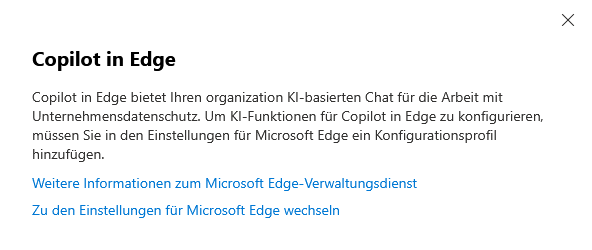
Copilot in Edge


grafik 200

This is where the deep integration of the AI assistant into the corporate browser is controlled.

  • Data protection standard: Copilot in Edge offers AI-based chat that is explicitly designed for work and ensures corporate data protection .

Advanced configuration: In order to control the AI functions in the browser granularly, this switch alone is often not enough. Administrators must additionally add a configuration profile in the Microsoft Edge management service . This enables central control of the browser experience across the entire fleet.

👉 To the official documentation: https://learn.microsoft.com/de-DE/deployedge/microsoft-edge-management-service

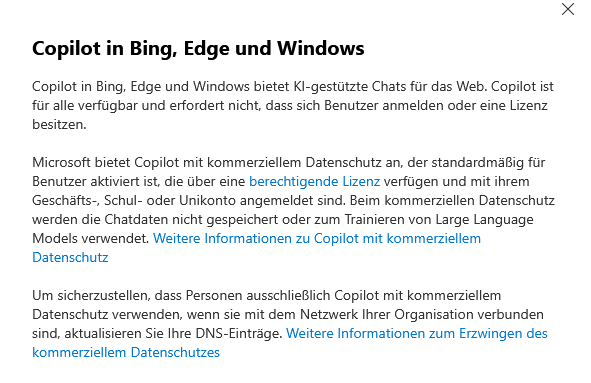
Copilot in Bing, Edge, and Windows

grafik 201

This section governs access to AI search on the public web, secured for the business context.

  • Features: Manage how your organization uses AI-powered chat in Bing, Edge, and Windows . This usually concerns web-based research.
  • Commercial Data Protection: Microsoft offers “commercial data protection” by default. In concrete terms, this means that if users are logged in with their work or school account, the chat data is neither stored nor used to train the major language models (LLMs).
  • Network Security (DNS): To ensure that people on the corporate network only use the protected version (and not inadvertently use the consumer private version), administrators can update their DNS records. This enforces protected mode at the network level.

Copilot Frontier


grafik 202

This is the gateway to Microsoft’s latest innovations and experimental features.

  • Program access: Enabling the Early Access Program (Frontier) gives your organization exclusive access to experimental features and preview agents that are not yet generally available.
  • Holistic strategy: To get the most out of the program, Microsoft recommends enabling preview features across all channels: in web apps, desktop apps, and for agents.

Differentiated control:

  • Web Apps: Access to this is controlled directly in this menu.
  • Desktop apps: For Word, Excel, etc., users must also join the Microsoft 365 Insider Program (Beta Channel).
  • Agents: Frontier agents (marked in the store) are accessed through the agent management tools.

For more information and step-by-step instructions on how to enable Frontier features, see the additional resources and the Microsoft Tech Community.

👉 To the official documentation: https://adoption.microsoft.com/de-de/copilot/frontier-program/

Data access


This tab is the control center for the flow of information. While you control who is allowed to use Copilot in “User access”, you define where Copilot gets its knowledge from (web vs. internal) and which AI models are allowed to work in the background.


Settings | Data access

Web search for Microsoft 365 Copilot and Microsoft 365 Copilot Chat


grafik 212

By default, Microsoft 365 Copilot operates in isolation within your tenant (“Grounded in your Graph”). With this option, you open the gateway to the public internet in a controlled manner to massively expand the AI’s knowledge base.

  • How it works (RAG): When enabled, Copilot uses web content to improve the quality of responses. The AI recognizes when an internal database is not sufficient for an answer (e.g. “How is Microsoft stock today?”), performs an anonymized search via Bing and links these external insights to your internal data.
  • Strategic Advantage: This feature is essential for departments that rely on real-time information (e.g., marketing, finance) because the Microsoft Graph does not contain public documentation, news, or current market values.
  • Granular Control: You can control web search for Microsoft 365 Copilot (in the apps) and Copilot Chat separately. This allows you, for example, to allow web search in chat, but disable it in Word/Excel if you want stricter content rules to apply there.
  • Data protection: Protective mechanisms also take effect during active web searches. The search queries are not sold to advertisers and are not stored by Bing to influence rankings.

👉 To the official documentation: https://learn.microsoft.com/de-DE/copilot/microsoft-365/manage-public-web-access

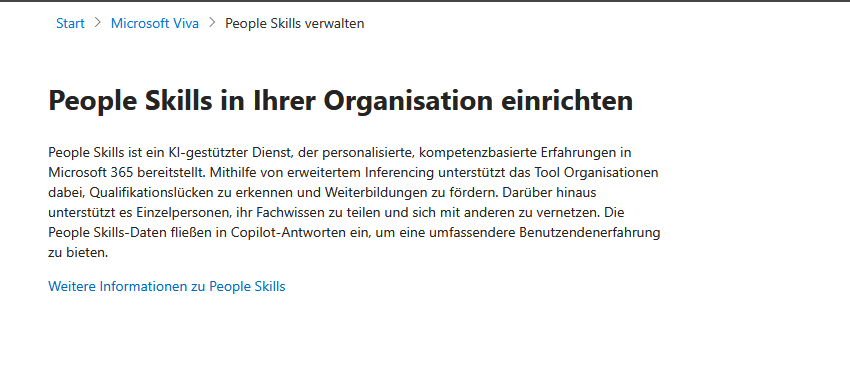
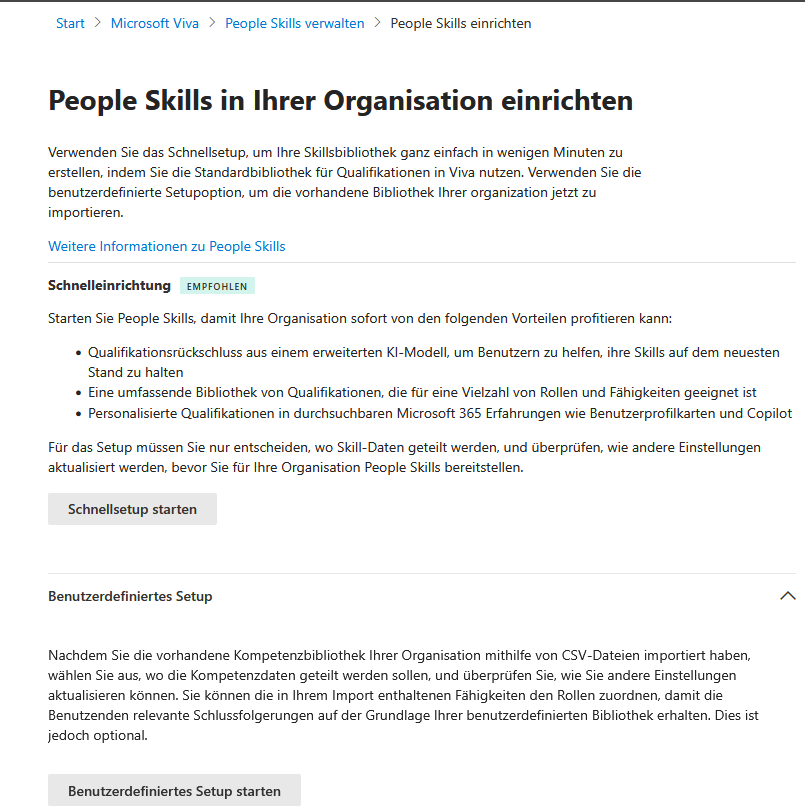
People Skills in Microsoft 365 Copilot


grafik 213

“People Skills” is an AI-powered service that makes the hidden knowledge (“tacit knowledge”) in your organization visible and breaks down silos.

  • What it does (inferencing): Instead of relying on manually maintained (and often outdated) employee profiles, the service uses “best-in-class inferencing”. In the background, the AI analyzes what people are working on (documents, emails, projects) in order to deduce who has which skills.
  • Added value for the organization: The tool helps to proactively identify qualification gaps and to promote internal training in a targeted manner. It supports individuals in making their expertise visible and networking with the right colleagues.
  • Copilot integration: This data flows directly into the generated answers. If a user asks, “Who knows about Python development?”, Copilot uses the people skills data to suggest experts – even if they don’t explicitly have “Python” in their HR profile.

👉 To the official documentation: https://learn.microsoft.com/de-DE/copilot/microsoft-365/people-skills-overview

AI Providers & Sub-Processors (Important!)


grafik 252
grafik 219

grafik 251
grafik 220

This area marks a paradigm shift: Microsoft is opening up the platform to third-party models to integrate specialized AI capabilities. The first prominent partner is Anthropic (Claude Modelle).

  • Roadmap: The use of Anthropic as an official Microsoft sub-processor is currently planned from January 7, 2026.
  • Status Quo: The feature is disabled by default to give administrators full control over the flow of data.
  • Flexibility (Other LLMs): In addition to Anthropic, you can basically allow users to connect to other major language models (LLMs) if this is necessary for special use cases (e.g. coding, research).

⚠️ Critical warning for EU customers: This is probably the most important switch for European data protection officers. Microsoft explicitly points out in the terms of use: “Anthropic AI models […] are not covered by the EU Data Boundary obligations.”

This means: Once you enable this option, data (prompts and content) processed by these models potentially leaves the secured EU jurisdiction. Activation should only take place after consultation with Legal/Compliance and an adjustment of the register of processing activities.

👉 To the official documentation: http://go.microsoft.com/fwlink/p/?LinkId=2335702

Recommendations for Microsoft 365 Copilot licensing


grafik 221

Since Copilot licenses are a significant investment, Microsoft offers a native FinOps feature to maximize ROI (return on investment).

  • Function: Microsoft analyzes the actual usage of Microsoft 365 apps in relation to the Copilot license. For example, the system recognizes users who have a license but never use Copilot features, or power users who don’t yet have a license.
  • Decision support: Based on this data, you will receive concrete recommendations on where licenses should be reassigned (“re-harvesting”) or where the rollout should be expanded.
  • Visibility (RBAC): For data protection reasons, this sensitive usage data is not visible to every admin. Only roles with explicit license management privileges (such as License Administrator or User Administrator) can access these recommendations.

👉 To the official documentation: https://go.microsoft.com/fwlink/?linkid=2299550

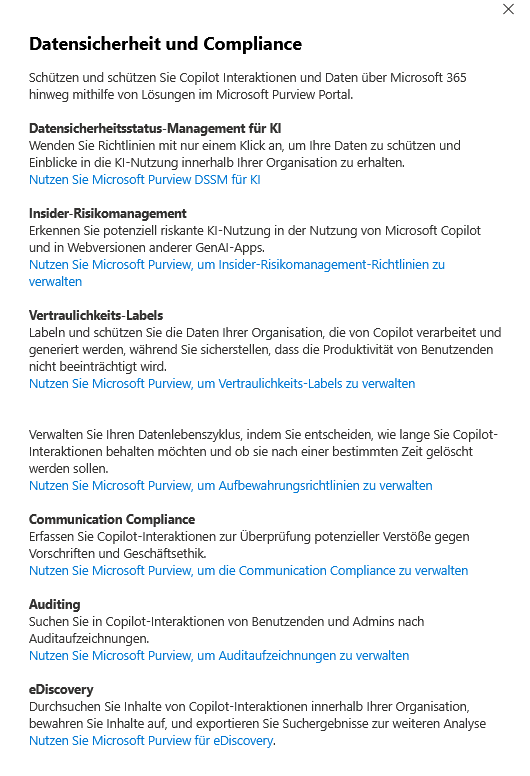
Data security and compliance


grafik 224

This area acts as a strategic bridge to the Microsoft Purview Portal.

It reminds you that Copilot is not a “lawless space,” but must be subject to the same strict compliance rules as emails or files. Here you configure the guardrails for the AI.

  • Data Security Status Management for AI (DSSM): This is often the best place to start. With just one click, you can apply basic policies to protect your data and get instant insights into AI usage within your organization.
  • Insider Risk Management: Detect potentially risky behavior when using AI, not only in Microsoft Copilot, but also in web versions of other generative AI apps. The goal is to identify critical data leaks or misuse at an early stage.
  • Sensitivity Labels: This is the main line of defense against over-sharing. You label and protect your organization’s data that is processed and generated by Copilot. Copilot respects these labels: a user without access to “Strictly Confidential” data will not receive a summary of this content.
  • Data Lifecycle Management: Here you decide on the digital memory of the AI. Manage how long Copilot interactions (prompts and responses) need to be retained (e.g., for legal reasons) or whether they should be automatically deleted after a certain amount of time.
  • Communication Compliance: Capture and monitor Copilot interactions to review potential violations of internal regulations (e.g., harassment, inappropriate language) or business ethics.
  • Auditing & eDiscovery: These tools are essential for the legal department. They make it possible to search for audit recordings in Copilot interactions between users and administrators, as well as to preserve content in the event of an emergency and export it for analysis.

Tip: The mere listing in the admin center is not enough. You can read about how to set up one of these security features in our separate article

👉 Microsoft Purview | DLP – Effectively secure Copilot Prompts (SITs)!

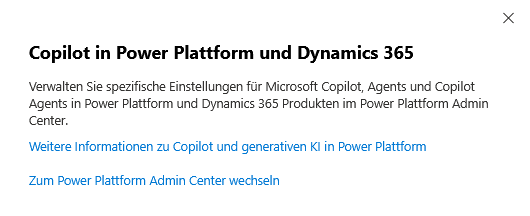
Copilot in Power Platform and Dynamics 365


grafik 226


grafik 229

Copilot is deeply integrated into the business applications. However, the settings in this tab are only references.

  • Administrative location: For specific settings about Microsoft Copilot, agents, and Copilot agents in Power Platform and Dynamics 365 products, you’ll need to go to the Power Platform admin center .
  • Relevance: This is especially true for low-code development and CRM processes, where Copilot often has direct access to customer databases.

👉 To the official documentation: https://go.microsoft.com/fwlink/?linkid=2297186

Agents


grafik 231

Agents are specialized AI assistants that can do much more than just chat: they help answer questions, create content, and automate complex tasks. Since they often intervene deeply in processes, strict governance is required here.

  • Compliance Warning: Be aware that data processed by non-Microsoft services (third-party agents) is not subject to the Microsoft agreements. The terms and conditions and privacy policy of the respective manufacturer apply. Be sure to consult your internal guidelines before allowing access.
  • Access Control:
    • Access: Be granular about who in your organization can access agents in the first place.
    • Installation: Define the types of apps and agents that users are allowed to install on their own to prevent a proliferation of unchecked software.
    • Sharing: Have precise control over who can share agents with the entire organization .

Note: Users who are prohibited from sharing widely can continue to share their agents with individual colleagues or security groups, which preserves small-scale collaboration without flooding the entire tenant.

👉 To the official documentation: https://admin.cloud.microsoft/#/copilot/agents

Copilot actions


In the Copilot Actions tab, you leave the level of pure data sharing and define the specific behavior of the AI. This is no longer just about what Copilot is allowed to access, but what it should actively generate and how transparent it is to your users.

From mandatory disclaimers to the release of creative features (image and video generation) to sensitive control in Teams meetings: In this area, you will configure the balance between a modern user experience and your company’s necessary compliance guidelines.


Settings | Copilot Actions

AI disclaimer for Copilot


grafik 255

Transparency is the decisive factor in the adoption of generative AI. Users need to understand that AI responses can contain errors (hallucinations). Here you configure the visibility of these warnings.

  • Increase visibility: You can increase the font width of the default disclaimer in the Microsoft 365 Copilot app. This prevents the notice from being overlooked as “small print” in everyday work.
  • Customizable tooltip: Add a tooltip with a custom link (“Learn more”).
    • Best Practice: Link here to your internal AI guidelines or an intranet page that explains to employees how to verify results and what data classifications apply.
  • Preview Mode: Use the “Preview Disclaimer” feature to simulate how the alert will actually look to your end users in the app before saving.

👉 To the official documentation: https://learn.microsoft.com/de-DE/copilot/microsoft-365/microsoft-365-ai-disclaimers

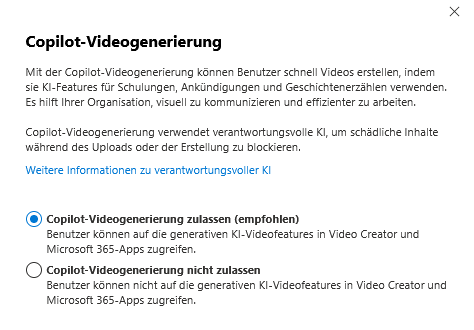
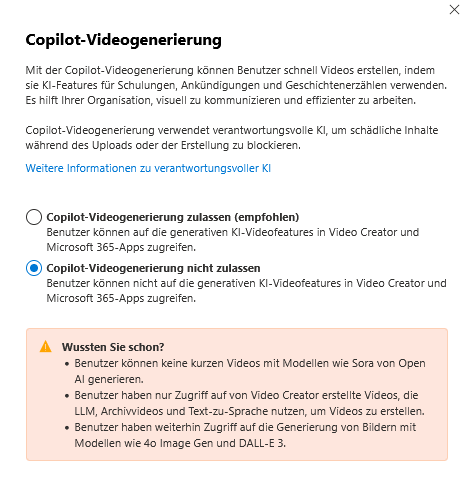
Copilot Video Generation


grafik 232


With this function, you can turn text prompts into moving images. This democratizes video creation in the enterprise.

  • Application scenarios: Users can quickly create videos for training, internal announcements, or storytelling . This helps departments such as HR or communications produce visually appealing content without relying on expensive external agencies.
  • Responsible AI (Security): Administrators who are concerned about misuse can rest assured: The service uses filters for responsible AI. These proactively block malicious content during the upload of source material or during the generation process.
  • Productivity: The goal is to work more efficiently and make complex issues visually understandable.

👉 To the official documentation: https://www.microsoft.com/de-DE/ai/principles-and-approach

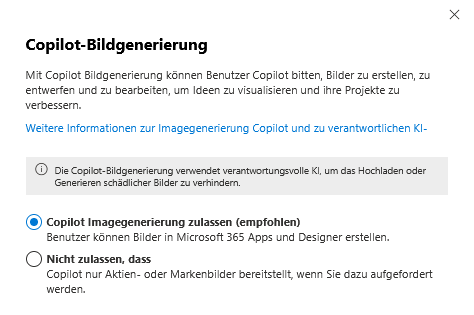
Copilot image generation


grafik 235

This is the integration of imaging AI (based on DALL-E technology) directly into office workflows.

  • Creative Assistance: Users can ask Copilot to create, design, and edit images. This is to visualize ideas in PowerPoint or Word instantly, instead of spending hours searching through stock photo databases.
  • Content moderation: As with video creation, the protection provided by responsible AI also applies here. The system technically prevents the uploading or generation of harmful, offensive or violent images. This ensures the brand safety of your company.

👉 To the official documentation: https://learn.microsoft.com/copilot/microsoft-365/microsoft-365-copilot-page#copilot-image-generation

Copilot in Teams meetings


grafik 237


This attitude is often the most critical point in discussions with the works council or data protection officer. Here you control whether and how Copilot is allowed to analyze conversations.

There are three main configuration levels:

Before, during, and after the meeting (default):

  • Function: This usually requires active transcription. Copilot can analyze the entire meeting and then provide an Intelligent Recap.
  • Advantage: Maximum productivity and traceability.
  • Disadvantage: A permanent transcript of the session is created.

Only during a meeting (Privacy Mode):

  • Function: Copilot analyzes the conversation fleetingly in real time to answer questions.
  • Data protection: No data is stored. Once the meeting ends, the AI “forgets” the content. There is no transcript and no summary afterwards.

Not at all: Copilot will be completely disabled for meetings.

  • License Check: Note that Copilot is always disabled in meetings for people who don’t have a license, even if the organizer has a license.

👉 To the official documentation: https://go.microsoft.com/fwlink/?linkid=2265021

Other settings


The Other Settings tab bundles administrative functions that do not directly control access or data flow, but concern operations and quality assurance. Here you will find tools for support cases and for customizing speech recognition.


Settings | Other settings

Copilot Diagnostic Logs


grafik 243

Applies to Microsoft 365 Copilot

If things get stuck, this is your most important tool for second-level support.

  • Support on behalf of the user: If users are experiencing technical issues but can’t send feedback or diagnostic logs to Microsoft themselves (for example, due to technical hurdles or restrictive client policies), you can step in as an administrator.
  • Scope of data: You can collect and submit detailed logs on behalf of the affected user. Keep in mind that this data is very sensitive: it includes the specific prompts, the responses generated, and relevant content samples and system logs.
  • Transparency: Privacy is maintained by automatically notifying the user of the data collection once you submit the logs.
  • Prerequisite: If feedback is generally disabled in your organization, you’ll need to reactivate it in the Apps admin center to use this feature.

👉 To the official documentation: https://go.microsoft.com/fwlink/?linkid=2250136

Copilot Custom Dictionary


grafik 245

Applies to “Copilot in Microsoft Teams & Microsoft Teams

Copilot is smart, but doesn’t know every internal jargon. Here you help the AI on its way.

  • Quality improvement: Upload custom dictionaries to significantly improve entity recognition in Microsoft Teams.
  • Function: These dictionaries define your organization’s specific vocabulary. This ensures that proper names, product names, industry-specific jargon or internal abbreviations are correctly transcribed and translated instead of being phonetically misinterpreted.
  • Consistency: With centralized management in the admin center, you can ensure that all Teams Rooms and apps access the same vocabulary. The result is more accurate meeting minutes and summaries that accurately reflect your internal project names.

👉 To the official documentation: https://aka.ms/learncustomdictionary

The Human & Legal Factor

Now that we’ve adjusted the technical switches in the admin center, we need to broaden our view. A successful Copilot implementation stands and falls with transparency towards the workforce and awareness of new security risks.

Transparency & GDPR Compliance | Technically, you can activate Copilot, but legally you have to take your employees with you.

  • Duty to provide information (Art. 13 GDPR): Proactively inform everyone concerned about the use of AI. Explain how prompts are processed, how long they are stored and what the purposes of the data processing are.
  • Works council: The possibilities for performance monitoring (e.g. via admin feedback or logs) often make Copilot subject to co-determination. Clearly document which evaluations are technically possible and which are not carried out (voluntary commitment).

2. Data sovereignty for end users (My Account) | Data protection is not a one-way street. Give your users tools to maintain their own privacy.

  • Self-administration: Show your employees the “My Account” portal. There they can view their own Copilot activity history and delete saved prompts and responses independently.
  • Trust: Knowing that you can clean up your chat history massively increases the acceptance of AI tools.

Prompt Injection & Awareness Protection | Copilot brings with it new attack vectors that a classic firewall does not intercept.

  • The danger: In “prompt injection” attacks, third parties try to circumvent the AI’s security filters through manipulative inputs. Microsoft integrates technical “jailbreak” filters, but these are not a panacea.
  • The human protective wall: Technical filters must be supplemented by organisational measures .
    • Training: Regularly sensitize users never to enter passwords or highly critical secrets (e.g. private keys) in prompts.
    • Critical handling: Content from external sources (e.g. a summarized phishing email or a manipulated website) can trick the AI. Users must learn to verify AI results at all times.

The Safety Net: Purview & DLP | As mentioned in the “Data Access” section, Microsoft Purview is your life insurance against data leakage.

  • Automated protection: Use sensitivity labels and DLP guidelines to ensure that confidential data (HR files, patents) is not technically allowed to be processed or output by Copilot in the first place.
  • Storage: Keep in mind that Copilot data is stored in special, hidden Exchange folders. Your retention policies must explicitly check whether this AI data should be stored for as long as regular emails or chats.

This post is also available in: Deutsch English

Be the first to comment

Leave a Reply

Your email address will not be published.


*