
Microsoft 365 Copilot is an AI-powered tool that is directly integrated into the Microsoft ecosystem. Technically, it's based on large language models (LLMs) that are linked to your company data in the Microsoft Graph . Copilot accesses content such as emails, documents, chats, calendars, and contacts to provide contextual support in Office applications (Word, Excel, Teams, etc.). The spectrum ranges from simple text drafts and summaries to complex data analyses.
The two variants at a glance
For administrators, the distinction between licensing is crucial for the authorization and data protection concept:
- Microsoft Copilot (without additional license): This is the web-based chat experience. As soon as users log in with their Microsoft Entra ID (business account), the Enterprise Data Protection (EDP) standard takes effect. Microsoft Learn: Enterprise Data Protection in Copilot.
This means that the data is encrypted, not permanently stored and not used to train the global AI models. However, in this release, the AI doesn't have access to your files in the Microsoft Graph or internal company data. - Microsoft 365 Copilot (with license): This is the full version. It offers deep integration with the Office apps and uses the Microsoft Graph to actively work with your organizational data. A clear identifier for licensed users is the "Work" tab within the Copilot chat interface. This signals that the AI is now authorized to process information from the business context (emails, SharePoint, etc.). The same strict compliance and security policies apply here as for the entire Microsoft 365 tenant.
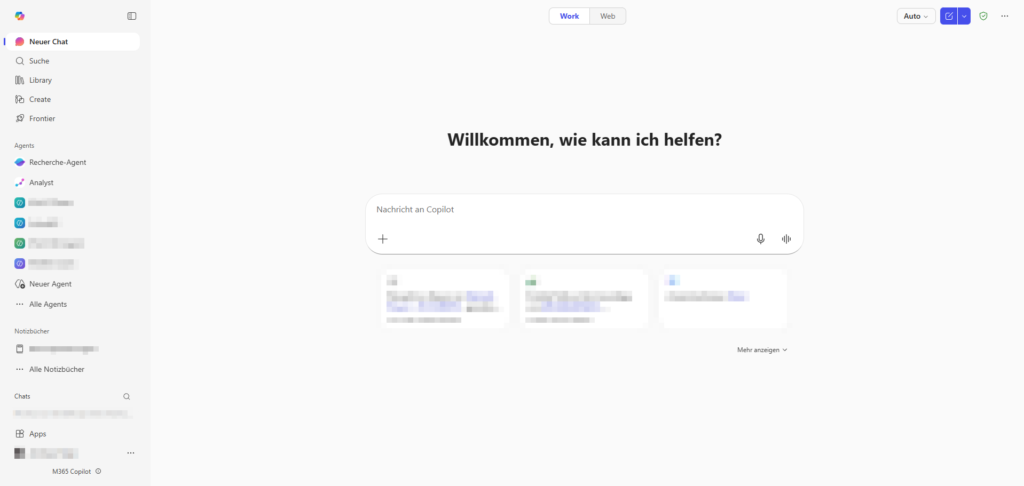
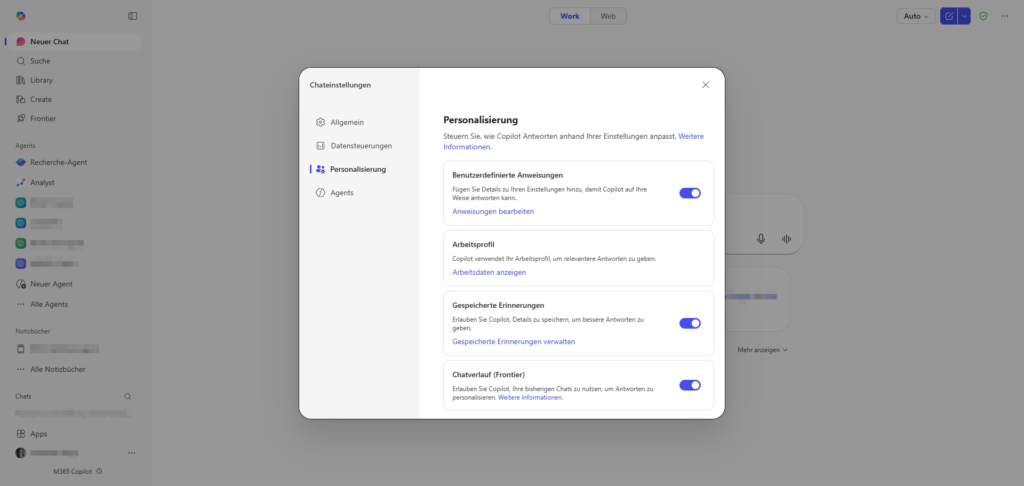
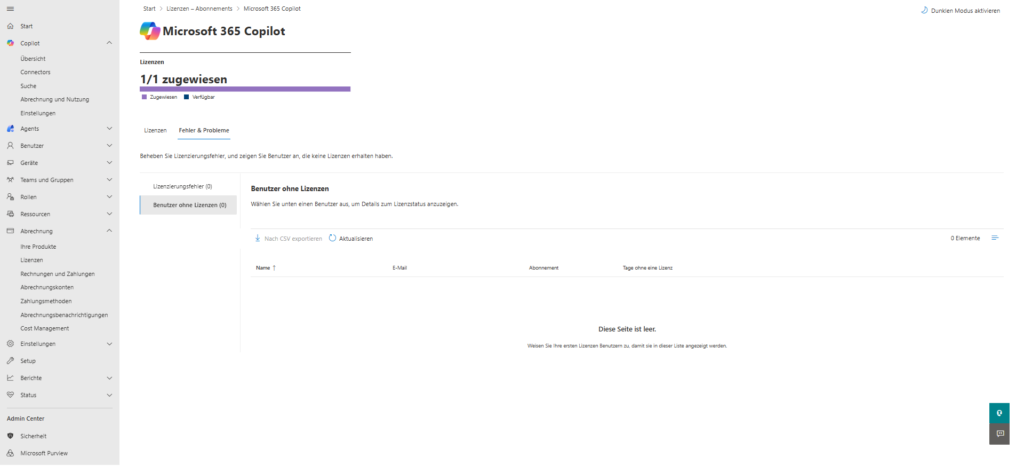
Copilot | Licenses
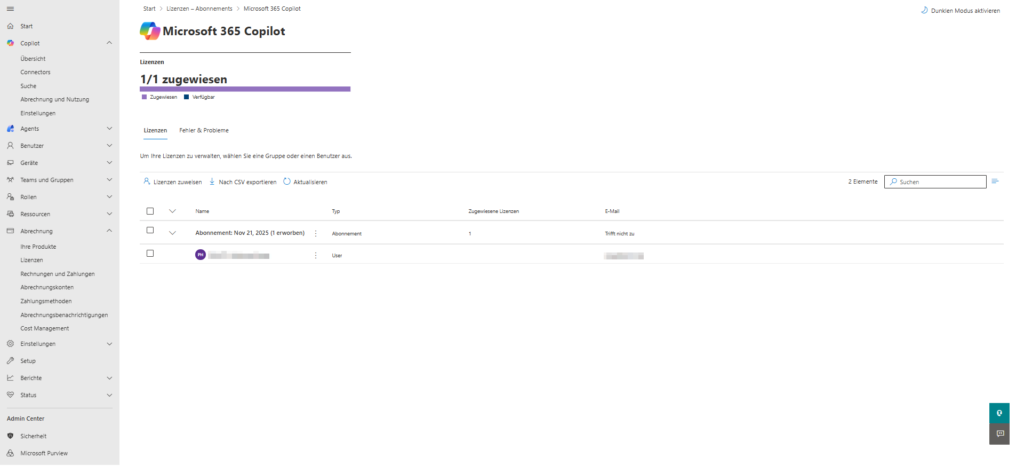
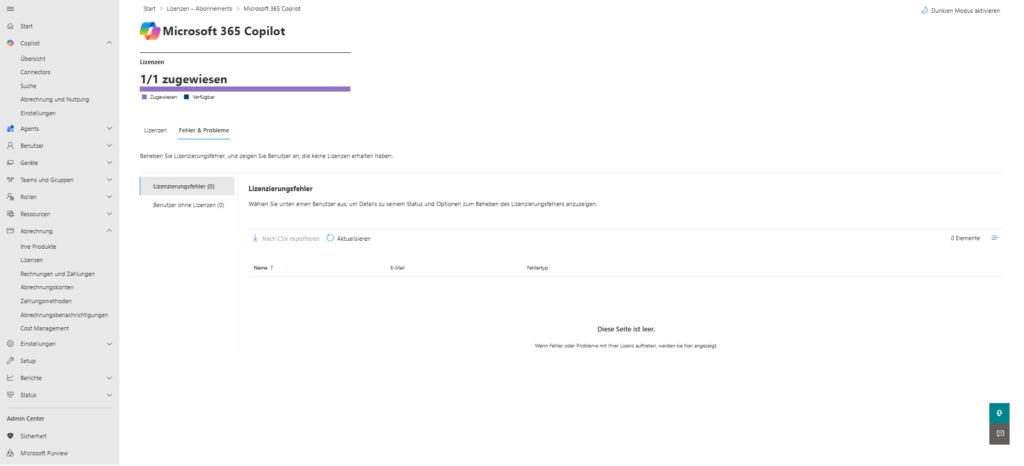
Licensing is the first and most important step in the rollout. In the Microsoft 365 admin center, you not only manage access, but also control the cost-effectiveness of your AI strategy.
Where are the licenses managed?
The allocation is made centrally in two ways:
- Product-based assignment: Under ,
Abrechnung > Lizenzenselect the Microsoft 365 Copilot product. There you can see at a glance how many licenses are available in total and how many have already been assigned. - User-based assignment: Under you
Aktive Benutzercan assign the license directly to individual people.
The end-user activation process
It is important to manage the expectations of the users. After assigning the license in the admin center, the following happens:
- Latency: It can take anywhere from a few minutes to up to 24 hours for the license to be replicated throughout the tenant.
- App update: The Copilot buttons in Word, Excel or Teams often only appear after a complete restart of the Office applications.
- Technical requirements: Make sure your users' devices are on a supported update channel (Current Channel or Monthly Enterprise Channel). In older versions or the Semi-Annual Channel, Copilot will not appear despite the license.
- Force License Update: If Copilot does not appear, it often helps to use or
Datei > Konto > Updateoptionen > Jetzt aktualisierenmanually log out and log in to your Office account again. In the web version (Office.com), a simple reload of the page can speed up the process.
Copilot | Introduction
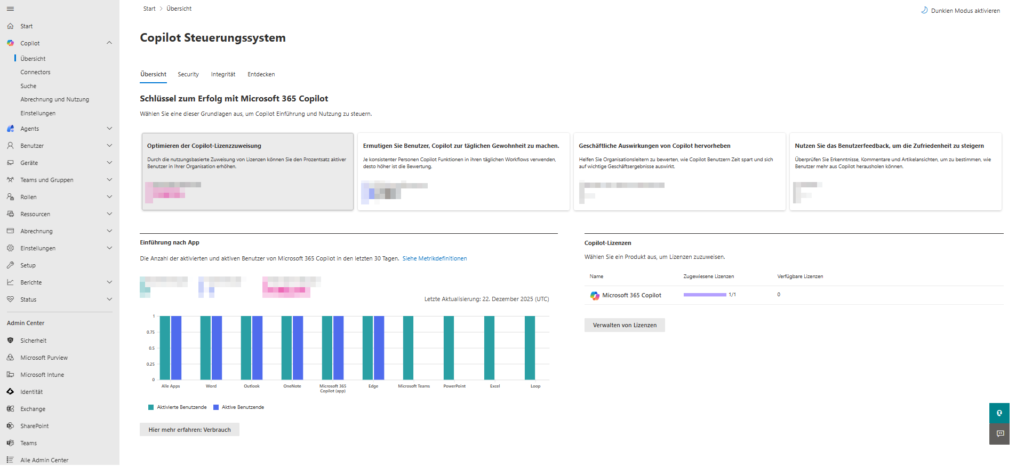
To keep Copilot running securely and efficiently, the Microsoft 365 admin center provides a centralized dashboard with three critical areas. Here, you'll be in control of the adoption, security, and technical status of your environment.
1. Tab: Overview – Making success measurable
In the overview, you control the adoption (adoption). It is not enough to assign licenses; You need to validate whether and how they are used.
- AI Adoption Assessment: Here, on a scale of 0 to 100, you can see how consistently people integrate Copilot features into their daily workflows.
- Hours with Copilot support: This metric helps you evaluate to senior management how much time users are potentially saving by using AI.
- Introduction by app: Here you can see exactly whether your team uses Copilot more in Teams, Outlook or hardly in Excel to offer targeted training measures.
- Activated vs. Active Users: A significant difference for your budget. If licenses are assigned but not actively used for a period of 30 days, this dashboard provides the basis for optimizing license distribution.
- Data latency: Keep in mind that reports can take up to 72 hours to update.
Tab 2: Security – Privacy & Microsoft Purview
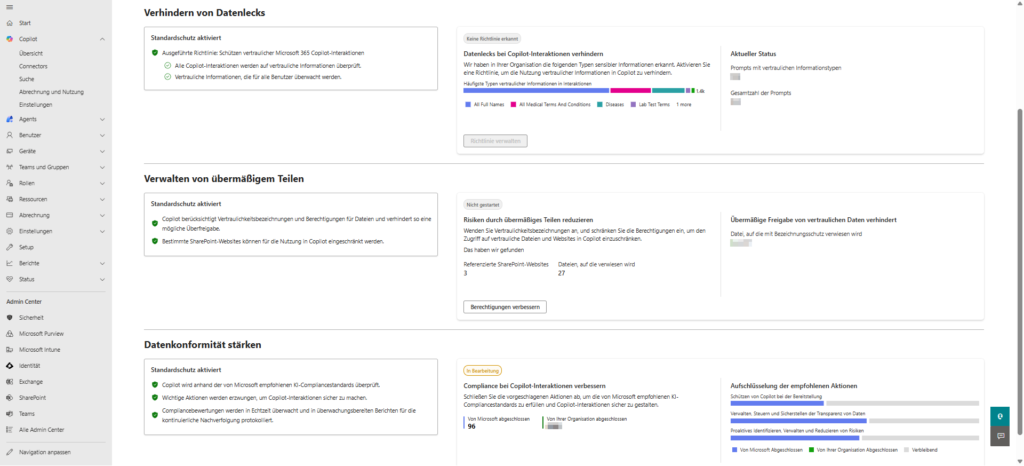
This is the most critical area from an administrator's point of view. Copilot leverages built-in security controls powered by Microsoft Purview .
- Data Leak Prevention (DLP): The dashboard shows you if policies are active to monitor or prevent the use of sensitive information (such as medical data or real names) within Copilot interactions.
- Managing over-sharing: Copilot takes existing authorizations into account, but makes poorly secured data easier to find through the "Semantic Index". The dashboard shows you how many SharePoint sites and files are referenced and whether they are protected by sensitivity labels .
- Strengthen data compliance: Microsoft provides recommended actions here to meet AI compliance standards. You can see in real time what protections are already in place and what steps your organization still needs to complete (e.g., reduce risks from oversharing).
3. Tab: Integrity – The Technical Basis
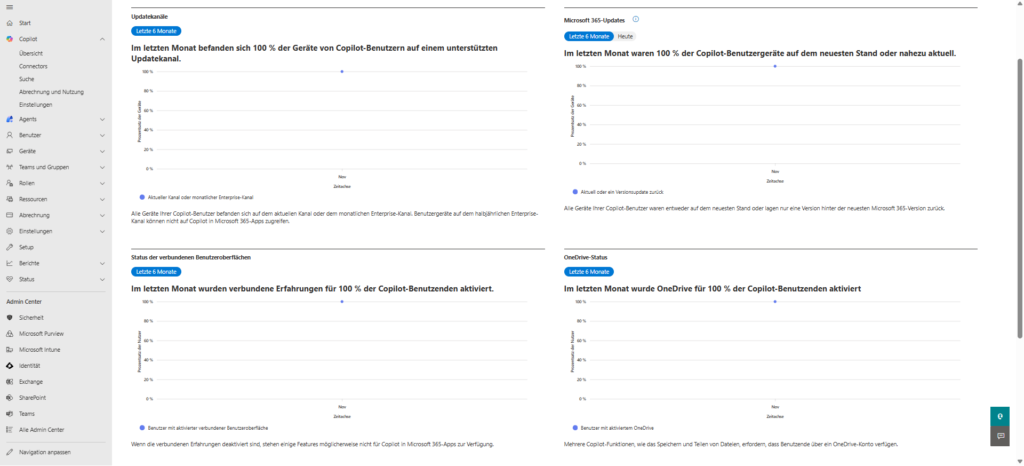
In order for Copilot to appear in the Office apps at all and work reliably, the technical framework conditions in the tenant must be right. The Health tab serves as an early warning system for rollout blockers.
- Update channels: Copilot is only supported if the devices are on Current Channel or Monthly Enterprise Channel . Devices in Semi-Annual Enterprise Channel can't access Copilot in Microsoft 365 apps; the dashboard visualizes the corresponding error rate directly for you.
- Microsoft 365 updates: For smooth functioning, the devices should be up to date or at most one version update back. The dashboard shows you the percentage of devices that meet this requirement.
- Connected user interfaces: Copilot requires "connected experiences" to be enabled in the privacy options. If these are deactivated, the AI features are not available; here you can check whether 100% of your users are technically ready to go.
- OneDrive status: Since essential Copilot functions such as storing and sharing files are based on OneDrive, an active OneDrive account is mandatory for every user. The dashboard gives you information about how many licensed users already have this option.
- Changes and Service Issues: This section is where you stay informed about new Copilot features and the current service status. You can see active issues that Microsoft is working on and report disruptions directly.
Copilot | Connectors – Securely connect external data sources
The Connectors section of the Copilot menu allows you to expand the AI knowledge base beyond the Microsoft 365 world. By connecting external data sources, Copilot can provide answers that also take into account information from third-party systems.
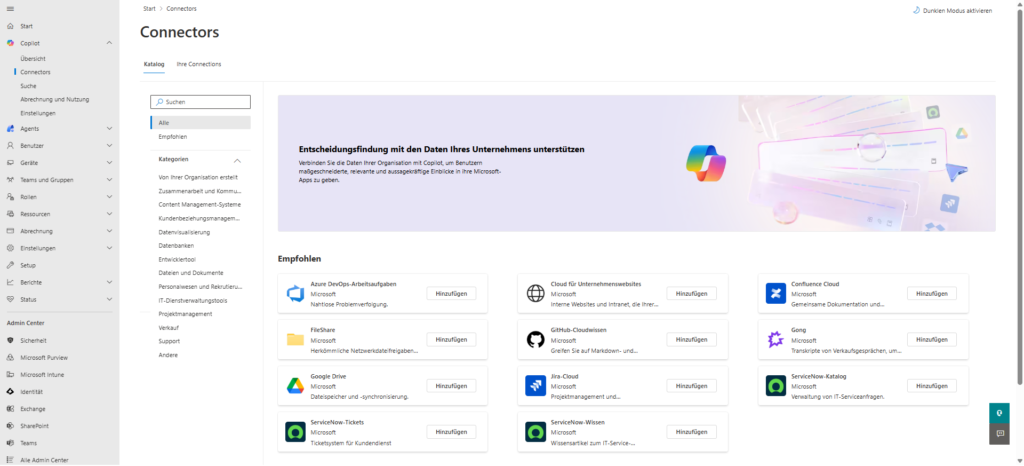
Connector Catalog
In the Admin Center, you Copilot > Connectors will find a catalog of ready-made interfaces to popular platforms. These are divided into categories such as development tools, CRM or document management.
Examples of available connectors include:
- Azure DevOps: For seamless issue tracking and status queries on development projects.
- Jira Cloud & Confluence: To make project management data and documentation usable directly in Copilot prompts.
- Google Drive & FileShare: To integrate data that is outside of SharePoint/OneDrive.
- ServiceNow: For IT service requests and knowledge bases.
Data protection relevance for administrators
Each enabled connector opens an interface to a third-party provider. From the point of view of data protection and IT security, you should consider the following points here:
- Data sovereignty & DPA: Once a connector is added, Copilot can index that data. Check in advance whether the information stored there complies with your company's compliance guidelines and whether there is a corresponding Data Processing Agreement (DPA) with the third-party provider.
- Authorization mapping: Copilot respects the permissions of the source system. A user can only find what he or she is allowed to see in the target system (e.g. Jira) via Copilot. Nevertheless, you should validate this mapping on a random basis.
- Encryption: Make sure that the connected sources are encrypted in transit, as data can leave the closed Microsoft security area for a short time.
Your Connections – The Control Center of Data Sovereignty
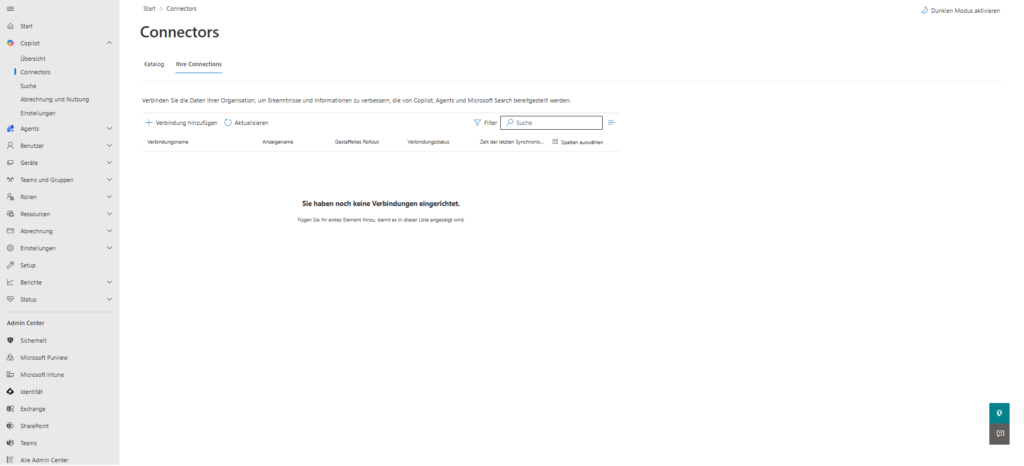
While the catalog shows the possibilities, the "Your Connections" tab is the actual control center for active data integration. Here you manage all existing links of your tenant with external systems.
Administrative control and monitoring
In this overview, you can see exactly which connectors have been configured and what their status is:
- Status Monitoring: You can immediately see if a connection is active or if there are authentication errors. Only active connections are included in the Microsoft Graph and processed by Copilot.
- Source Management: Lists which external data assets (e.g., a specific Confluence instance or an Azure DevOps project) are released for indexing.
- Erase and disconnect: If a data source no longer meets compliance requirements, you can cut the connection here centrally. This immediately deprives Copilot of the basis for using information from this source.
Relevance for data protection (audit)
Administrators should audit this tab regularly to ensure that there are no outdated or unauthorized connections.
Copilot | Search – Control Sources of Knowledge and Navigation
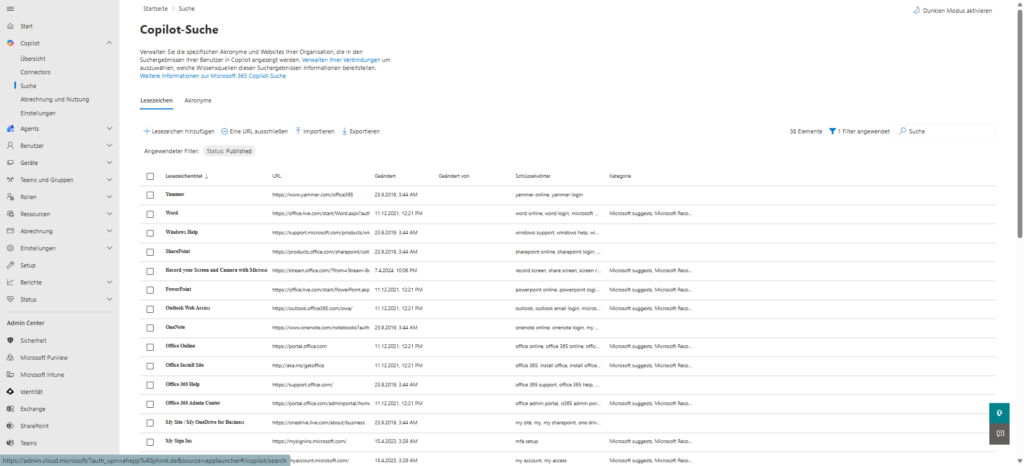
An essential part of the Copilot experience is the ability to quickly access company-relevant information. In the Admin Center at Copilot > Suche , you can specifically control which internal resources and technical terms are prioritized or explained in the search results of your users.
Tab: Bookmarks
Bookmarks direct users directly to your organization's official and trusted sources. When someone asks for a specific service or internal app in Copilot, these stored links appear as preferred results.
- Centralized management: You can manually add bookmarks, exclude specific URLs, or bulk import and export existing lists.
- Keywords: By defining terms such as "vacation request" or "IT support," you can ensure that the AI suggests the correct destination URL (e.g., the HR portal or a SharePoint page) when requested.
- Status control: In the overview, you can immediately see which bookmarks have already been published and when the last change was made by whom.
Tab: Acronyms
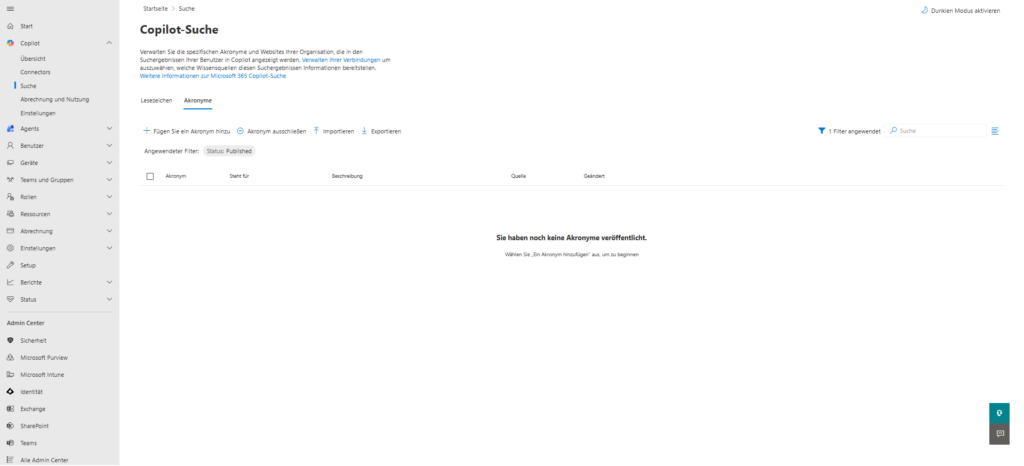
To help Copilot understand the specific "corporate language" and resolve abbreviations correctly, use the acronyms section.
- Provide definitions: This is where you store abbreviations along with their long form and a short description.
- Contextual understanding: When an employee asks "What does [abbreviation] mean?", the AI accesses this verified list to provide a precise, company-specific answer, rather than pulling a general (and often incorrect) definition from the web.
Strategic relevance for data protection
Control via the "Search" tab is an important tool for data governance. By maintaining verified bookmarks, you reduce the risk of AI directing users to outdated, unofficial, or potentially unsafe sources of information.
You can also use the built-in "Manage your connections" link to jump directly to the connectors. This allows you to determine which external knowledge sources are generally authorized to provide information for these search results within your tenant.
Copilot | Billing and usage
In addition to the classic license assignment, the Microsoft 365 admin center offers the possibility to control billing for specific AI services via pay-as-you-go. This is especially relevant if you're using apps and services that go beyond the standard subscription or need to scale flexibly.
Configure billing policies
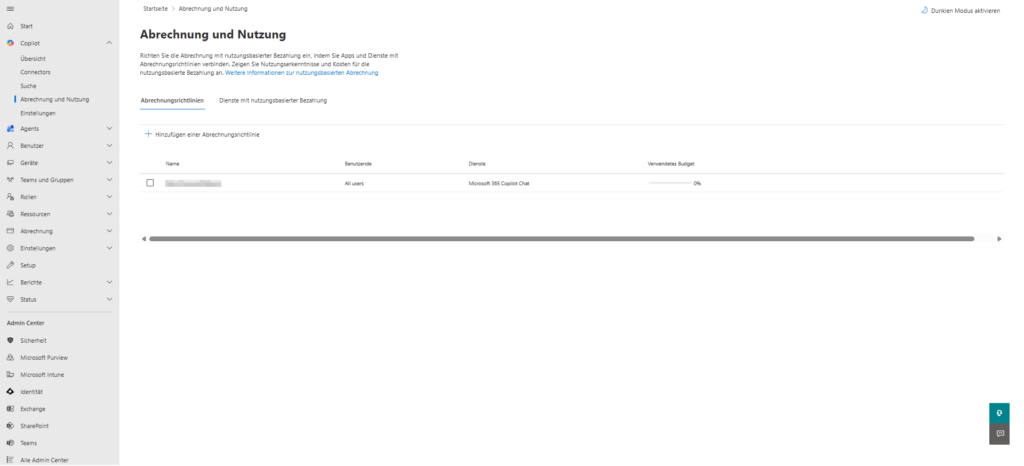
In the Billing Policies tab, you can control how the cost of using AI services is allocated and monitored within your organization.
- Connecting services: This is where you link apps and services with a policy to turn on billing. An example of this is the assignment of the Microsoft 365 Copilot Chat service to a specific policy (for example, "BillingTelecom").
- Assignment to users: You can precisely define whether a policy applies to all users or only to certain groups within the organization.
- Budget monitoring: The dashboard shows you the budget you've already used (e.g., 0%), so you can keep an eye on pay-as-you-go cost trends in real time at all times.
Tab: Pay-as-you-go services
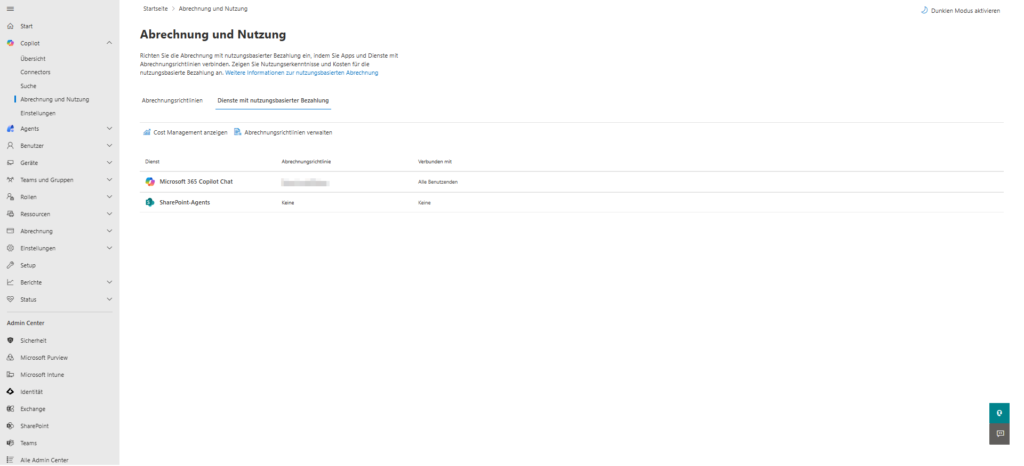
This tab provides a detailed breakdown of each service billed through this model.
- Microsoft 365 Copilot Chat: Monitors the cost of using chat features if they run through a usage-based policy.
- SharePoint agents: The use of specialized agents that access SharePoint data is recorded separately here. If no policy is already stored for them, this will be displayed as "None" – a clear signal to you as an administrator that there is still a need for configuration here.
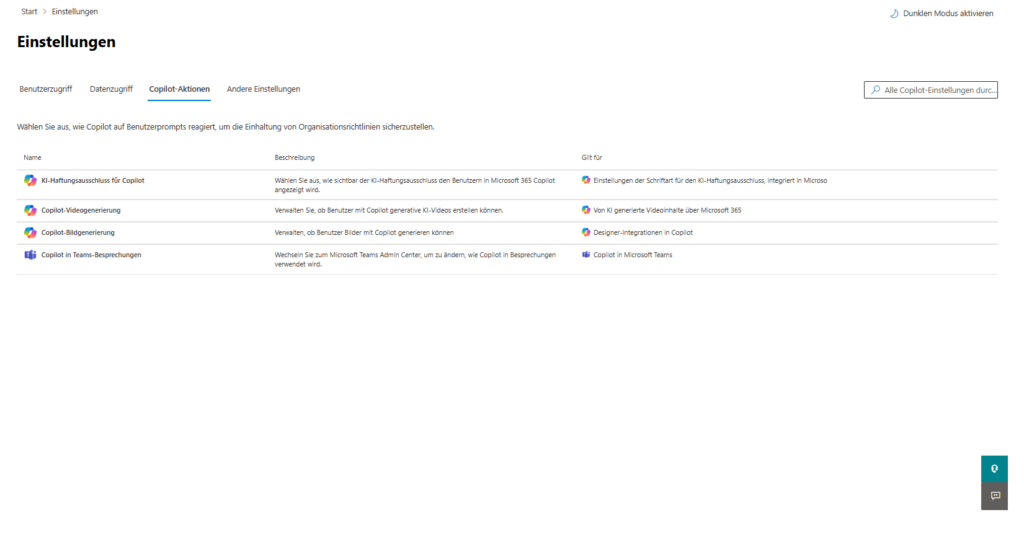

Copilot governance is teamwork
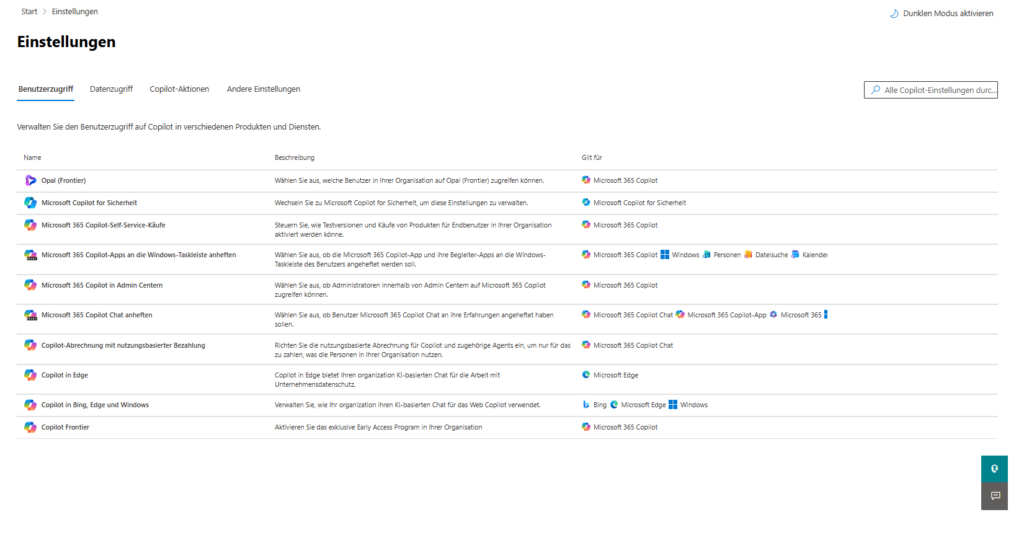
The introduction of Microsoft 365 Copilot is much more than just a license assignment. While the Copilot control system in the admin center gives you the tools you need for rollout monitoring and technical integrity, true security comes from working with Microsoft Purview.
As an administrator, it's your job to not only provide the features, but to define the framework in which the AI operates. Clean maintenance of bookmarks, monitoring of connectors and cross-portal configuration of DLP policies are the cornerstones for productive and privacy-compliant use.
📋 Checklist
- License Check: Are all licenses assigned correctly and is Self-Service Purchase disabled?
- Check Integrity: Are all clients on the Current or Monthly Enterprise Channel?
- Data Governance: Are sensitivity labels defined so that Copilot automatically restricts access to sensitive files?
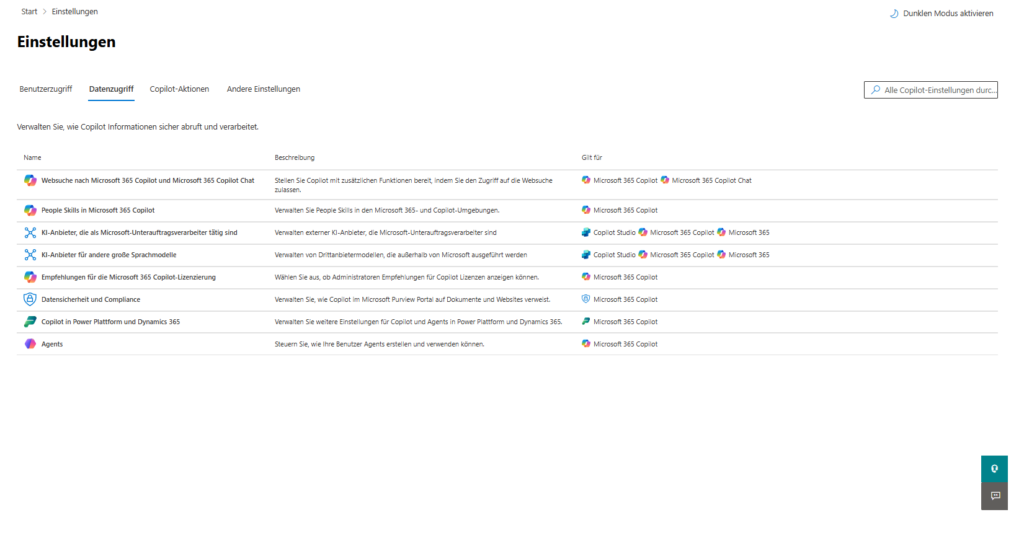
- Web Search Strategy: Is it specified in the Settings > Data Access tab whether the Bing integration is allowed for research?
- Monitoring routine: Is there a fixed cadence (e.g., monthly) scheduled to remove orphaned data sources in the Your Connections tab?

💬 Comments
0 KommentareSei der Erste und starte die Diskussion mit einem hilfreichen Beitrag.
Leave a comment
Dein Beitrag wird vor der Veröffentlichung kurz geprüft — fachlich, respektvoll und auf den Punkt ist hier genau richtig.