

In former Small Business Server (SBS) environments, many administrators encounter a seemingly mysterious problem: A freshly installed Certificate Authority (CA) on a new Windows Server refuses to issue certificates, even though the installation and setup went through without errors.
Especially in scenarios in which the old SBS structures still “reverberate” in Active Directory, the modern architecture of Windows Server 2025 can stumble.
In this article, we analyze the case where an RPC error 1722 and an invalid pointer (0x80004003) blocked the issuance of certificates, and why the solution lay in the detail of DCOM group membership.
The starting point
We operate in a domain that originated on a small business server.
- Old (Legacy): The SBS acted as an “all-in-one” solution: it was a domain controller (DC), Exchange server, and certificate authority (CA) all in one. Remnants of this configuration (groups, attributes, etc.) are still contained in Active Directory!
- New: A fresh Windows Server 2025 has been added to the domain as a member server. The role of the CA has been cleanly reinstalled there.
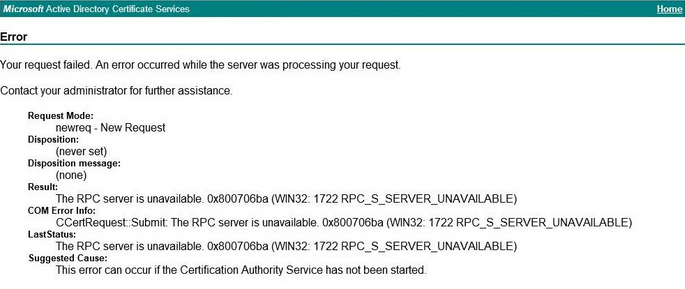
After setup, we tried to request a certificate via the classic CA web portal (/certsrv) as well as via the local MMC. The process broke off immediately. Instead of an issued certificate, we received the following error message:
“Error in request… Result: Invalid pointer 0x80004003 (E_POINTER) … CCertRequest::Submit: Invalid pointer 0x80004003.”
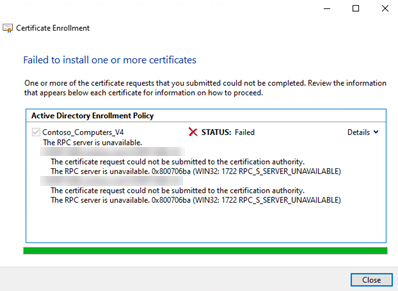
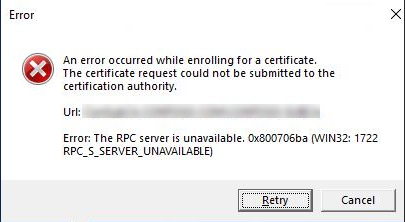
At the same time, event logs and tests (e.g. via certutil) pointed to an RPC error 1722 and missing DCOM rights.
The analysis: Why “invalid pointer”?
The error code 0x80004003 (E_POINTER) is a generic COM error. It occurs when an application expects a pointer to an object, but null it is.
In the context of the CA, this means that the web enrollment form attempts to call the method CCertRequest::Submit on the CA service via DCOM (Distributed Component Object Model). If the security check for this DCOM call fails, the connection is blocked before the service can return a valid response object. The web application gets “nothing” back and interprets this as an invalid pointer.
So the actual cause is not a software error, but an authorization problem.
The “SBS Legacy” Effect
On the new CA server (Windows Server 2025), we checked the DCOM access groups. This is where the problem was buried, hidden in the legacy of the domain structure.
- Default on member servers: Normally, a CA uses the local group “Certificate Service DCOM Access”. In a clean environment, the setup there often adds “Authenticated Users” and “Domain Computers”.
- The problem: Due to the history of the domain or strict default settings, only “Domain Users” were included in the access group.
- The gap: In an Active Directory domain, domain controllers (DCs) are not members of the Domain Computers group. They have their own organizational unit and group (“Domain Controllers”).
Since the CA consults with the AD (and thus the DCs) for certain checks, access failed due to the lack of authorization in the DCOM ACL.
The problem with “Authenticated Users”
In a clean environment, the Authenticated Users group is best practice and automatically includes the DCs.
SBS context: In old SBS domains, the right “Access this computer from the network” was often massively restricted via GPO or the group “Authenticated users” was removed for security reasons (hardening). Therefore, “Authenticated Users” often does not apply in this particular scenario.
Why not just add the Domain Controllers group?
This is where the peculiarity of the old SBS environment comes into play. In many cases, simply adding the Domain Controllers global group is not enough. Due to problems with GPO (User Rights Assignment) restrictions from SBS times, the permission via the group is often not resolved correctly or quickly enough.
The solution was therefore explicit: Authorize the computer accounts of the domain controllers individually.
The solution: step-by-step
To fix the error 0x80004003 and RPC 1722 , the DCOM rights on the CA server must be adjusted.
Important: Add the DCs’ computer accounts directly, don’t rely on group nesting in old domain structures!
- On the new CA server, open Computer Management (
compmgmt.msc). - Navigate to Local Users and Groups -> Groups.
- Locate the Cert Service DCOM Access group (or “Certificate Services DCOM Access”).
- Click Add, change the object type so that computers are also searched.
- Now find and add each of your domain controllers individually (for example
DC01$, ,DC02$). - Optional, but recommended: Restart the server to ensure that all DCOM services load the new ACLs.
Certificate requests should now work immediately.
Note: In legacy SBS environments, it is often observed that the resolution of the Domain Controllers group is unreliable, which is why direct entry of the DC computer account is the most robust solution.
Background: Why this difference?
It helps to understand why SBS environments are so vulnerable here:
| CA on Domain Controller (e.g. SBS) | CA on Member Server (Recommended) |
Leverages a domain-local group in the AD (CERTSVC_DCOM_ACCESS). | Uses a local group on the server. |
| Includes Domain Users & Domain Computers by default. | Includes Authenticated Users by default. |
| DCs are often missing because the CA (the DC itself) does not need remote access to itself. | All authenticated principals have access. |
Recommendation for Windows Server
Never run a CA on a domain controller. The separation of roles increases security and facilitates later migrations. However, if you are migrating from an old structure, always check the memberships of the local DCOM group first in case of errors. The error 0x80004003 in Web Enrollment is almost always an “Access Denied” in the guise of DCOM.





Be the first to comment