

Microsoft will soon improve the transfer of OneDrive data when employees leave – with optimized notifications, smart filters and bulk export.
Do you know this? An employee leaves your company, and suddenly the big data chaos begins: What files are still in their OneDrive? Who needs access? And how do you make sure that nothing important is lost before the retention period expires?
Automatic access delegation to supervisors has been around for a long time, but let’s be honest: The implementation has been anything but perfect so far.
Microsoft has apparently recognized exactly these pain points and will soon roll out a series of improvements that will finally make an existing process really practical – employee offboarding.
The information comes from Microsoft MVP Fabio Bonolo, who first reported on the latest improvements.
What exactly is improving?
The basic “automatic access for managers” feature has been around for some time. If you delete a user account in Microsoft 365 and have enabled Access Delegation in SharePoint, the supervisor stored in Entra ID automatically gains access to the departed employee’s OneDrive. If no manager is entered, a Secondary Owner defined in SharePoint applies.
What is new now are decisive improvements that finally turn this theoretical feature into a practical tool:
1. Improved notifications
- The manager receives an email with direct access and all important information about the retention period
- Seven days before the final deletion, a reminder email will be sent automatically
- Emails are now more clearly labeled and are less likely to get lost
2. Smart filters for a faster overview
- New filter options help you search specifically for shared or critical files
- You can switch between All Files and Shared Files Only
- This saves a lot of time when sifting through large OneDrives
3. Bulk Transfer with Approvals Received
- With the new “Move and keep sharing” feature, you can transfer multiple files at once
- The special feature: The existing sharing permissions will be retained
Where can you find these settings?
To enable or verify automatic Access Delegation for OneDrive, follow these steps:
SharePoint admin center → More features → set up user profiles → My Sites
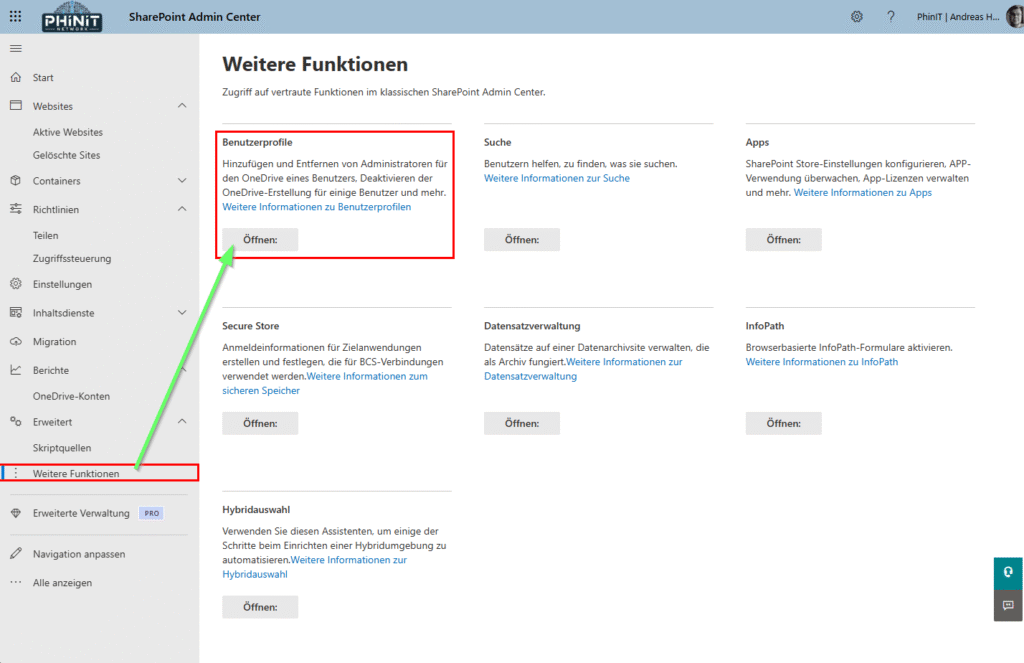
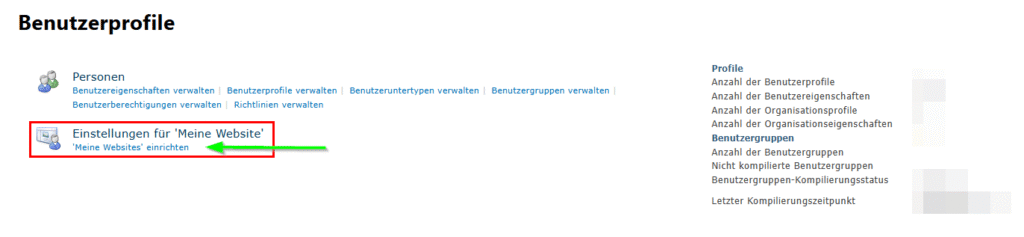
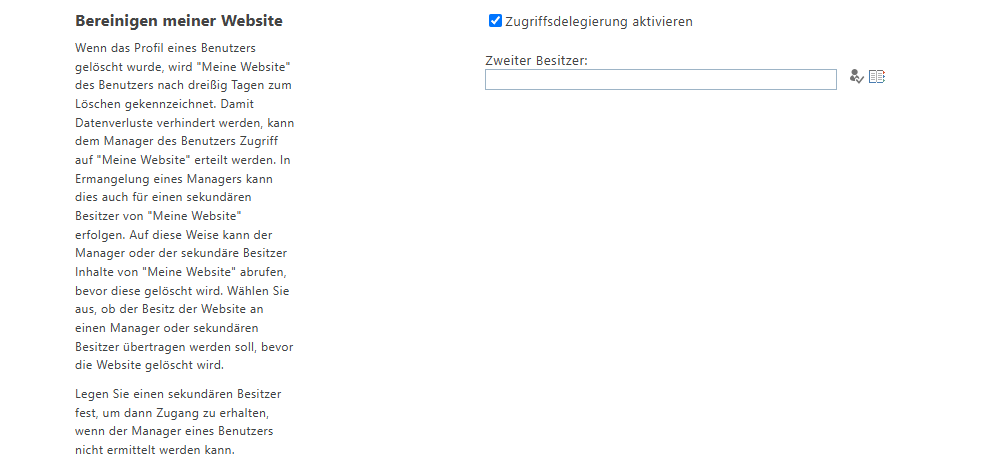
- Open the SharePoint admin center at
https://[deine-domain]-admin.sharepoint.com - Navigate to More features in the left navigation
- Under User Profiles , click Open
- Under My Sites settings, select Set up My Sites
- Scroll to the Clean up section of my site
- Make sure Enable Access Delegation is enabled
- Optional: Enter a second owner (if no supervisor is stored in Entra ID)
⚠️ Important: This setting is enabled by default! You should check to see if it’s still active in your environment, as admins may have disabled it in the past.
Store Manager in Entra ID
For the automatic delegation to work, a supervisor (manager) must be stored for each employee:
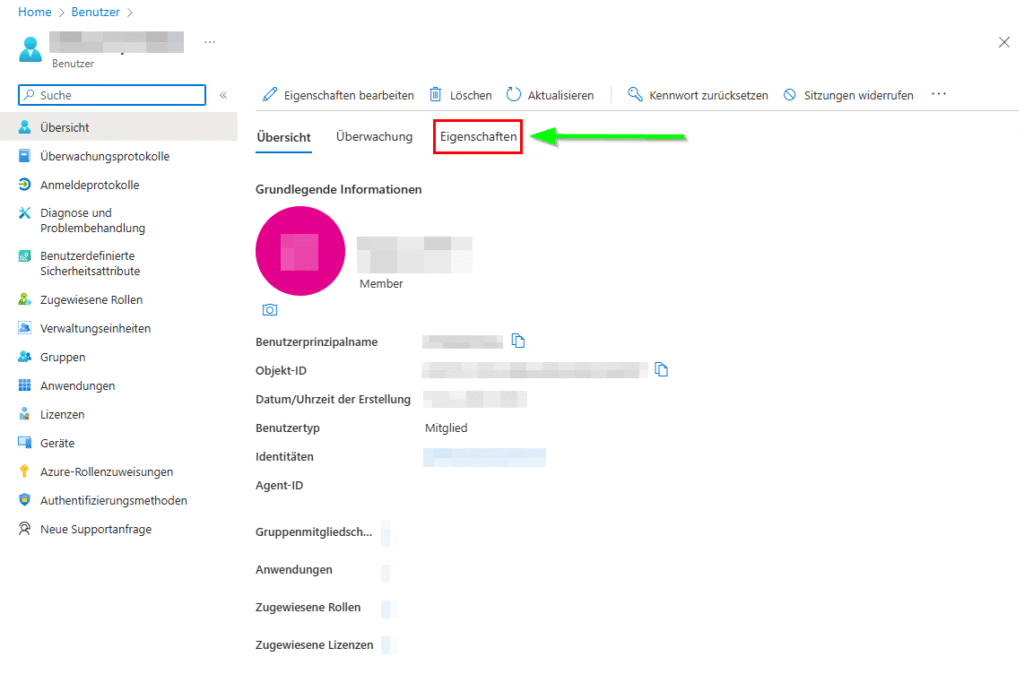
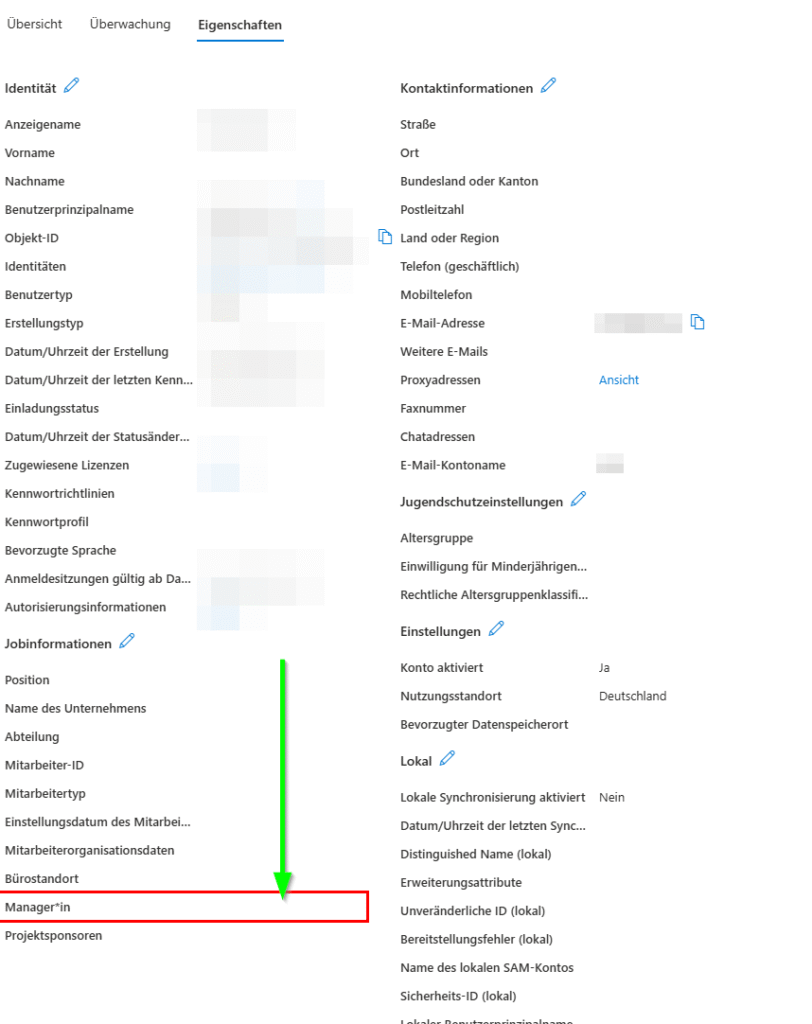
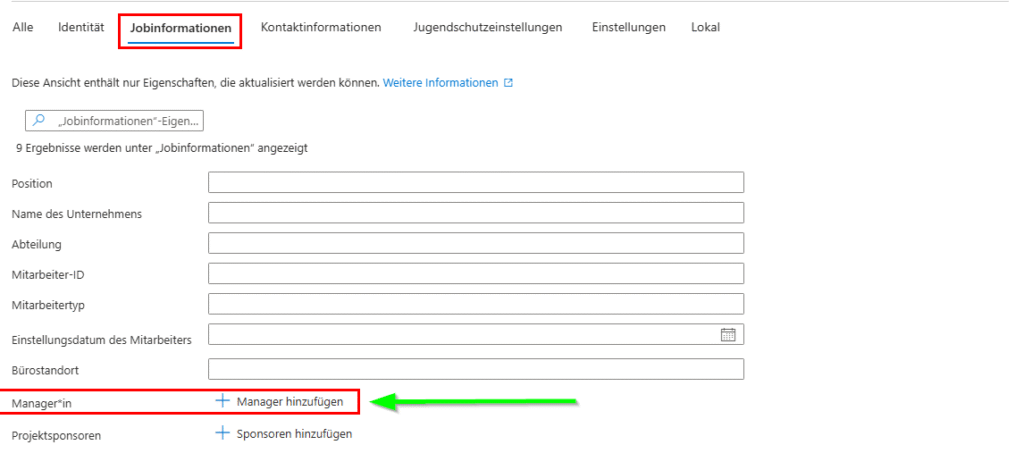
- Open the Microsoft Entra admin center at
https://entra.microsoft.com - Navigate to Users → All Users
- Select a user
- Click on Properties
- Under Job Information you will find the Manager field
- Click on the pencil to edit and assign a manager
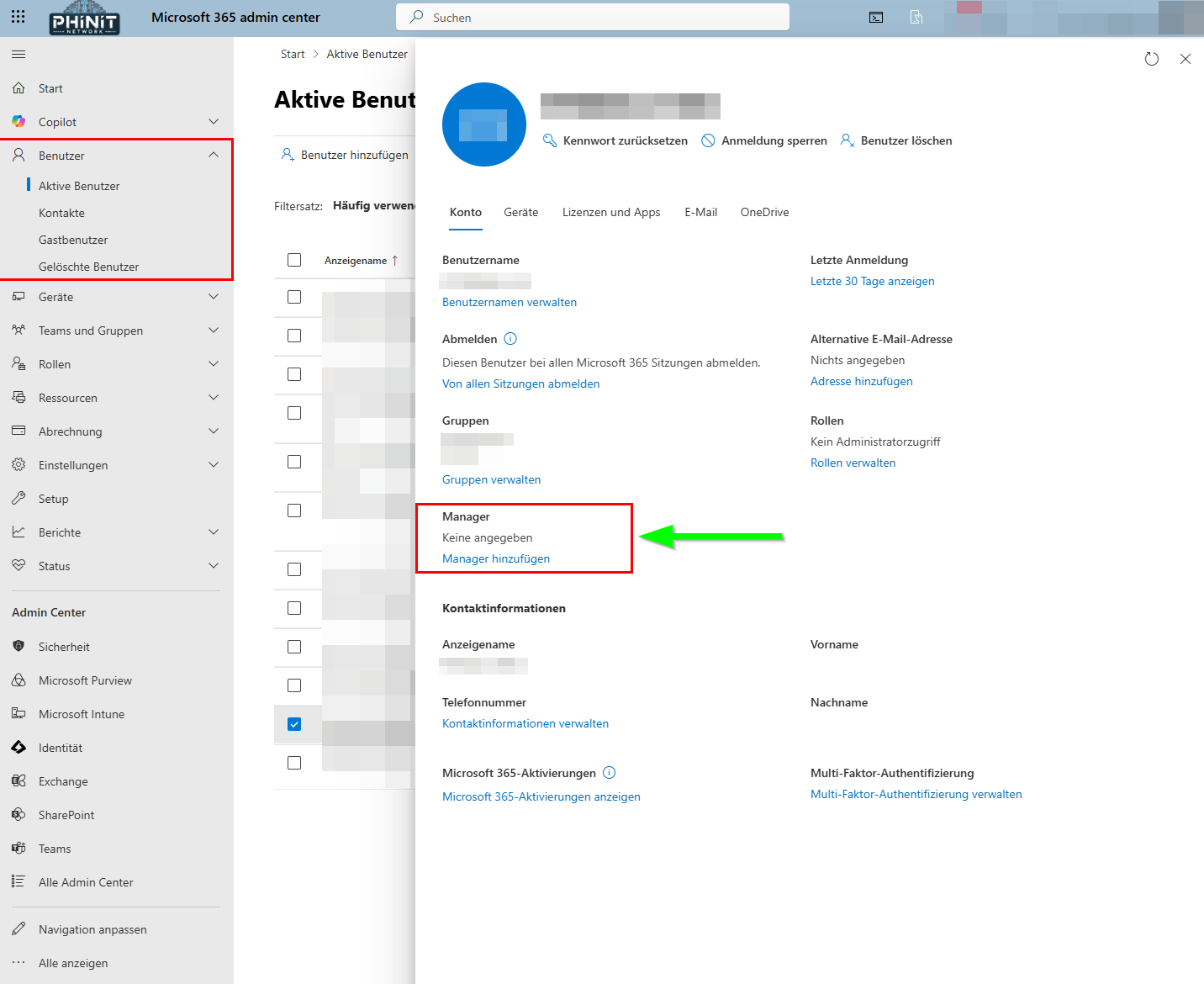
Alternatively, you can assign managers from the classic Microsoft 365 admin center:
Users → Select Active Users → Users → Add Manager → Manager .
💡 Tip: Use PowerShell or Microsoft Graph API to manage manager mappings at scale, especially if you want to upgrade many users at once.
How the new process works
The good news in advance: You usually don’t have to do ANYTHING for the time being! The update will be rolled out automatically and will soon be available worldwide (also for GCC, GCCH and DoD).
Microsoft recommends:
- Inform the supervisors and second owners about the new functionality
- Update your internal offboarding documentation
- Make sure that a supervisor (manager) is stored in Entra ID or in the local Active Directory for all employees
The process is pleasantly uncomplicated:
- You delete the user account in Microsoft 365
- The manager will automatically receive an email with the link “View files”
- In OneDrive, he can quickly identify relevant files with the new filters
- Using the checkbox selection, he marks the desired files
- With “Move to” he selects the destination and activates “Keep sharing with the same people”
- One click on “Move to” – done!
- The supervisors (managers) are then informed by email that the files have been moved.
Reason behind the adjustment: OneDrive licensing 2025
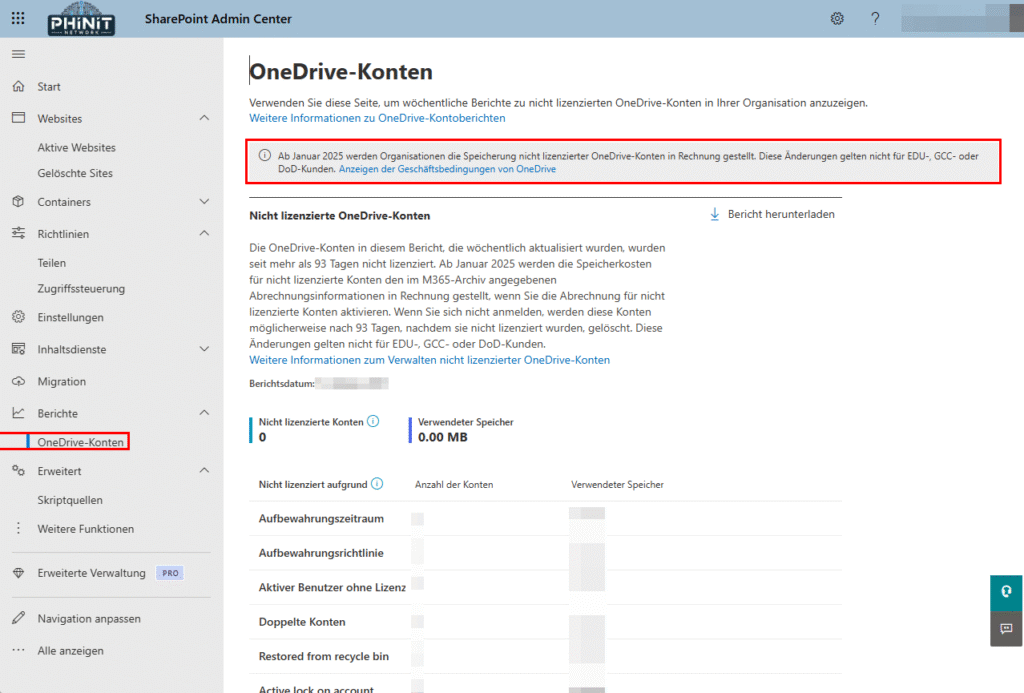
These improvements are no coincidence. Since 2025, Microsoft has been massively tightening its policies for unlicensed OneDrive accounts.
Accounts without a license are automatically archived after 93 days and reactivation costs $0.60 per GB plus $0.05 per GB per month.
The new feature not only helps you with the offboarding process, but also helps you to back up important data in good time before expensive archiving costs are incurred or data is permanently deleted.
A long overdue improvement
To be honest, it was about time! Automatic access delegation already existed, but the previous implementation was cumbersome and error-prone. Managers had to dig through cluttered OneDrives, email notifications got lost, and manually moving individual files was tedious.
With the new improvements, Microsoft is not only making offboarding easier, but also more secure. The revised reminder emails ensure that nothing is forgotten, and the bulk transfer with approvals received minimizes disruption for the teams.
My tip: Clean up your Entra-ID or local user accounts! Make sure that all employees have a manager on file. Because that’s the only way you can benefit from the new features.
The handover of OneDrive data at exit is finally becoming what it should be: a smooth standard process instead of a manual nightmare.
Further links
| Topic | Source | Link |
|---|---|---|
| OneDrive Retention and Deletion | Microsoft Learn | Documentation |
| Access to OneDrive and Outlook Data | Microsoft Learn | Step-by-Step Guide |
| Microsoft 365 Roadmap ID 493946 | Microsoft 365 Roadmap | Item |
| OneDrive Simplified File Transfer | M365 Admin (HandsOnTek) | Read more |
| OneDrive File Transfers Guide | AdminDroid Blog | To the Guide |
| Automate Offboarding with Entra | Microsoft Learn | Skip to tutorial |
| Employee Lifecycle in Entra ID | CloudView Partners | Best Practices |
| Entra ID Governance Automation | Securing Insights Blog | 15-Minute Setup |
| Unlicensed OneDrive Accounts | CoreView | Management Guide |
| Microsoft’s New Data Retention Policy | Managed Solution | Policy Changes |
| Microsoft 365 Best Practices Offboarding | AdminDroid Blog | Best Practices |





Be the first to comment