

– with PowerShell and Microsoft Graph
Previous article: Microsoft Purview Sensitivity Labels: Architecture & Practice Guide
Manually maintaining sensitivity labels is feasible in small environments, but a Sisyphean task in enterprise environments. If you have thousands of SharePoint sites and Microsoft Teams to manage, the GUI (Graphical User Interface) is too slow, too error-prone, and simply not scalable.
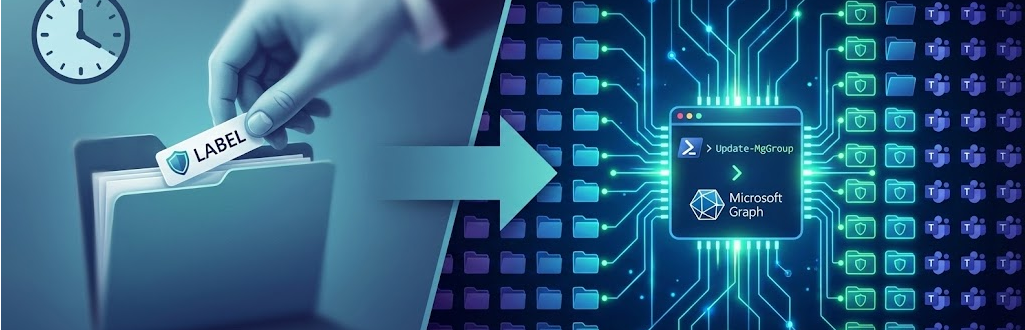
For IT administrators, automation using PowerShell and the Microsoft Graph API is the only true way to enforce consistency (governance at scale). In this article, I’ll show you how to apply labels programmatically to containers (teams & sites) and how to fix “sins of the past” via mass update.
Why scripting?
Sensitivity labels at the container level control powerful settings in the background: guest access, access from unmanaged devices and external sharing options.
A classic scenario: Your security policy changes. All teams that bear the label “Internal” are to block guest access from now on.
- Way A (GUI): You click through 200 Teams settings in the admin center. Duration: 3 days + tendonitis.
- Way B (PowerShell): You update the label centrally or roll out the label again via script. Duration: 15 minutes.
PowerShell Basics for Sensitivity Labels
If you want to automate sensitivity labels, you can’t get around the command line. But be careful: The module landscape at Microsoft is changing. Many old blog articles still refer to the AzureADmodule, but this is technically “End of Life”. For future-proof architecture, we rely on the modern trio.
The necessary modules
To cover all aspects of sensitivity labels (creation, policy management, and container assignment), you primarily need two modules:
- Exchange Online Management (v3): Sounds like email, but it’s the key to the Security & Compliance Center. This is where the cmdlets are used to define labels and build policies.
- Microsoft Graph PowerShell SDK: The “Swiss Army Knife” for M365. You’ll need this to apply labels to containers (Teams, M365 Groups) and change directory settings.
Installation (as administrator):
# Das Standard-Tool für Compliance & Exchange
Install-Module -Name ExchangeOnlineManagement -Force

# Die moderne Schnittstelle für Teams, Groups & User (ersetzt AzureAD)
Install-Module -Name Microsoft.Graph -Force

# Das Standard-Tool für Teams
Install-Module -Name MicrosoftTeams
Establishing the Connection (Authentication)
This is where confusion often arises. We need to authenticate against different endpoints depending on what we want to do.
For label management (Security & Compliance PowerShell)
To create labels (New-Label) or adjust policies, we connect to the compliance endpoint. The Exchange module comes with a special command for this purpose, which is more performant and stable than the old PSSessions:
# Verbindet dich direkt mit dem Compliance Endpoint (IPP = Information Protection & Policy)
Connect-IPPSSession -UserPrincipalName admin@deinedomain.com
2. For Container Assignment (Microsoft Graph)
To “stick” an existing label to a team or a SharePoint site, we use Graph.
Important: You must request the necessary “scopes” (permissions) when connecting, as Graph has hardly any rights by default:
# Scopes für Gruppen-Lese/Schreibzugriff anfordern
Connect-MgGraph -Scopes "Group.ReadWrite.All", "Directory.ReadWrite.All"
Why this separation is important
It’s essential that you neatly separate these two worlds in your scripts (and in your head):
- In the IPPSSession context , you define the logic (What does the label do? Who is allowed to see it? What color is it?).
- In the MgGraph context , you apply the label to the infrastructure (Set Label ID
a1b2...to the “Project Phoenix” team).
A common mistake in scripts is trying to change label definitions with graph commands or manipulating Teams settings with Exchange commands. That won’t work.
Preparation: The ID is the key
Unlike in the graphical user interface, we don’t work with the pretty display names (e.g. “Strictly Confidential”) in PowerShell and the API, but with the ImmutableId (GUID) of the label. The system does not forgive typos here.
Before you get started, you have to read these IDs once. For this purpose, we use the Security & Compliance PowerShell module.
1. Connect
# Verbindung zum Compliance Center herstellen
Connect-IPPSSession
2. Determine IDs
Run the following command to get a clean list of your labels and their IDs. Make a note of the IDs of the labels you want to automate.
Get-Label | Format-Table DisplayName, ImmutableId, LabelActions -AutoSize
Your output will look something like this:
DisplayName: Strictly Confidential
ImmutableId: a1b2c3d4-e5f6-7890-a1b2-c3d4e5f67890
Copy this GUID (a1b2...). You will need it as a variable $LabelId in each of the following scripts.
The role of PowerShell in automation
PowerShell is not used here to label every single file (the service does this in the background via auto-labeling or default settings), but to provision the infrastructure and make mass changes .
Here are the three typical automation scenarios for you as an admin:
A) Bulk classification of inventory data
Do you have 500 existing SharePoint sites that contain financial data but don’t yet have a label? Instead of asking each owner to set the label manually, you use the Set-SPOSite cmdlet from the SharePoint Online Management Shell to enforce the label administratively.
# Verbindung herstellen (falls nicht bereits geschehen)
Connect-SPOService -Url https://dein-admin-sharepoint.com

# Das Label mittels GUID (siehe Vorbereitung) erzwingen
Set-SPOSite -Identity https://contoso.sharepoint.com/sites/finance -SensitivityLabel "a1b2c3d4-e5f6-..."
B) Provisioning processes (self-service)
If a new project is requested through a self-service portal or workflow, the script (such as Azure Automation or Logic Apps) should create the team directly with the correct label.
This prevents a team from having to be created “insecurely” first and later manually secured.
Example using Microsoft Teams PowerShell:
New-Team -DisplayName "Projekt Phoenix" -SensitivityLabel "a1b2c3d4-e5f6-..."
(Note: This requires that the labels in the tenant are correctly synchronized for groups.)
C) Audit & Reporting (Drift Detection)
PowerShell is indispensable for finding drift. A script can run at night, scan all teams, and uncover logic errors:
- Scenario: Review all teams with the “Internal Only” label.
- Check: Do any of these teams include external guests?
- Action: Alarm to IT or automatic removal of guests.
Integration & Synchronization: Patience is a virtue
Since each team is technically based on a Microsoft 365 Group , the sensitivity label is primarily stored on the group object in the Microsoft Entra ID (formerly Azure AD).
This is where an important trap lurks for automation engineers: asynchronous replication. If you set a label via PowerShell, it is usually immediately visible on the Entra object. But:
- Synchronization to SharePoint Online (for the site permissions) and Exchange Online (for the mailbox) runs asynchronously in the background.
- The latency: It can take anywhere from 15 minutes to 24 hours for the changes to take effect.
Consequence for your scripts: A script that sets a label (“Block Guests”) and tries to add a guest user 5 seconds later to test the lock will fail (i.e. the guest will be successfully added when it should be blocked).
Best Practice: Do not include “live checks” immediately after the change. Trust the Update-MgGroup command and schedule audits with a time delay (e.g. the next day).
Automated label assignment for groups and teams
Assigning a label to a Microsoft 365 Group (and therefore to the connected Team + SharePoint site) is the lever for scalable governance. While you often leave file labels up to users, classifying teams is purely an admin matter (or part of an automated provisioning workflow).
Important Reminder: Container vs. Content
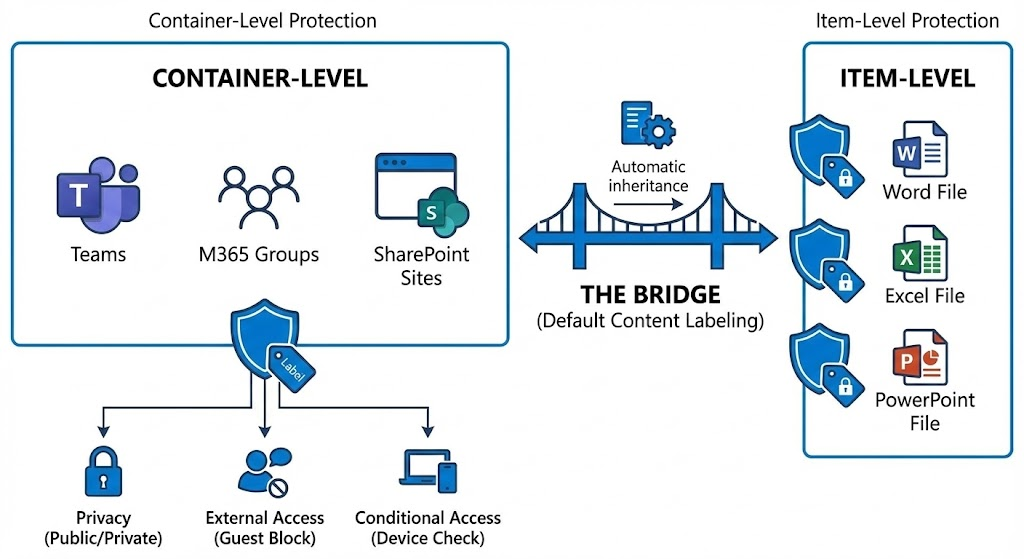
Before we start scripting, we need to clear up the most common misconception: If you assign the “Strictly Confidential” label to a team, the content (files) will not be encrypted.
Instead, the label sets the guardrails of the container:
- Privacy: The team will be set to “Private” (if it was public).
- External Access: Guest access is blocked (if configured in the label).
- Conditional Access: Access from unmanaged devices is prevented.
Note: The files in the team remain technically unencrypted unless you have also enabled standard label inheritance for the document library.
PowerShell script (Microsoft Graph SDK)
The following script shows the robust way to apply a label to an existing team. Since the Graph SDK expects complex objects for labels, we’ll construct the AssignedLabelobject here cleanly manually.
Prerequisite: First, get the ImmutableId (GUID) of your label. You can find them in the Purview Portal or via Get-Label | Select Name, ImmutableId (Exchange module).
# 1. Verbindung herstellen
# Wir benötigen Schreibrechte auf Gruppen
Connect-MgGraph -Scopes "Group.ReadWrite.All"

# 2. Definition der Variablen
# TIPP: Kopiere die GUID aus dem Purview Portal oder via Get-Label
$LabelGuid = "a0b1c2d3-e4f5-6789-0123-456789abcdef"
$TeamName = "Finance-Team"

# 3. Das Ziel-Team (Gruppe) abrufen
$group = Get-MgGroup -Filter "displayName eq '$TeamName'"
if (-not $group) { Write-Error "Gruppe nicht gefunden!"; return }

# 4. Das Label-Objekt bauen
# Graph erwartet ein spezifisches Objekt-Format (AssignedLabel)
$params = @{
    assignedLabels = @(
        @{
            labelId = $LabelGuid
        }
    )
}

# 5. Label anwenden (Update)
Update-MgGroup -GroupId $group.Id -BodyParameter $params

Write-Host "Label erfolgreich zugewiesen. Beachte: Es kann bis zu 24h dauern, bis dies in Teams sichtbar ist." -ForegroundColor Green
Stumbling Pit: Caching and Latency
After running the script, you will immediately see the label in the Entra ID (Azure AD).
But: Microsoft Teams and SharePoint cache extremely aggressively. It can take between 1 and 24 hours for the label badge to appear in the top right of the Teams client and for the guest ban to take effect.
Admin rule: Never test your automation “live” five minutes before an important meeting or go-live.
Practical example: Audit & Reporting (Drift Detection)
Trust is good, control is better. In a dynamic environment, it’s easy to lose track of which teams even have a label? Where is it missing (“drift”)?
The problem with the graph-only query is that it only returns you the cryptic one LabelId , but not the readable name. No one knows by heart that a1b2... stands for “Strictly Confidential”.
The “Drift Detection” Script
This script solves the problem. It creates a lookup table (mapping), fetches all the groups, and translates the ID back into a readable name. We export the result neatly as a CSV for your management reporting.
# 1. Label-Mapping definieren (GUID zu Name)
# Trage hier deine IDs und Namen ein, damit der Report lesbar wird
$LabelMap = @{
    "a0b1c2d3-..." = "Öffentlich"
    "e4f5g6h7-..." = "Intern"
    "i8j9k0l1-..." = "Streng Vertraulich"
}

# 2. Alle Unified Groups (Teams & Sites) abrufen
Write-Host "Lade Gruppen aus Microsoft Graph..." -ForegroundColor Cyan
# Wir brauchen nur ID, Name und die Labels, um Performance zu sparen
$AllGroups = Get-MgGroup -Filter "groupTypes/any(c:c eq 'Unified')" -Property Id, DisplayName, AssignedLabels -All

$Report = New-Object System.Collections.Generic.List[PSObject]

# 3. Iteration und Übersetzung
Foreach ($Group in $AllGroups) {
    $CurrentLabelId = $Group.AssignedLabels.LabelId
    $LabelName = "Kein Label (Unprotected)" # Default Wert

    # Prüfen, ob ein Label existiert und den Namen aus der Map holen
    if ($CurrentLabelId) {
        if ($LabelMap.ContainsKey($CurrentLabelId)) {
            $LabelName = $LabelMap[$CurrentLabelId]
        } else {
            $LabelName = "Unbekannte ID ($CurrentLabelId)"
        }
    }

    # Objekt für den Report bauen
    $Report.Add([PSCustomObject]@{
        TeamName      = $Group.DisplayName
        LabelStatus   = $LabelName
        LabelID       = $CurrentLabelId
        GroupId       = $Group.Id
    })
}

# 4. Export als CSV
$Path = "C:\Temp\TeamsLabelReport_$(Get-Date -Format 'yyyyMMdd').csv"
$Report | Export-Csv -Path $Path -NoTypeInformation -Encoding UTF8
Write-Host "Report erstellt: $Path" -ForegroundColor Green
Your added value: You now have a list of all “naked” teams (status “No label”) and can edit them specifically or contact the owners.
Automated label assignment for SharePoint document libraries
With SharePoint, administrators have two powerful levers for automation that are often confused. We make a strict distinction between scanning content (“What’s in it?”) and protecting the location (“Where is it?”).
1. Content-based automation (service-side auto-labeling)
This is the “Big Hammer”. The Purview engine scans all files on SharePoint and OneDrive for sensitive patterns (e.g. credit card numbers, GDPR data) in the background (data-at-rest).
The PowerShell script (be careful!): Simply activating an auto-labeling policy via script is risky. Best practice is always the simulation mode. The policy first runs in “test mode” before it is activated.
# Verbindung zum Compliance Center (IPPSSession)
Connect-IPPSSession

# Abrufen der Policy (die vorher im UI erstellt oder vorbereitet wurde)
$PolicyName = "PII-Auto-Labeling"

# Status prüfen: Ist sie im Simulationsmodus?
# Schau dir die Eigenschaft "Mode" an (Simulation vs. Enforce)
Get-AutoSensitivityLabelPolicy -Identity $PolicyName | Select-Object Name, Enabled, Mode

# Scharfschalten (VORSICHT: Nur nach erfolgreicher Simulation und Prüfung der Trefferquote!)
Set-AutoSensitivityLabelPolicy -Identity $PolicyName -Enabled $true -Mode "Enforce"
2. Location-Based Automation (Default Library Labels)
This is often the more practical and resource-saving way for specialist departments. You configure a document library so that every file uploaded or newly created to it automatically inherits a specific label (e.g., Balance Sheets Library -> Confidential Label).
- Advantage: The CPU-heavy content analysis is no longer necessary. The context (folder/library) dictates protection.
- Fitment: This is usually done via the SharePoint interface (Library Settings -> Sensitivity Labels), as it is a technical decision of the site owner. Administratively, however, this can be checked via SharePoint Online PowerShell.
Best Practices & License Check
- Latency: Service-side auto-labeling is not real-time. It can take days for the scanner to search and label terabytes of inventory data. Don’t sell this to management as “instant protection.”
- Licensing (Important!): Note that automatic labeling—both service-side and default library labels—typically requires a Microsoft 365 E5 or E5 compliance license (or the appropriate add-ons such as SharePoint Advanced Management). With Business Premium or E3, you can usually only set labels manually.
- Conflict management: What happens if the user manually labels “Public” but forces the library to be “Confidential”?
- The rule: By default, the manual label (User Intent) wins. The user stings the machine unless the policy is configured to force an override.
Integration with Teams and SharePoint – Special features
The integration of sensitivity labels into the collaboration tools is powerful, but it requires patience and a deep understanding of the synchronization mechanisms in the Microsoft 365 backend.
External Users & Guest Access
Are you afraid of being “locked out”? Rightly so. Technically, the following happens: A label with the setting “No guest access” sets the flags AllowAddGuests and AllowGuestsToAccessGroups in the background to $false.
- Existing guests: Are not deleted immediately, but lose access to the resources.
- Strategy: Instead of working with complex exceptions (which technically hardly exist per label), a clear two-track strategy is used:
- Internal Only Teams: Label blocks guests hard.
- Collaboration Teams: A separate label (e.g. “Public + External”) that allows guests but blocks e.g. downloading files to unmanaged devices.
Advanced Level: Authentication Context
The real value for IT pros lies in the link to Conditional Access . Instead of just saying “guests yes/no”, you can link a label (“Strictly Confidential”) to an Entra ID Authentication Context .
- Scenario: A user clicks on a team with this label.
- Reaction: Entra ID checks live: “Is the user sitting on a managed company device (Intune Compliant)?”
- If YES: Access granted.
- If NO (e.g., personal iPad): Access completely blocked or limited web access (no download). This enables granular security without preventing collaboration across the board.
Private Channels
A common stumbling block: Private channels have their own SharePoint site in the backend. They usually inherit the attitudes of the parent team, but may have nuances of their own. When automating, keep in mind that labels on the main team primarily control the “master container”.
Automation best practices
Automation is key to efficiency, but poorly written scripts can do damage in seconds that take days to fix. Anyone who scripts sensitivity labels is operating on the open heart of data security. Here are the rules for the operating room.
1. Modern Identity: Service Principals instead of Service Accounts
The classic “service user” (an AD account with a static password and disabled MFA) is a security risk and is technically blocked in many M365 tenants today (security defaults).
- The Standard: Use an Azure AD App Registration (Service Principal).
- Authentication: Use certificates (Certificate-Based Auth) instead of client secrets wherever possible.
- Least Privilege: Don’t give the app the Global Admin role. Assign specific Graph API permissions (e.g
InformationProtectionPolicy.Read.All. orGroup.ReadWrite.All). This minimizes the “blast radius” in case the script is compromised.
2. Dynamics instead of hardcoding
Hardcoded GUIDs are a technical debt that you pay dearly later. If you delete a label and recreate it (or run the script in the test tenant), the ID will change—and your script will abort.
Best Practice: Query IDs at runtime using the immutable name.
# Schlecht (Hardcoded):
# $LabelId = "a1b2c3d4-..."

# Gut (Dynamisch):
try {
    # Wir nutzen das Exchange Modul, um die ID sicher zu holen
    $Label = Get-Label | Where-Object { $_.DisplayName -eq "Streng Vertraulich" }

    if (-not $Label) { throw "Label 'Streng Vertraulich' nicht gefunden!" }

    # Konsistente Nutzung der ImmutableId
    $LabelId = $Label.ImmutableId
}
catch {
    Write-Error "Kritischer Fehler beim Abrufen der Label-ID: $_"
    exit 1
}
Logging & Error Handling
A script that fails “silently” is the admin’s worst enemy.
- Transcripts: Use
Start-Transcriptto write each output to a log file. This helps massively with forensics. - Try/Catch & Throttling: Always work with error handling blocks, especially with Graph API calls. The API can “throttle” (too many requests in a short time). Your script must be able to catch an HTTP 429 error and retry after an exponential backoff.
Piloting & Simulation
- Scope Directory: Never immediately apply scripts to “All Company”. Use Entra ID groups as filters to roll out changes in an “IT sandbox” group first.
- Simulation Mode: As already mentioned, it is imperative to use the simulation mode for auto-labeling policies. Let it run for at least 7 days to make sure it doesn’t disrupt legitimate workflows (e.g., invoice processing).
5. Infrastructure as Code (Git)
Don’t save your automation scripts to a local desktop or network drive.
- Versioning: Use a Git repository (Azure DevOps or GitHub). This allows you to track who made which change to the script and when (“blame” feature). This is essential for audits and auditability.
Automation as the foundation of the AI era
Automating sensitivity labels is not a “nice-to-have” in modern enterprise environments, but an operational necessity. Manual processes are not only error-prone, they simply do not scale against the flood of data that we generate every day.
With PowerShell and Purview compliance services, IT teams can establish consistent, “traveling” security (persistent protection) without degrading the end user to a constant accountant of their own data.
The strategic benefits go far beyond just saving time:
- Consistency: A script never forgets to block guest access, but a human does.
- Container Protection: We don’t just close the file (file), but the whole filing cabinet (team). Since data leaks are often caused by misconfigured collaboration rooms, this is the most effective lever.
- Future Readiness: If you label your data cleanly today, you are preparing your company for Microsoft 365 Copilot . An AI that has access to unlabeled, sensitive data is an incalculable risk (“over-sharing”).
The challenge remains the complexity of the M365 architecture. However, if you understand the latency times of synchronization, use modern authentication (service principals) and plan properly, you can achieve a level of security that would be unattainable with classic manual means.
Status: December 2025
Further links
| Exchange Online PowerShell V3: The basic module for connecting to the Compliance Center (IPPSSession). | https://learn.microsoft.com/de-de/powershell/exchange/exchange-online-powershell-v2 |
Connecting to the Compliance Center: Instructions for Connect-IPPSSession (for label policies). | https://learn.microsoft.com/de-de/powershell/exchange/connect-to-scc-powershell |
| Microsoft Graph PowerShell SDK: Installation and launch guide for the modern Graph module. | https://learn.microsoft.com/de-de/powershell/microsoftgraph/installation |
Graph Authentication: Understanding scopes and Connect-MgGraph. | https://learn.microsoft.com/de-de/powershell/microsoftgraph/authentication-commands |
| App-Only Authentication: Set up service principals (certificates) for scripts without user login. | https://learn.microsoft.com/de-de/powershell/microsoftgraph/app-only-authentication |
| Enable labels for groups (PowerShell): The necessary step in the Azure AD / Entra ID Directory setting. | https://learn.microsoft.com/de-de/entra/identity/enterprise-users/groups-settings-cmdlets |
| SharePoint Default Library Labels: Configuration of the default label for libraries via PowerShell. | https://learn.microsoft.com/de-de/purview/sensitivity-labels-sharepoint-default-label |
| Set-SPOSite cmdlet: Reference to enforce labels at the SharePoint site level. | https://learn.microsoft.com/de-de/powershell/module/sharepoint-online/set-sposite |
New-Team cmdlet: Create new teams with sensitivity labels (-SensitivityLabel parameters). | https://learn.microsoft.com/de-de/powershell/module/teams/new-team |
| Get-Label cmdlet: Get the label details (incl. ImmutableId) via the Exchange module. | https://learn.microsoft.com/de-de/powershell/module/exchange/get-label |
| Graph API Resource “Group”: The technical definition of the Group object (for JSON payloads). | https://learn.microsoft.com/de-de/graph/api/resources/group |
| Graph API “Update Group”: Documentation of the endpoint for patching/updating groups (assigning labels). | https://learn.microsoft.com/de-de/graph/api/group-update |
| Authentication Context: Linking labels to Conditional Access. | https://learn.microsoft.com/de-de/entra/identity/conditional-access/concept-conditional-access-cloud-apps |
| Throttling Guidance: How to deal with API throttling (HTTP 429) in scripts. | https://learn.microsoft.com/de-de/graph/throttling |
| PowerShell Error Handling: Try/Catch basics, important for robust automation. | https://learn.microsoft.com/de-de/powershell/scripting/learn/deep-dives/everything-about-exceptions |





Be the first to comment