

Managing user permissions is often a balancing act: If you share too much, security gaps arise. If you restrict too much, productivity suffers and your mailbox is overflowing with tickets.


In this section, we configure the three main areas:
The internal permissions, the external collaboration (guests) and the user features.
1. Settings for internal users
Here you define what your standard employees are allowed to do in the tenant. The goal is the principle of “least privilege”.
App registrations & trial tenants By default, users are often allowed to create their own app registrations or even create new Azure tenants. From a privacy and governance perspective, you should prevent this. This prevents uncontrolled data leakage and the emergence of “shadow IT”.
- Recommendation: Disable app registration by users.
- Recommendation: Prohibit the creation of test tenants so that no unsupervised parallel structures are created.
Security Groups Also, not everyone should be allowed to create security groups in order to maintain clarity in the directory.
- Recommendation: Disable user creation at this point.
Access to the admin portal A normal user has no place in the Entra Admin Center. Although they cannot change anything by default, just reading configurations (e.g. “Who is the admin here?”) represents a risk (reconnaissance).
- Recommendation: Turn off access to the Entra management portal for non-administrators.
LinkedIn integration From a data protection point of view (data economy), it is advisable to prevent the automatic linking of business accounts with social networks.
- Recommendation: Disable LinkedIn account connections.
Configuration Checklist (Main Menu): In the Identity > User > Settings section, set the following values:
- Users can register applications → No
- Prevent non-admin users from creating tenants → Yes
- Users can create security groups → No
- Guest user access → Choose: “Guest user access is limited to properties and memberships of own directory objects (most restrictive setting).”
- Restrict access to Microsoft Entra Admin Center → Yes
- LinkedIn account connections → No
2. Settings for external collaboration
Directly in the overview of user settings, you will already find the most important setting for guest read-only access. A guest should never be able to search the entire directory.
- Recommendation: Choose the most restrictive option here. Guests only see their own properties and have no visibility into other user objects or group memberships.
- Why: Guests should not be able to search employee lists or group structures.
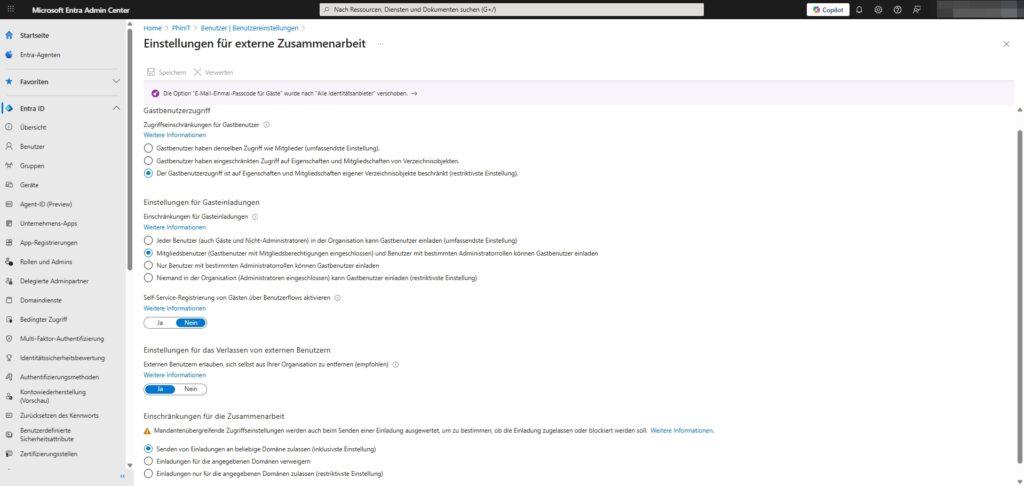
Detailed settings for external users The link “Manage external settings for collaboration” takes you to the details menu. This is where you decide how safe your environment is when inviting and collaborating with partners.
Recommended configuration:
- Guest User Access: → Choose the most restrictive setting (“… is limited to properties and memberships of your own directory objects”).
- Guest invitation settings: → Only users with specific admin roles (or disable).
- Why: Prevents uncontrolled growth. Not every employee should be allowed to invite external people to the tenant.
- Guest self-service registration: → No.
- Why: You remain in control of who gets access.
- Exit settings: → Yes.
- Why: Allows guests to remove themselves from the tenant, which cleans up the database.
[IMAGE: MS365-EntraID_Benutzer_Einstellungen for external Zusammenarbeit_122025.jpg] Caption: Guest settings: Maximum restriction for external views.
3. User Features
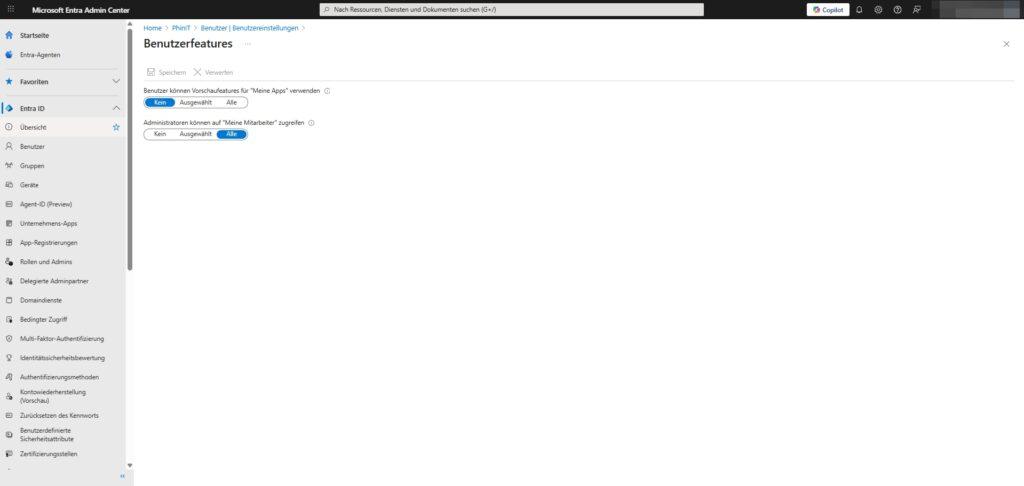
An often overlooked menu is hidden behind the link “Manage settings for user features”. Here you control experimental functions and tools.
Recommended configuration:
- Users can use My Apps preview features: → None.
- Why: In production environments, beta features should be disabled to ensure stability and security.
- Administrators can access My Employees: → All (or as needed).
- Explanation: My Staff allows managers to take on simple tasks (like password resets) for their team. This can relieve the helpdesk.





Be the first to comment