

The “External Collaboration” area is one of the most critical points in your tenant. Here you decide on the balance between efficient cooperation with external parties and the protection of your company data – in short: how permeable your digital boundaries are.
In the new interface, Microsoft has provided clarity here. Instead of mixed settings, a clear distinction is now made between the “classic” and the “modern” type of connection. This helps you to control permissions in a much more targeted way.
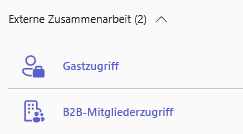
Microsoft has divided this area into two main categories in the new navigation very clearly:
- Guest access (The classic way via tenant switch)
- B2B member access (the modern way, e.g. via shared channels)
1. Guest access
By guest access , we mean the classic scenario that we have known for years: You invite an external person (e.g max.muster@partnerfirma.de. ) to one of your teams. This person will receive a guest account in your Entra ID (formerly Azure AD). Here you centrally define what these guests are allowed to do as soon as they are “in your house”. Learn more about guest access.
The main switch
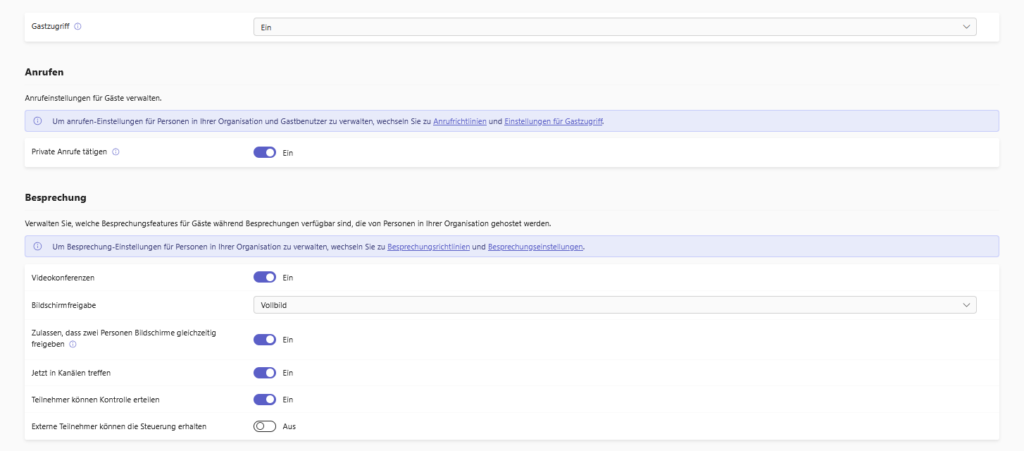
At the top, you’ll find the most important setting: “Allow guest access in Teams.”
- From: Your tenant is a fortress. No one can grant access to external guests.
- A: Cooperation is possible. As soon as this switch is active, the detailed rules that we are looking at now will take effect.
Call
There is often only one essential switch here, but it has it all:
- Make private calls:
- Function: Can a guest call your employees directly via audio/video (1:1)?
- Best Practice: In most cases, you should leave this on to enable real collaboration. If you deactivate it, guests can only participate in scheduled meetings, but cannot briefly “ping” anyone.
Meetings
Here you define how interactive guests can be in online meetings.
- Video conferences (IP video): Is the guest allowed to turn on his camera? (Mostly: Yes).
- Screen sharing: A critical point.
- Allow: Essential for support or presentations.
- Safety tip: If you want to prevent external parties from accidentally streaming internal content from their desktop to your meeting, you can disable it here.
- Remote control (grant/maintain control):
- Participants can give control: Can your employees hand over mouse control to a guest?
- External participants can get control: Is the guest allowed to take over the mouse at all?
- Admin Note: For security reasons (protection against “support scams” or incorrect operation), many admins deactivate remote control for external parties.
- Meet now in channels: Controls whether guests are allowed to start Meet Now in a channel. To avoid chaos, this is often disabled.
Messages (Messaging)
This area is the most extensive and governs chat culture and compliance.
Compliance & Audit:
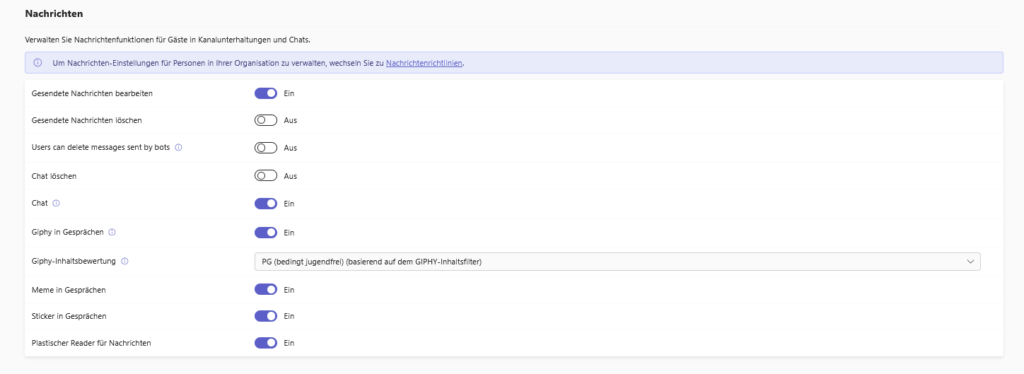
- Edit/delete sent messages: Here you have to weigh up.
- Pros: Everyone makes a typo sometimes. Allowing corrections increases acceptance.
- Cons: In strictly regulated industries (banks, insurance companies), the chat history must be audit-proof. Here, deletion is often prevented so that no promises “disappear” afterwards.
- Chat: This is the general switch as to whether guests are allowed to chat at all. If it is off, they can only read documents.
Fun & Culture (Giphys, Memes, Stickers):
- You can control very granularly whether guests are allowed to loosen up the communication with Giphys, memes and stickers .
- Giphy Content Rating: If you allow Giphys, set the filter to Moderate or Strict to automatically filter out unprofessional content (NSFW).
Accessibility:
- Immersive Reader: Be sure to leave this feature on. It helps guests with dyslexia or language barriers to better understand news (read-aloud function, translation).
2. B2B Member Access (The Modern Way)
While the “guest” is technically a visitor in your tenant (with limited rights), B2B member access treats external people almost like your own employees.
This is based on Microsoft Entra External ID technology. A typical use case for this is
Shadow Identity Management (MTO)
The note text in the admin center speaks somewhat technically of “shadow identities in multi-tenant organization (MTO) setups”.
- What does this mean for you? If your company is part of a group that uses multiple M365 tenants that are linked to each other, you can control how these “internal externals” behave here. They often have more far-reaching rights than a classic supplier you invite as a guest.
New: Copilot for B2B members
You can also find a very fresh and strategically important setting here: “Allow co-pilot for B2B members”.
- The function: If you enable this, external B2B members who join your meetings will be allowed to use their own Microsoft 365 Copilot.
- Bring Your Own License (BYOL): The exciting thing about this is the licensing. You don’t have to give the external party an expensive Copilot license. The text clarifies:
“external members […] who have Copilot licenses”. So they bring their tools to your meeting. - Governance note: Think carefully about whether you want to activate this.
- Advantage: Collaboration becomes more efficient, as partners can also summarize the meeting or ask questions via AI.
- Privacy consideration: You are effectively allowing an external AI (even if it is running in the user’s context) to process and analyze content from your confidential meetings. In high-security areas, this should be checked if necessary.
My conclusion on external cooperation
The separation of guest access and B2B member access in the new interface makes a lot of sense. It forces you as an admin to distinguish:
- The guest: A visitor who “takes a look” (partner, customer).
- The B2B member: A close ally or corporate colleague who is supposed to work in a deeply integrated way (shared channels, MTO).
Check both areas carefully, because this is where it decides how permeable your company boundaries are.




Be the first to comment