
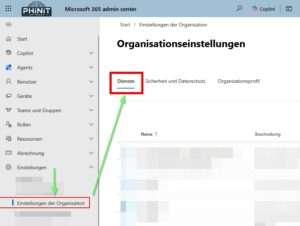
Organization Settings – SERVICES
For a privacy-compliant and efficient use of Microsoft 365 in your company, it is essential to carefully consider various aspects.
From the basic settings that control access to applications and services to complex solutions like Dynamics 365, Microsoft Viva, or Microsoft Loop, privacy is always a top priority.

In the following article, you will get a detailed overview of the most important configuration options and learn how you can make your organization more secure and privacy-friendly step by step.
User-owned apps and services

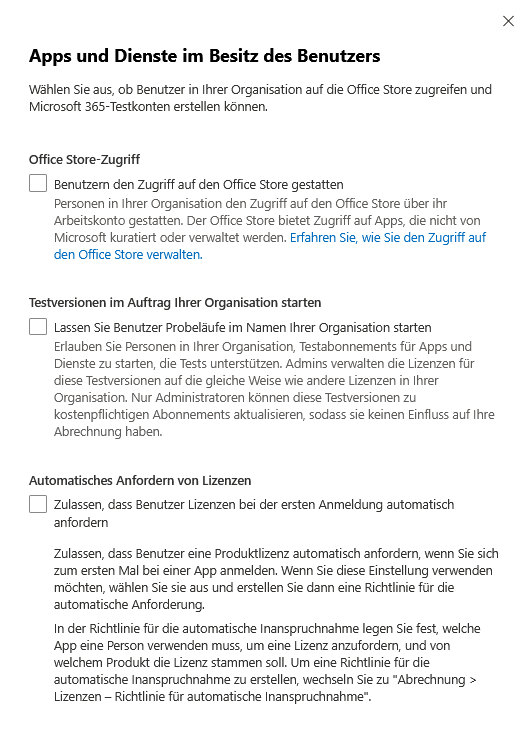
If users install apps from the Office Store on their own, the company can lose important privacy controls. Since many apps are not from Microsoft, their GDPR compliance is often unclear.
Companies should therefore determine exactly which applications are allowed, check them continuously and only allow approved solutions. Test versions should also only be used after a clear examination of the data protection requirements.
Transparency is important when it comes to automatic licensing: users need to know what data is being processed. A continuously updated list of trusted apps, restrictive handling of test versions and open communication on auto-claim policies strengthen data protection and GDPR compliance.
Azure Speech Recognition Services

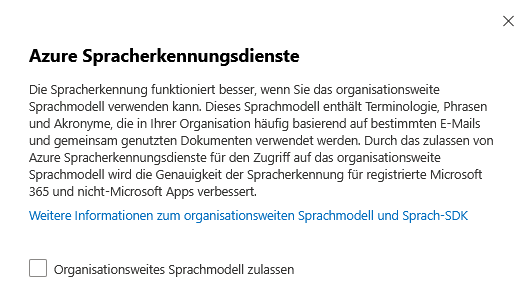
Azure Speech Recognition Services, a part of Azure AI, provides powerful spoken content transcription and analytics capabilities for Microsoft 365. They can be used to reliably convert audio information into text and evaluate it efficiently.
- Privacy and security
Azure AI prioritizes data privacy and meets international security standards such as SOC, FedRAMP, PCI DSS, HIPAA, HITECH, and ISO. Microsoft does not store audio data or transcripts during transmission and processing.
- Adaptation of language models
Language models should be optimized efficiently and personal data should be processed as little as possible. Less integration of personal documents protects privacy and supports GDPR implementation.
Recommendations:
In order to maintain data protection, the collection of voice input should be limited and the language models should be set appropriately. This means that Azure speech recognition services in Microsoft 365 are used in a data-saving manner and comply with legal requirements.
Reports

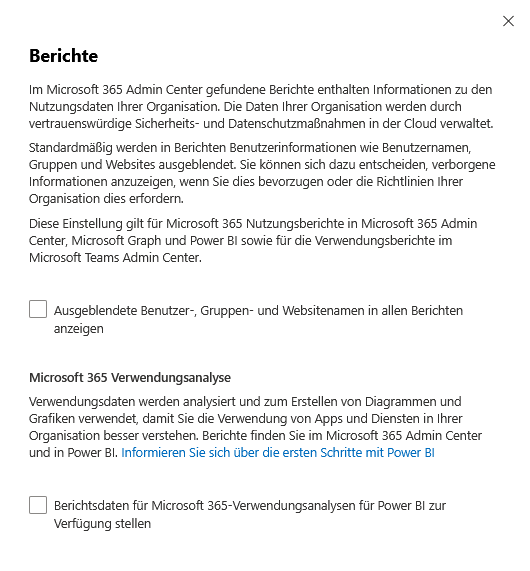
Microsoft 365 provides organizations with various analytics tools to monitor user activity. Special care is taken to protect personal data and comply with legal regulations.
- Anonymization of user data
In Microsoft 365, user information is automatically pseudonymized in many tools such as the admin center, Microsoft Graph, or Teams Analytics. This means that the data is processed in such a way that it cannot be directly assigned to a specific person.
- Usage analysis and privacy controls
The evaluation of usage data is always carried out with pseudonymised information. Companies should review this data regularly and implement ongoing data protection measures to ensure all legal requirements as well as the protection of sensitive data.
Recommendations:
Only pseudonymized data should be used for reports. In addition, it is advisable to integrate regular data protection audits into the work processes in order to continuously monitor and document compliance with the requirements.
Microsoft Bookings

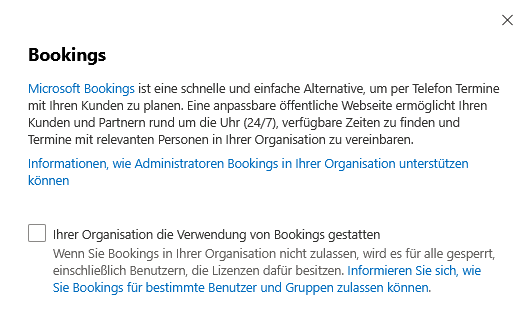
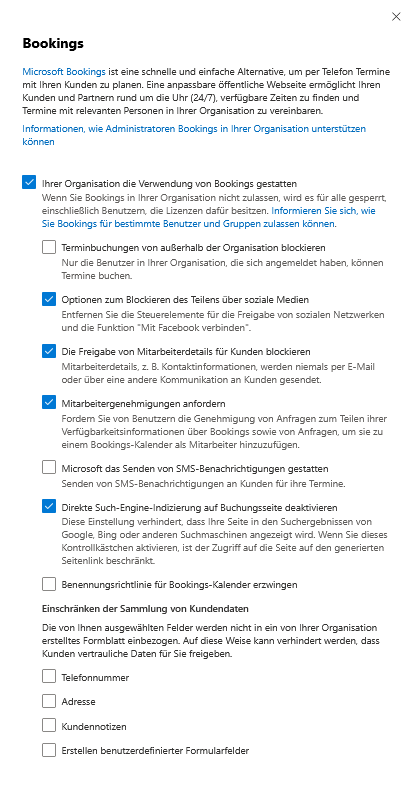
With Microsoft Bookings, employees can efficiently manage appointments and schedules. The focus is on the protection of personal data and compliance with applicable data protection regulations. It is essential to proactively address data protection-related issues and implement appropriate measures.
- User login and access control
Only authenticated users of the organization are allowed to book appointments and access confidential information. - Disabling Sharing Features
All functions for sharing in social networks should be deactivated in order not to disclose sensitive data. - Employee data protection
Personal contact information is to be published or shared only when necessary. - Approval for Availability Information
Before integrating calendar data, the consent of the person concerned is always required. - Secure communication via SMS
SMS notifications are a sure way to confirm appointments. - Limitation of visibility
The Bookings page should not be listed publicly; Access remains internal. - Data-saving collection of customer data
Collect only absolutely necessary customer data. - Restriction and control of use
Bookings can be turned off for the entire company or restricted to groups.
Recommendations:
Bookings only for authenticated users, turn off social sharing, collect only necessary customer data.
Cortana


Microsoft discontinued the Cortana app for Windows 2023 in 2023 and stopped support in Microsoft 365. Voice search and “Play my email” in Outlook Mobile have also been history since June 2024.
With the new voice access in Windows 11, you can control your PC and dictate texts by voice – without the Internet, thanks to modern speech recognition.
The AI-based copilot provides answers from trusted sources, whether typed or spoken, and always displays the sources.
In Microsoft 365 Apps, Copilot helps process your data and helps you productively create, edit, and share content. In doing so, Copilot pays attention to data protection and responsible AI principles.
Dynamics 365 Customer Voice

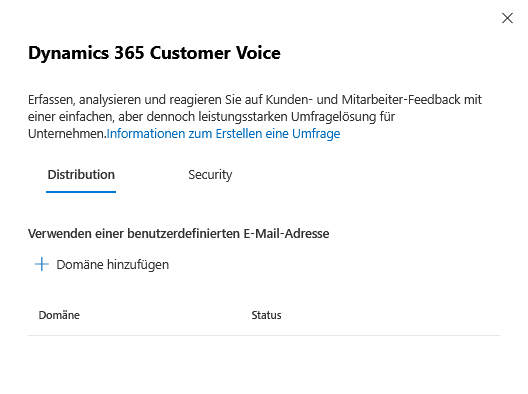
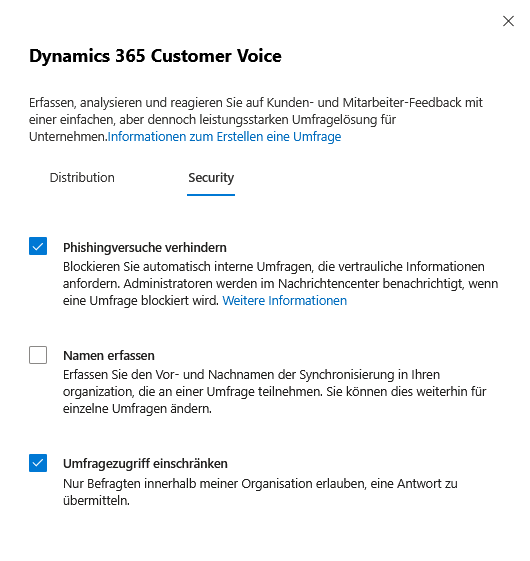
Dynamics 365 Customer Voice offers flexible and privacy-compliant survey capabilities. The platform protects personal data and complies with legal requirements.
- Automatic blocking of confidential surveys
An integrated system automatically blocks internal surveys that request sensitive data and notifies administrators for review.
- Data collection: options and customizability
The data collection can be individually adapted. Name and email are optional or deactivate; only necessary data should be collected.
- Participant Rights: Information and Transparency
All participants will receive notices of their rights to change and delete personal data.
- Access Control: Restriction to Internal Participants
Surveys can be limited to your own organization to keep feedback internal.
Recommendations:
Anonymization and minimal data collection
For optimal data protection, anonymous data and the collection of only absolutely necessary data is recommended.
Dynamics CRM

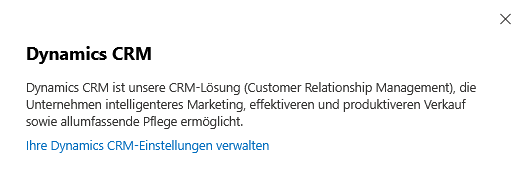
Secure sensitive data in Dynamics CRM with these measures:
- Encrypt data with TDE.
- Use audit and logging for tracking.
- Set DLP policies against accidental sharing.
- Mask production-related data during testing or training.
- Enable MFA for account protection.
- Assign roles and rights according to responsibility.
Recommendation:
Encryption, logging, DLP, MFA, and role-based access control are essential for data protection.
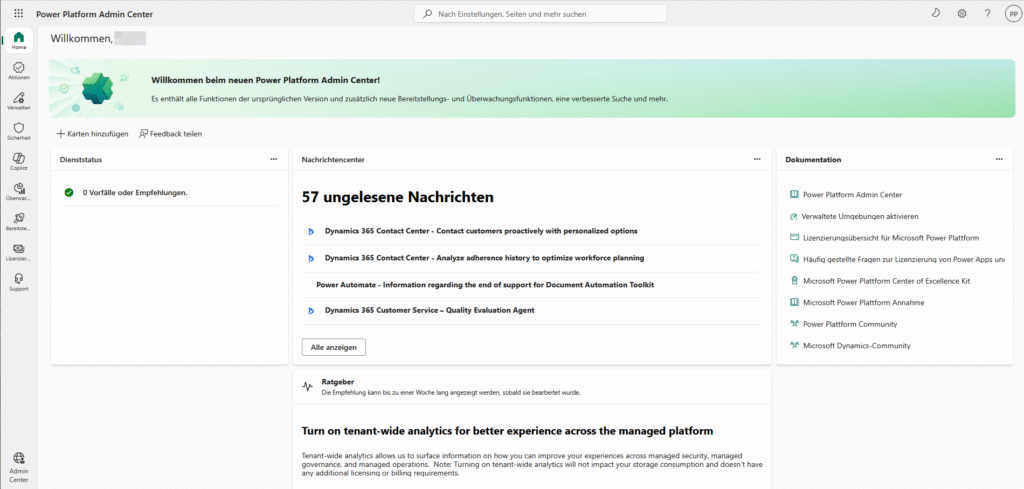
- Manage Dynamics CRM settings
https://admin.powerplatform.microsoft.com
Introductory Assessment

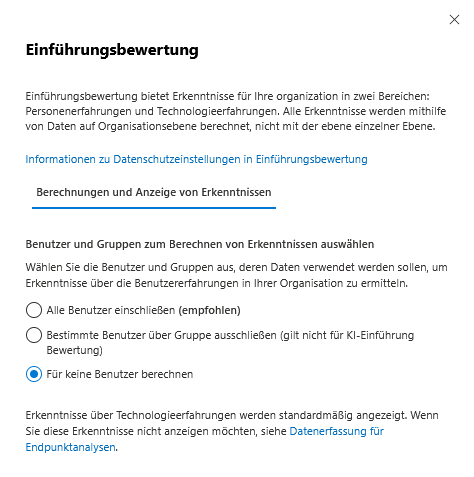


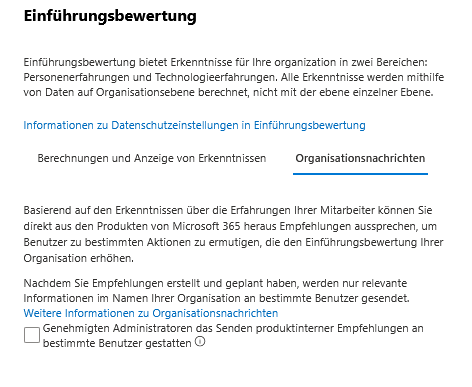
The adoption assessment in Microsoft products captures user and technology experiences at the group level. Analyses can be filtered by department or location.
Pay attention to data protection by specifically selecting which employee groups or data sets are included.
Recommendations:
Only use anonymized group insights and not allow any conclusions to be drawn about individuals.
Settings for people

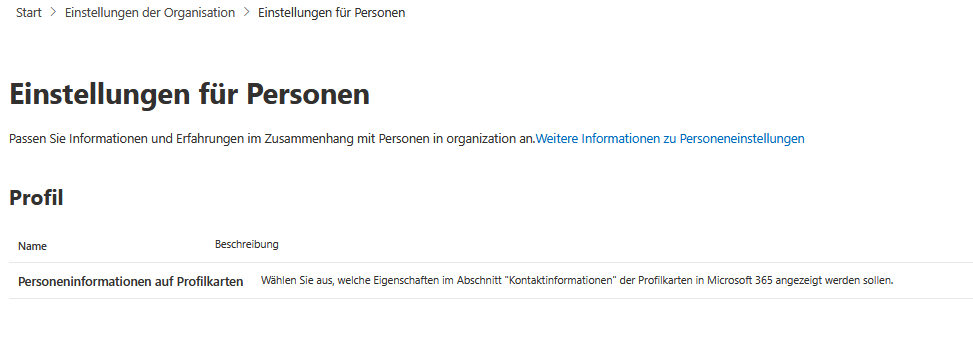

The management of personal data is done centrally via the Microsoft 365 admin center. Only global administrators and people with the People Administrator role are granted access to change functions.
Personal data is presented, among other things, in the form of profile cards that contain standard information such as name, position and contact options. In addition, the administration can specify whether optional data fields – such as location or employee number – are displayed. Updates to the profile information are usually visible to all authorized users after 24 hours at the latest.
The origin of the personal data is transparent and clearly traceable; Assignments to sources such as EntraID or Microsoft 365 Copilot are clearly documented. Necessary corrections are made by the responsible administrators directly in the respective source system.
Developer portal for teams

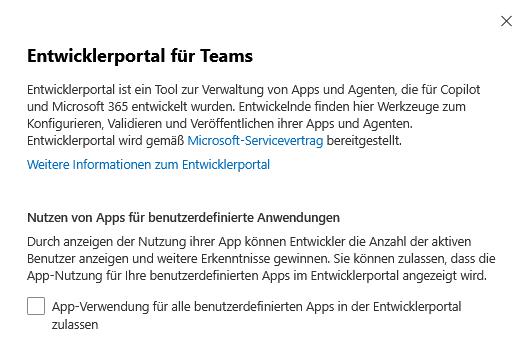
The Developer Portal for Teams is the central platform for IT admins and developers to create, manage, and publish apps and agents for Copilot and Microsoft 365.
It supports all stages of the app lifecycle: configuration, validation, publishing, and usage analysis. Developers can adjust settings, check policies, and deploy apps in a targeted manner. The portal offers efficient tools for this and is operated according to the Microsoft service contract.
Calendar

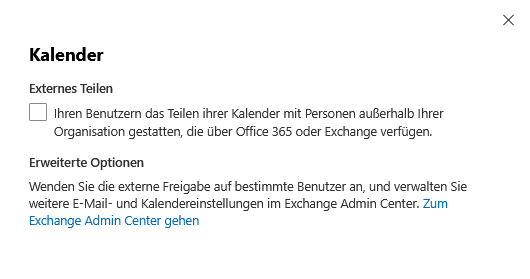

If you’re sharing calendars with people outside your organization, it’s a good idea to determine exactly how much access they’ll get.
To activate sharing, you can choose whether external parties can view the calendar via link or only with a Microsoft account.
You also decide whether only information about free and occupied times is visible or whether all details are displayed.
To collaborate with other organizations that use Exchange Server, a federation is usually required so that calendars can be shared.
It is a good idea to restrict external shares, for example by displaying free/busy data, and to set up Exchange federations if necessary.
Account linking

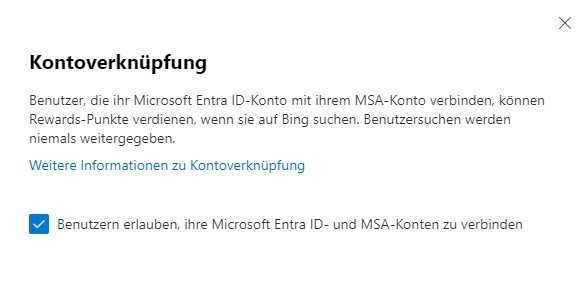
When you connect Microsoft Entra ID accounts, educate users about potential privacy risks.
- Offer account linking only when necessary.
- Specify which data will be sent to third parties.
Allow only necessary links and inform users transparently.

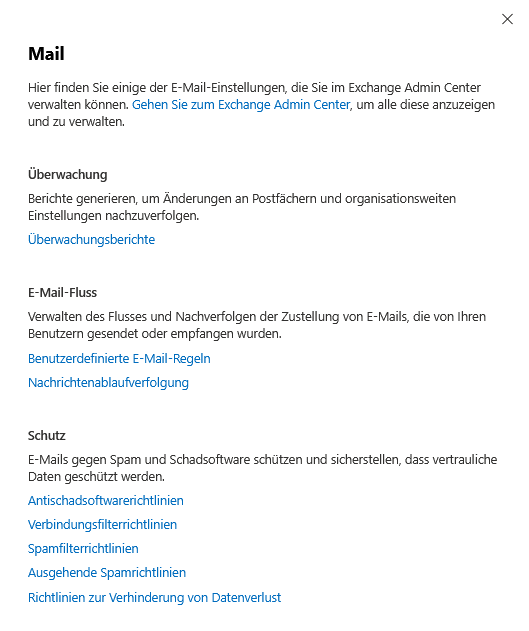
The Exchange admin center provides features for security and GDPR compliance.
Monitor mailbox access, log changes, and customize email rules to detect suspicious messages.
Leverage tools against malware and spam, as well as DLP policies to protect sensitive data. Review and optimize settings regularly to address new threats.
Go to the Exchange admin center to view and manage all settings:
Brand Center

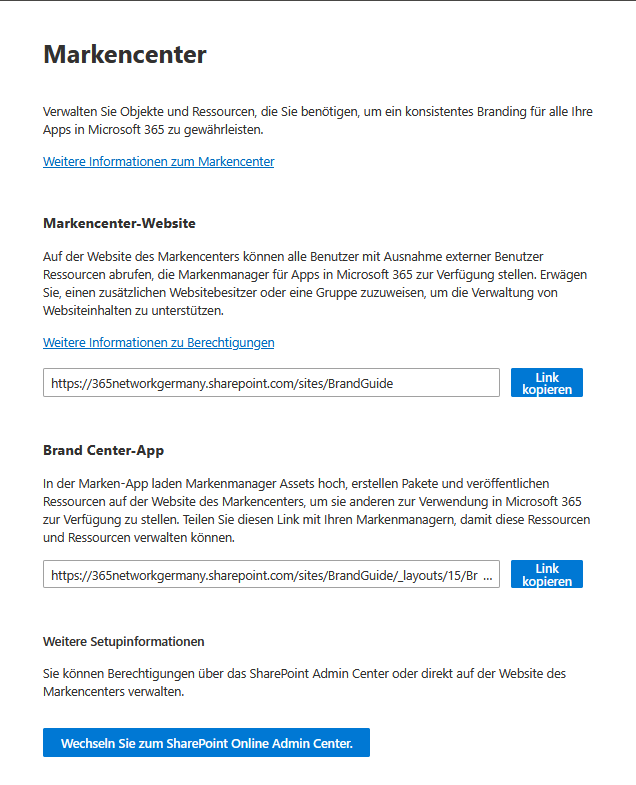
The Brand Center in Microsoft 365 enables centralized management of all brand assets such as colors, fonts, and images for consistent corporate branding.
The branded app is set up once per organization and managed through the SharePoint Organization Object Library. Brand managers upload assets centrally, coordinate customizations, and can assign additional site owners or groups to manage.
The assignment and control of access rights for internal users is done either via the SharePoint admin center or directly on the Brand Center website; external users are excluded. This allows IT administrators and brand managers to maintain full control over resources and compliance with brand standards.
Multi-factor authentication

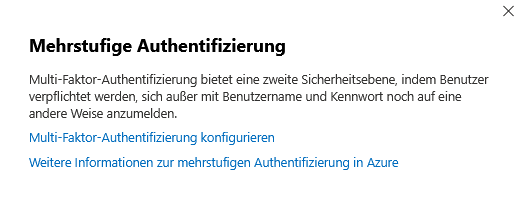
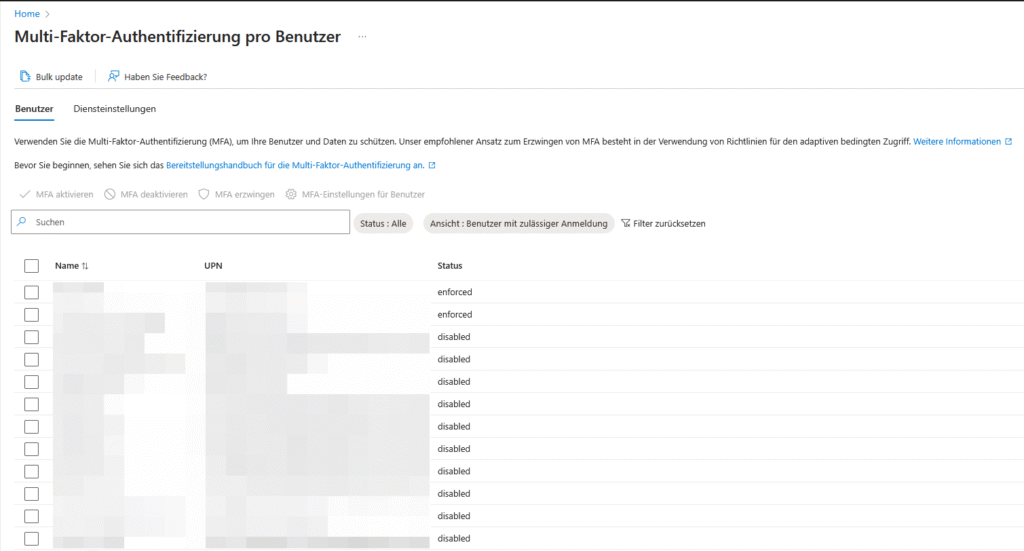
Multi-factor authentication (MFA) in Microsoft 365, especially via Microsoft Entra, significantly increases the security of accounts and data. When logging in, users are asked to use another identification method in addition to the password – such as a code on their smartphone, a fingerprint or a trusted device such as a hardware key.
This prevents attackers from easily gaining access with stolen passwords.
Microsoft Entra-MFA requires at least two factors :
- Something the user knows
e.g. password, pin - Something the user owns
e.g. smartphone, hardware token - Something that the user is
e.g. biometric features such as fingerprint or face scan
Users manage their preferred authentication method themselves, while administrators control the allowed options and the use of MFA by policy.
The mandatory introduction, transparent communication and regular training ensure both safety and acceptance. The protection of personal data remains an essential prerequisite.
Microsoft 365 on the web

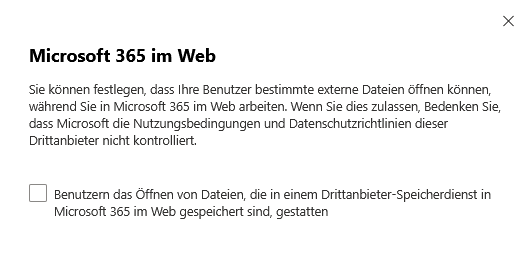
Working with external files in Microsoft 365 through the browser can create connections to third-party vendors.
Allow access only to trusted sources and educate users about potential risks. Limit external content to verified sources and actively point out dangers.
Note: Depending on the tenant age, access is allowed by default or not; adjust this setting manually if necessary.
Microsoft 365 Lighthouse

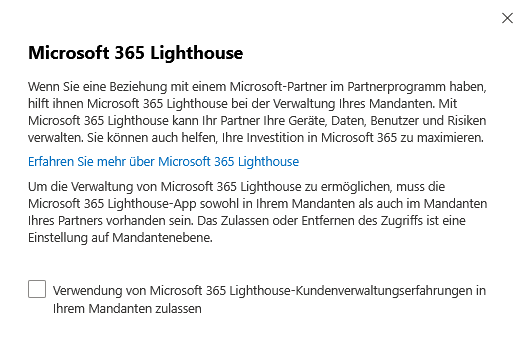
Microsoft 365 Lighthouse is a management and monitoring tool designed specifically for Microsoft partners who serve multiple customers.
When you work with a Microsoft partner in the Partner Program, they use Microsoft 365 Lighthouse to help you centrally manage your tenant. This allows your partner to efficiently monitor and manage devices, users, data, and potential risks. The goal is to increase security and productivity and get the most out of your investment in Microsoft 365.
To use Microsoft 365 Lighthouse, the Lighthouse app must be installed in both your tenant and your partner’s tenant . Access control, i.e. whether a partner has access or not, is done via a setting at the tenant level. This gives you control over who can access your environment.
Microsoft 365 Groups

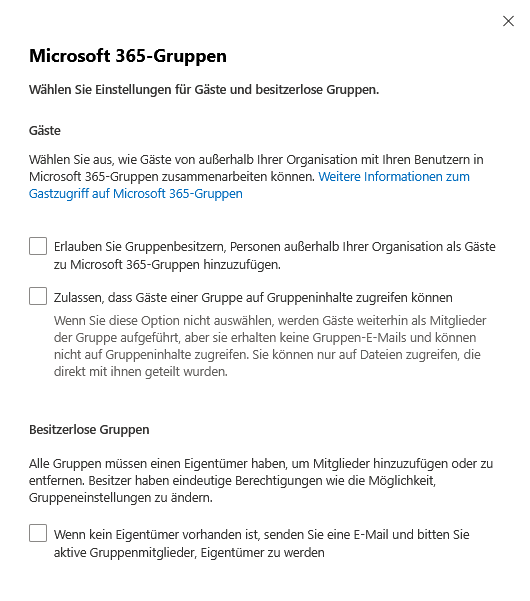
Microsoft 365 Groups encourage collaboration, but they need clear guidelines. For guests, it is advisable to assign restrictive access rights and specify exactly how external people are allowed to interact with the group members. Without appropriate settings, guests will remain visible as members, but they will not receive group emails and cannot access group content – they will only have access to files that have been explicitly shared with them.
It is particularly important that each group has at least one owner . Owners are necessary to manage members and change group settings. This ensures control and management at all times.
Be sure to handle access rights and data in a GDPR-compliant manner to ensure privacy and security.
Microsoft 365 installation options

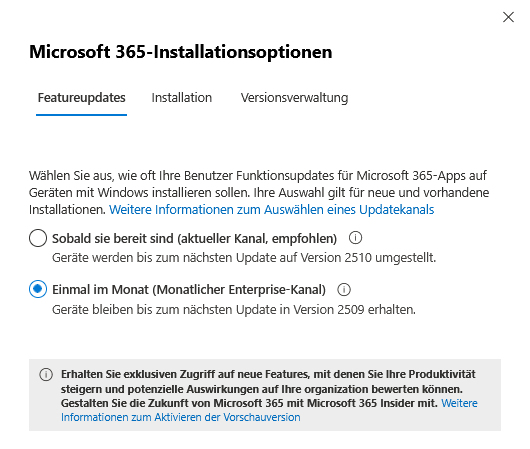
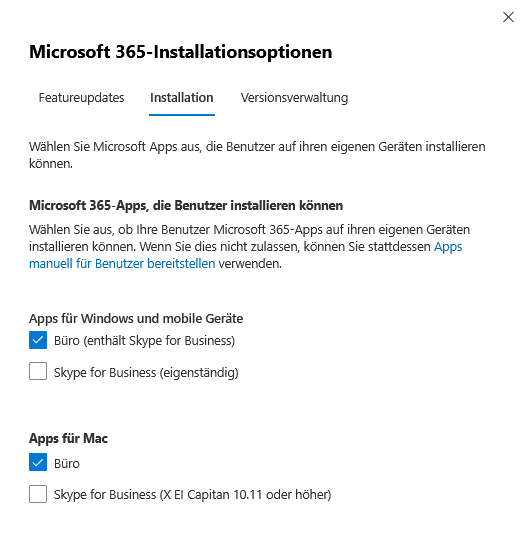
When you install Office on Windows devices, you can determine how often updates occur and which update channel you want to use – for example, monthly or semi-annually. It is advisable to check compatibility with existing systems and provide appropriate training.
With the right settings, Microsoft 365 apps always stay up-to-date and ensure a stable IT infrastructure. Select a suitable update channel, pay attention to updates consistently and carry out compatibility checks and further training if necessary.
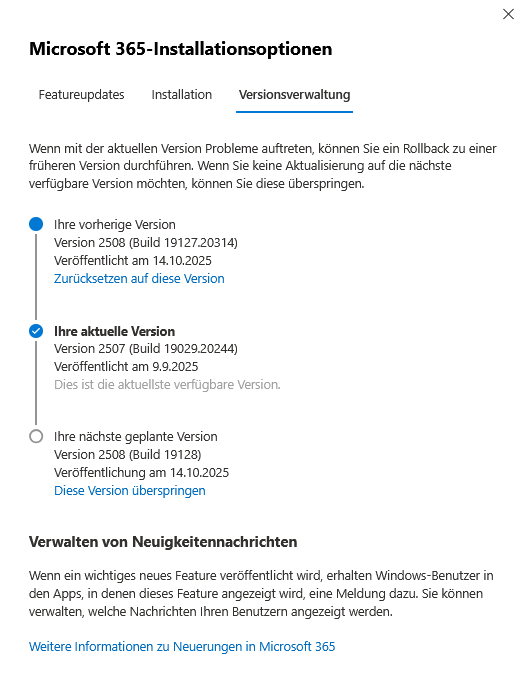
- Feature updates: Decide how often your users receive feature updates for Microsoft 365 apps on Windows (for example, monthly or semi-annually). This setting applies to both new and existing installations. Depending on the selection, the device will be updated to version 2510 in the next update or will remain in version 2509 until the next update. Early access to new features can help you better understand the impact by enabling Insider Preview if necessary.
- Installation: You can choose whether your users install the Microsoft 365 apps themselves or whether you control the deployment centrally. There are various options available for Windows, Mac and mobile devices.
- Version management: If you encounter difficulties after an update, you can easily switch back to an older version or skip an update. This ensures flexibility and stability of your environment.
Further information: Make sure that Microsoft 365 apps are compatible with your systems and offer appropriate training if necessary.
Microsoft Azure Information Protection

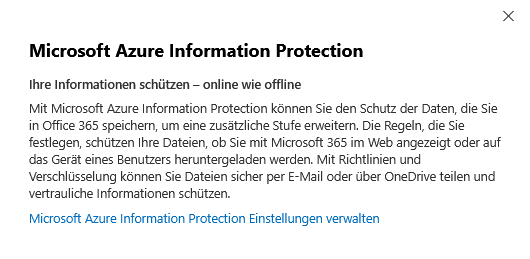
With Microsoft Azure Information Protection, you add an extra layer of security to the protection of your data in Office 365. The rules you set ensure that your files remain protected, whether they’re viewed on the web through Microsoft 365 or downloaded to an endpoint. With policies and encryption, you can securely share files via email or OneDrive and protect sensitive information.
Azure Information Protection enables the classification and protection of sensitive data. Automated labels label files according to predefined policies, so sensitive content is immediately detected and treated accordingly. Access controls precisely regulate who can open, edit or share content. Protocols can be used to identify irregularities and react to them in a targeted manner.
Recommendation: Leverage automated labeling, well-defined access rights, and continuous monitoring to optimize data protection and meet compliance requirements.
- Manage Microsoft Azure Information Protection settings
https://go.microsoft.com/fwlink/?linkid=849670
Microsoft Edge Site Lists

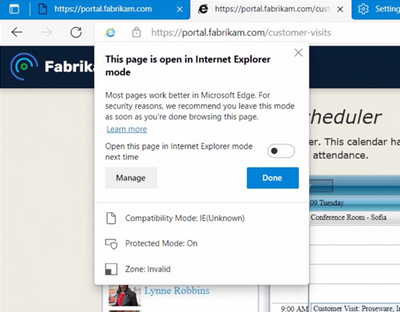
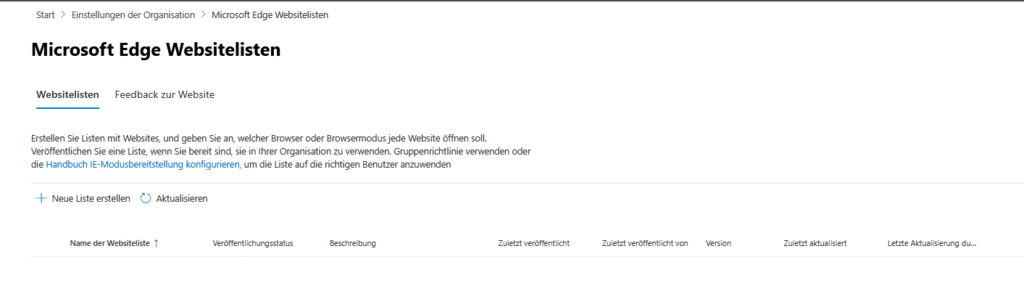
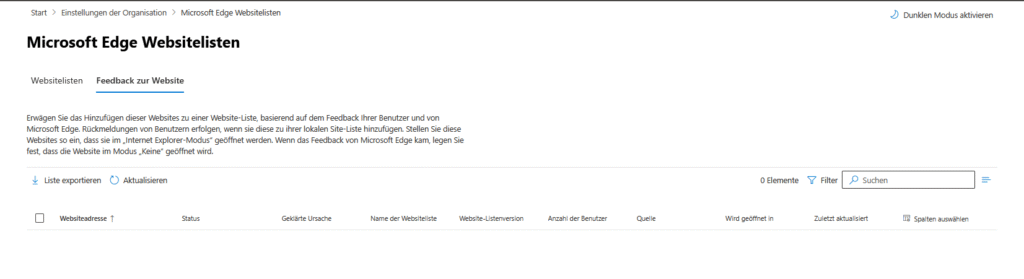
Microsoft Edge site lists provide a single pane of glass for IT administrators to determine which web pages launch in which browser mode. This allows older applications that are only compatible with Internet Explorer to continue to be used stably, while modern websites run in Edge’s default mode. The website list allows flexible control and simplifies the administration of browser-dependent web applications in the corporate context.
To avoid the collection and disclosure of sensitive information in the Edge browser, the following measures should be implemented (expand)
- Under edge://settings/privacy, set the transfer of diagnostic data to “Send only required diagnostic data”.
- Preferably activate the tracking protection to “Strict”, but check the compatibility of your web offers. For restrictions, the “Balanced” setting is recommended.
- Use Group Policy to remove users’ ability to set exceptions to Tracking Protection.
- Set up automatic clearing of browsing history, cookies, and cache when you close the browser.
- Limit the synchronization of sensitive data such as passwords and form data to what is necessary.
- Disable telemetry delivery in enterprise environments through appropriate policies.
- Only install trusted extensions and check their permissions regularly.
- Disable the automatic saving of credit card and address data.
- Train your employees on how to use privacy options and validate settings after updates.
Note: The “Strict” setting ensures a high level of privacy, but it can limit the functionality of certain websites. Therefore, test the suitability within your area of application and alternatively select the “Balanced” setting.
Microsoft Forms

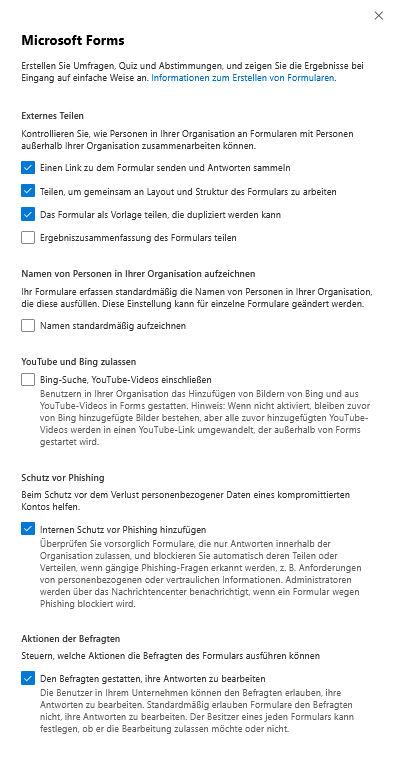
Microsoft Forms is an easy-to-use online tool from the Microsoft 365 portfolio that helps businesses, schools, and teams quickly and easily create and evaluate surveys, quizzes, and feedback forms. Thanks to the intuitive interface, questions can be individually designed, results are automatically summarized and can then be analyzed or exported.
Forms is particularly suitable for collecting opinions, conducting internal votes or collecting feedback, whereby data protection should always be in focus.
- Check if external sharing is allowed.
- By default, names are captured; separate this data for anonymous feedback.
- Decide whether to include Bing images and YouTube videos.
- Forms detects suspicious content and can block corresponding forms.
- Choose whether participants can edit their answers.
Recommendation: Control external sharing, choose anonymity as the default, activate security functions.
Microsoft Graph Data Connect

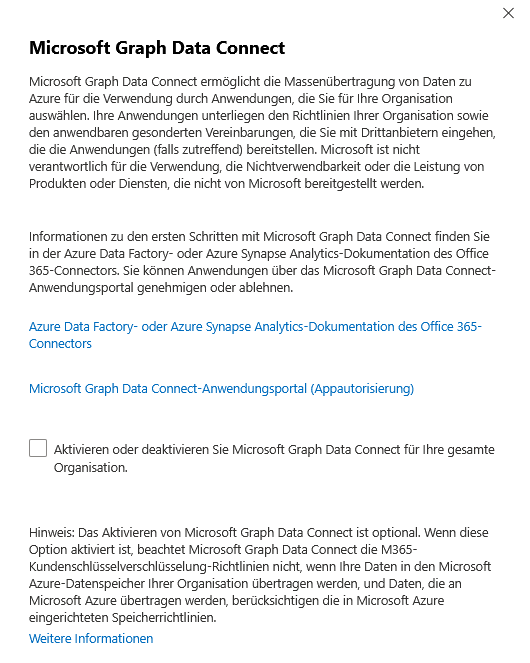
Microsoft Graph Data Connect (MGDC) is disabled by default and must be explicitly enabled in the Microsoft 365 admin center – no data transfer will take place without sharing.
Before use, GDPR requirements must be checked and external integrations evaluated for data protection risks. MGDC encrypts data at rest with Azure Storage Encryption; additional protection is provided by your own keys (Customer Managed Keys).
The decision for MGDC should be made individually according to risk , regular data protection checks are mandatory.
Microsoft Loop

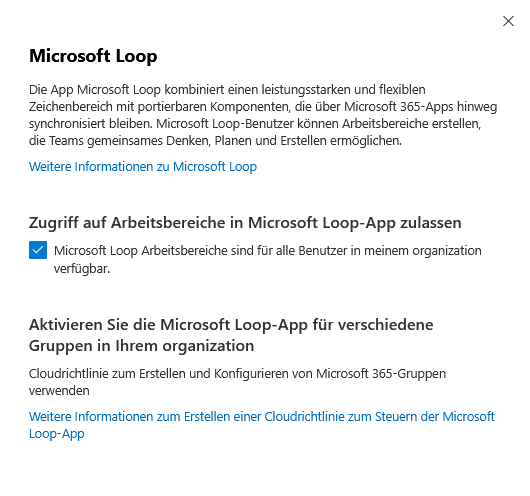
Microsoft Loop is a platform that allows teams to collaborate flexibly and creatively. It makes it possible to share, edit and organize content and ideas in real time – no matter where the participants are.
Workspaces are customizable and integrate seamlessly with other Microsoft tools.
- Determine which teams are using Loop.
- Set cloud policies to control new workspaces and documents.
- Clearly define what data is allowed to be synchronized in Loop.
- Regularly check access rights and data protection during real-time synchronization.
Microsoft Planner

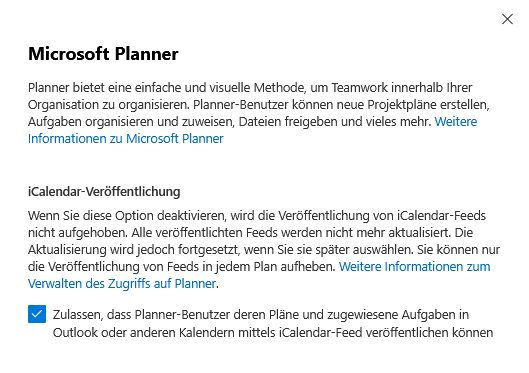
Planner helps teams manage tasks and projects by distributing tasks, tracking progress, and sharing files. It is particularly important to pay attention to data protection and to clearly regulate access rights.
- Create plans, share tasks and files – pay attention to privacy.
- iCalendar feeds can be viewed externally; disable it if necessary.
- Carefully determine who has access to content, especially sensitive data.
- Recommendation:
Turn off public calendar feeds and restrict access rights.
Microsoft Teams

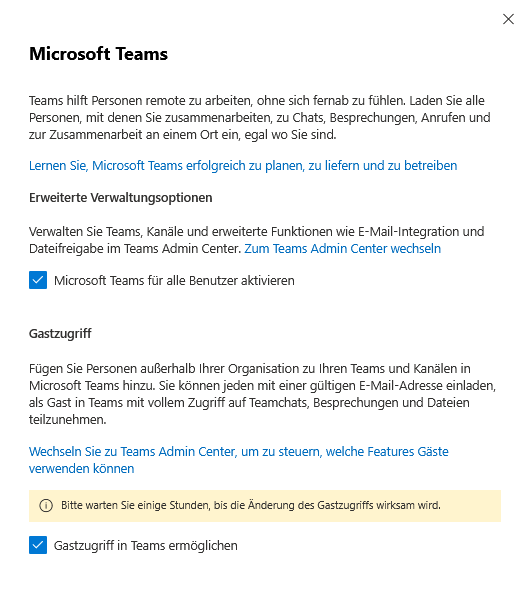
Microsoft Teams is a central platform that makes team collaboration – whether in the office or remotely – easy and efficient. You can bring all team members together in one place for chats, meetings, and collaboration.
The Teams admin center can be used to clearly manage teams, channels, and advanced settings such as email integration and file sharing. Particularly practical: External guests can also be invited with a valid e-mail address and participate in chats, meetings and the exchange of files.
It is important to set clear guidelines for data protection and access rights and to communicate transparently what data is stored for what. Note that changes to guest access take a few hours to activate.
Microsoft To Do

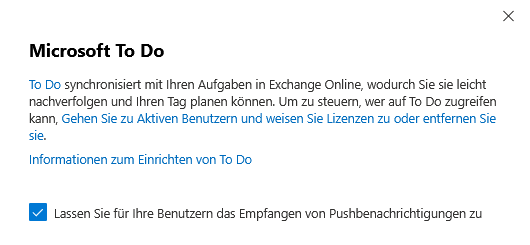
To ensure privacy-compliant use of Microsoft To Do, tasks are synchronized with Exchange Online. This allows you to keep track of your tasks and plan your working day efficiently. To control access to To Do, open the overview of active users and assign licenses only to those who actually need the service. Revoke unneeded licenses to restrict access.
Recommendation:
Establish clear rules for the storage and sharing of sensitive task content and regularly inform users about the proper handling of confidential data. Targeted training of employees on data protection requirements helps to minimize risks.
Microsoft Viva Insights


Microsoft Viva Insights helps organizations increase productivity by providing users with insights into their work habits and making suggestions on how to work more efficiently. The platform analyzes work patterns, always focusing on privacy. Users can customize the settings for Viva Insights in the dashboard – changes take effect within 24 hours .
By default, Viva Insights offers, among other things, recommendations to delay sending emails outside of working hours to support work-life balance.
If you are unsure about privacy, certain features or all of them may be disabled. It is advisable to regularly check the privacy settings and to control access for users in a targeted manner.
Microsoft communication with users

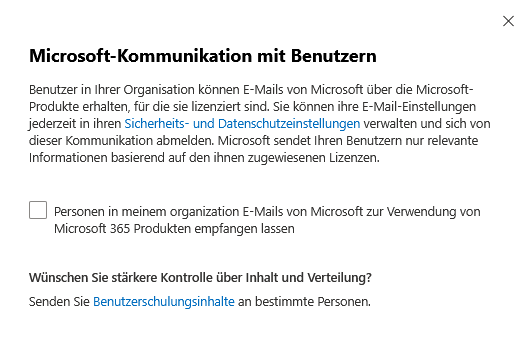
Microsoft periodically sends emails and notifications to users within an organization.
For example, this communication may include information about updates, security advisories, or new features.
If you have any privacy concerns, you can disable this feature in the settings. In addition, employees should be informed about how they can unsubscribe from such communications.
- If you have privacy concerns, turn this feature off in Settings.
- Inform employees how to opt out.
- A transparent privacy policy builds trust.
- Opt-out options for notifications and clear rules are recommended.
Transparent communication and clear opt-out options strengthen trust and ensure responsible handling of user data.
Modern authentication

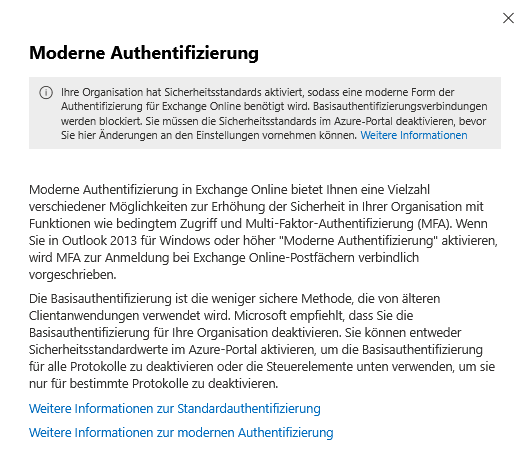
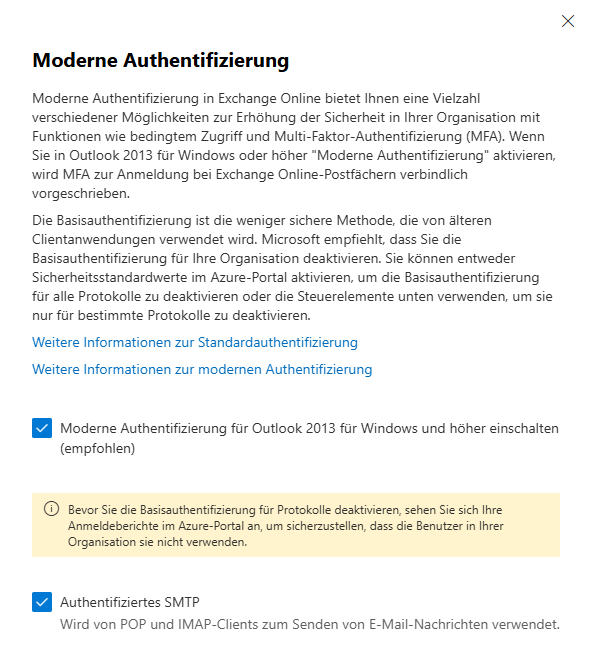
In Exchange Online, modern authentication is set up as the default and provides the foundation for enhanced security, such as the use of multi-factor authentication (MFA) and conditional access. Basic authentication is mostly disabled by Microsoft, but it may still be active in certain cases, such as older systems or test environments.
It is recommended to disable basic authentication either completely or specifically for individual protocols. This can be implemented in the Azure portal via the security standards or by means of conditional access.
If security defaults are not enabled in the Azure portal, administrators can still manually turn off basic authentication for individual protocols or user groups. It does this by creating custom Conditional Access policies to customize the desired security preferences. Even without activated security standards, the consistent use of modern authentication remains essential to close potential security gaps and ensure the protection of sensitive company data.
- About Basic authentication
https://go.microsoft.com/fwlink/?linkid=2124709&clcid=0x409 - About Modern Authentication
https://go.microsoft.com/fwlink/?linkid=2124613&clcid=0x409
News

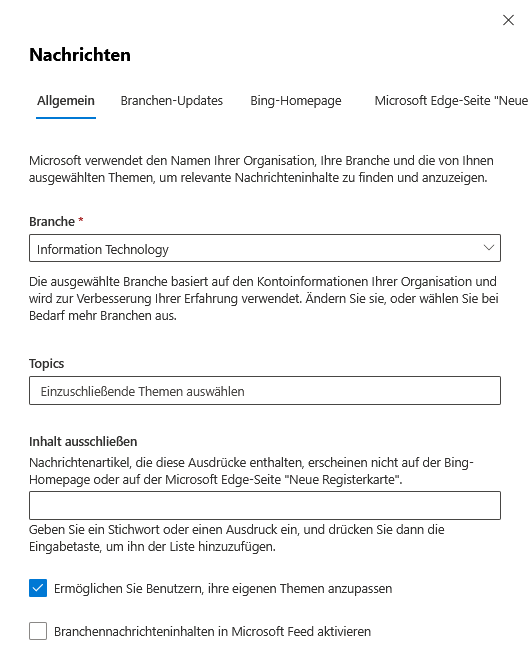
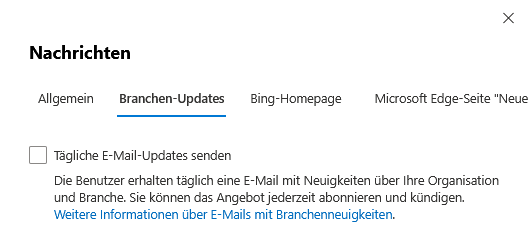
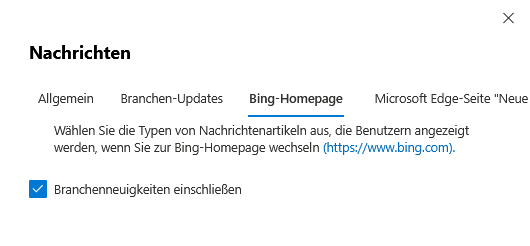
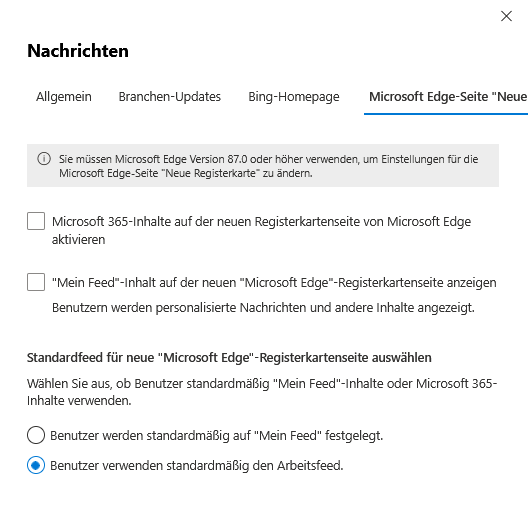
With Microsoft 365, you can provide your users with the latest news about your industry and organization directly in Office applications, via daily email, or on the Bing home page and the new tab page of Microsoft Edge.
- General: Enable a customized news feed for your organization. You select the industry and determine which topics should appear or be excluded.
- Industry Updates: If desired, your users will receive daily industry information by e-mail and can set their own topics and preferences.
- Bing homepage: Set whether industry news is displayed on Bing.com to match the organization.
- Microsoft Edge New Home page: Starting with Edge version 87, you can choose whether to display My Feed or Microsoft 365 content on the new tab page. The display can be adjusted at any time.
Be sure to ensure privacy and relevance of the messages. Changes to the settings are communicated transparently and can be adjusted or deactivated by the users if necessary.
Note: Bing News & Industry updates are currently only available for the en-US language setting.
- Information about industry news emails
https://newspro.microsoft.com/baw/faq
What’s new in Microsoft 365

At this time, updates to this page, as well as the in-app promotional offers in the What’s New section, are paused.
For the most up-to-date information on new features and updates, check out the release notes on learn.microsoft.com:
Usage-based services

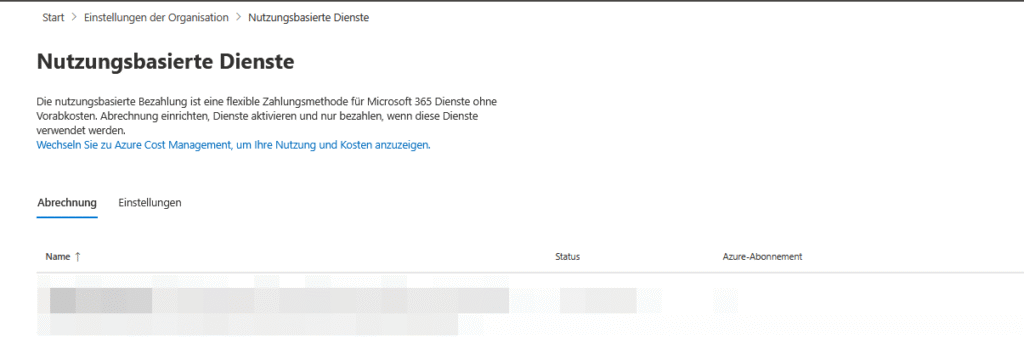
Pay-as-you-go services is a flexible payment method for Microsoft 365 services that doesn’t cost you upfront.
Set up billing in the Microsoft 365 admin center, turn on the services you want, and only pay when you use them.
This model is particularly advantageous for test environments, projects with fluctuating demand or short-term assignments. To keep track of your usage and costs at all times, switch to Azure Cost Management.
Conduct regular reviews of the services used and transparently inform employees about billing modalities to ensure cost control and data protection.
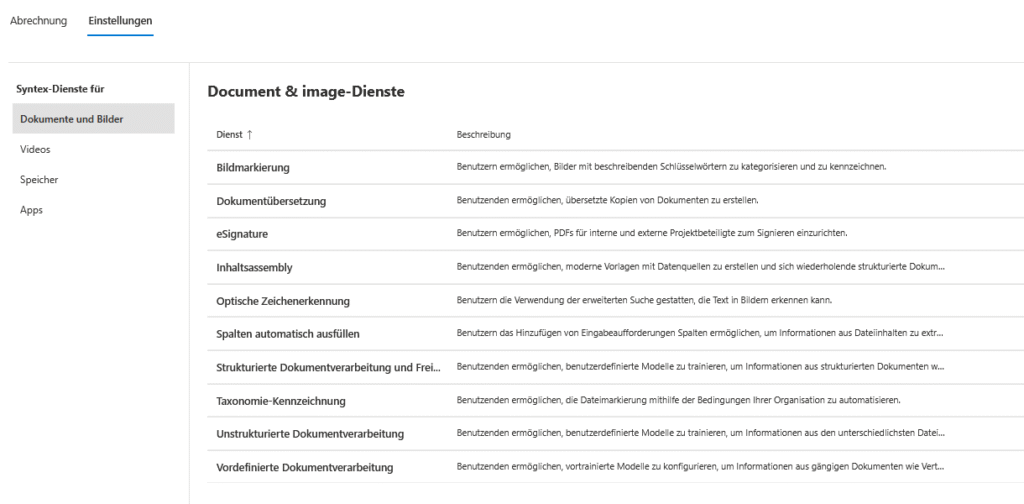
Settings – Usage-Based Services
Document & Image Services
- Image marking: Allow users to categorize and tag images with descriptive keywords.
- Document translation: Enable users to make translated copies of documents.
- eSignature: Allow users to set up PDFs for internal and external stakeholders to sign.
- Content Assembly: Enable users to create modern templates with data sources and generate repetitive structured documents.
- Optical character recognition: Allow users to use advanced search, which can recognize text in images.
- Autofill columns: Allow users to add Command Prompt columns to extract or generate information from file contents.
- Structured & Freeform Document Processing: Enable users to train custom models to extract information from structured forms or open access documents such as letters and contracts.
- Taxonomy labeling: Allow users to automate file tagging using your organization’s conditions.
- Unstructured document processing: Allow users to train custom models to classify and extract information from a wide range of file types.
- Predefined document processing: Allow users to configure pre-trained models to extract information from common documents such as contracts, invoices, and receipts.
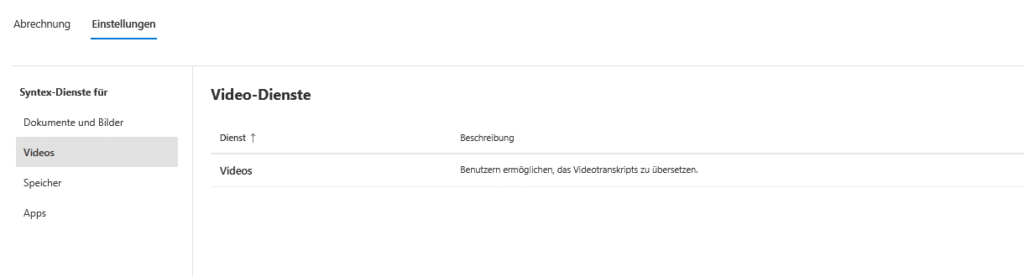
Video Services
- Videos: Allow users to translate video transcripts.
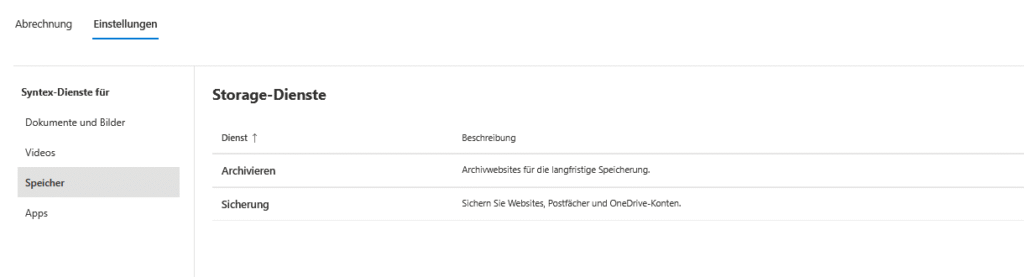
Storage Services
- Archive: Use archive sites for long-term storage.
- Safety: Back up websites, mailboxes, and OneDrive accounts.
Apps
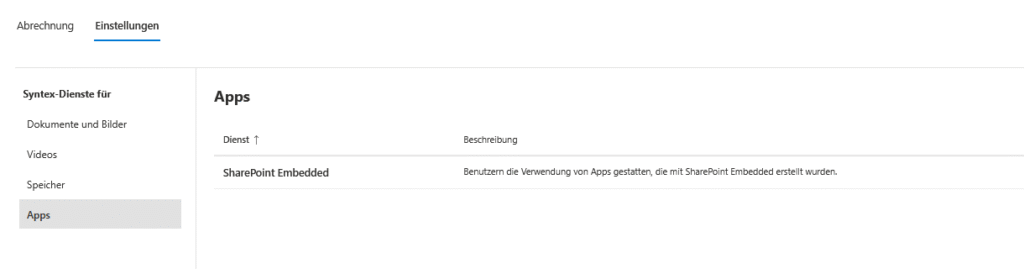
- SharePoint Embedded: Allow users to use apps built with SharePoint Embedded.
Office Scripts

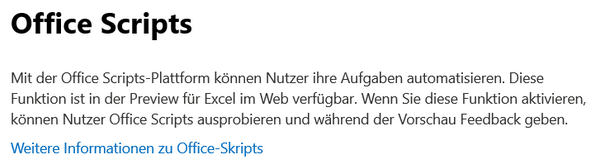

Office scripts can be used to efficiently automate workflows in Excel Online. Users have the option of recording, editing and executing scripts. In addition, the scripts can be used in conjunction with Power Automate via the Excel Online (Business) connector to implement complex automation processes.
The settings for Office scripts are currently managed in the Microsoft 365 admin center, but in the future they will be managed through the Cloud Policy service. Changes to script settings can take up to 48 hours . At a minimum, the Office Apps Administrator role is required for management.
When used with Power Automate, data protection and DLP policies must be followed. Sharing scripts with the outside world is not permitted. Even if sharing is deactivated later, previously shared scripts remain usable.
Recommendation: Regularly monitor changes to scripts, consistently ensure compliance with DLP rules, and prevent external release of scripts to continue to ensure data security.
Self-service trials and purchases

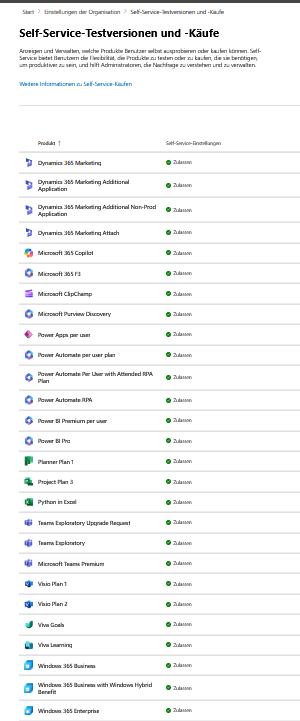
Self-service trials and purchases allow users to self-select, test, and, if necessary, purchase products directly in the Microsoft 365 portal. Admins can use the admin center to determine which products are available for self-service and gain insights into the demand and usage of those offers. It’s a good idea to regularly review the self-service products that are available, as well as the permissions and costs associated with them. This maintains control over the environment and at the same time enables employees to use it flexibly, according to their needs.
The most important points about “self-service purchases”
- Self-service purchases are available for Power Platform (Power BI, Power Apps, Power Automate), Project, and Visio. Self-service purchasing is not available for government and educational institutions, as well as in certain countries.
- Administration, such as disabling self-service purchase per product, is done by administrators in the Microsoft 365 admin center or via PowerShell (MSCommerce module).
- Users make self-service purchases directly online or through in-app purchase prompts. Only credit card is accepted as a payment method.
- Any eligible user in the Microsoft Entra tenant can complete self-service purchases; Guest users are excluded from this.
- Buyers get access to a limited view of the admin center to assign licenses for the purchased product to other people within their tenant and manage their subscriptions.
- Admins can keep track of all self-service purchases and view, manage, and centralize them as needed in the admin center. The same data management and access policies apply as for centrally procured products.
- Microsoft recommends a restrictive assignment of administrator roles to increase security; Global administrators should only be used in exceptional cases.
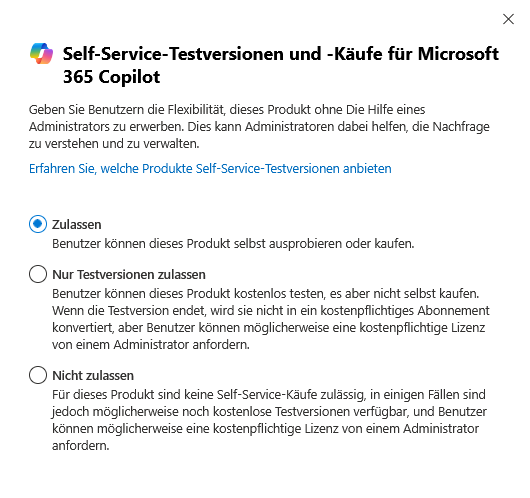
Example | Microsoft 365 Copilot App:
Once selected, there are three options available:
- Allow:
Users can try or buy the product. - Allow trial only:
Users can try the product for free, but no direct purchase is possible; it may be possible to apply for a license through the administrator. - Do not allow:
Users cannot purchase the product, there may be free trials and the possibility of obtaining a license from the administrator.

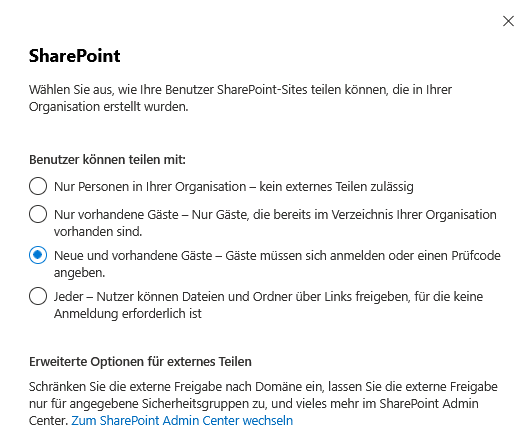
SharePoint Admin Center | Share
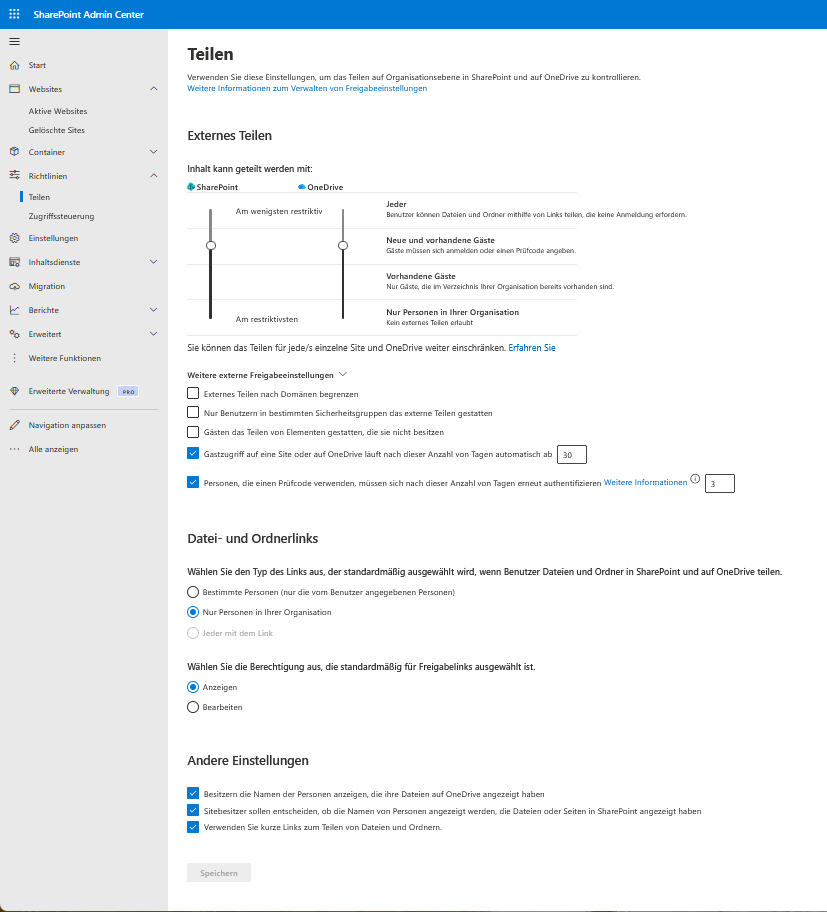
SharePoint enables efficient collaboration, but it should be configured securely. Refrain from anonymous guest links and use links with a registration requirement. Train employees to handle shared content safely.
Recommended: No anonymous links, use central settings and train in a targeted manner.
Choose how your users can share SharePoint sites in your organization. The options in the SharePoint admin center are:
- Only people in the organization: Content can only be shared with internal employees.
- Existing guests only: Sharing is only possible with guest users already stored in the directory.
- New and existing guests: Content can be shared with existing as well as new (to be added) guest users.
- Everyone: Content can be shared with anyone, including external and anonymous users.
In the SharePoint admin center, you can configure advanced options for external sharing: you can restrict external sharing by domain, allow sharing only for certain security groups, and make other settings. You also have the choice of whether the external permissions are inherited from the Azure organizational relationships or whether you maintain a separate list for external guests in SharePoint.
If the settings are inherited from Azure, only guests stored in Azure can gain access. On the other hand, if you select “Everyone”, you can also share it with anonymous users who do not have an account in your organization.
Search and Intelligence Usage Analytics

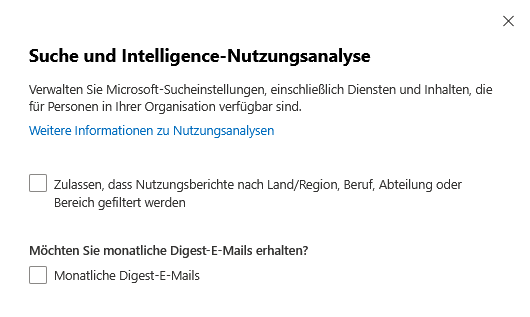
With Microsoft 365, you can manage and view detailed search and usage analytics. Built-in reports in the admin center give you insights into how and how much search is being used in applications such as SharePoint, Outlook, Teams, OneDrive, Word, Excel, and PowerPoint.
The reports show aggregated metrics, trends, and user interactions, and can be filtered by various criteria, such as time period, application, or department. To protect privacy, individual information with five or fewer users is not displayed, and filters can be enabled or disabled across the organization.
For data protection, it is advisable to use only anonymized reports and to switch off analysis functions that make individuals identifiable if necessary. Monthly digest emails on search usage data can be subscribed to if desired.
Sway

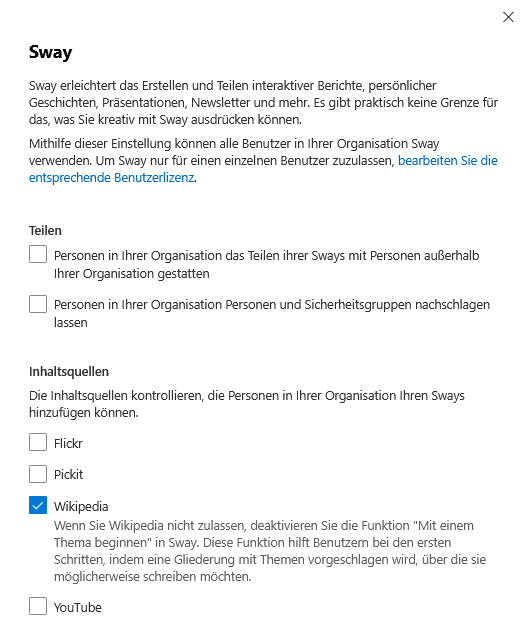
Sway is a versatile tool in Microsoft 365 that allows you to create and share interactive reports, presentations, personal stories, and newsletters. The application offers great creative freedom for content creation. By default, all users in your organization can use Sway; the use for individual persons can be controlled in a targeted manner via the user license.
When sharing Sways, you can specify whether content should only be accessible internally or externally. You can grant access to people outside your organization and engage security groups or individual users. Before publishing, check if personal data is included and ensure compliance with the GDPR. In case of uncertainty, the use of Sway should be stopped until clarification. Define clear sharing policies and control content hosting.
You can also control which content sources can be added to the Sways. For example, if
Sales

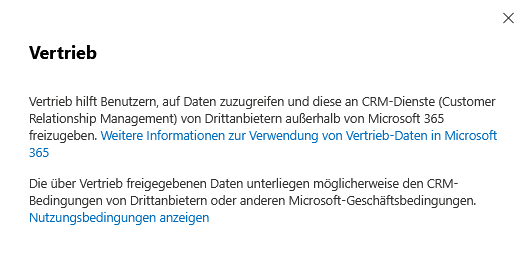
Note: From November 2025, Microsoft will be called 365 Copilot for Sales -> “Sales in Microsoft 365 Copilot”. Videos and screenshots will be updated accordingly.
Sales in Microsoft 365 Copilot empowers sales teams with AI-powered capabilities and brings CRM insights directly to Outlook and Teams.
- Sales reps benefit from more efficient work, personalized content, and AI recommendations.
- Sales managers gain management insights and modern collaboration tools.
An administrator role is required for setup and use. The app can share data with external CRM services – check privacy policies, actively consent to the connection, and regularly check GDPR compliance and integrations.
Specific license terms apply. For more information, see the product terms or contact your Microsoft representative. For Dynamics 365 Sales, administrators need the role “System Administrator” or “System Customizer”, while Salesforce has its own specifications.
After changes to permissions in your CRM, you should log out and sign back in to Outlook; up to 15 minutes later, changes also take effect in Teams. The app is not available for on-premises Dynamics 365 customer environments and certain cloud environments such as GCC and DoD.
Directory synchronization

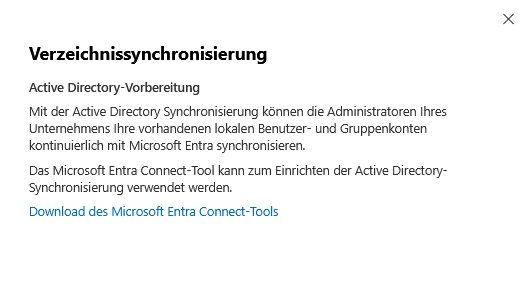
The Microsoft Entra Connect tool allows administrators to set up and manage continuous synchronization of your company’s existing on-premises user and group accounts with Microsoft Entra.
Set clear roles for data access and protect the system from unauthorized access. Keep those affected regularly informed about the information transmitted. Sync only the data you need, apply strict security controls, and true visibility into directory synchronization.
Viva Learning

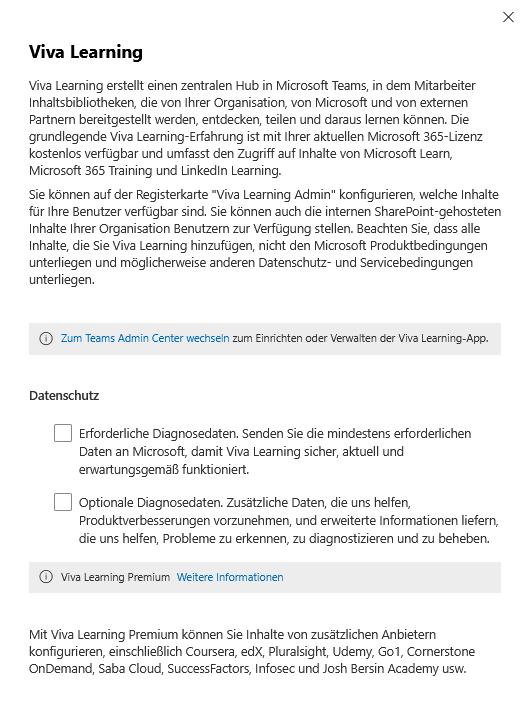
Viva Learning centralizes learning resources from your organization, Microsoft, and partners like LinkedIn Learning in Teams.
The basic version is free with your Microsoft 365 license and allows access to Microsoft and LinkedIn content. The admin tab allows you to control visibility and integrate internal SharePoint content.
Observe the privacy policies of all content. Viva Learning Premium allows the integration of other providers; always check for GDPR compliance here. Manage everything in the Teams admin center and collect only the diagnostic data you need. Keep uploads secure and avoid sensitive information.
- Viva Learning Premium
https://www.microsoft.com/de-DE/microsoft-viva/learning
Whiteboard

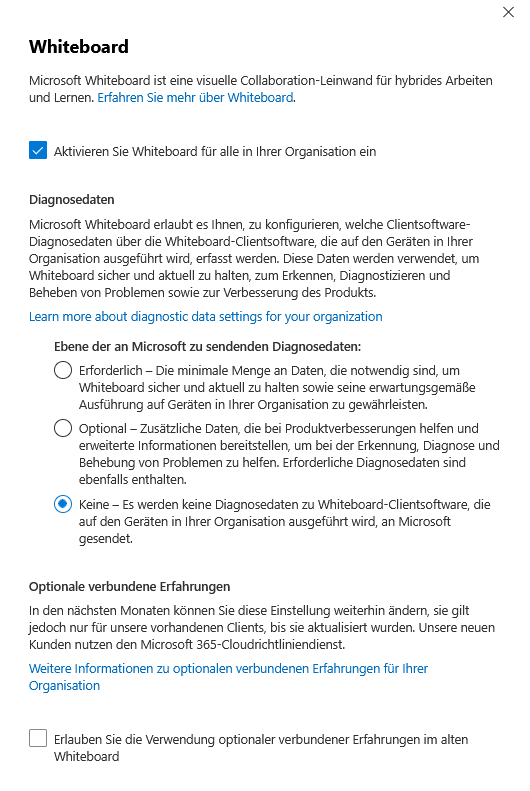
Microsoft Whiteboard provides a visual canvas for teams to collaborate on ideas, share content, and plan projects. Regardless of location, drawings, notes can be taken or documents can be added in real time.
For eligible Microsoft 365 tenants, the application is enabled by default and can be turned on or off centrally in the tenant. You can also use the Microsoft Entra admin center under “Enterprise applications” to check whether the whiteboard services are active.
The solution complies with international security and privacy regulations such as SOC 1, SOC 2, ISO 27001, HIPAA, as well as the EU Model Clauses, which ensures a high level of protection of your data and regulatory compliance.
You decide whether diagnostic data should be collected – this helps with safety, error analysis and product improvements. If data collection is not necessary, it is recommended to turn it off. For more information about these settings, see the policies.
Tip: If possible, avoid collecting diagnostic data and use the online functions of the old whiteboard version in a targeted manner!
The topic of data protection within Microsoft 365 is extremely complex. The requirements range from managing bookings and Dynamics 365 to controlling teams and using whiteboard.
For all these services, it is essential to keep an eye on data processing at all times and to consistently implement the applicable data protection guidelines.
further links
| MS365 | Teams | Zusammenarbeit mit Teams & Co. |
| MS365 | Teams | PowerShell | SBC – Telefonnummer hinterlegen |
| MS365 | Teams | Datenschutz in Microsoft Teams |
| Azure AI Services | Learn about privacy and security for Azure Cognitive Services |
| Microsoft 365 Administration | General administrative and privacy information for Microsoft 365 |
| Dynamics 365 Customer Voice | Notes on creating semi-anonymous surveys and GDPR compliance |
| Viva Insights | Explanations of the privacy-compliant use of Viva Insights |
| Manage Guest Access in Microsoft 365 Groups | How to manage guest access in Microsoft 365 Groups |
| Office Scripts | Overview of features, security, and DLP for Office scripts |
| Microsoft Entra Connect | Guides and best practices for directory synchronization with Microsoft Entra |
| Purview Compliance Manager | Support with data protection requirements and real-time risk assessments |
| Teams Admin Center | Configuration and management of Teams including data protection and guest access |
| Microsoft 365 DLP | Setting up and managing data loss prevention policies |
| Bookings Administration | Information on the management of Microsoft Bookings including data protection aspects |
| Microsoft Forms | Privacy and sharing settings for Microsoft Forms |
| Security Compliance in Dynamics 365 | Security and compliance in Dynamics 365, including GDPR tools |
| Microsoft Whiteboard Security | Notes on security, diagnostic data, and privacy settings in Whiteboard |
| Microsoft Planner Admin | Management, sharing, and privacy in Microsoft Planner |
| Modern Authentication | Learn how to enable and manage modern authentication in M365 |
| SharePoint External Sharing | Managing external shares and data protection in SharePoint |
| Search in Bing Configuration | Configuration, privacy, and relevance of Microsoft Search in Bing |
| Apps Update Channels | How to select and securely manage update channels for Microsoft 365 apps |
| Sales Copilot Overview | Data protection and integrations in Sales Copilot |
| Viva Learning | Privacy and settings for the integration of external learning content in Viva Learning |
Be the first to comment