
how to check the gap...
For a few days now, a yellow notice has appeared on the Conditional Access overview page: 'Some Conditional Access policies are protecting more users than your current licensing entitlements.' Many admins' first instinct is to place an order with their reseller. This is usually the wrong move because the notice is not an enforcement but an evaluation.
Microsoft does not disable any policy or restore anything. The banner simply states: the number of users for whom a Conditional Access policy was evaluated during the measurement period exceeds the number of users to whom you have assigned an appropriate license.
The distinction matters because the two figures come from different sources: usage is pulled from sign-in logs, while entitlement is based on per-user license assignment. Until you compare them side by side, you’re guessing. This guide puts them side by side.
Step 1: Trace the banner in the correct blade
Sign in to the Entra Admin Center, go to Entra ID, Conditional Access, Overview. There you will find a note with a link to the License Usage Insights documentation. The link does not lead to your data but to the explanation. Your data is located elsewhere.
 QUELLE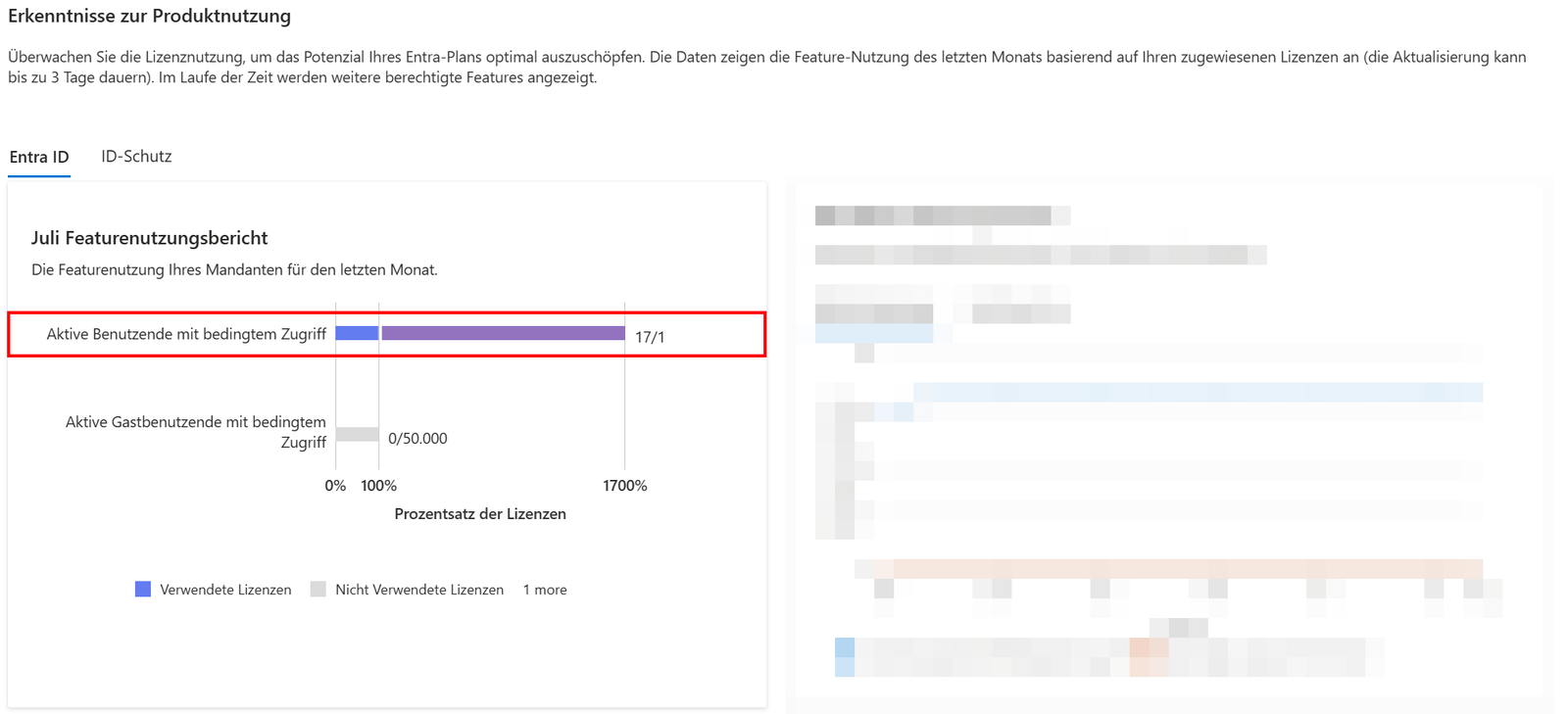
Step 2: Open license usage and separate the two numbers
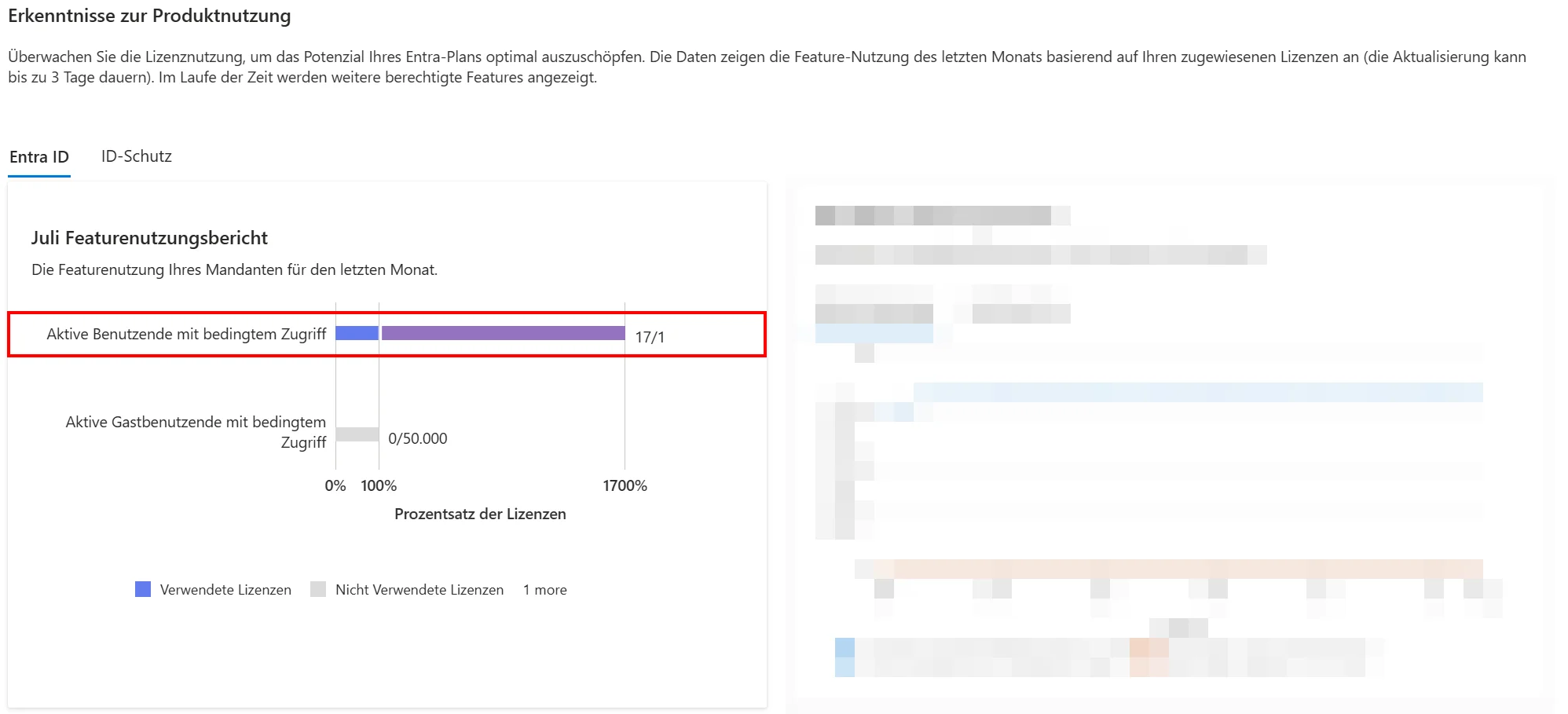
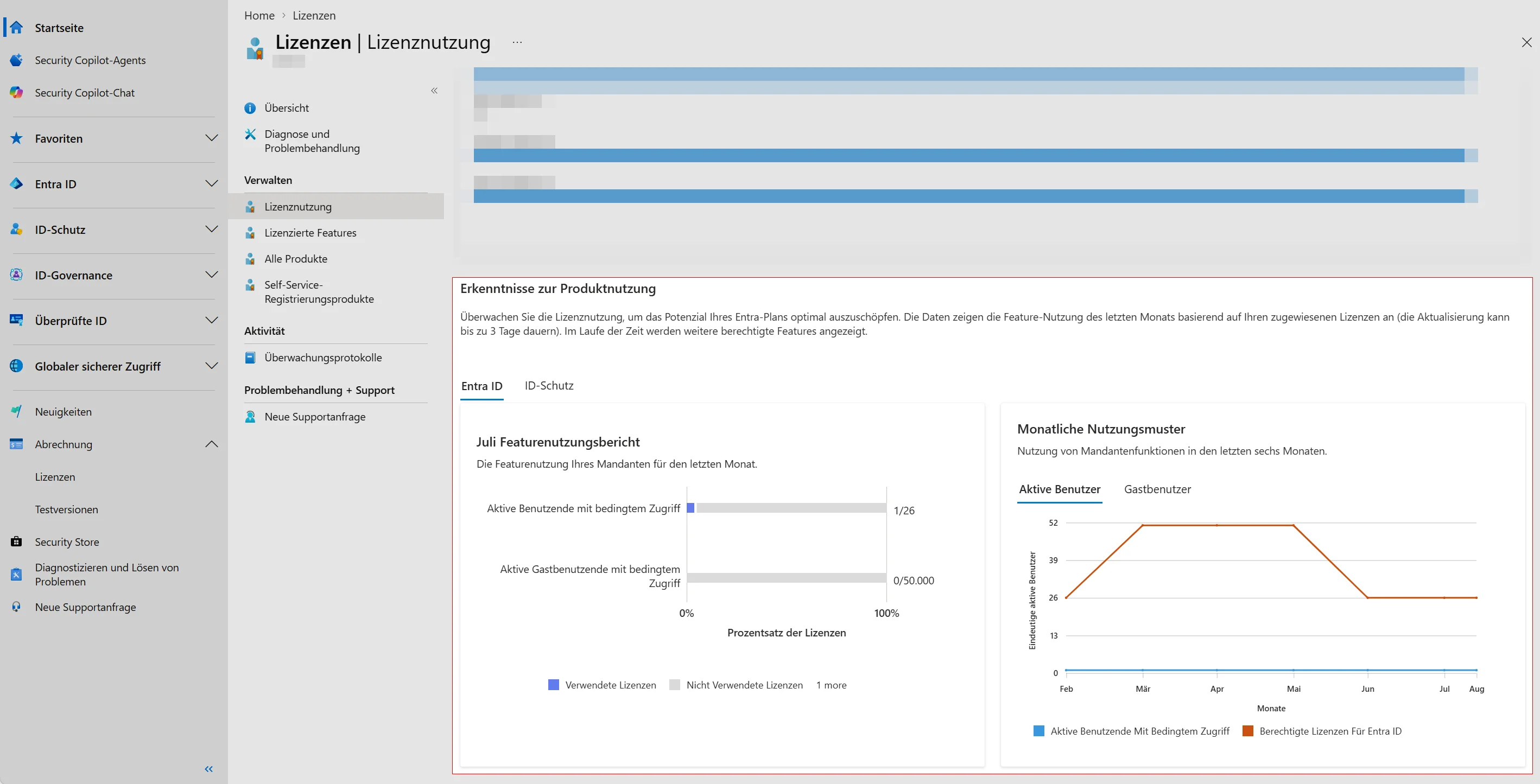
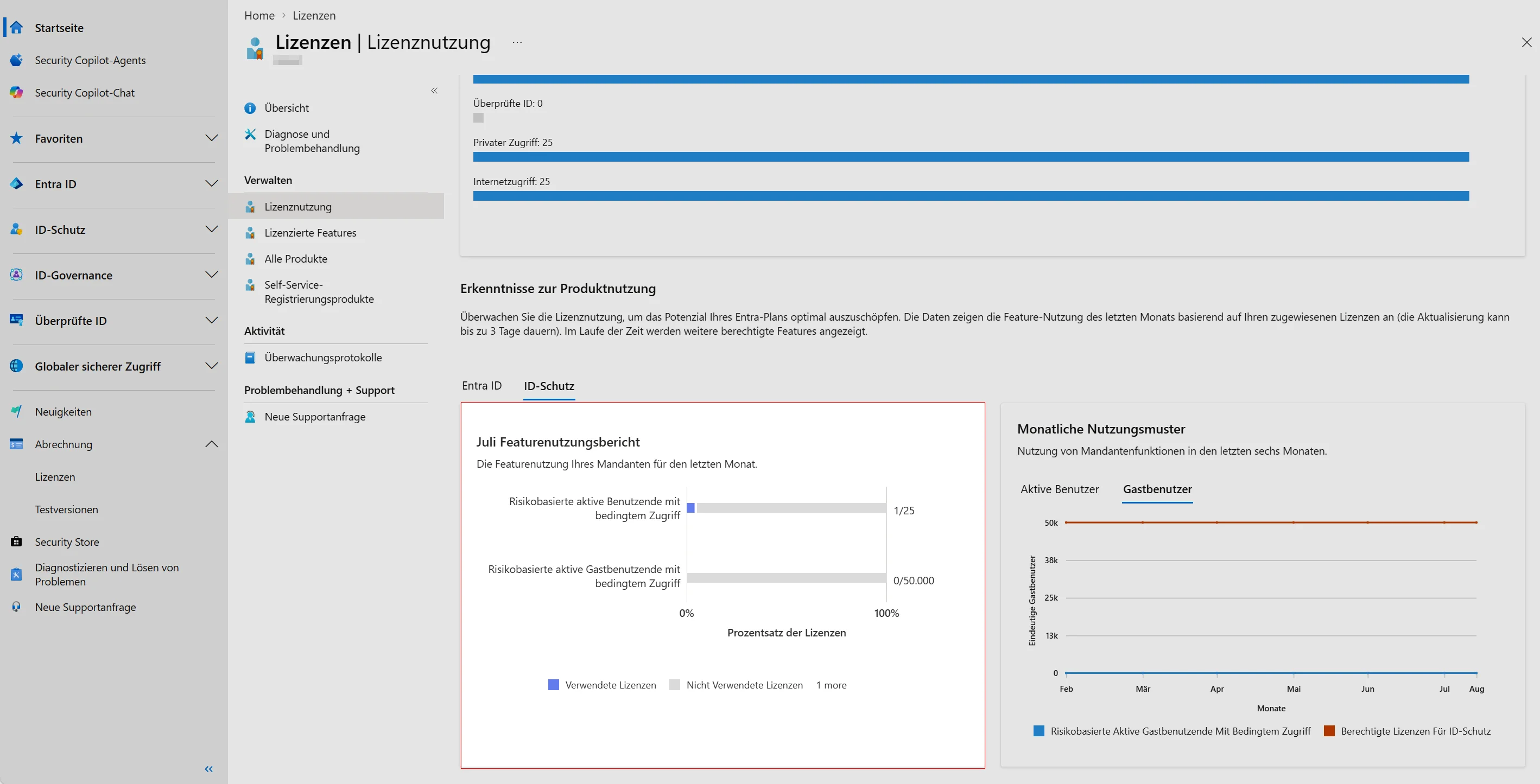
Go to Billing, Licenses, License usage. Alternatively, use the direct link via the following LINK. The page displays two sections: Entitlements and Feature usage.
The entitlement count is a sum across all products that include an Entra tier as a service plan. Microsoft 365 E3 includes Entra ID P1, while Microsoft 365 E5 includes both P1 and P2. Therefore, fifteen E5 licenses generate fifteen P1 and fifteen P2 entitlements, even though you only purchased one product.
The metric under P1 is called "Conditional Access users" and counts the unique users for whom at least one Conditional Access policy was evaluated during the measurement period. Under P2, "Risk-based Conditional Access users" does the same for risk-based policies. Evaluated does not mean blocked or successful: a policy that only triggers and returns "notApplied" can already include the user in the count.
Step 3: Identify the users behind the number via Graph
The portal gives you a number, not names. You get the names from the sign-in logs because they are the data source for the tile. Connect with the read permissions required for sign-in logs and filter server-side so you don’t pull millions of entries over the wire.
Connect-MgGraph -Scopes 'AuditLog.Read.All','Directory.Read.All'

$Start  = (Get-Date).AddDays(-29).ToString('yyyy-MM-ddTHH:mm:ssZ')
$Filter = "createdDateTime ge $Start and conditionalAccessStatus eq 'success'"

[array]$SignIns = Get-MgAuditLogSignIn -Filter $Filter -All
Write-Host ("{0} Anmeldungen mit ausgewertetem Conditional Access gefunden" -f $SignIns.Count)
The filter value success is lowercase because conditionalAccessStatus is a Graph enum, and its values are success, failure, notApplied, and unknownFutureValue. If you want to replicate the tile in the portal as accurately as possible, replace the condition with conditionalAccessStatus ne 'notApplied' so that failed evaluations are also included.
Note the retention: with P1 or P2, sign-in logs are stored in the portal for 30 days; without a premium license, only 7 days. The tile's measurement period is the previous month. Therefore, you can only accurately recalculate a completed month if you export the logs to a Log Analytics workspace or a storage account via diagnostic settings.
Step 4: Exclude guest accounts
Guests trigger Conditional Access but don’t consume your P1 assignments. External identities are billed under the MAU model, which includes a free allowance of 50,000 monthly active users. In most tenants, this portion remains free but skews any manual count. Separate it immediately.
$TenantId = (Get-MgOrganization).Id

$Unique = $SignIns | Where-Object { $_.UserPrincipalName } |
          Sort-Object UserPrincipalName -Unique

$Guests  = $Unique | Where-Object {
    $_.UserPrincipalName -like '*#EXT#*' -or
    ($_.HomeTenantId -and $_.HomeTenantId -ne $TenantId)
}
$Members = $Unique | Where-Object { $_ -notin $Guests }

Write-Host ("{0} eindeutige Benutzer: {1} Mitglieder, {2} Gäste" -f `
    $Unique.Count, $Members.Count, $Guests.Count)
The double condition is intentional. The #EXT# part in the UPN identifies classic B2B guests whose account resides in your tenant. The check for HomeTenantId catches cases where a user from a foreign tenant accesses your resources via cross-tenant access and therefore does not have an #EXT# UPN.
Step 5: Check license assignment of remaining members
This is where most tenants find their gap. The entitlement counts purchased service plans, while usage counts users. If an account uses Office 365 E3, it consumes Conditional Access but doesn’t bring a single P1 service plan because Office 365 E3 doesn’t include Entra Premium. Fifteen free P1 entitlements from E5 licenses won’t help you as long as they’re assigned to other users.
$Premium = 'AAD_PREMIUM','AAD_PREMIUM_P2'

foreach ($User in $Members) {
    $Plans = (Get-MgUserLicenseDetail -UserId $User.UserPrincipalName).ServicePlans |
             Where-Object { $_.ServicePlanName -in $Premium -and
                            $_.ProvisioningStatus -eq 'Success' }

    [PSCustomObject]@{
        Benutzer = $User.UserPrincipalName
        Premium  = if ($Plans) { ($Plans.ServicePlanName -join ', ') } else { 'KEINE' }
    }
}
Anything listed as NONE in the Premium column is your actual gap. Retrieve the inventory on the purchase side using Get-MgSubscribedSku and compare ConsumedUnits against PrepaidUnits.Enabled. If free units are available, it’s a redistribution via Set-MgUserLicense, not a new order.
Step 6: Query large tenants day by day
A single Graph call over 30 days times out or fails with an HTTP error in medium and large tenants because pagination across hundreds of thousands of entries takes too long. Split the period into daily slices and merge the results.
$All = [System.Collections.Generic.List[object]]::new()

for ($Day = 29; $Day -ge 0; $Day--) {
    $From = (Get-Date).Date.AddDays(-$Day).ToString('yyyy-MM-ddTHH:mm:ssZ')
    $To   = (Get-Date).Date.AddDays(-$Day + 1).ToString('yyyy-MM-ddTHH:mm:ssZ')

    $F = "createdDateTime ge $From and createdDateTime lt $To and " +
         "conditionalAccessStatus eq 'success'"

    try   { $All.AddRange((Get-MgAuditLogSignIn -Filter $F -All)) }
    catch { Write-Warning ("Tag {0} fehlgeschlagen: {1}" -f $From, $_.Exception.Message) }
}
The try block is not just for show. If a single tag fails due to throttling, you’ll otherwise lose the entire run and have to start over.
pitfalls
Report-only policies count because they are evaluated. Running a policy in test mode on 'All Users' includes every logged-in user in the usage count, even though the policy never enforces anything.
Microsoft-managed policies also run in your tenant and are evaluated there. They automatically appear in report-only mode and are enforced by Microsoft after 30 days unless you opt out. This explains usage spikes in tenants where no one has created a new policy.
Break-glass accounts are typically excluded from all policies. That's exactly why they don't appear in usage counts—which is good, but can throw off your headcount calculations if you include them as licensed users.
Security Defaults are not a substitute or a workaround. They are free of charge, but they mutually exclude Conditional Access. Anyone who enables them just to get rid of the warning loses all granular control.
Conclusion
The notice in the Entra Admin Center is an informational message, not an invoice or a block. Microsoft does not compare usage against the total pool of P1 and P2 entitlements; instead, it evaluates which individual accounts have consumed Conditional Access and whether those specific accounts hold the appropriate license. This is technically sound and compliant with licensing terms, but it leads to warnings in tenants that already have sufficient licenses available. In such cases, the issue lies with the assignment, not the purchase.
For operations, this means: The evaluation from steps 3 to 5 should be part of your quarterly routine, because the license mix shifts with every onboarding. An account that only uses email today and runs under a new policy tomorrow changes the count without any action in license management.
For security professionals, this message is a warning with a double edge. Microsoft is consistently pushing the MFA requirement for admin portals and logins, and the recommended path is Conditional Access. Those who weaken policies or reduce their scope due to a license warning are lowering their security level just to silence a tile in the portal. That’s the wrong trade-off. A better approach is documentation: record which accounts trigger Conditional Access, which of these are service accounts, admin accounts, or guests, and which license is behind each. You’ll need this inventory anyway once Microsoft moves from notification to enforcement, and it also serves as clean evidence for an ISO 27001 audit or an NIS2 inventory.
For decision-makers, the cold calculation remains: Upgrading from Office 365 E3 to Microsoft 365 E3 costs money, while reallocating existing E5 licenses costs an hour of admin time. Check the second option before considering the first.

💬 Comments
0 KommentareSei der Erste und starte die Diskussion mit einem hilfreichen Beitrag.
Leave a comment
Dein Beitrag wird vor der Veröffentlichung kurz geprüft — fachlich, respektvoll und auf den Punkt ist hier genau richtig.