Harden M365 Tenant via PowerShell & Graph

Everyone knows the situation with a fresh M365 tenant: You click through one admin center after another and configure everything as you see fit. This costs time, because each portal has to load, render its tiles, and refresh again with every switch. PowerShell is faster.
Manual clicks in the Microsoft 365 Admin Center do not just cost time, though. They also create configuration errors and cannot be reproduced during an audit. Anyone managing tenants professionally therefore defines the current state through PowerShell.
Organization settings are managed through the Microsoft Graph PowerShell SDK, which directly addresses the Graph API. For pure identity tasks, the scenario-focused Microsoft Entra PowerShell module is also available. It builds on the Graph SDK and provides a compatibility mode with Enable-EntraAzureADAlias in case older AzureAD scripts are still in use.
Requirements & Permissions
The Microsoft Graph PowerShell SDK follows the least-privilege principle with granular scopes. You declare the required scopes explicitly, otherwise the command fails with an authorization error. Microsoft recommends using PowerShell 7 for Graph and Entra PowerShell. If you remain on Windows PowerShell 5.1, you need .NET Framework 4.7.2 and an up-to-date PowerShellGet.
An existing scope alone is not always sufficient in Microsoft Graph. For delegated access to the organization object, Microsoft additionally documents supported Entra roles. Without the appropriate role, even a formally correct connection does not provide write permissions. Roles such as Global Reader, Directory Readers, or Security Reader are sufficient to read the organization object. For changes to the authorizationPolicy, the system requires Privileged Role Administrator as the least privileged supported role, combined with the Policy.ReadWrite.Authorization scope.
A second limitation concerns Get-MgOrganization. Applications with the User.Read scope can only read id, displayName, and verifiedDomains from the organization object. All other properties are returned as null. For reliable documentation of the organization profile, you should therefore declare at least Organization.Read.All.
# Nur lesen
Connect-MgGraph -Scopes "Organization.Read.All", "Policy.Read.All"

# Für Änderungen an den Tenant-Kontakten
Connect-MgGraph -Scopes "Organization.ReadWrite.All"
Basic Tenant Information and Contact Addresses
A properly maintained organization profile ensures that critical Microsoft system alerts reach the responsible team immediately during a security incident. If outdated addresses are stored, these notifications often end up in abandoned mailboxes belonging to former employees, causing the IT department to lose valuable response time.
You can review the configured contact addresses using the organization cmdlet:
# Kontaktadressen des Tenants prüfen
Get-MgOrganization | Select-Object DisplayName, TechnicalNotificationMails,
    SecurityComplianceNotificationMails, SecurityComplianceNotificationPhones,
    MarketingNotificationEmails
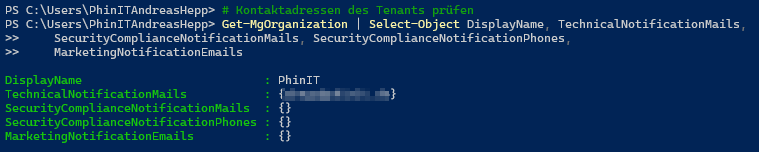
If the query returns outdated addresses, you can correct them by retrieving the tenant ID and performing an update. The Graph API only permits write operations on specific organization object properties: marketingNotificationEmails, privacyProfile, securityComplianceNotificationMails, securityComplianceNotificationPhones, and technicalNotificationMails.
# Technische Kontakte setzen (Tenant-ID fürs Update ermitteln)
$TenantId = (Get-MgOrganization).Id
Update-MgOrganization -OrganizationId $TenantId `
    -TechnicalNotificationMails @("security-team@deine-domain.de")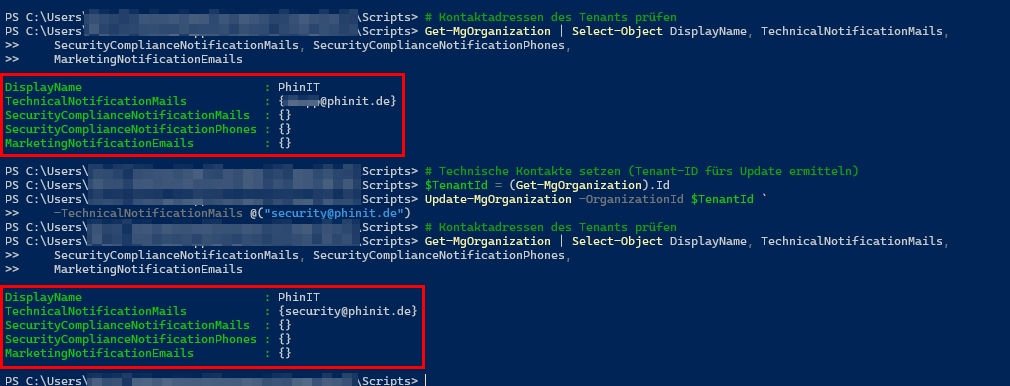
Organization Profile: Review Location and Core Settings
The geographic baseline settings define the default datacenter region and system language for your tenant. These values affect GDPR-related data residency requirements as well as billing.
Not every visible setting can be changed after tenant creation. Microsoft explicitly documents that the Country/Region value is permanently fixed once the tenant has been created. It determines available services, taxation, and currency. If the region no longer fits your requirements, the only option is to create a new tenant with a new subscription and migrate the data. Treat these settings as architectural decisions during the initial deployment.
# Standort, Sprache und Basis-IDs des Tenants
Get-MgOrganization | Select-Object DisplayName, Country, CountryLetterCode,
    PreferredLanguage, CreatedDateTime, DefaultUsageLocation

# Verifizierte und Standard-Domänen auflisten
(Get-MgOrganization).VerifiedDomains |
    Select-Object Name, IsDefault, IsInitial, Type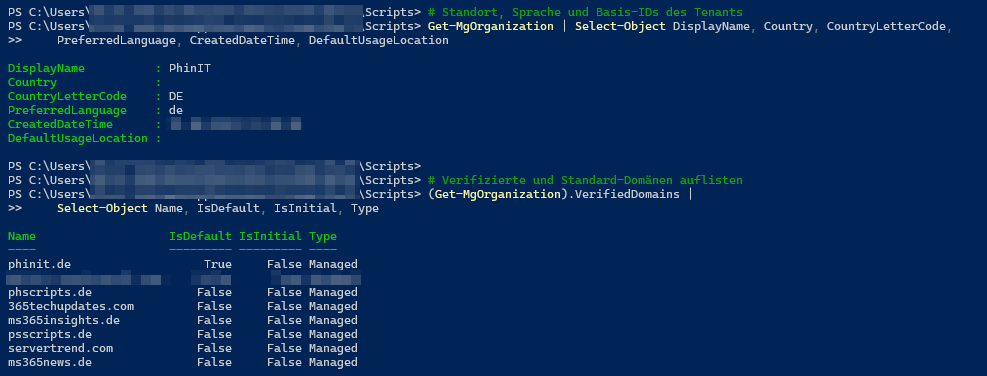
Security Defaults: Verify the Baseline Security Layer
For smaller tenants without premium licenses, Security Defaults are the only built-in method of enforcing multifactor authentication across all accounts. If they are disabled and no Conditional Access policies exist, the tenant remains exposed to password-spraying attacks.
# Prüfen ob Security Defaults aktiv sind
Get-MgPolicyIdentitySecurityDefaultEnforcementPolicy | Select-Object IsEnabled, Description
With Entra ID P1 and above, Conditional Access is the more precise approach because MFA can be controlled based on user groups, locations, risk levels, and client types.
Be aware of Microsoft's transition in MFA management. The legacy per-user MFA administration through Service Settings has been retired. Authentication method management now belongs in the Authentication Methods Policy. Security Defaults and Conditional Access policies are mutually exclusive. You can enable either one or the other, but not both simultaneously.
Services: Review Global Calendar Sharing
The global sharing policy in Exchange Online determines how much calendar information users are allowed to share with external partners. Overly permissive default settings may expose complete meeting details to external parties. Attackers can leverage this information to gain insight into internal projects and business operations.
A proper assessment requires understanding the scope of sharing policies. A Sharing Policy only becomes effective when it is assigned to a mailbox. If no specific policy is assigned, the mailbox automatically inherits the Default Sharing Policy.
# Globale Kalenderfreigabe-Richtlinien prüfen
Connect-ExchangeOnline
Get-SharingPolicy | Select-Object Name, Enabled, Domains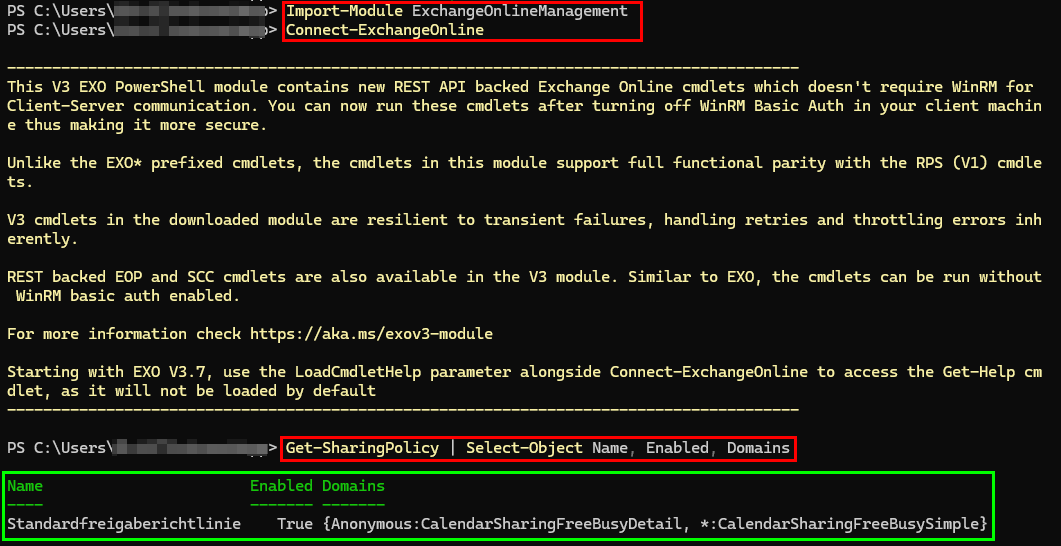
When modifying certain Exchange Online organizational objects for the first time, Exchange Online requires a prerequisite configuration step. Microsoft provides the Enable-OrganizationCustomization cmdlet for this purpose. Until this has been enabled, modification attempts against default organizational objects may fail.
# Exchange Online einmalig für Organisationsanpassungen vorbereiten
Enable-OrganizationCustomization
Security & Privacy: User Application Permissions
One of the primary cloud attack vectors is OAuth consent phishing. Attackers trick users into granting extensive permissions to malicious applications through fraudulent emails. No password theft is required because the application operates with a token that has been approved by the user. This attack surface is controlled through the authorization policy.
Microsoft centralizes several important settings within this policy, including allowUserConsentForRiskyApps, allowInvitesFrom, allowedToSignUpEmailBasedSubscriptions, and allowedToUseSSPR.
For security hardening, review the allowUserConsentForRiskyApps setting. The default value is false, and Microsoft explicitly recommends keeping it that way. Otherwise, risky applications can directly compromise the environment through OAuth consent.
You should also review permissionGrantPoliciesAssigned. An empty array completely disables user consent for applications. A built-in value such as ManagePermissionGrantsForSelf.microsoft-user-default-low allows user consent under a highly restricted policy. Many tenants still use the legacy value ManagePermissionGrantsForSelf.microsoft-user-default-legacy, which should be upgraded to the more restrictive Low variant.
# Self-Service-Rechte der Standardbenutzer prüfen
Get-MgPolicyAuthorizationPolicy |
    Select-Object -ExpandProperty DefaultUserRolePermissions |
    Select-Object AllowedToCreateApps, PermissionGrantPoliciesAssigned
Collaboration: Restrict Microsoft 365 Group Creation
If every user is allowed to create Teams and SharePoint sites freely, the tenant quickly grows into an uncontrolled sprawl of data locations and permissions. Control over Microsoft 365 Group creation is managed through the Group.Unified directory settings template.
These tenant-wide group settings are still exposed through the Microsoft Graph Beta endpoint. Access them using the Beta cmdlets from the Microsoft.Graph.Beta.Identity.DirectoryManagement module, otherwise the Group.Unified template may not be reliably available.
# Submodul laden und Gruppen-Settings abfragen
Import-Module Microsoft.Graph.Beta.Identity.DirectoryManagement
Connect-MgGraph -Scopes "Directory.Read.All"
Get-MgBetaDirectorySetting |
    Where-Object DisplayName -eq "Group.Unified" |
    Select-Object -ExpandProperty Values
Pay attention to module version consistency when using the Beta module. If your session has already loaded a different version of Microsoft.Graph.Authentication, the import may fail due to assembly conflicts. In that case, update all Microsoft Graph modules to the same version and start a fresh PowerShell session.
If you prefer to avoid the Beta module, you can retrieve the same settings through a direct Graph REST request, which only requires the Authentication module:
# Alternative ohne Beta-Submodul
(Invoke-MgGraphRequest -Method GET -Uri "https://graph.microsoft.com/v1.0/groupSettings").value |
    Where-Object displayName -eq "Group.Unified" |
    ForEach-Object { $_.values }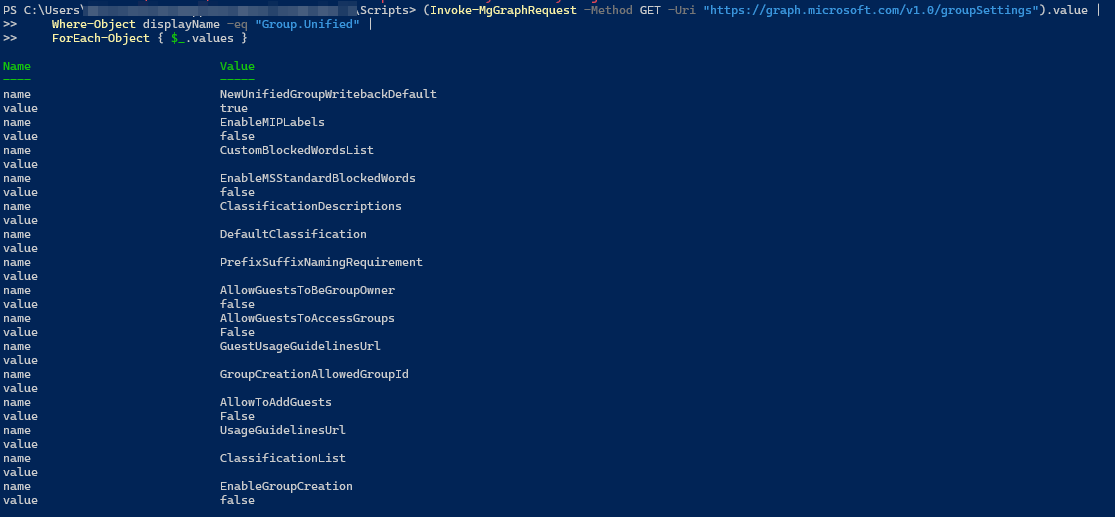
An empty result indicates that the tenant has never customized the template. In that case, the default setting EnableGroupCreation = true applies, meaning every standard user can create Microsoft 365 Groups.
If EnableGroupCreation is set to True, you can disable group creation and delegate the permission through GroupCreationAllowedGroupId to a dedicated IT security group. This forces users to request new collaboration workspaces through a controlled IT process. Writing these settings requires either the Policy.ReadWrite.DirectorySettings or Directory.ReadWrite.All permission scope.
Identity: Control Guest User Invitations (B2B)
If every employee is allowed to create external guest accounts, the directory quickly fills with unmonitored identities. Attackers can exploit abandoned guest accounts for lateral movement within the environment.
# Prüfen, ob Standardnutzer Gäste einladen dürfen
Get-MgPolicyAuthorizationPolicy |
    Select-Object -ExpandProperty DefaultUserRolePermissions |
    Select-Object AllowedToInviteGuest
In most cloud environments, the allowInvitesFrom setting defaults to everyone. Restricting this value to adminsAndGuestInviters limits invitation privileges to designated managers or users assigned the Guest Inviter role.
You can further reduce guest privileges by configuring guestUserRoleId, for example by assigning the Restricted Guest User role to limit guest access throughout the tenant.

Networks: Cross-Tenant Access
When users collaborate across different tenants, Cross-Tenant Access policies determine whether MFA claims from external organizations are trusted. If configured incorrectly, you may unintentionally create trust paths from weakly secured partner environments. A more secure approach is to require MFA validation within your own tenant.
The cleanest way to review the default configuration is through the dedicated cmdlet rather than using property expansion:
# Retrieve default B2B access policies
Get-MgPolicyCrossTenantAccessPolicy | Select-Object -ExpandProperty Default
For specific partners, you can configure organization-specific policies through Get-MgPolicyCrossTenantAccessPolicyPartner, where you explicitly define whether MFA claims from the partner organization are trusted.

Security & Privacy: Block Legacy MSOL PowerShell Access
The legacy MSOnline cmdlets communicated through an older service endpoint that could bypass modern Conditional Access controls. The blockMsolPowerShell setting disables user-based access through this legacy endpoint. Microsoft Entra Connect and Microsoft Graph are not affected.
Modifying the authorization policy requires elevated permissions. You must use the Policy.ReadWrite.Authorization scope. A read-only scope such as Directory.Read.All will result in a 403 error. Additionally, delegated access requires at least the Privileged Role Administrator role. Without it, Graph rejects the request even when the correct scope is present.
# Mit Schreib-Scope verbinden und Scope prüfen
Connect-MgGraph -Scopes "Policy.ReadWrite.Authorization"
(Get-MgContext).Scopes

# Benutzerzugriff über den MSOnline-Endpunkt sperren
$params = @{
    blockMsolPowerShell = $true
}
Update-MgPolicyAuthorizationPolicy -BodyParameter $params
Since the MSOnline module has already been retired, this setting should be viewed as an additional defense-in-depth measure rather than a primary security control.
Review sign-in logs in parallel to identify scripts or service accounts still attempting to use the legacy endpoint. This helps uncover automations that may fail once the setting has been enabled.
Security & Privacy: Self-Service Purchases
Standard users can independently purchase licenses for products such as Power BI Pro, Power Automate, and Project through self-service purchasing. This weakens centralized budget control, may violate compliance requirements, and encourages unmanaged shadow IT.
Self-service purchasing is managed exclusively through the MSCommerce module.
The module is not part of the Microsoft Graph SDK and must be installed separately from the PowerShell Gallery. You must sign in with either a Billing Administrator or Global Administrator account.
# Modul einmalig installieren
Install-Module -Name MSCommerce -Scope CurrentUser -Force

# Danach verbinden und abfragen
Connect-MSCommerce
Get-MSCommerceProductPolicies -PolicyId AllowSelfServicePurchase |
    Sort-Object ProductName | Format-Table ProductName, PolicyValue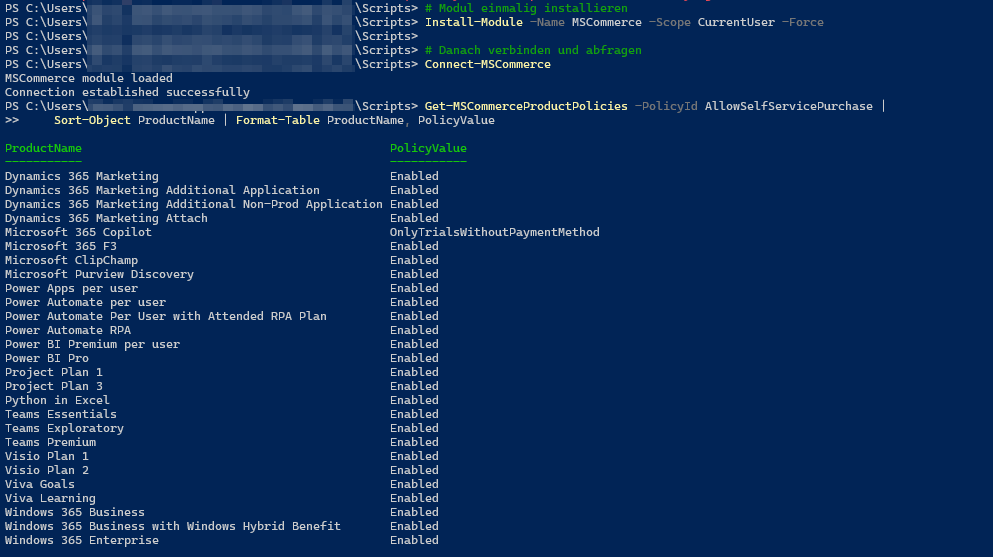
The policy is applied per product. There is no global switch. Each enabled product must be reviewed individually and disabled through Update-MSCommerceProductPolicy if necessary.
New Microsoft services are often enabled by default after release. Plan for up to 72 hours before policy changes propagate across all services. Microsoft currently does not offer user-based or group-based control for self-service purchases.
Existing subscriptions can be transferred, users reassigned, or subscriptions canceled as needed.
Additional Hardening Measures via PowerShell
The following settings should be included in the same assessment because they affect the tenant as a whole and can also be managed through automation. The advantage over the GUI remains the same: you can consistently document the current state and enforce the desired configuration through code.
| Area | Configuration | Read / Write |
| Identity | Authentication Methods Policy, successor to per-user MFA | Get-MgPolicyAuthenticationMethodPolicy / Update-MgPolicyAuthenticationMethodPolicy |
| Identity | Conditional Access, such as blocking legacy authentication and enforcing MFA for admins | Get-MgIdentityConditionalAccessPolicy / New-MgIdentityConditionalAccessPolicy, Update-MgIdentityConditionalAccessPolicy |
| Identity | Named Locations for location-based controls | Get-MgIdentityConditionalAccessNamedLocation / New-MgIdentityConditionalAccessNamedLocation |
| Identity | Disable app registration for standard users (AllowedToCreateApps) | Get-MgPolicyAuthorizationPolicy / Update-MgPolicyAuthorizationPolicy |
| Identity | Prevent tenant creation by standard users (AllowedToCreateTenants) | Get-MgPolicyAuthorizationPolicy / Update-MgPolicyAuthorizationPolicy |
| Identity | Restrict visibility of other users (AllowedToReadOtherUsers) | Get-MgPolicyAuthorizationPolicy / Update-MgPolicyAuthorizationPolicy |
| Apps & Consent | Review risky enterprise applications and outdated permissions | Get-MgServicePrincipal, Get-MgOauth2PermissionGrant / Remove-MgOauth2PermissionGrant |
| Apps & Consent | Require user assignment for enterprise applications (AppRoleAssignmentRequired) | Get-MgServicePrincipal / Update-MgServicePrincipal |
| B2B & Devices | Cross-Tenant Access and Tenant Restrictions v2 | Get-MgPolicyCrossTenantAccessPolicyDefault / Update-MgPolicyCrossTenantAccessPolicyDefault |
| B2B & Devices | Device registration and Entra Join permissions | Get-MgPolicyDeviceRegistrationPolicy / Update-MgPolicyDeviceRegistrationPolicy |
The following settings are configured together through the nested defaultUserRolePermissions property:
# App-Registrierung und Tenant-Erstellung für Standardnutzer abschalten
Connect-MgGraph -Scopes "Policy.ReadWrite.Authorization"
$params = @{
    defaultUserRolePermissions = @{
        allowedToCreateApps    = $false
        allowedToCreateTenants = $false
    }
}
Update-MgPolicyAuthorizationPolicy -BodyParameter $params
Which controls apply to your environment depends on your licensing and workloads. Consent management and Conditional Access require the appropriate write scopes, such as Policy.ReadWrite.ConditionalAccess or Policy.ReadWrite.Authorization.
Exchange Online and SharePoint Online settings additionally require separate connections through Exchange Online PowerShell and SharePoint Online Management Shell.
Documenting the Current State
For audit preparation, export tenant settings into a machine-readable format. JSON provides a structured baseline for future comparisons.
# Organisationseinstellungen als JSON sichern
Get-MgOrganization |
    Select-Object DisplayName, TechnicalNotificationMails, Country, PreferredLanguage |
    ConvertTo-Json |
    Out-File ".\Org-Settings_$(Get-Date -Format 'yyyy-MM-dd').json"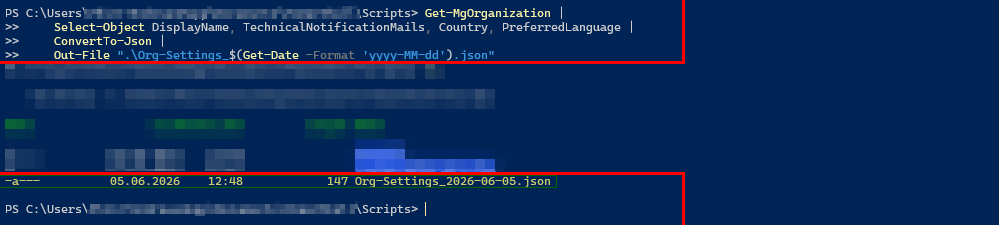
Configuration as Code: Microsoft365DSC
A JSON export provides only a point-in-time snapshot. Once you manage multiple tenants or need to maintain a defined target configuration, this approach reaches its limits.
This is where Microsoft365DSC comes in. It is an open-source solution built on PowerShell Desired State Configuration (DSC).
Instead of querying individual values, you define the entire Microsoft 365 tenant configuration as code. Microsoft365DSC can export the current state across workloads such as Entra ID, Exchange Online, and Intune into a unified configuration file. This file becomes your source of truth.
If the tenant later deviates from the defined configuration, the module detects the drift and reports it. If desired, it can automatically reapply the approved configuration and restore compliance. New tenants are no longer built manually. Instead, a validated configuration is deployed.
Technically, the compiled configuration runs through the Local Configuration Manager on a server, workstation, or container. It communicates with Microsoft 365 APIs and therefore requires internet access.
# Modul installieren und auf den aktuellen Stand bringen
Install-Module -Name Microsoft365DSC -Force
Update-M365DSCModuleConclusion
Managing Microsoft 365 through PowerShell closes many of the gaps created by fragmented administration portals. Scripts transform administrative processes into repeatable, auditable workflows and provide reliable documentation of the tenant state. Legacy administration modules have reached end of life. The future lies with the Microsoft Graph PowerShell SDK and Microsoft Entra PowerShell.
Tenant hardening requires precision. Global policies such as calendar sharing only take effect after they have been assigned to mailboxes. Foundational settings such as the tenant region cannot be changed after deployment. Organizations that carefully manage application consent, monitor self-service purchases on a per-product basis, and block legacy access paths significantly reduce their exposure to shadow IT and unauthorized access.
The APIs behind these cmdlets remain stable. A well-designed PowerShell script can provide a complete compliance and security baseline assessment at the press of a button, along with the evidence required for the next audit or security review.

Sei der Erste und starte die Diskussion mit einem hilfreichen Beitrag.
Leave a comment
Dein Beitrag wird vor der Veröffentlichung kurz geprüft — fachlich, respektvoll und auf den Punkt ist hier genau richtig.