
The yellow warning on the Conditional Access overview page doesn’t specify a number. It simply states that your policies protect more users than your licenses cover—and leaves you to deal with it. Anyone who then orders from the reseller is buying a number that no one has verified.

The number can be calculated. The data basis for this is fully available in Entra ID: Every Conditional Access policy includes in its conditions property which users, groups, and directory roles it covers and which it excludes. If you resolve these assignments down to individual accounts and compare the result with the actual license inventory, you get a reliable difference instead of a gut feeling.
Why the warning appears in the first place
Conditional Access requires an Entra ID P1 license for each user covered. Enforcement is not technical but rather based on licensing: A policy will still apply to an unlicensed user. Microsoft checks compliance in the background and displays a notification once the number of covered accounts exceeds the number of assigned P1 licenses.
The most common trigger isn't under-licensing, but rather an unclean assignment. A policy targets "All Users," and within the tenant, service accounts, room mailboxes, guest accounts, or decommissioned accounts are included that no one ever consciously scoped into the policy.
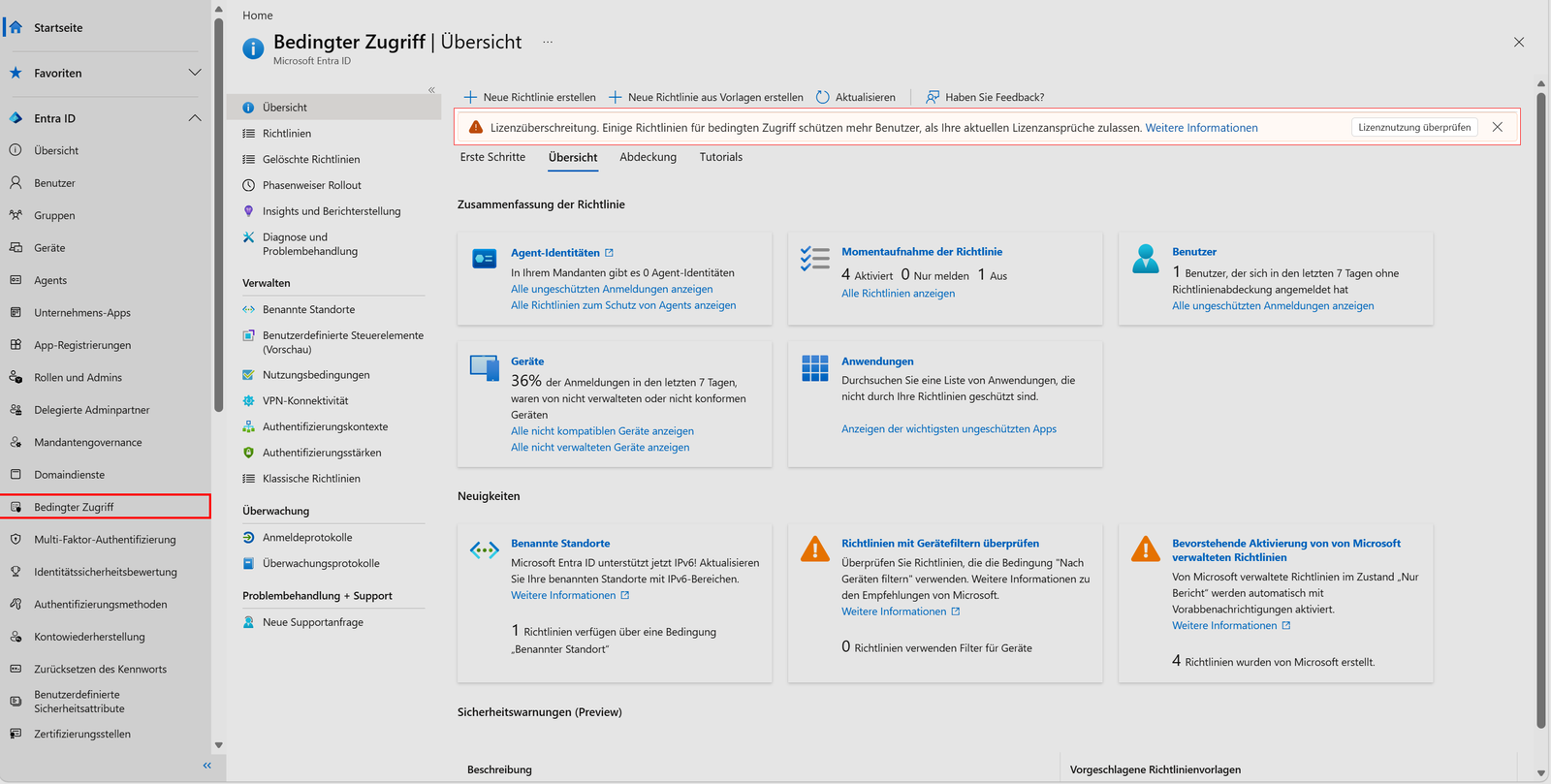
Related: M365 Entra ID | Admin Center Reports License Gap for Conditional Access, which provides context for the warning.
Prerequisites
You need the Microsoft.Graph module and read permissions on policies, directory, and users.
Connect-MgGraph -Scopes "Policy.Read.All","Directory.Read.All",
    "User.Read.All","Group.Read.All","RoleManagement.Read.Directory"
Entra ID P2 has the plan ID eec0eb4f-6444-4f95-aba0-50c24d67f998 and typically includes P1. If you want to calculate costs accurately in a mixed environment, you should account for both. Both identifiers are listed in the reference Product names and service plan identifiers for licensing, which Microsoft maintains on an ongoing basis. Check them against your tenant before going live:
(Get-MgSubscribedSku).ServicePlans | Where-Object { $_.ServicePlanName -like 'AAD_PREMIUM*' }
Step 1: Collect Active Policies
$policies = Get-MgIdentityConditionalAccessPolicy -All |
    Where-Object { $_.State -eq "enabled" }

$policies | Select-Object DisplayName, State
Policies in the state enabledForReportingButNotEnforced are included in license validation because they generate reporting data. Whether you include them in your billing depends on whether you operate the report-only mode permanently or just for testing. For a conservative count, include them.
Step 2: Resolve assignments down to accounts
The core of the evaluation. Groups are resolved transitively because otherwise nested groups would slip through.
$erfasst = [System.Collections.Generic.HashSet[string]]::new()

foreach ($p in $policies) {
    $u = $p.Conditions.Users

    # Direkt zugewiesene Benutzer
    foreach ($id in $u.IncludeUsers) {
        if ($id -notin @("All","None","GuestsOrExternalUsers")) {
            [void]$erfasst.Add($id)
        }
    }

    # Gruppen, transitiv aufgelöst
    foreach ($gid in $u.IncludeGroups) {
        Get-MgGroupTransitiveMember -GroupId $gid -All |
            Where-Object { $_.AdditionalProperties['@odata.type'] -eq '#microsoft.graph.user' } |
            ForEach-Object { [void]$erfasst.Add($_.Id) }
    }

    # Verzeichnisrollen
    foreach ($rid in $u.IncludeRoles) {
        $role = Get-MgDirectoryRole -Filter "roleTemplateId eq '$rid'" -ErrorAction SilentlyContinue
        if ($role) {
            Get-MgDirectoryRoleMember -DirectoryRoleId $role.Id -All |
                ForEach-Object { [void]$erfasst.Add($_.Id) }
        }
    }
}
There are two pitfalls here. Get-MgDirectoryRole only returns directory roles if the role is activated in the tenant. A role referenced in the policy but never activated won't be found this way. And IncludeUsers can take the value All. In this case, resolving individual users is pointless, as the entire user base applies.
$alleBenutzerPolicy = $policies | Where-Object { $_.Conditions.Users.IncludeUsers -contains "All" }

if ($alleBenutzerPolicy) {
    Write-Warning "Mindestens eine Richtlinie zielt auf Alle Benutzer: $($alleBenutzerPolicy.DisplayName -join ', ')"
}Step 3: Subtract exclusions
In Conditional Access, exclusions always override inclusions. If you forget them in the calculation, you end up purchasing licenses for accounts that will never be covered. This typically affects break-glass accounts.
$ausgeschlossen = [System.Collections.Generic.HashSet[string]]::new()

foreach ($p in $policies) {
    $u = $p.Conditions.Users

    foreach ($id in $u.ExcludeUsers) { [void]$ausgeschlossen.Add($id) }

    foreach ($gid in $u.ExcludeGroups) {
        Get-MgGroupTransitiveMember -GroupId $gid -All |
            Where-Object { $_.AdditionalProperties['@odata.type'] -eq '#microsoft.graph.user' } |
            ForEach-Object { [void]$ausgeschlossen.Add($_.Id) }
    }
}
However, an exclusion only applies to the policy in which it is defined. An account that is excluded in Policy A but included in Policy B remains covered. The following simplification—subtracting all exclusions globally—therefore results in a smaller number than the actual figure. For an exact count, you must calculate per policy and then merge the resulting sets. For an estimate aimed at the reseller, the approximation is sufficient as long as you know in which direction it deviates.
Step 4: Verify Against the License Inventory
$p1Plan = "41781fb2-bc02-4b7c-bd55-b576c07bb09d"
$p2Plan = "eec0eb4f-6444-4f95-aba0-50c24d67f998"

$kandidaten = $erfasst | Where-Object { $_ -notin $ausgeschlossen }

$luecke = foreach ($id in $kandidaten) {
    $user = Get-MgUser -UserId $id -Property Id, DisplayName, UserPrincipalName,
        AccountEnabled, UserType, AssignedPlans -ErrorAction SilentlyContinue

    if (-not $user) { continue }

    $hatPremium = $user.AssignedPlans | Where-Object {
        $_.ServicePlanId -in @($p1Plan, $p2Plan) -and $_.CapabilityStatus -eq "Enabled"
    }

    if (-not $hatPremium) {
        [PSCustomObject]@{
            Name     = $user.DisplayName
            UPN      = $user.UserPrincipalName
            Aktiv    = $user.AccountEnabled
            Typ      = $user.UserType
        }
    }
}

$luecke | Sort-Object Typ, Name | Format-Table -AutoSize
"Lizenzlücke: $($luecke.Count) Konten"Further information can be found in the German-language article.

Sei der Erste und starte die Diskussion mit einem hilfreichen Beitrag.
Leave a comment
Dein Beitrag wird vor der Veröffentlichung kurz geprüft — fachlich, respektvoll und auf den Punkt ist hier genau richtig.