


Conditional Access provides precise control over access conditions to resources, ensuring compliance with data privacy regulations and protecting sensitive data. It’s at the heart of your Zero Trust strategy: Instead of blindly trusting every login from the internal network, every request is reviewed in real time.

When it comes to password protection, robust policies are essential. The Entra ID policy for Microsoft Authenticator provides additional security options such as number matching in push notifications, as well as the display of the requesting application and location. This prevents “MFA fatigue” and makes attacks immediately visible.
How Conditional Access works
Think of Conditional Access as a smart bouncer. It analyzes different signals with each login attempt:
- Who? (User, Group, Role)
- From where? (IP address, location)
- With what? (Device Platform, Compliance Status)
- Where to? (Which app is being accessed?)
Based on these signals, the policy makes a decision: grant access, block it, or – and this is the default case – make additional requests (e.g. “You can enter, but only with MFA”).
Create a Conditional Access Policy
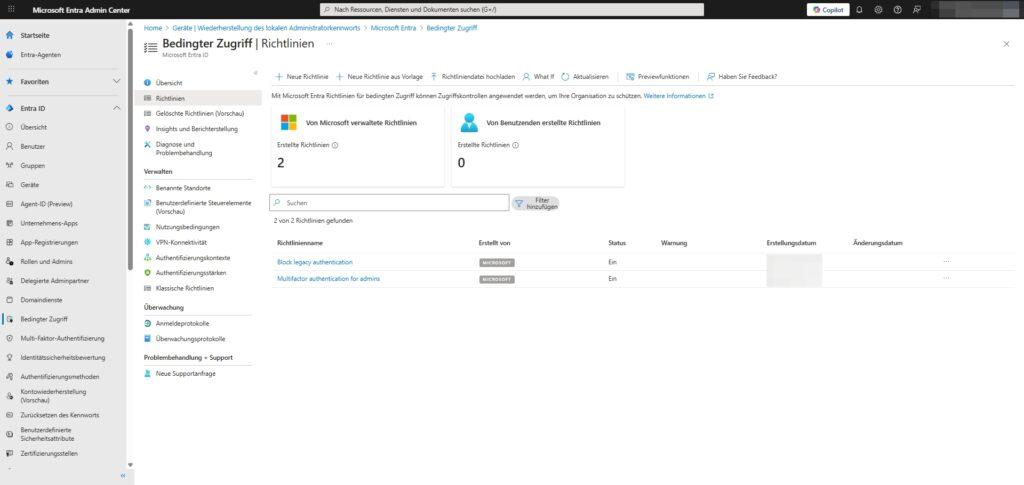
You can get started directly in the Entra Admin Center. We’ll go through the process of creating a policy step by step.
Path: Conditional Access > Protection > Policies
1. Create a new policy
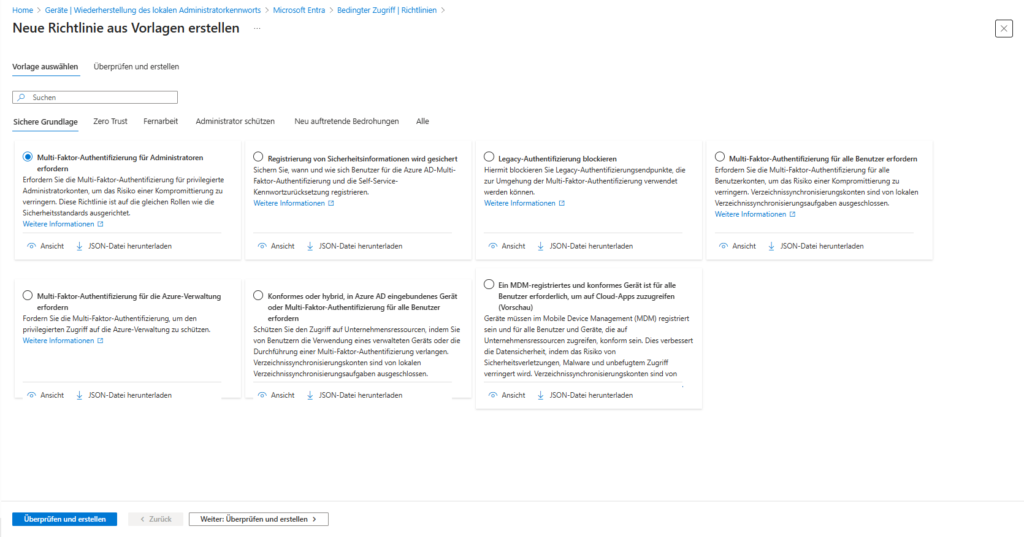
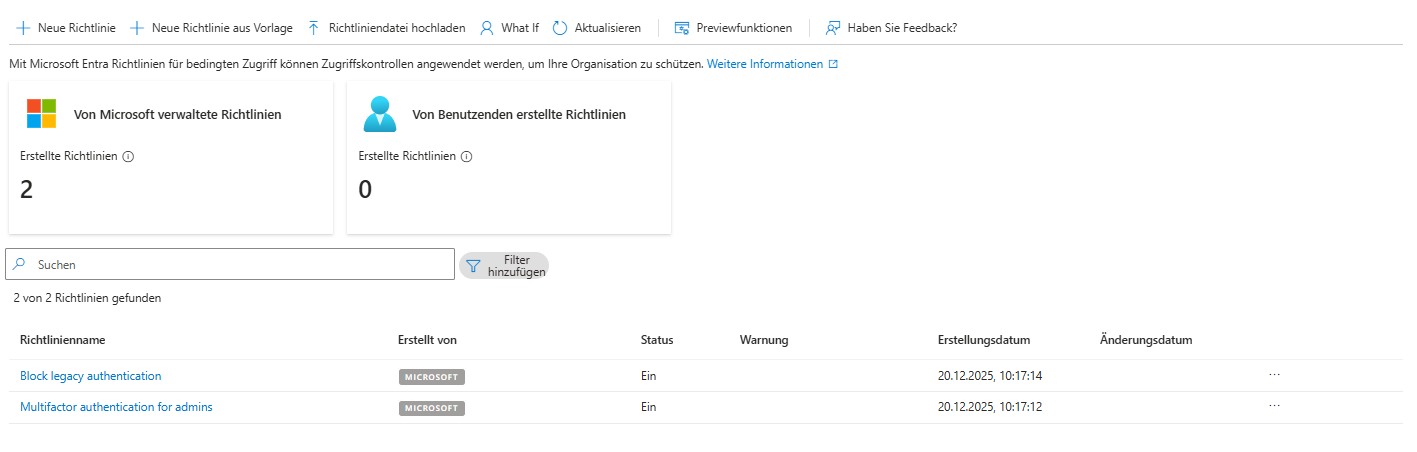
You have the choice: Create a policy from scratch or use one of the templates that Microsoft provides for common scenarios (e.g. “MFA for all admins”).
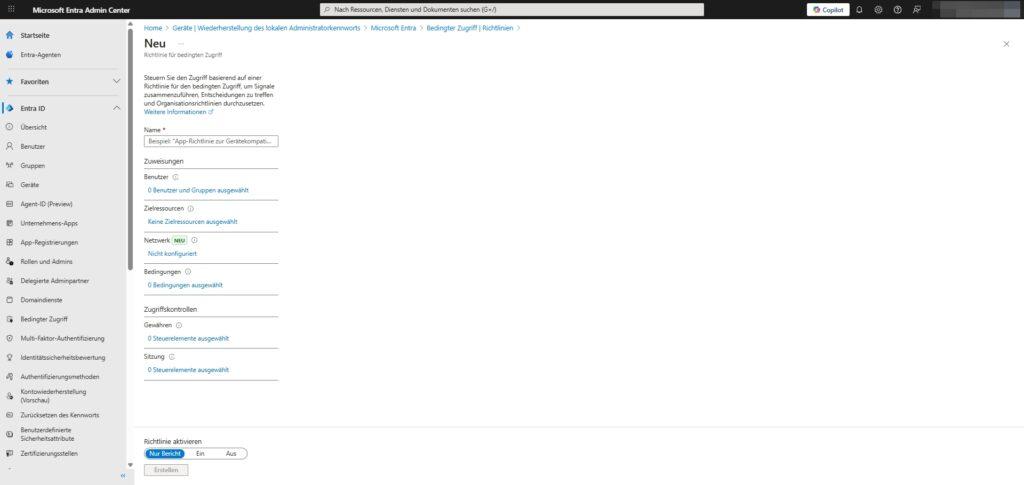
- Click Create New Policy.
- Give it a descriptive name (e.g., “CA01 – All Users – Enforce MFA”).

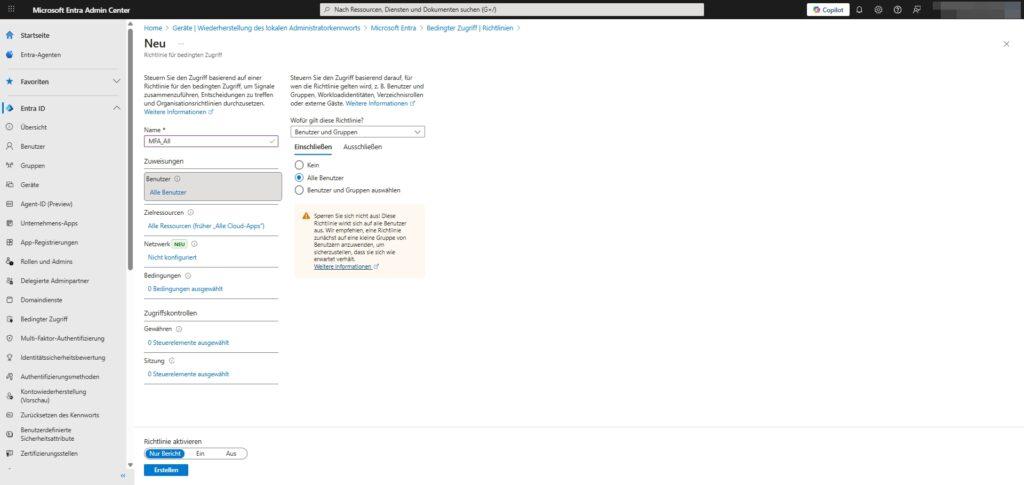
2. Assignment: Who and what?
This is where you define the scope. Be precise so as not to lock anyone out.
- Users:
- Include: For example, select All Users or specific groups (such as Sales).
- Exclude: Important! Be sure to exclude your “emergency admins” (break-glass accounts) here. If you lock yourself out in the event of a misconfiguration, these accounts are your only way out.
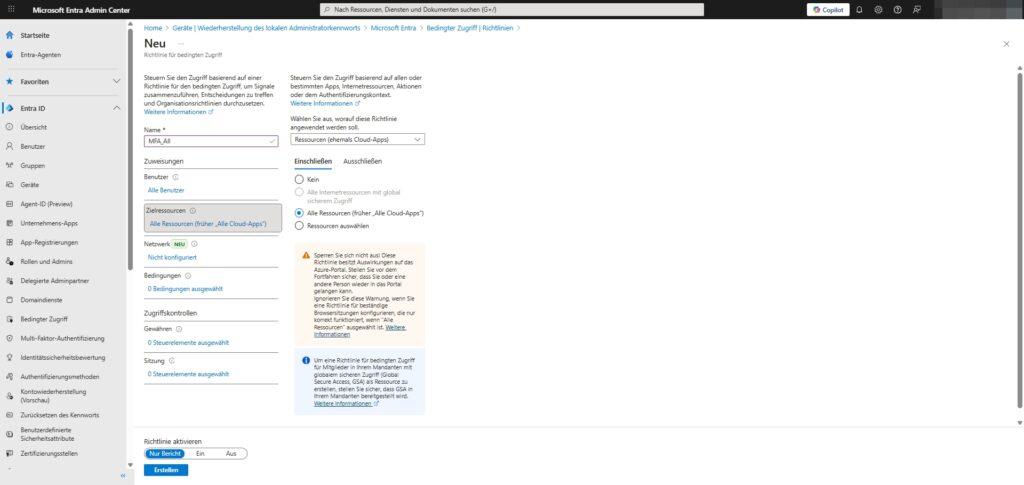
- Target resources:
- Determine which apps you want to protect (for example, Office 365, Azure Management, or All Cloud Apps).
3. Conditions: When does the rule apply?
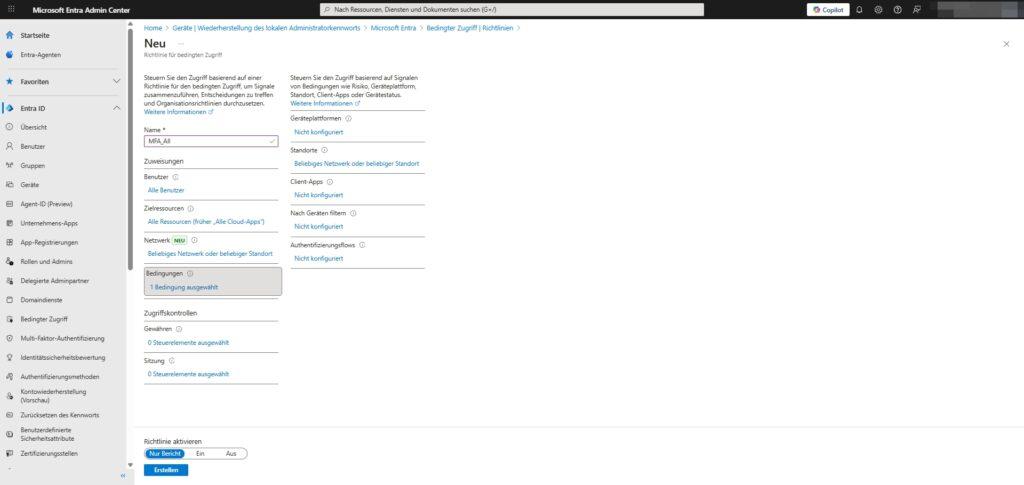
This is where you refine the filter. The guideline only applies if these criteria are met:
- Device Platforms: Should the rule only apply to Windows, iOS or Android?
- Locations: Define trusted IP ranges (e.g. company headquarters) to relax rules or block countries from which access should not be made.
- Client apps: Differentiate between browser and desktop apps, or block legacy authentication protocols (legacy auth), which are often gateways for hackers.
- Device filters: Apply policies only to specific devices (for example, Surface laptops only).

4. Access Control: The Decision
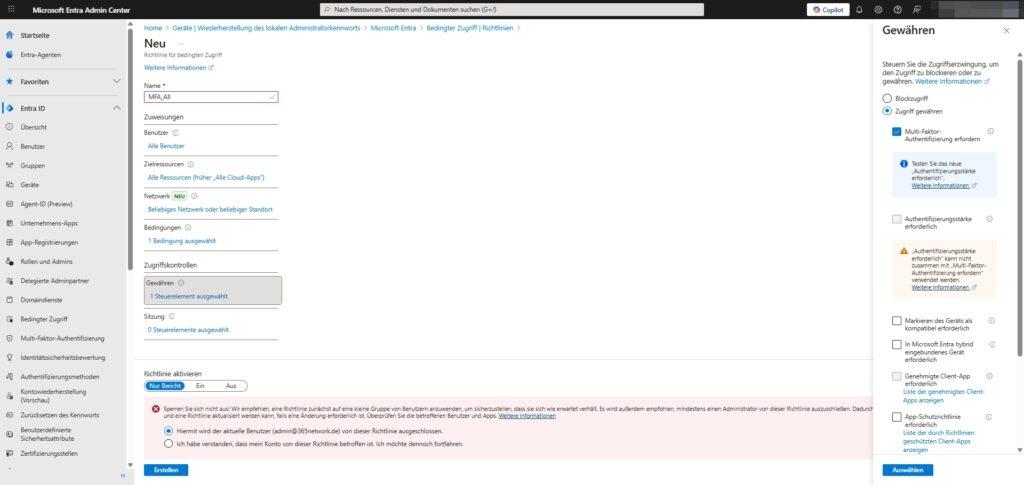
What happens if all conditions apply?
- Grant access: This is where you set the hurdles.
- MFA required: The user must confirm the second factor.
- Device must be marked as compliant: Access only with clean, Intune-managed devices.
- Deny access: Rigorously blocks the login attempt (e.g. when accessing from high-risk countries).
Session 5: The Fine Control
Under “Session” you control the behavior after registration.
- Registration frequency: Set how often a user needs to re-authenticate (e.g., every 4 hours instead of staying logged in for days).
- Persistent browser session: Control whether cookies can be stored.
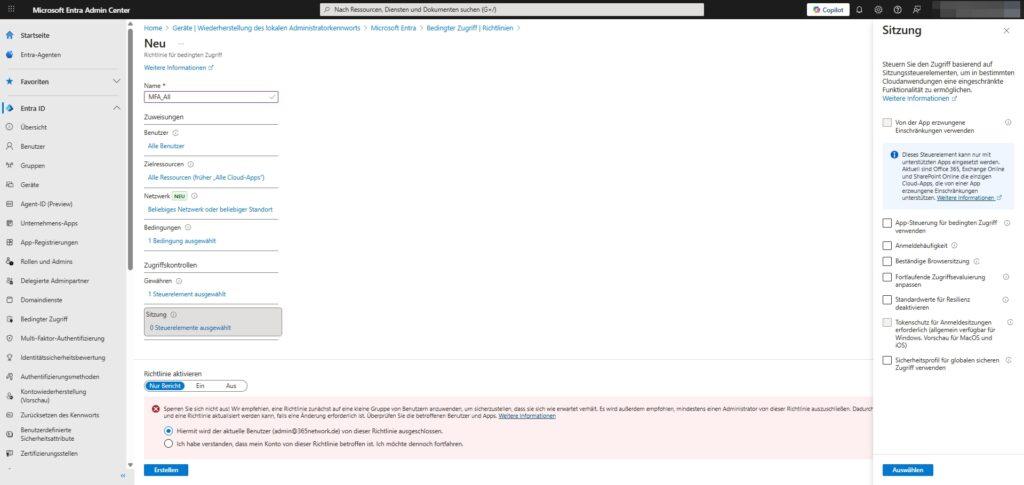
Important: The “Report Only” mode

Before you activate a policy (“On”), always use the “Report-Only” mode. In this mode, Entra ID only logs what would have happened without actually blocking users.
Check login logs for a few days to make sure your rule isn’t getting in the way of legitimate employees. Only then do you turn the switch to “On”.
Conclusion & Review
You can use the What-If tool (right in the Conditional Access menu) to simulate how your policies would affect a specific user at any time. Use this tool before making any changes.
By combining MFA, device compliance, and location rules, you close the most common security gaps. You not only protect your data, but also the trust that customers and employees place in your organization.




Be the first to comment