
You’ve defined your Mail DLP strategy in the last guide “Exchange Online: Blocking, Encrypting & Approving” and the basic foundation of your rules is in place. Now let’s focus on the central data stores in modern work environments: Microsoft SharePoint Online and OneDrive for Business.
Why this focus on the storage backend? Because these two services form the technical backbone for almost all collaboration in Microsoft 365! Microsoft Teams also relies on it technically.
Teams is often just the user interface for files. Physically, documents from channels end up in SharePoint and files from private chats end up in OneDrive. By focusing on building robust DLP rules for SharePoint and OneDrive in this article, we kill two birds with one stone: We secure classic file storage and at the same time protect every document upload in Teams.
Let’s take a look at how exactly you use this architecture and how you build rules that ensure security in the background.
- Requirements:
- License: at least Microsoft 365 Business Premium
- Role: Compliance Administrator or Global Admin
Architecture: Files vs. Chat
Before you tick the first box, you need to understand where the data physically resides. Microsoft Teams is technically just an “aggregator” that bundles various services into one UI. For your DLP strategy with a Business Premium license, this distinction is crucial for the war:
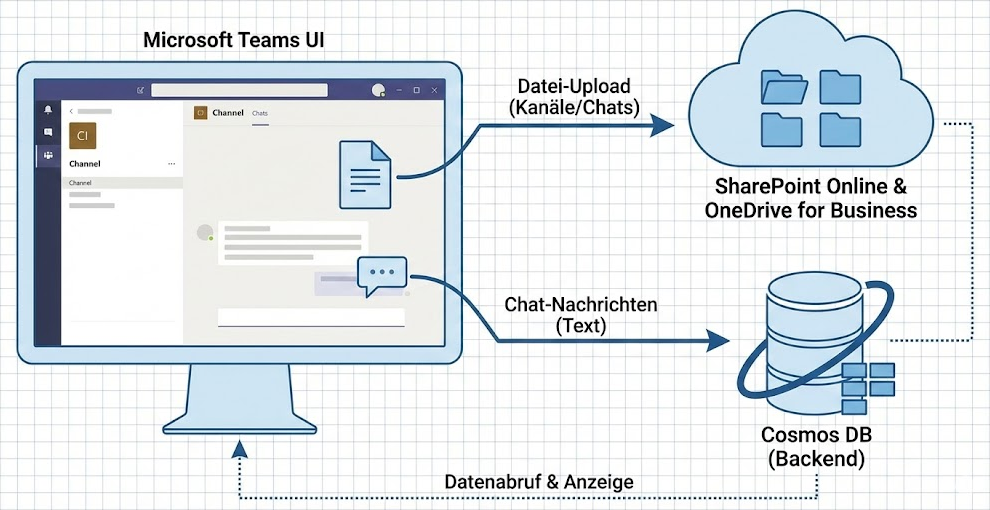
- Files: Every file posted to a Teams channel ends up in a SharePoint Online Document Library. Every file in the private 1:1 chat ends up in the sender’s OneDrive for Business . Since Business Premium offers full DLP support for SharePoint and OneDrive, you can protect files in Teams excellently.
- Messages: The written text in the chat (e.g. “Here is the credit card number: 1234…”) is processed in the Cosmos DB backend of Teams. Real Teams Chat DLP (blocking text messages) is often a feature of E5 compliance or specific add-ons.
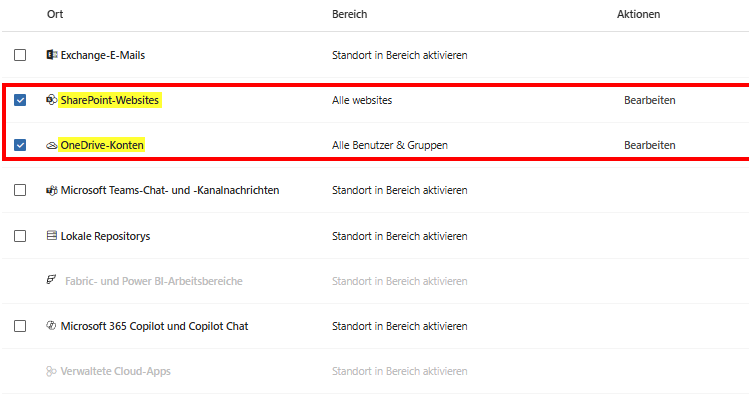
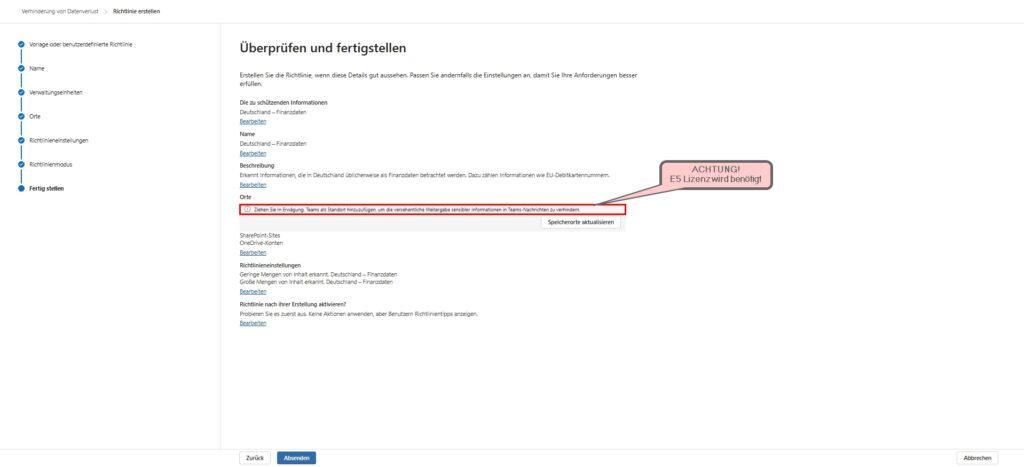
Tip: If you’re building rules in the Purview portal, choose SharePoint sites (for Teams channels) and OneDrive accounts (for private chat) as the location. Leave out the explicit check mark for “Teams chat and channel messages” if you don’t have an E5 license, otherwise the policy often doesn’t save at all or throws errors. We protect teams here “indirectly” via the storage layer!
Latency & User Experience
Unlike a firewall, which drops packets in real time, DLP works asynchronously in SharePoint/OneDrive (and thus in Teams). When a user uploads a sensitive file to a Teams channel, the following happens:
- The upload is initially allowed. The file is visible for fractions of a second.
- The SharePoint indexer grabs the file, extracts the text, and matches it to your sensitive information types .
- If a match is found, the status of the file changes afterwards.
- In Teams, a red block icon appears instead of the file and access is revoked for everyone (except the owner).
So don’t expect a synchronous blockade of the upload dialog (“Access Denied”), but a subsequent quarantine (“Item was blocked”). This is important for your communication to end users: they will see the file briefly before it “disappears” or is flagged. Depending on Microsoft’s system load, this scan can take anywhere from a few seconds to a few minutes.
Step-by-step DLP rules
Scenario 1: The Classic – Blocking Financial Data in Files
The most common security risk in teams is not the malicious hacker, but the stressed accountant who “just” pulls an Excel list with IBANs or credit card data into the wrong project channel. Since we are in the business premium world, we do not intervene in the chat stream here, but intercept the file where it lands: in the SharePoint backend.
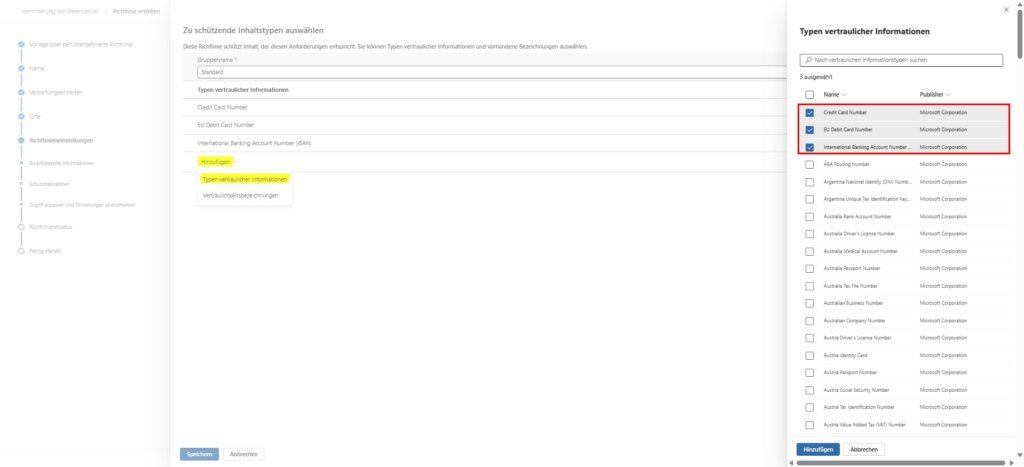
The technical foundation (SITs): Microsoft provides extremely robust pattern recognition, so-called Sensitive Information Types (SIT), for this scenario. You don’t have to tinker with RegEx expressions. We use the predefined types Credit Card Number and EU Debit Card Number. These not only check for the format, but also validate the checksum (Luhn algorithm), which drastically reduces false positives.
- Create policy: In the Purview Compliance Portal, start under Data Loss Prevention > Policies. Do not select “Custom”, but the “Finance” category. This saves you time, as Microsoft already bundles relevant SITs here.


- Locations (The Decisive Step): This is where the wheat is separated from the chaff.
- Enable SharePoint sites (protects files in Teams channels).
- Enable OneDrive accounts (protects files in private 1:1 and group chats).
- Tip: Select ‘All Sites’ to make sure that the separate Site Collections of Private and Shared Channels are also covered.
- IMPORTANT: Turn off Teams chat and channel messaging. This check checks the written text in the chat window, which requires E5 licenses or special add-ons. If you leave it active, you will receive warning messages and the policy cannot be saved. We protect the file, not the word.

- Fine-tuning the rules: By default, the template only blocks from 10 instances (e.g. 10 credit card numbers in a file). For true compliance, set this value to 1. A single credit card number in a public channel is already a violation.
- Extend the protection to IBANs (with caution!) Credit cards are important, but in Europe, the IBAN is the most common target for data theft. Therefore, add the “Confidential Information Type” International Banking Account Number (IBAN) to your rule.
- ⚠️ The “stationery trap” (IMPORTANT): As an architect, you have to be careful here: Your own company IBAN is probably on every official letterhead, in every invoice footer and in many signatures. If you set the rule to block even one (1) found IBAN, you will make it impossible to send legitimate offers and invoices.
- Work with Instance Counts. and set the number of instances to min. 10.
- Why? This ignores the individual occurrence in the footer of a document.
- What do you intercept with it? You block the real risk: the export of customer lists (Excel spreadsheets with many IBANs) or payrolls. We want to prevent the mass outflow, not the individual business letter.
- Extend the protection to IBANs (with caution!) Credit cards are important, but in Europe, the IBAN is the most common target for data theft. Therefore, add the “Confidential Information Type” International Banking Account Number (IBAN) to your rule.

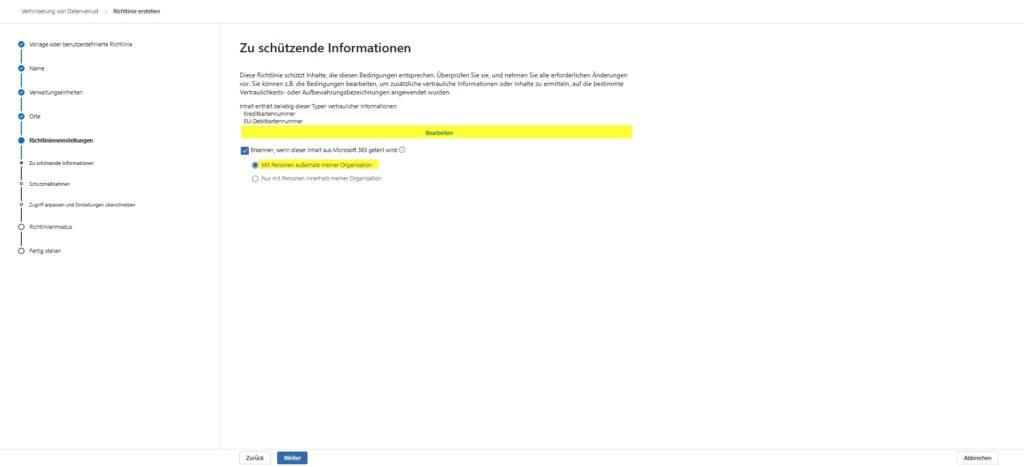

- Configure protections: In the “Protective measures” step, you define the reaction of the system. Here we link technology with user psychology. Go through the hooks from top to bottom:
- Policy Tips & Notifications: Check the first box next to “If content… to show users policy tips…”. This is essential for the learning effect (see scenario 3).
- Quantity threshold (the “stationery trap”): Check the box next to “Detect when a certain amount… is shared”. In the screenshot, you can see the default value of 10.
- Tip: If you scan IBANs , leave this value at 10 (or at least 5)!
- The reason: Your own company IBAN is probably on every letterhead and in every invoice footer. If you were to enter “1” here, SharePoint would block every single legitimate offer just because your footer is recognized. With the threshold value “10” you ignore the stationery, but reliably block the Excel list with the customer data.
- (Only if you only scan credit cards can you lower this value to 1, since credit card numbers have no place in footers.)
- Incident Reports: The checkmarks for “Damage Reports” and “Notifications” ensure that you as an admin are informed. Important at the beginning, later often “noise” – decide as needed.
- The “Kill Switch” (IMPORTANT): At the bottom you will find the item “Restrict access or change the content… encrypt”. This tick is often empty by default (see screenshot). You have to set it actively so that the file is actually blocked. Without this catch, the rule is just a “silent alarm” with no protective effect. Then select “Block” from the submenu.
- Policy Tips & Notifications: Check the first box next to “If content… to show users policy tips…”. This is essential for the learning effect (see scenario 3).


- Customize access (Who is blocked?): In the next step “Adjust access and override settings” you define the severity of the block. By default, “Block all” is often preselected here. This is usually too strict for internal documents.
- The blockade logic: Check the box next to “Restrict access or change the content… encrypt”.
- The target group: Here, select “Block only people outside your organization.”
- The scenario: An employee uploads an Excel list with IBANs to a Teams channel where external guests are also present.
- The effect: Your internal colleagues can continue to work. The external guest, however, loses access. That’s the sweet spot between security and productivity.
- The emergency exit (user override): Nothing is more frustrating than a faulty blockade with no solution. In the same window at the bottom, you’ll find the option to “Allow people who read the tip to override the policy.”
- Best Practice: Check this box!
- Coercion to give reasons: Be sure to enable the “Require a business justification for override” suboption.
- Psychological effect: The user can send the file, but must actively select why they are doing so (e.g. “Business Need”). Since he knows that this will be logged, the abuse rate drops drastically. At the same time, you relieve the burden on IT support, as users can solve legitimate exceptions themselves.
- The blockade logic: Check the box next to “Restrict access or change the content… encrypt”.


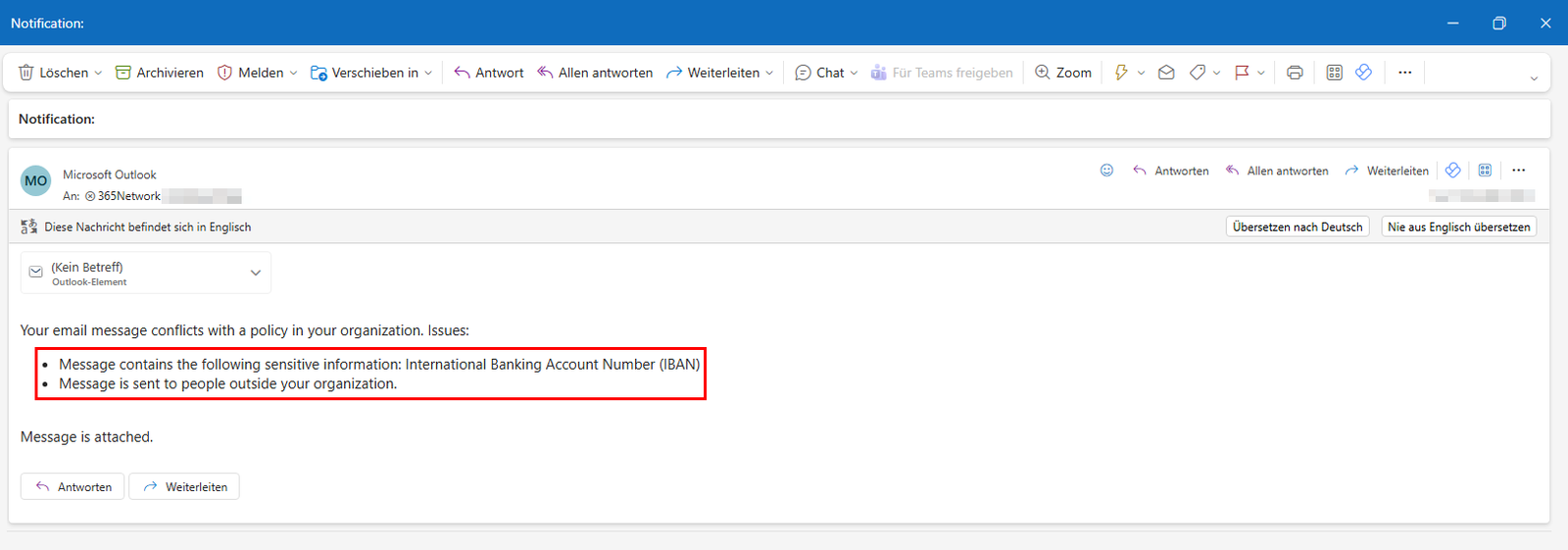
The user effect (Architect’s View): As soon as the policy is active (replication time: approx. 1-24 hours), the following happens: A user uploads Kunden_CC_Liste.xlsx to a channel. The upload is successful at first. Shortly afterwards, the SharePoint crawler scans the content, recognizes the patterns and “locks” the file. In the Teams channel, the Excel icon changes to a warning icon and when the user clicks on it, the user receives the message: “This item has been blocked due to policy conflicts.”
Scenario 2: Secure external collaboration (Guest Access)
The “Guest Access” feature in Teams is both a blessing and a curse. You want external consultants or partners to collaborate seamlessly on projects, but you often lose control over who reads along in which channel. The risk here is usually not ill will, but carelessness: An internal employee uploads the document “Interne_Kalkulation_Q4.xlsx” to the “Project X” channel, but forgets that two external freelancers also have access there.
Instead of prohibiting guest access across the board (which leads to the use of shadow IT), we configure a DLP rule that acts as a selective filter. It allows small talk and non-critical files, but strictly blocks as soon as internal classifications are detected.
We build an AND link. The rule only applies if two factors are true at the same time:
- Content: The file contains sensitive data (e.g., keyword “internal,” “confidential,” or a specific sensitivity label).
- Context: The document will be shared with someone who is not part of your Entra ID (Azure AD) tenant.
The configuration in the advanced editor:
- Create a new “Custom Policy” for SharePoint and OneDrive.
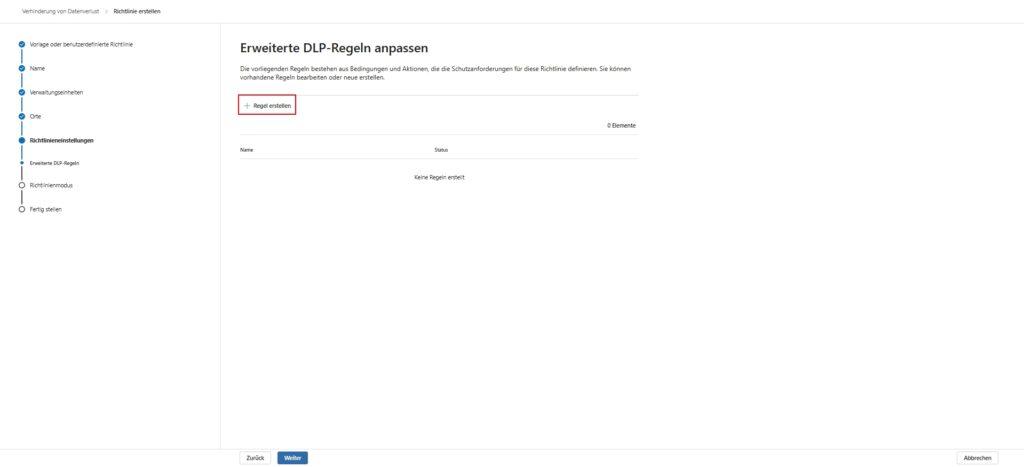

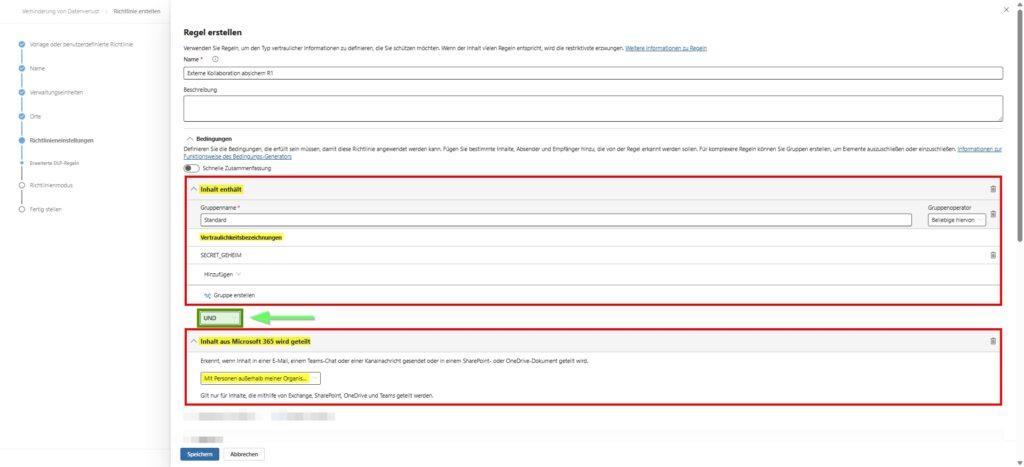
- Condition 1 (The Trigger): Under Content contains either “Sensitive information types” (for keywords/patterns) or “Sensitivity label” if you have rolled them out in your Business Premium environment (e.g. Label: Internal Only).
- Condition 2 (The Recipient): Add the “Content is shared via Microsoft 365” condition. In the drop-down menu, select the option “with people outside my organization”.
- Note: This includes both external email recipients (via SharePoint link) and guest accounts in Teams channels.

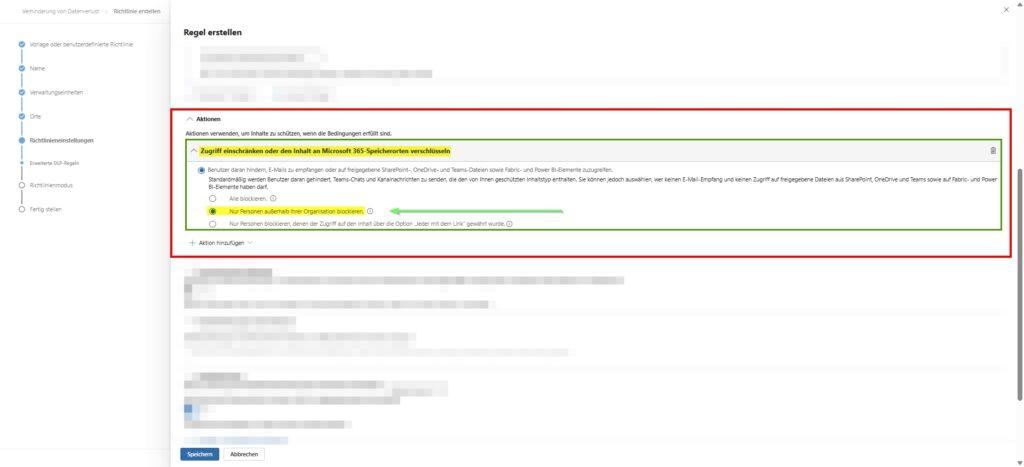
Action & Impact: Set the action to “Block access to content.” Important: In the submenu, configure the restriction to “Block only people outside my organization.”

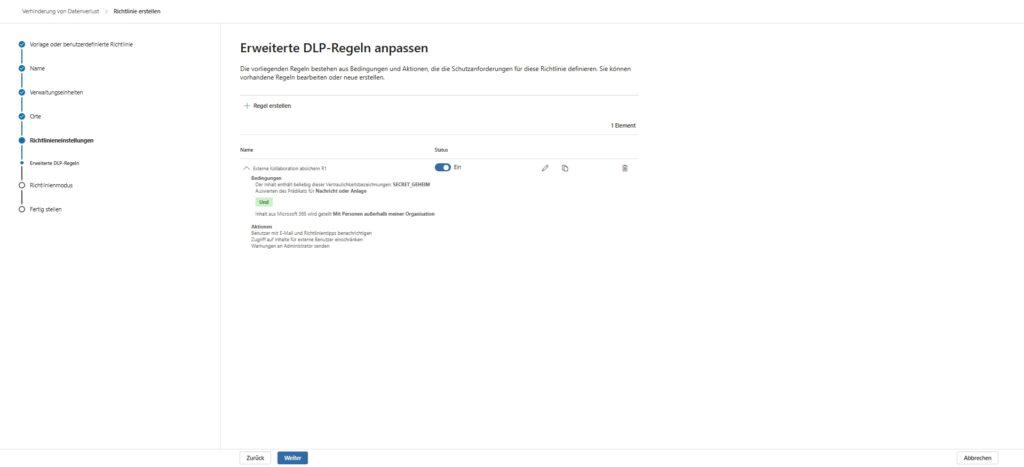
The result in everyday work: The internal employee uploads the confidential document to the Teams mixed channel.
- For colleagues: The file is visible and editable as normal.
- For the guest: It sees the file name, but when it tries to open the file, SharePoint intervenes and denies access. In the guest’s Teams feed, there is often no notice at all, or the link goes nowhere, depending on the client version. So the data remains in the house, even though it is in the “wrong” channel.
You can find out more about “Sensitivity Labels” in the articles:
Scenario 3: Policy Tips – Educate the User Instead of Punishing Him
Nothing generates more tickets at the help desk than a “silent block” strategy. If a user uploads a file and it disappears without comment or cannot be opened, he assumes a technical error. He tries again, fails again and calls the support in annoyance.
With Policy Tips, you change the dynamic: You make the compliance rule transparent. The user learns at the moment of the mistake (“learning on the job”) why his action was uncertain. This not only reduces false positives, but also trains the workforce better in the long term than any annual compliance video.
The technical implementation: In the DLP rules for SharePoint and OneDrive (our backend for Teams), we enable user notification. Since we are in the file context here, the tip works somewhat differently than in Outlook: It does not appear while typing, but as a visual indicator on the file.
To get tips and replace the standard messages with helpful texts, you need to dive deep into the existing rule.
- Open policy: In the overview (Data Loss Prevention > Policies), select your desired policy (just click, don’t click the name) and select “Edit Policy” in the bar at the top.
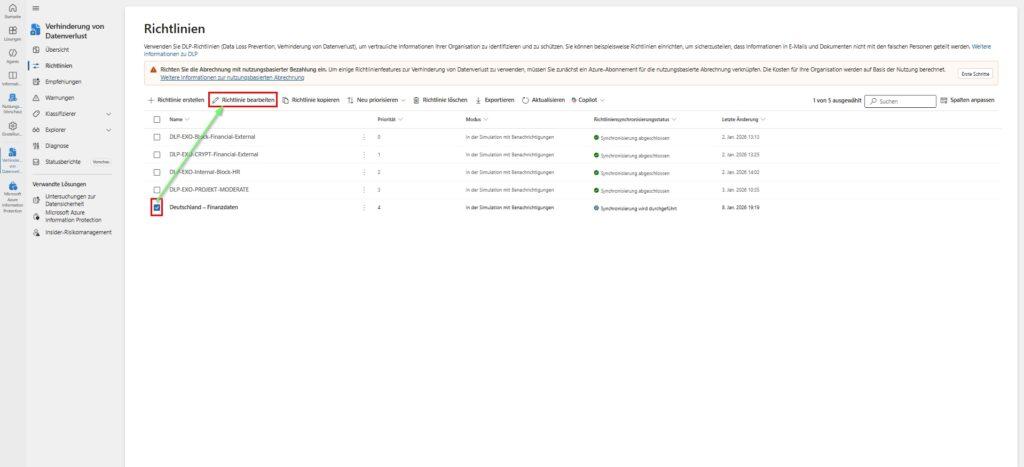

- Navigate to the rule: Click “Next” in the wizard until you get to “Advanced DLP Rules”.
- Edit rule: You will now see the individual rules (e.g. “Low Volume” or “High Volume”). Select the desired rule and click on the pencil icon (Edit).
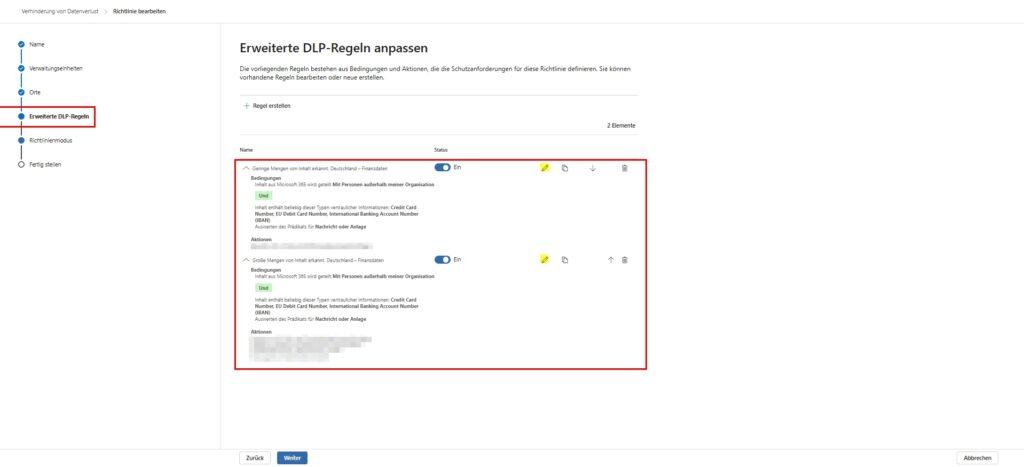
- Notification: Scroll down the window to the User Notifications section.
- Enable: “Use notifications to alert your users…”
- Toggle on: “Customize the text of the policy.”
- Example text: “This file contains sensitive… data and may not be shared with external parties. Please clean up the file or contact IT.”
- Example text: “This file contains sensitive… data and may not be shared with external parties. Please clean up the file or contact IT.”
- Tip: Be as specific as possible, but keep it short (max. 256 characters is ideal). The user must understand in a fraction of a second: Why was the block blocked and what does he have to do to be able to continue working? If you have international teams, write the text bilingually (DE/EN).


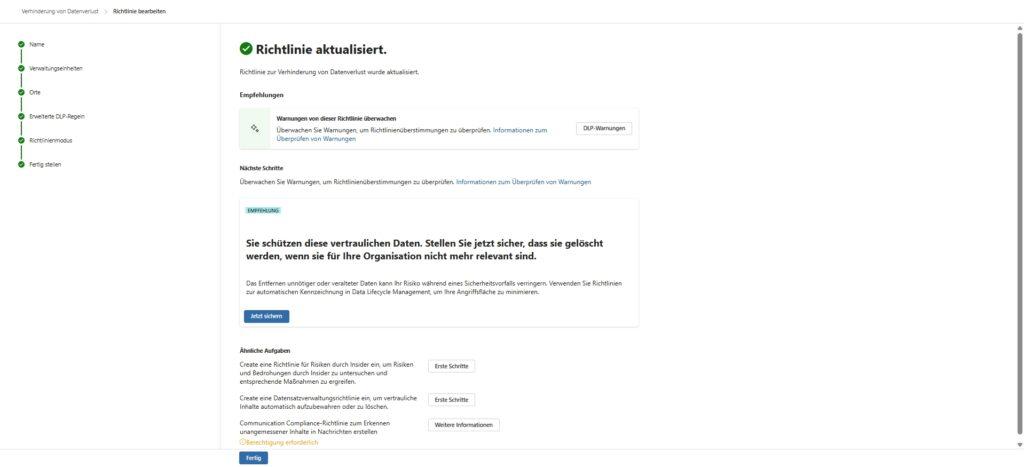
The flow in Microsoft Teams: Since the scan runs asynchronously, the process for the end user looks like this:
- Upload: The user uploads the file. She appears normal for a moment.
- Scan & Match: In the background, the DLP rule is working.
- Indicator: The file icon in the Teams channel gets a small red marker (usually a shield or “forbidden” icon).
- Education: If the user hovers over the icon or clicks on “More options”, your configured policy tip text will be displayed. He immediately understands: “Ah, the credit card number!” and deletes the file on his own without opening a ticket.
Scenario 4: Exception Management
Every DLP strategy eventually reaches the point where the machine logic fails in the face of operational reality. A false positive (e.g., an internal project number that happens to look like a credit card number) or a legitimate exception (HR needs to send salary data to the external accountant) must not cause business-critical processes to come to a standstill.
As an architect, you build in an “emergency exit” for this purpose: the user override. In this way, you temporarily hand over the responsibility for data transfer to the user, but at the same time enforce logging. This is changing the role of IT from “preventer” to “auditor”.
The configuration of the “Psychological Barrier”: In the rule editor of the DLP policy, you will find the overrides section below the actions.
- Turn on Allow User Override.
- Be sure to check the box next to “Request business justification for overriding”.
Simply clicking a “Send anyway” button is not enough. The user must actively select why they are bypassing the rule (e.g. via drop-down “false positive” or text input). This creates a psychological hurdle: the employee knows that his name and reason will end up in a compliance log. This prevents the abusive “permanent override” out of convenience.

The workflow in practice:
- The user shares the file in Teams.
- SharePoint blocks access and displays the warning icon.
- In the Policy Tip (see scenario 3), an additional “Override” button now appears.
- A dialog window demands the justification.
- After confirmation, the file is immediately released again – without the intervention of an admin.
Note: These overrides generate alerts in the Microsoft Purview Compliance Portal. Your job is not to manually approve every exception, but to check the reports once a week: If Department X constantly overrides the “Financial data” rule with the reason “False positive”, your rule is probably set too strictly and needs to be adjusted.
Scenario 5: The “Unscannable” Trap (Encrypted)
A classic of data exfiltration – whether by malicious insiders or malware – is to package stolen data in a password-protected ZIP or RAR archive. The idea behind it: “If DLP can’t look in, it can’t block me.”
As an architect, you have to make a fundamental decision here: Do you trust content that you can’t inspect? In high-security areas, the answer is “no“.
The configuration: Microsoft DLP provides a specific condition for attachments or files that cannot be scanned (for example, password protected or corrupt).
- As a rule, choose the condition: “ Content couldn’t be scanned”.
- Action: Block or at least notify the admin.
The impact: This is a restrictive measure. If you activate it, the legitimate workflow “I’ll send the colleague the password-protected payroll PDF” will be prevented in Teams. Therefore, communicate this step proactively: “Encrypted files must not be shared via Teams – please use [Alternative Secure Way].”


Attention: This also blocks legitimate, password-protected PDFs (e.g. HR payslips). Clarify this process with the specialist departments beforehand or create an exception for the HR SharePoint site!
Now that your rules are enabled for SharePoint and OneDrive, the real work begins. A DLP policy is not a “set-and-forget” tool. It continuously generates signals – from real hits to the aforementioned false positives.
Simulation mode
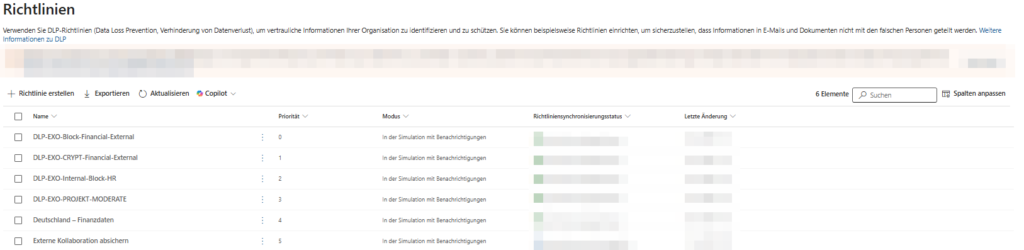
Microsoft forces you to make a decision at the end of the wizard. The only valid option for a new architecture is: “Execute policy in simulation mode”.
From a technical point of view, you separate detection from enforcement here. The system checks traffic against your conditions and writes matches to the audit log, but doesn’t perform any blocking actions (like NDRs or encryption).
The test (recommended): In addition, activate the checkbox “Show policy tips in simulation mode”. This is the ideal middle ground for onboarding:

Note: Leave the “Enable the policy after 15 days…” option unchecked. In the security architecture, a go-live is never time-based (“blind”), but only after manual evaluation of the logs. If you forget this automatic, you risk unchecked disruptions in the operational business after two weeks.
And where do I see what is happening?
A DLP rule is worthless if you don’t see when and where it applies. Therefore, navigate to Explorer > Activity Explorer in the Purview Portal. Filter there specifically!
My advice: Check this report daily for the first few weeks. Are legitimate business processes being blocked? If so, you need to increase the “Instance Count” or define exceptions.
But simply collecting hits is not enough in the long term. How to correctly interpret and evaluate these signals and even put automations behind them is beyond the scope of this guide. For this operational “Day 2” process, I recommend my article:
There, I’ll show you how to turn the initial barrage of alerts into a robust, manageable security process.
Conclusion & Outlook
Setting up DLP at the SharePoint and OneDrive level is the most effective way to regain data sovereignty in a premium business environment. Since we start directly at the source (the storage location), your security rules work universally, regardless of whether the user shares the file via the browser / Windows Explorer or via the Teams interface .
We have seen: As soon as a file lands in the Teams channel, the SharePoint rule takes effect. As soon as it is shared in private chat, the OneDrive rule takes effect. This has massively reduced the risk of accidental “file leaks” without having to buy expensive additional licenses.
The outlook: The gap in the chat history But one question remains unanswered: We have now backed up the files in Teams. But what happens if a user doesn’t attach sensitive data (like a credit card number) as an Excel file, but simply types it into the chat as a text message?
This is where the responsibility of SharePoint and OneDrive ends. Chat-only messages are in a different architecture and require E5 licensing (Teams Chat & Channel DLP) for DLP scans.
Since this is technically a completely different topic, I will dedicate a separate article to this scenario in February.
Until then, the following applies:
Your documents are now safe. The foundation is in place.
further links
| Microsoft Learn | DLP in Teams overview https://learn.microsoft.com/de-de/purview/dlp-microsoft-teams | |
| Microsoft Support | News & DLP | https://support.microsoft.com/de-de/office/microsoft-teams-nachrichten-zur-verhinderung-von-datenverlust… |
| NBold Blog | Teams DLP Setup Guide | https://nboldapp.com/microsoft-teams-dlp-setup-guide-2024/ |





Be the first to comment