
Use Repair in Inventory...
Office installations that are months behind on patches or fail to start cleanly remain invisible in operations until a user opens a ticket. The inventory in the Microsoft 365 Apps Admin Center has shown you the build and channel per device for years. You still had to repair them via script or on-site.
With Update Repair (Message Center MC1518032, published on October 20, 2026), there’s now a remote method: The Admin Center detects outdated or corrupted installations and triggers an online repair on the device.
The timeline according to the Message Center: Public Preview has been available worldwide since mid-October, with the rollout expected to be completed by the end of October. General Availability will start from mid-November, with completion expected by the end of November. So you can prepare the feature now, but it may not yet be triggerable in every tenant.
Prerequisites that must be in place before the first click
Update Repair builds on Inventory. Without Inventory, the Admin Center doesn’t know your devices and can’t address any repairs. For Inventory, Microsoft recommends the Office Apps Administrator role; Security Administrator and Global Administrator also work. Global Reader can view Inventory but has no access to functions like Cloud Update. Whether the Global Reader role can trigger Update Repair isn’t stated in the message: treat it as not authorized until you’ve tested it.
According to Microsoft Learn, the inventory itself runs with Microsoft 365 A3/A5, Business Standard/Premium, and Microsoft 365 E3/E5. Tenants in GCC, GCC High, DoD, and 21Vianet are excluded. The endpoints *.office.com, *.office.net, *.config.office.com, *.config.office.net, and login.live.com must be reachable from the client network; otherwise, the device will not report any data.
On the device itself, Update Repair requires build **16.0.20326.20000** or later. This sounds paradoxical, as outdated devices are precisely the ones meant to be repaired. As a result, a device that is even further behind appears as incompatible and requires the old method of a manual update.
Enable Inventory
Sign in at config.office.com and open the Inventory entry. On first access, a single-step setup guides you through activation. You don’t need to onboard devices individually: as soon as a user launches an Office app on a supported device, it appears in the list. According to Learn, initial data should show up within about an hour.
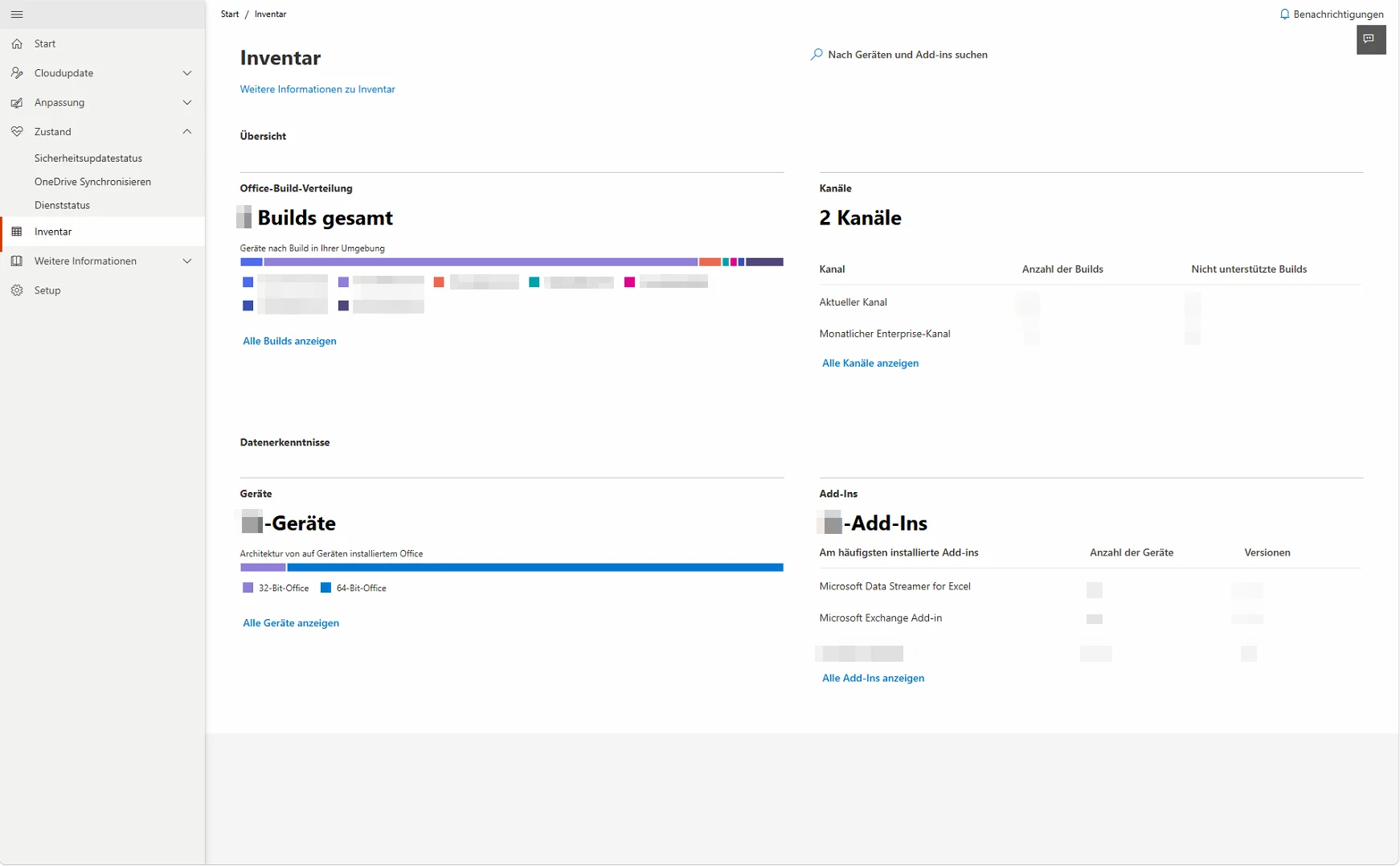
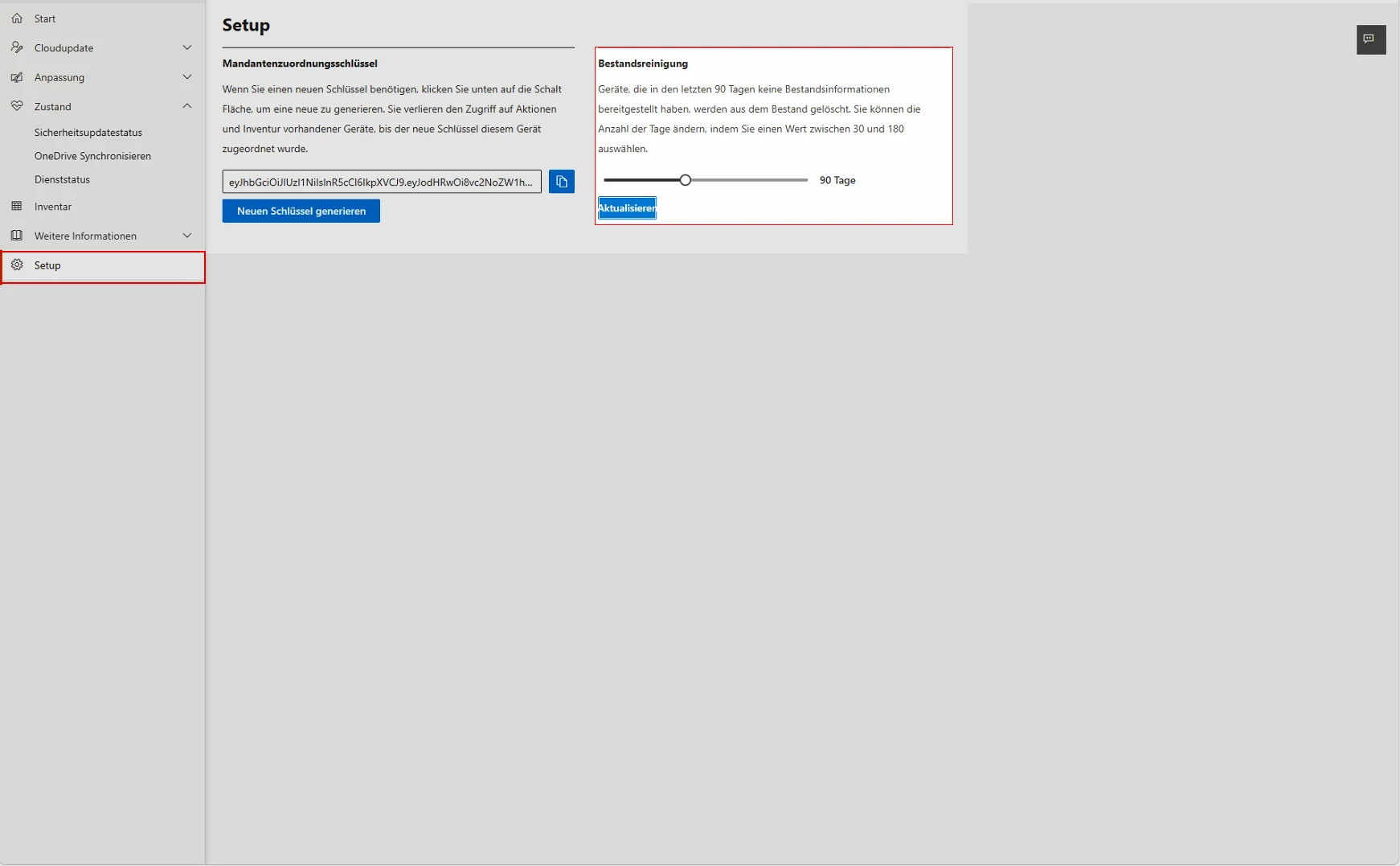
Then check under Settings how long Inventory retains devices without a heartbeat. The default is 30 days. A laptop that has been in a cupboard for six weeks is therefore not in the list and thus not in the target set for Update Repair. If you want to include devices on vacation or parental leave, extend the period.
2: Verify build on the device
Before relying on the display in the portal, pull the build directly from the Click-to-Run configuration on a pilot device:
$cfg = Get-ItemProperty 'HKLM:\SOFTWARE\Microsoft\Office\ClickToRun\Configuration'
$build = [version]$cfg.VersionToReport
$build -ge [version]'16.0.20326.20000'
The last line returns True if the device meets the minimum requirement. When querying multiple devices (Intune script, remote access), you get a list of candidates that you can cross-reference with the portal.
3: Find outdated devices in inventory
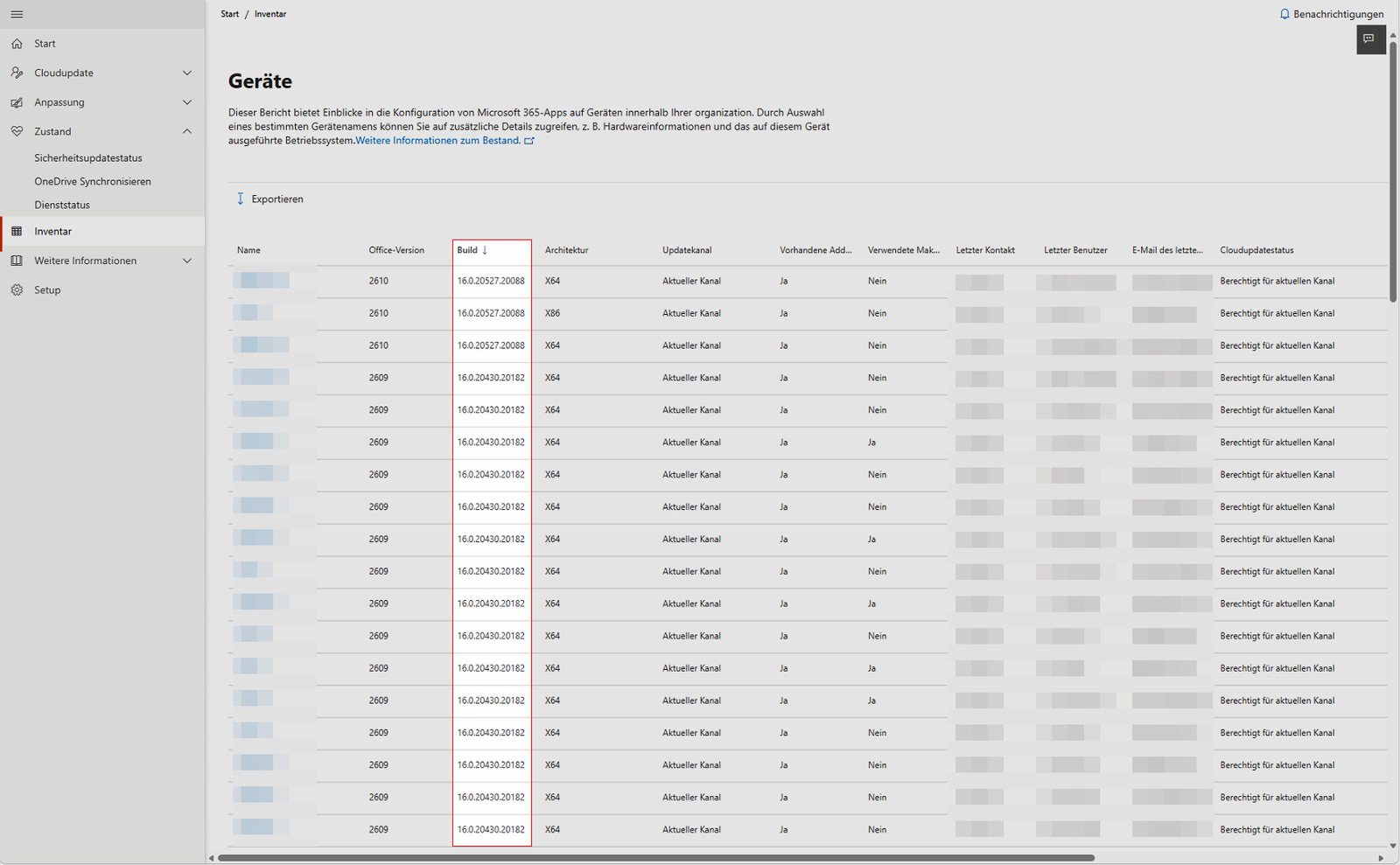
Under Inventory > Devices > Show all devices, you can see the Office version and build, update channel, as well as macros and add-ins for each device. Sort by build and select all devices that are more than one patch level behind. The Health view additionally displays the Security Update Status: Here, a device is considered not up-to-date if it is missing the latest security update for Microsoft 365 Apps.
4: Inform users and set time windows
The online repair will close any running Office applications. The Message Center therefore explicitly requires that users be informed in advance and save their work. For Outlook Desktop, this specifically means: an open draft, an ongoing import, or an open appointment may be lost.
Set a window during which devices are likely to be powered on, such as late morning after logon, and send the information via Teams or email the day before.
5: Trigger repair
Select the appropriate devices in the Inventory and start the repair via the Update-Repair action. The exact button label is not specified in the message, and I was unable to verify it in my tenant before the rollout. Therefore, rely on the interface your tenant displays once the preview arrives for this step.
The task reaches the device during the next inventory check-in. The device must be powered on, logged in, and connected to the network. A sleeping or offline device will only receive the task once it checks in again. Therefore, schedule a retry instead of assessing success after the first run.
6: Verify results and process remaining items
After the job, give the inventory time for the next data sync and sort by build again. Devices that could not be repaired remain unchanged in the list. For these, Microsoft explicitly recommends manual review and follow-up: analyze logs, reinstall the installation, and resolve network or proxy issues.
Conclusion
Update Repair closes the gap between diagnosis and action. Previously, inventory provided the diagnosis, while treatment required scripts, software distribution, or helpdesk intervention. Now, there’s a way to act directly from the portal—saving time, especially for dispersed field and remote devices, since you don’t need VPN access or a remote session.
The boundaries are clearly defined. The device needs the minimum build, otherwise it fails. It must be online, and the user must close Office—which creates friction. And what the online repair doesn’t fix remains manual work. In practice, this means: Enable Inventory today, extend the Heartbeat period, get a list of devices below the minimum build, and determine the path for these via a classic update. Then Update Repair can start on a clean basis from mid-November.
From a security perspective, the side effect matters: A device that has missed three app security updates is a gateway for attacks. Update Repair doesn’t replace your patch management, but it brings the laggards back up to speed without you having to handle them individually.
additional links
| Message Center MC1518032 | Update Repair in Inventory, Schedule, Admin Action | https://mc.merill.net/message/MC1518032 |
| Microsoft Learn | Inventory in the Microsoft 365 Apps Admin Center, Roles, Licenses, Network | https://learn.microsoft.com/en-us/microsoft-365-apps/admin-center/inventory |

💬 Comments
0 KommentareSei der Erste und starte die Diskussion mit einem hilfreichen Beitrag.
Leave a comment
Dein Beitrag wird vor der Veröffentlichung kurz geprüft — fachlich, respektvoll und auf den Punkt ist hier genau richtig.