Auditing MFA, Conditional Access, privileged roles, guests, and Exchange mailboxes with raw data instead of portal clicks
A click through the admin centers does not reveal a compromised tenant. Spot checks in the web interface are error-prone, provide no historical baselines, and hide the nesting between identities, devices, and data. That is exactly where attackers strike: at the weakest link, usually accounts with weak authentication. A reliable security audit therefore needs raw data, not aggregated portal views.
Experience from hardening projects shows a clear pattern: most successful attacks on Microsoft 365 environments exploit a handful of recurring weaknesses. Missing MFA enforcement, open legacy protocols, uncontrolled app permissions, missing device compliance, and disabled audit logging. All five are checkable with PowerShell long before they surface in the portal.
This audit covers 80 checks and is split into three parts. Part 1 takes on the foundation: identity and MFA, Conditional Access, privileged roles, guests, and the Exchange mailboxes. These are points 1 to 29. Part 2 covers mail protection, collaboration, devices, and apps; Part 3 closes with data governance, compliance, and monitoring. Each check stands on its own, you run it individually or bundle the relevant building blocks into a master script or an Azure Automation runbook later. The markers (P1) and (P2) indicate the required Entra ID license tier.



Identity, MFA, and Risk
1. Entra ID MFA and Phishing Resistance
License: Entra ID Free (basic methods), Entra ID P1 (detailed sign-in logs)
The plain status "MFA registered" falls short. AitM attacks (Adversary in the Middle) intercept session cookies through a proxy and bypass classic push notifications. What matters is the specific method per account, because a user who only registered SMS or a voice call is exposed to SIM swapping and social engineering. In Graph, SMS and voice both run under the type phoneAuthenticationMethod, so a match on phone is enough for the weak-method detection. The goal is the rollout of FIDO2 or passkeys and hard disabling of the phone-based methods.
powershell
# Module: Microsoft.Graph.Identity.SignIns, Microsoft.Graph.Users
Connect-MgGraph -Scopes "UserAuthenticationMethod.Read.All","User.Read.All" -NoWelcome
$users = Get-MgUser -All -Property Id, UserPrincipalName
$mfaReport = foreach ($user in $users) {
    $methods = Get-MgUserAuthenticationMethod -UserId $user.Id
    $types = foreach ($m in $methods) { ($m.AdditionalProperties["@odata.type"] -replace "#microsoft.graph.","") }
    [PSCustomObject]@{ UserPrincipalName = $user.UserPrincipalName; Methods = ($types -join ", ") }
}
$mfaReport | Where-Object { $_.Methods -match "phone" } | Format-Table   # Finding: weak phone or SMS method
2. Global Authentication Methods Policy
As long as SMS or voice stay enabled tenant-wide, the best user training is useless, because the weak method remains selectable. The Authentication Methods Policy is the lever you use to cleanly retire old methods. If a method that nobody should use anymore is set to enabled, it belongs on disabled.
powershell
Connect-MgGraph -Scopes "Policy.Read.All" -NoWelcome
(Get-MgPolicyAuthenticationMethodPolicy).AuthenticationMethodConfigurations |
    Select-Object Id, State | Sort-Object Id | Format-Table   # Finding: Id "Sms" or "Voice" with State "enabled"
3. Security Defaults Status
Security Defaults are Microsoft's baseline protection for tenants without Conditional Access, and you cannot have both at once. The value only makes sense in context: without CA policies, IsEnabled must be True, with productive CA policies, False is correct. A tenant without Security Defaults and without CA is wide open.
powershell
Connect-MgGraph -Scopes "Policy.Read.All" -NoWelcome
(Get-MgPolicyIdentitySecurityDefaultEnforcementPolicy).IsEnabled
4. Legacy Authentication in the Sign-In Logs
License: Entra ID P1
Legacy protocols like IMAP, POP3, and SMTP Basic Auth authenticate outside token-based policies, and MFA does not apply there. Even if you block them, a look at the sign-ins of the last few days reveals whether attempts are still running, because that points to misconfigured clients or targeted attacks. Grouping by legacy client shows you immediately where the problem sits.
powershell
Connect-MgGraph -Scopes "AuditLog.Read.All" -NoWelcome
$since = (Get-Date).AddDays(-7).ToString("yyyy-MM-ddTHH:mm:ssZ")
$legacyApps = @("IMAP4","POP3","SMTP","MAPI","Other clients","Exchange ActiveSync","AutoDiscover")
$signins = Get-MgAuditLogSignIn -Filter "createdDateTime ge $since" -All
$signins | Where-Object { $_.ClientAppUsed -in $legacyApps } |
    Group-Object ClientAppUsed | Select-Object Name, Count
5. Inactive Member Accounts
License: Entra ID P1 (SignInActivity)
It is not only guests that go stale. An internal account without a sign-in for months is either a former employee whose offboarding is stuck, or a forgotten service account, both attack surface without business value. Anything over 90 days without a login belongs under review. Without P1, SignInActivity stays empty, and then the result is worthless.
powershell
Connect-MgGraph -Scopes "AuditLog.Read.All","User.Read.All" -NoWelcome
$cut = (Get-Date).AddDays(-90)
$members = Get-MgUser -Filter "userType eq 'Member' and accountEnabled eq true" -Property UserPrincipalName, SignInActivity -All
$members | Where-Object { $null -ne $_.SignInActivity.LastSignInDateTime -and [datetime]$_.SignInActivity.LastSignInDateTime -lt $cut } |
    Select-Object UserPrincipalName, @{N="LastSignIn";E={$_.SignInActivity.LastSignInDateTime}}
6. Risky Users from Identity Protection
License: Entra ID P2
Identity Protection rates sign-in risk based on signals such as leaked credentials, IP reputation, and atypical locations. If an account sits at atRisk and no automatic remediation kicks in, a possible account takeover keeps running unhandled. Every hit belongs investigated or forced to a password change through a risk policy.
powershell
Connect-MgGraph -Scopes "IdentityRiskyUser.Read.All" -NoWelcome
Get-MgRiskyUser -Filter "riskState eq 'atRisk'" -All |
    Select-Object UserPrincipalName, RiskLevel, RiskState, RiskLastUpdatedDateTime
Conditional Access and Sessions
7. Conditional Access Enforcement
License: Entra ID P1
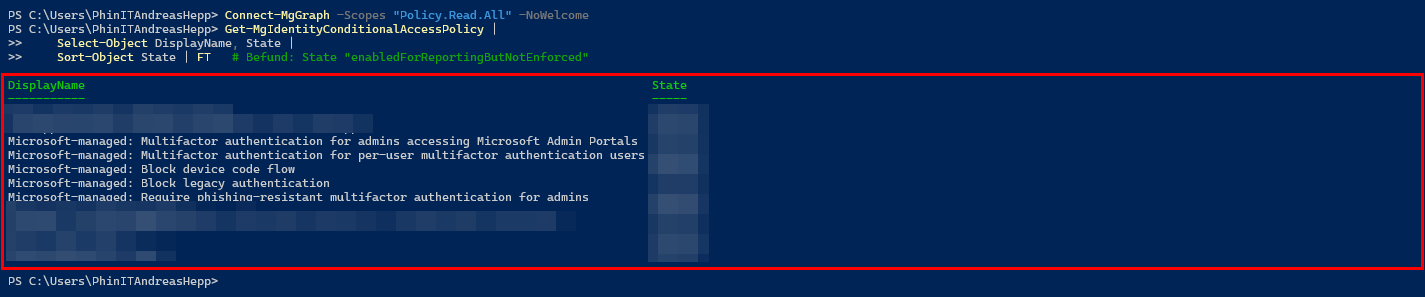
Conditional Access policies define the hard system boundaries of the tenant. A policy in "Report Only" mode blocks not a single attack, it only logs, and in Graph this state carries the value enabledForReportingButNotEnforced. Because the web portal often hides nesting and exclusions, the state of all policies belongs in one flat overview.
powershell
Connect-MgGraph -Scopes "Policy.Read.All" -NoWelcome
Get-MgIdentityConditionalAccessPolicy |
    Select-Object DisplayName, State |
    Sort-Object State | Out-GridView   # Finding: State "enabledForReportingButNotEnforced"
8. Trusted Named Locations
Many organizations exempt company IP addresses from MFA. When the company changes provider, these IP ranges often remain as "Trusted Locations", and whoever takes over those old IPs gets a direct bypass for your authentication policies. Every trusted location therefore needs periodic confirmation by the network team.
powershell
Connect-MgGraph -Scopes "Policy.Read.All" -NoWelcome
Get-MgIdentityConditionalAccessNamedLocation -All |
    Where-Object { $_.AdditionalProperties.isTrusted -eq $true } |
    Select-Object DisplayName, ModifiedDateTime,
        @{N="IPRanges";E={ ($_.AdditionalProperties.ipRanges.cidrAddress) -join ", " }}
9. Session Controls: Sign-in Frequency and Persistent Browser
License: Entra ID P1
Stolen session tokens are only valuable as long as the session stays valid. Without sign-in frequency and without a disabled persistent browser on unmanaged devices, an intercepted token stays usable for days. Which policies set session controls at all is shown by a look into SessionControls.
powershell
Connect-MgGraph -Scopes "Policy.Read.All" -NoWelcome
Get-MgIdentityConditionalAccessPolicy |
    Select-Object DisplayName,
        @{N="SignInFrequency";E={$_.SessionControls.SignInFrequency.Value}},
        @{N="PersistentBrowser";E={$_.SessionControls.PersistentBrowser.Mode}} |
    Format-Table
Privileged Roles and PIM
10. Privileged Identity Management Control
License: Entra ID P2
Permanent administrative permissions undermine any security concept. A compromised Global Admin with standing rights leads to an immediate tenant takeover, while PIM enforces just-in-time access. What you are after are the permanently assigned roles (type "Assigned" without an expiration date), which you then convert into eligible assignments. Results only come from a PIM-capable tenant, direct non-PIM assignments you read through Get-MgRoleManagementDirectoryRoleAssignment.
powershell
Connect-MgGraph -Scopes "RoleManagement.Read.Directory" -NoWelcome
$aa = Get-MgRoleManagementDirectoryRoleAssignmentSchedule -ExpandProperty "Principal,RoleDefinition" -All
$aa | Where-Object { $_.AssignmentType -eq "Assigned" -and $_.ScheduleInfo.Expiration.Type -eq "noExpiration" } |
    Select-Object @{N="UPN";E={$_.Principal.AdditionalProperties.userPrincipalName}}, @{N="Role";E={$_.RoleDefinition.DisplayName}} |
    Sort-Object Role | Format-Table -AutoSize
11. Number of Global Administrators
Global Admin has unrestricted access to all data and settings, and every additional account enlarges the blast radius of a compromise. Microsoft recommends two to four dedicated accounts, strictly separated from the everyday account. If the count is higher, every account belongs justified or removed.
powershell
Connect-MgGraph -Scopes "RoleManagement.Read.Directory" -NoWelcome
$ga = Get-MgDirectoryRole -Filter "displayName eq 'Global Administrator'"
$members = Get-MgDirectoryRoleMember -DirectoryRoleId $ga.Id -All
"Global Admins: $(@($members).Count)"   # Recommendation: 2 to 4 dedicated accounts
$members | ForEach-Object { $_.AdditionalProperties.userPrincipalName }
12. Monitoring the Break-Glass Accounts
License: Entra ID P1 (sign-in logs)
Emergency administrator accounts are deliberately excluded from Conditional Access and MFA, so that a misconfiguration does not cut off access. These accounts hold global admin rights, and every sign-in means either an IT emergency or a security incident. If you find a login without a matching emergency ticket, you treat it as a critical incident.
powershell
Connect-MgGraph -Scopes "AuditLog.Read.All" -NoWelcome
$breakGlass = @("breakglass1@yourdomain.com","breakglass2@yourdomain.com")
$since = (Get-Date).AddDays(-30).ToString("yyyy-MM-ddTHH:mm:ssZ")
Get-MgAuditLogSignIn -Filter "createdDateTime ge $since" -All |
    Where-Object { $_.UserPrincipalName -in $breakGlass } |
    Select-Object CreatedDateTime, UserPrincipalName, IpAddress, Status | Format-Table
13. Local Administrators on Joined Devices
On Entra ID joined Windows clients, the local device administrator role grants local admin rights on every company laptop, and a compromised account with this role enables tenant-wide ransomware distribution. A pitfall hides in the name: with the Entra rebrand, the role was renamed from "Azure AD Joined Device Local Administrator" to "Microsoft Entra Joined Device Local Administrator", so a filter on the display name comes back empty and falsely reports zero hits. Only the fixed role template ID stays stable.
powershell
Connect-MgGraph -Scopes "RoleManagement.Read.Directory" -NoWelcome
# Stable via the roleTemplateId; for built-in roles it equals the roleDefinition Id
$deviceAdminRoleId = "9f06204d-73c1-4d4c-880a-6edb90606fd8"
Get-MgRoleManagementDirectoryRoleAssignment -Filter "RoleDefinitionId eq '$deviceAdminRoleId'" -ExpandProperty Principal |
    Select-Object @{N="User";E={$_.Principal.AdditionalProperties.userPrincipalName}}, PrincipalId | Format-Table
14. App Registration by End Users
If end users may create app registrations themselves, uncontrolled service principals with their own secrets and API access appear. The target picture is: only admins register apps. If AllowedToCreateApps is True, the gate is open.
powershell
Connect-MgGraph -Scopes "Policy.Read.All" -NoWelcome
(Get-MgPolicyAuthorizationPolicy).DefaultUserRolePermissions.AllowedToCreateApps   # Finding if True
Guests and External Collaboration
15. Inactive B2B Guest Access
License: Entra ID P1 (SignInActivity)
External identities go stale quickly. A contractor finishes a project, their account stays active, and if their home tenant is compromised weeks later, the attacker has direct B2B access. Anything over 90 days without a sign-in is marked for deactivation. Without P1, SignInActivity stays empty, and then every guest falsely appears inactive.
powershell
Connect-MgGraph -Scopes "AuditLog.Read.All","User.Read.All" -NoWelcome
$cut = (Get-Date).AddDays(-90)
$guests = Get-MgUser -Filter "userType eq 'Guest'" -Property Id, UserPrincipalName, SignInActivity -All
$guests | Where-Object {
    $null -eq $_.SignInActivity.LastSignInDateTime -or [datetime]$_.SignInActivity.LastSignInDateTime -lt $cut
} | Select-Object UserPrincipalName, @{N="LastSignIn";E={$_.SignInActivity.LastSignInDateTime}}
16. Guest Invitation Policy
If AllowInvitesFrom is set to everyone, any employee may invite arbitrary external accounts. Guest accounts then live on in groups, teams, and sites, even when the collaboration ended long ago. Restricting this to admins or dedicated inviters slows the growth of external identities.
powershell
Connect-MgGraph -Scopes "Policy.Read.All" -NoWelcome
(Get-MgPolicyAuthorizationPolicy).AllowInvitesFrom   # Finding if "everyone"
17. Cross-Tenant Access Settings
The Cross-Tenant Access Settings control the trust between Entra ID environments. If inbound trust is too open, your tenant accepts MFA and compliance claims from foreign tenants unchecked. If the query returns IsServiceDefault = True, the Microsoft defaults apply unchanged, which rarely matches the actual collaboration model.
powershell
Connect-MgGraph -Scopes "Policy.Read.All" -NoWelcome
Get-MgPolicyCrossTenantAccessPolicyDefault |
    Select-Object IsServiceDefault, InboundTrust | Format-List
Exchange Online and Mailboxes
18. Mailbox Delegation (FullAccess)
License: Exchange Online Plan 1
Full access permissions create tangled networks for lateral movement. A compromised assistant mailbox often grants full access to executive communication, and the AutoMapping feature hides these accesses in Outlook. What you are after are the non-inherited FullAccess rights apart from the system accounts.
powershell
Connect-ExchangeOnline -ShowBanner:$false
$mailboxes = Get-Mailbox -ResultSize Unlimited
foreach ($mb in $mailboxes) {
    Get-MailboxPermission -Identity $mb.UserPrincipalName |
    Where-Object { $_.User -notlike "NT AUTHORITY\*" -and $_.IsInherited -eq $false -and $_.AccessRights -match "FullAccess" } |
    Select-Object Identity, User, AccessRights
}
19. SendAs Delegation
Whoever holds SendAs on a foreign mailbox sends mail in its name, a classic lever for internal CEO fraud. These rights are not in the mailbox permission object, they are read through Get-RecipientPermission. This point therefore closes the gap that FullAccess alone leaves open.
powershell
Connect-ExchangeOnline -ShowBanner:$false
foreach ($mb in (Get-Mailbox -ResultSize Unlimited)) {
    Get-RecipientPermission -Identity $mb.UserPrincipalName |
    Where-Object { $_.Trustee -notlike "NT AUTHORITY\*" -and $_.AccessRights -contains "SendAs" } |
    Select-Object Identity, Trustee, AccessRights
}
20. Hidden Auto-Forwarding Rules at the Mailbox Level
After an account takeover, attackers set up forwarding, and incoming mail flows unnoticed to external addresses. At the mailbox level this sits in the property ForwardingSmtpAddress. That is one half of the problem, the second is read by the next point.
powershell
Connect-ExchangeOnline -ShowBanner:$false
Get-Mailbox -ResultSize Unlimited |
    Where-Object { $null -ne $_.ForwardingSmtpAddress } |
    Select-Object UserPrincipalName, ForwardingSmtpAddress, DeliverToMailboxAndForward
21. Inbox Rules with External Forwarding
More common than mailbox forwarding is the silent leak through inbox rules, which are not part of the mailbox object. You read them per mailbox through Get-InboxRule and check the actions ForwardTo, ForwardAsAttachmentTo, and RedirectTo. With many mailboxes this run takes time accordingly, schedule it outside peak hours.
powershell
Connect-ExchangeOnline -ShowBanner:$false
foreach ($mb in (Get-Mailbox -ResultSize Unlimited)) {
    Get-InboxRule -Mailbox $mb.UserPrincipalName |
        Where-Object { $_.ForwardTo -or $_.ForwardAsAttachmentTo -or $_.RedirectTo } |
        Select-Object @{N="Mailbox";E={$mb.UserPrincipalName}}, Name, Enabled, ForwardTo, RedirectTo
}
22. Outbound Spam: Auto-Forwarding Mode
Org-wide, the outbound spam policy decides whether automatic external forwarding is allowed. The value On opens auto-forwarding despite individual mailbox rules, while Automatic today equals Off because Microsoft switched it for all customers. If a policy is set to On, that belongs justified or rolled back.
powershell
Connect-ExchangeOnline -ShowBanner:$false
Get-HostedOutboundSpamFilterPolicy | Select-Object Name, AutoForwardingMode   # Finding if "On"
23. Automatic Forwarding to Remote Domains
Through remote domains, admins define exceptions for external forwarding. A remote domain with AutoForwardEnabled = True is an approved data leak and belongs documented restrictively. Every hit needs a business justification.
powershell
Connect-ExchangeOnline -ShowBanner:$false
Get-RemoteDomain | Where-Object { $_.AutoForwardEnabled -eq $true } |
    Select-Object DomainName, AutoForwardEnabled, AutoReplyEnabled | Format-Table
24. Mail Flow Rules with SCL Bypass
Transport rules override the spam filter decisions of Exchange Online Protection. A rule that sets the Spam Confidence Level for certain senders to -1 bypasses all security mechanisms, and as soon as the sender domain is compromised, malware lands unfiltered in the inbox. Such whitelists belong replaced by modern tenant allow/block lists.
powershell
Connect-ExchangeOnline -ShowBanner:$false
Get-TransportRule | Where-Object { $_.SetSCL -eq -1 } |
    Select-Object Name, State, Description | Format-Table
25. Legacy Protocols at the Mailbox Level
Even when Conditional Access blocks legacy authentication network-wide, POP3 and IMAP4 still exist on the mailboxes, and a faulty exclusion in a CA policy opens them again instantly. Defense in depth here means: disable the protocols hard, directly on the mailbox. A closed port cannot be attacked.
powershell
Connect-ExchangeOnline -ShowBanner:$false
Get-CASMailbox -ResultSize Unlimited |
    Where-Object { $_.PopEnabled -eq $true -or $_.ImapEnabled -eq $true } |
    Select-Object DisplayName, PopEnabled, ImapEnabled | Format-Table
26. Modern Authentication in Exchange Online
Microsoft has already disabled Basic Auth for the legacy protocols, but the org-wide switch for Modern Auth still belongs on True, because it secures token-based sign-in for Outlook. If the query returns False, a building block of modern authentication is missing.
powershell
Connect-ExchangeOnline -ShowBanner:$false
Get-OrganizationConfig | Select-Object OAuth2ClientProfileEnabled   # Expected: True
27. Mailbox Auditing Enabled Org-Wide
Without mailbox auditing, after an incident you lack the trail of who accessed which mail and when. Mailbox auditing has been on by default since 2019, but it can be disabled org-wide, and the global switch AuditDisabled overrides any setting on the individual mailbox. False means active, True is a finding.
powershell
Connect-ExchangeOnline -ShowBanner:$false
Get-OrganizationConfig | Select-Object AuditDisabled   # Finding if True
28. Connection Filter: IP Allow List
An IP allow list in the connection filter routes entire IP ranges past the spam check. Maintained, that is legitimate, but a forgotten or overly broad list makes mail from those ranges deliverable unchecked. Every entry needs a current justification.
powershell
Connect-ExchangeOnline -ShowBanner:$false
Get-HostedConnectionFilterPolicy | Select-Object Name, IPAllowList, EnableSafeList | Format-List
29. Tag External Emails
A visible marker on mail from outside is not a technical blocker, but it noticeably lowers the success rate of phishing and CEO fraud, because the user sees the context immediately. External tagging can only be enabled through PowerShell, the Exchange admin center has no switch for it. If Enabled is False, this awareness layer is missing.
powershell
Connect-ExchangeOnline -ShowBanner:$false
Get-ExternalInOutlook | Select-Object Identity, Enabled, AllowList   # Finding if Enabled = False
Prerequisites and Authentication
These notes apply to all three parts of the series. The pitfalls decide whether the checks get a connection at all, and they almost always lie in the environment, not in the code. The common denominator: each of the major modules ships its own .NET assemblies, PowerShell loads an assembly exactly once per session and cannot unload it again. When two versions of the same library meet, because submodules are at different levels or because two modules ship the same DLL, the first cmdlet that needs the other version breaks. The most important consequence up front: once a session is in this state, no repair command helps, only a fresh window. You clean up the module state and restart PowerShell.
The basis is a consistent module state. Important: run the cleanup and installation block in a fresh session in which no Connect-MgGraph has run yet. A loaded module cannot be uninstalled, otherwise Uninstall-Module reports "currently in use".
powershell
# In a fresh session, before a connect loads a module
# Remove old leftovers (includes the old Graph.Core DLLs from legacy PnP installs)
Get-Module Microsoft.Graph* -ListAvailable | Uninstall-Module -AllVersions -Force -ErrorAction SilentlyContinue
Uninstall-Module PnP.PowerShell -AllVersions -Force -ErrorAction SilentlyContinue

# Install consistent versions
Install-Module Microsoft.Graph -Scope CurrentUser -Force
Install-Module ExchangeOnlineManagement -Scope CurrentUser -Force   # at least 3.7.2 for -DisableWAM
Install-Module MicrosoftTeams -Scope CurrentUser -Force
Install-Module PnP.PowerShell -Scope CurrentUser -Force
Install-Module Microsoft.Online.SharePoint.PowerShell -Scope CurrentUser -Force

# One-time: register your own Entra app for PnP, note the ClientId
Register-PnPEntraIDAppForInteractiveLogin -ApplicationName "PhinIT-Audit" -Tenant "yourtenant.onmicrosoft.com"
Microsoft Graph: Version Conflict Between the Submodules
Connect-MgGraph runs through, but the first Get-Mg* cmdlet reports "Could not load file or assembly 'Microsoft.Graph.Authentication, Version=2.x.0.0' ... Assembly with same name is already loaded". The cause is several parallel installed versions of the Microsoft.Graph.* modules: Connect-MgGraph loads one version of Microsoft.Graph.Authentication, the cmdlet from Microsoft.Graph.Users expects another, and the one already loaded wins.
First you check whether multiple versions really exist.
powershell
Get-Module Microsoft.Graph.Authentication -ListAvailable | Select-Object Name, VersionMore than one version is the finding. The cleanup runs in a fresh window, and specifically before a Connect-MgGraph or Get-Mg* loads the assembly again. Disconnect-MgGraph and Remove-Module do not unload the DLL, only closing the console releases it. So: close the window, open a new one, uninstall there first. Removing the meta module alone is not enough, the submodules stay behind otherwise, so you iterate over all of them.
powershell
Get-InstalledModule Microsoft.Graph* | ForEach-Object {
    Uninstall-Module -Name $_.Name -AllVersions -Force -ErrorAction SilentlyContinue
}
Install-Module Microsoft.Graph -Scope CurrentUser -Force -AllowClobber
If you do not want to reinstall right now, you load the desired version in a fresh session before the connect, then it wins the race. That is a patch, not a substitute for a clean module state.
powershell
Import-Module Microsoft.Graph.Authentication -RequiredVersion 2.35.0
Connect-MgGraph -Scopes "User.Read.All" -NoWelcome
Microsoft Graph and PnP Together: Shared Graph.Core Assembly
As soon as Graph and PnP.PowerShell run in the same session, "Could not load type AzureIdentityAccessTokenProvider" or a similar Microsoft.Graph.Core error appears. PnP ships its own, often older Microsoft.Graph.Core.dll. If it loads first, it overrides the version of the Graph SDK, and afterward the Get-Mg* cmdlets fail. The solution is separation: the Graph checks run in one session, the PnP and SharePoint checks in a second. Whoever needs both in one master script wraps the PnP part into its own background job or runspace, so it does not pull its assemblies into the main session.
Exchange Online: WAM Broker and Module Version
On connect, a NullReferenceException in the RuntimeBroker can occur, or -DisableWAM is rejected as "unsupported parameter". From module version 3.7.0 the Web Account Manager is the default, in consoles without a window context that gets in the way, and the switch -DisableWAM only exists from 3.7.2. You bring the module to at least 3.7.2, append -DisableWAM only then, and run the connect in a fresh session. The v3 module is REST-based and barely collides with Graph, so you can put the Exchange checks into the same session as the Graph checks without trouble.
SharePoint: Two Modules, Two Runtimes
The SPO module Microsoft.Online.SharePoint.PowerShell is built on .NET Framework and runs natively only in Windows PowerShell 5.1. In PowerShell 7 it starts a hidden Windows PowerShell 5.1 background session through the compatibility layer.
powershell
Import-Module Microsoft.Online.SharePoint.PowerShell -UseWindowsPowerShellPnP.PowerShell, by contrast, requires PowerShell 7. Both therefore do not belong in the same session as the Graph checks, and ideally not with each other either. On top of that comes the authentication hurdle: since 2024-09-09, Connect-PnPOnline -Interactive needs its own Entra app through -ClientId, because Microsoft shut down PnP's multi-tenant app. The registration is done once by Register-PnPEntraIDAppForInteractiveLogin, alternatively PnP reads the ClientId from the environment variable ENTRAID_APP_ID or ENTRAID_CLIENT_ID.
Teams, Security & Compliance, and the Three Ground Rules
The MicrosoftTeams module is comparatively self-contained and usually gets along with a parallel Exchange session. The checks for DLP, retention, labels, audit retention, and alert policies from Part 3 run through Security & Compliance PowerShell, for which you open a separate session with Connect-IPPSSession, and that cmdlet ships with the ExchangeOnlineManagement module. Three rules keep the entire audit conflict-free. First, one task per session: Graph and Exchange together, PnP and SPO separated from them. Second, PowerShell 7 for Graph and PnP, Windows PowerShell 5.1 only where the SPO module requires it. Third, on any assembly error do not keep trying in the same session, but clean up the module state and open a fresh window. Loaded assemblies stay until the console is closed, and every further attempt runs into the same error.
Conclusion to Part 1
Identity is the first and most important line of defense of a Microsoft 365 tenant. Whoever evaluates MFA methods, Conditional Access, privileged roles, and the guest and mailbox configuration as raw data sees the gaps that a click through the admin centers hides. The 29 checks of this part cover the attack paths that are exploited most often in real tenant compromises, from the weak SMS method to the silent mailbox forwarding.
With that the foundation is checked, but the tenant is more than identity and mail. Part 2 deals with the email threat protection through SPF, DKIM, and DMARC as well as Defender for Office 365, with the sharing settings in SharePoint, OneDrive, and Teams, with device compliance from Intune, and with the app permissions through which OAuth consent phishing runs. These are the checks 30 to 58.

Sei der Erste und starte die Diskussion mit einem hilfreichen Beitrag.
Leave a comment
Dein Beitrag wird vor der Veröffentlichung kurz geprüft — fachlich, respektvoll und auf den Punkt ist hier genau richtig.