What began as an optional feature in 2024 is now deeply anchored in the system's core: the Copilot is omnipresent. On modern hardware (Copilot+ PCs), Windows Recall is also available to store snapshots of user behavior – a feature that we must proactively prevent before a user (or an update) ticks the wrong box and activates it.
For enterprise networks, this development is a nightmare of data protection (GDPR) and compliance risks. But simply disabling a single GPO will no longer be enough in 2026, as Microsoft has technically decoupled components such as the Edge browser (from version 141).
In this updated guide (as of 01.2026), I'll show you how to build a clean "no-AI" architecture – resistant to feature updates and neatly separated by OS, registry, and browser level.
The Architecture Problem
Microsoft is increasingly decoupling components. The "Windows Copilot" is deeply rooted in the system, while the "Edge Copilot" acts almost independently from a technical point of view. Windows Recall, on the other hand, works locally, but needs preventive registry locks before it even becomes active. A single GPO is therefore no longer sufficient. You have to start in three places:
- OS Level (Shell): Disabling system integration.
- Data level (recall): Prevent snapshot analysis.
- App Level (Edge): Sidebar cleanup.
Prerequisites: Laying the foundation
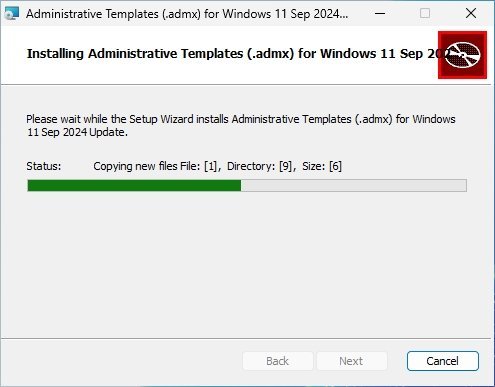
Before you configure policies, you need to make sure that your domain controller (DC) "understands" the settings in the first place. Without up-to-date ADMX templates, you will only see empty folders or cryptic registry entries in the GPO console.
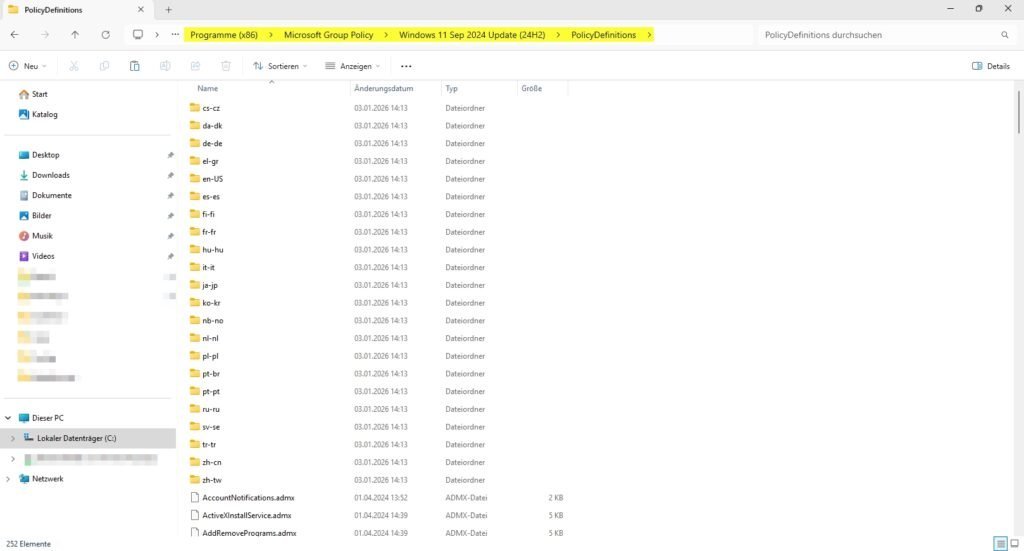
The new settings for Windows Copilot and Recall will only appear in your Group Policy if the GPO Editor actually loads the current definition files (.admx). Here, your infrastructure decides on the storage location.
The golden rule (winner-takes-all): Be sure to check if a Central Store already exists in your domain.
- Path:
\\<DeineDomain>\SYSVOL\<DeineDomain>\Policies\PolicyDefinitions
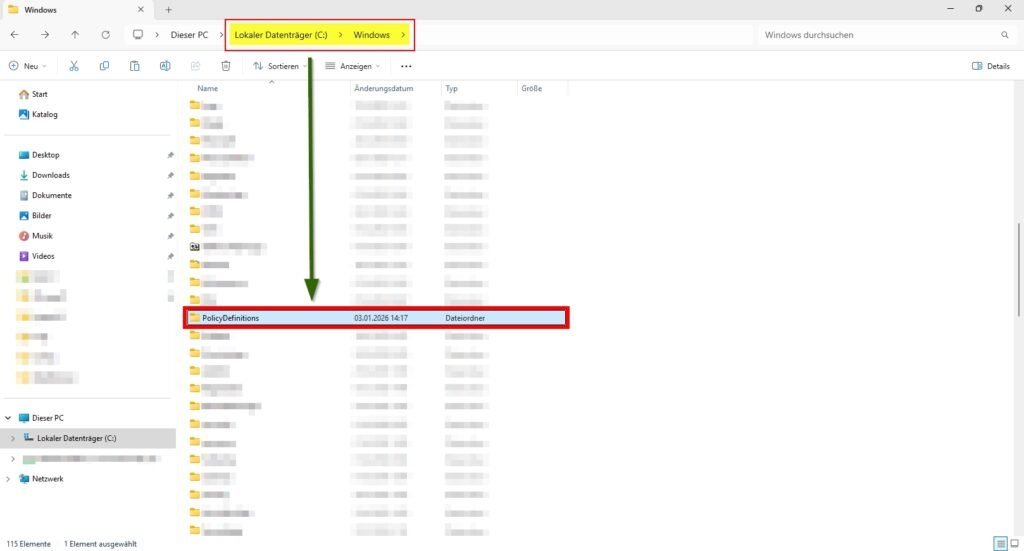
Scenario A: The central store exists (default in 99% of companies) Once this folder exists on the network, the Group Policy Editor ignores your local C:\Windows\PolicyDefinitionsfolder entirely.
- The consequence: If you mistakenly copy the new ADMX files only locally to your admin PC, you will not see the settings.
- The solution: You have to copy the new files (ADMX + ADML) into the folder in the SYSVOL (or place them on the DC under
C:\Windows\SYSVOL\domain\Policies\PolicyDefinitions) so that they are replicated and loaded.
Scenario B: No Central Store Exists Only if the folder is missing in the SYSVOL does Windows fall back to your local store (C:\Windows\PolicyDefinitions).
- Recommendation: Create the folder
PolicyDefinitionsin SYSVOL and copy the unzipped templates into it. This will create the Central Store and ensure that all admin colleagues in the team are working on the same version ("Single Source of Truth").
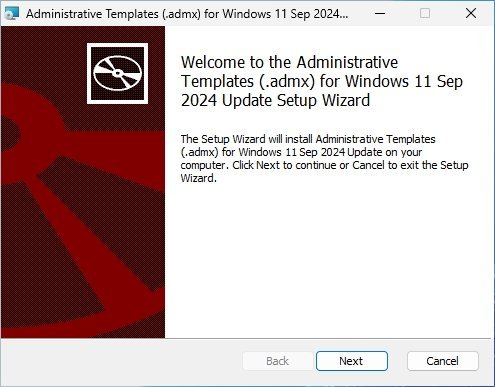
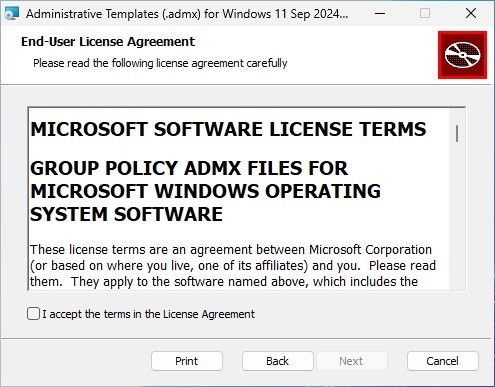
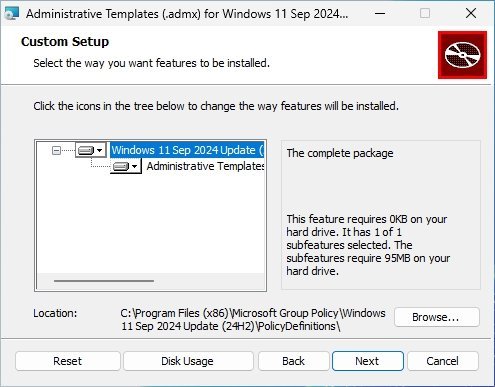
- Recall (snapshots)
On devices with NPU (Copilot+ PCs), Windows Recall is technically able to store a complete history of user behavior in a local vector database. Even though the feature now officially offers ADMX support, we don't rely on it alone for high-security requirements.
We use Group Policy Preferences (GPP) to set hard registry keys at the machine level (HKLM).
- Why? ADMX policies often only take effect in the user context. However, we want to prevent the recall service or database initialization from starting at all before a user logs in. The registry intervention here is the "kill switch" directly on the foundation.
We set two values: One to stop the analysis, and one to completely block the feature in the UI. To do this, navigate to: Computer Configuration > Settings > Windows Settings > Registry.
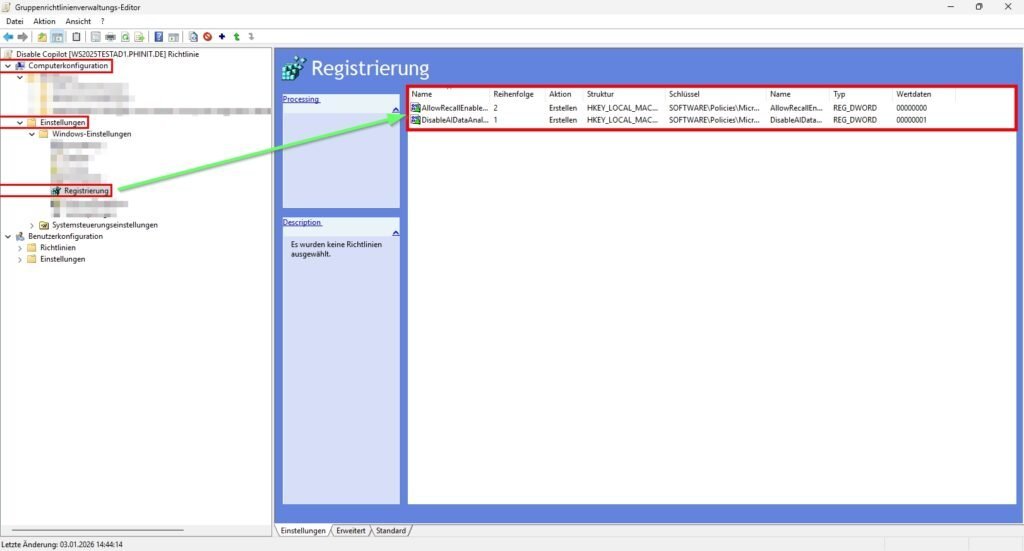
Create two new elements here:
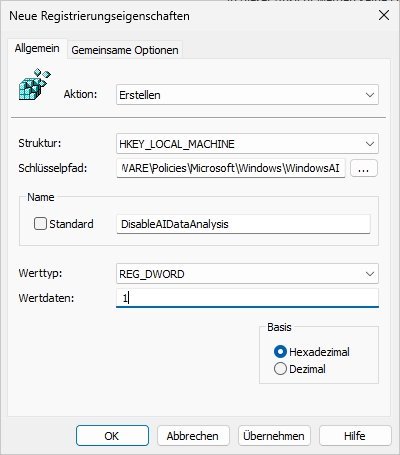
A) Prevent analysis (data protection)
- Value Data:
1 - Hive:
HKEY_LOCAL_MACHINE - Key Path:
SOFTWARE\Policies\Microsoft\Windows\WindowsAI - Value Name:
DisableAIDataAnalysis - Value Type:
REG_DWORD
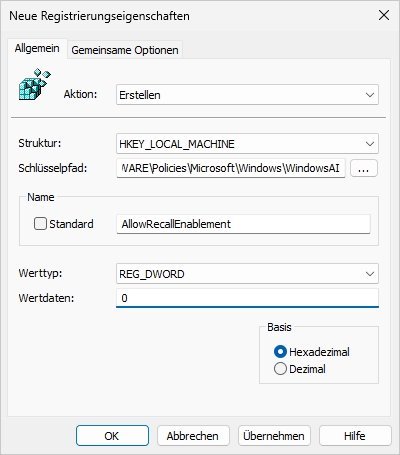
B) Block feature activation (system)
- Hive:
HKEY_LOCAL_MACHINE - Key Path:
SOFTWARE\Policies\Microsoft\Windows\WindowsAI - Value Name:
AllowRecallEnablement - Value Type:
REG_DWORD - Value Data:
0
Why both? DisableAIDataAnalysis stops data collection. AllowRecallEnablement prevents the user from seeing the switch in the settings at all.
C) Official policy (user level)
In addition to the hard registry keys (which apply globally to the machine), you should also set the official ADMX setting for the user. This serves as a double protection ("belt and suspenders") in case a Windows update resets the registry paths but retains the GPO logic.
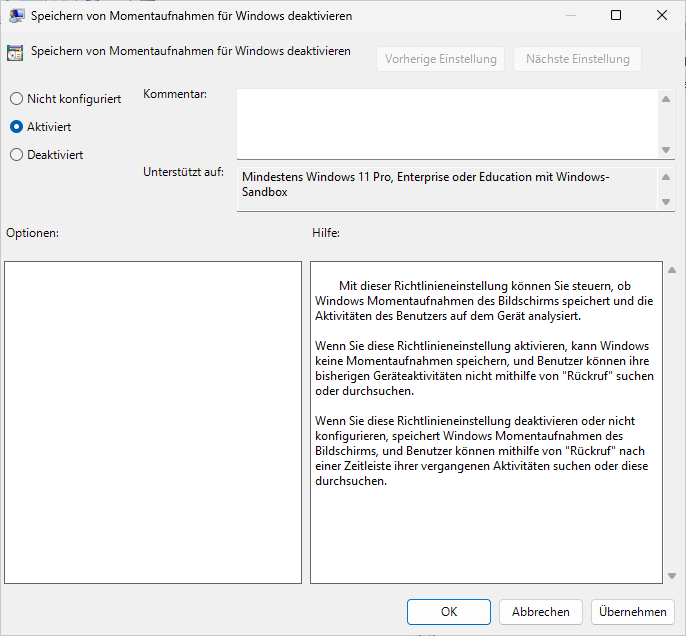
- Path:
Benutzerkonfiguration > Richtlinien > Administrative Vorlagen > Windows-Komponenten > Windows-KI - Setting: Turn off saving snapshots for Windows
- Status: Enabled
This setting has an effect on HKEY_CURRENT_USER. It only takes effect after registration. Therefore, for high-security scenarios, rely primarily on options A & B (Machine Scope), but also use this option C to flag cleanly in the user context: "This feature is undesirable."
- Copilot
Since Windows 11 23H2/24H2, there has been a dedicated policy for this. This prevents the Copilot process from being loaded in the context of the Explorer.
- Path:
Benutzerkonfiguration > Richtlinien > Administrative Vorlagen > Windows-Komponenten > Windows Copilot - Setting: Turn off Windows Copilot
- Status: Enabled
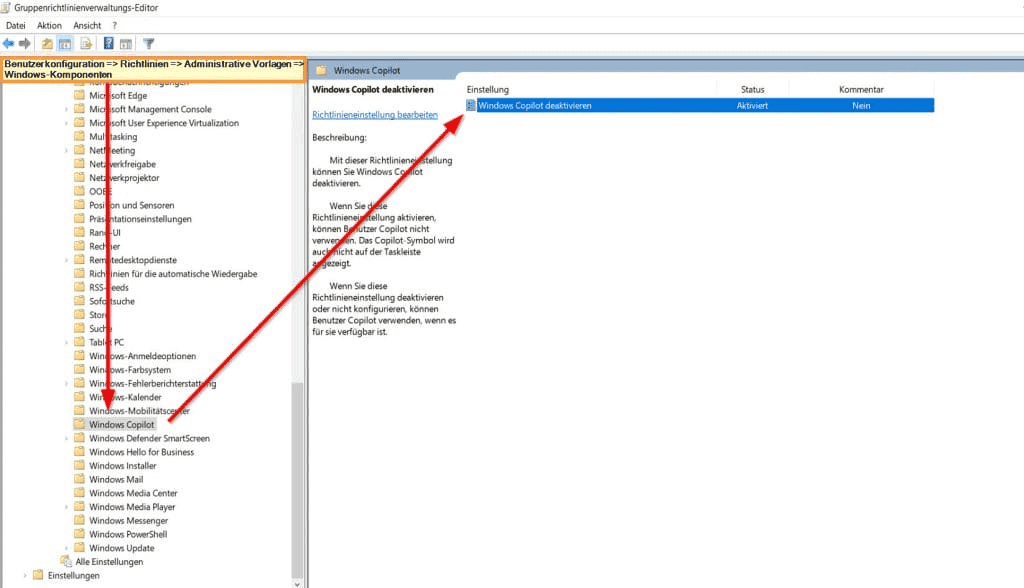
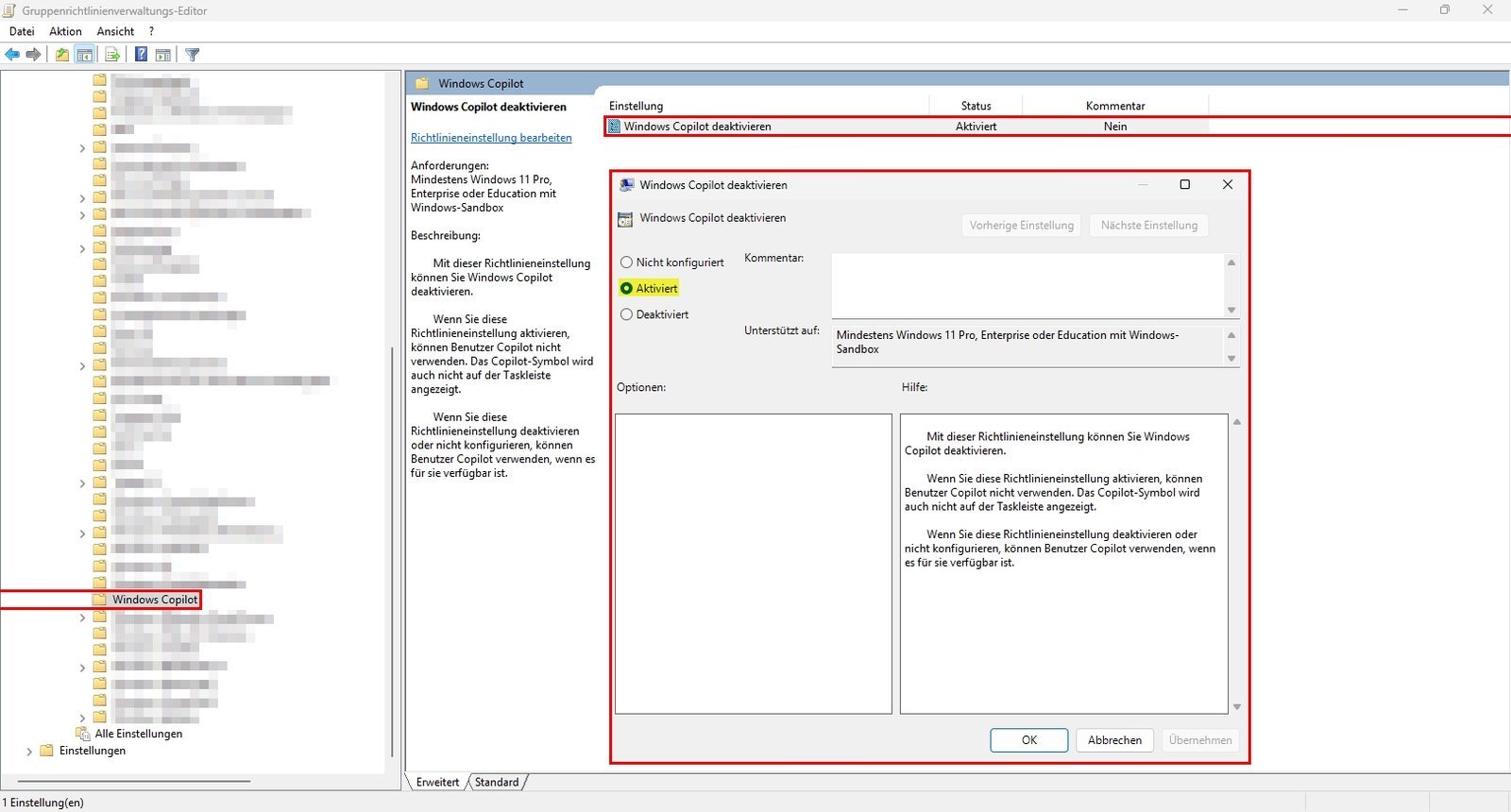
Note: In addition, check Computerkonfigurationwhether the template is also available there (depending on the ADMX version). However, the user config is the primary trigger for the session.
- Edge Browser
Microsoft has changed the behavior from Edge version 141 (Late 2025): The global sidebar policy no longer necessarily controls the Copilot icon. You now need a specific guideline for the icon.
Prerequisite: Current in Edge Richtlinien the Central Store. Download from the Edge download page.
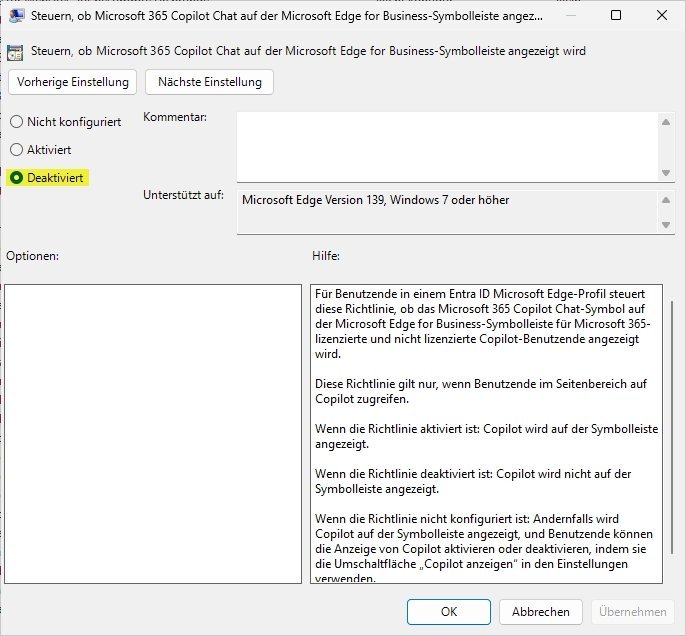
A) Only Copilot gone
If you want to keep the sidebar for tools (e.g. Outlook, calculators) but want to remove the AI:
- Path:
Computerkonfiguration > Administrative Vorlagen>Microsoft Edge - Policy: "Control whether Microsoft 365 Copilot is available on the ... toolbar."
- Value: Disabled
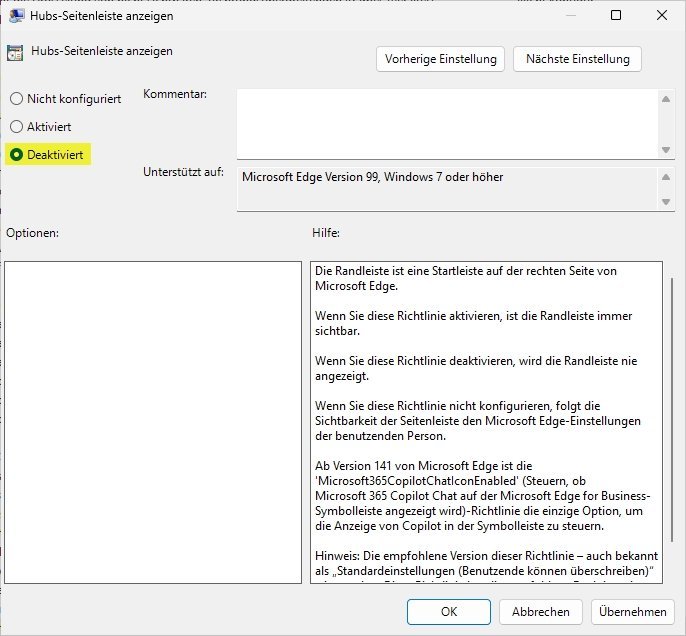
B) Sidebar completely gone
For strict security areas (kiosk PCs, production) where no distraction is desired:
- Path:
Computerkonfiguration > Administrative Vorlagen>Microsoft Edge - Policy: Show Hubs sidebar
- Value: Disabled
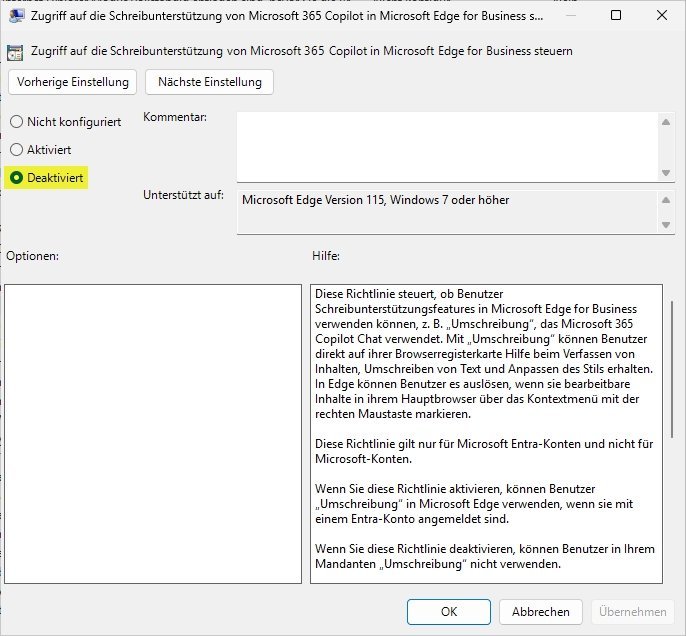
C) Block write support ("Rewrite") in the context menu (IMPORTANT)
This is often the gateway for data leakage (DLP). Even without a sidebar, users can select text and right-click it to send it to the AI to have it rewritten. This policy prevents this for Entra-ID accounts.
- Path:
Computerkonfiguration > Administrative Vorlagen > Microsoft Edge - Policy: Control access to Microsoft 365 Copilot write support in Microsoft Edge for Business
- Value: Disabled
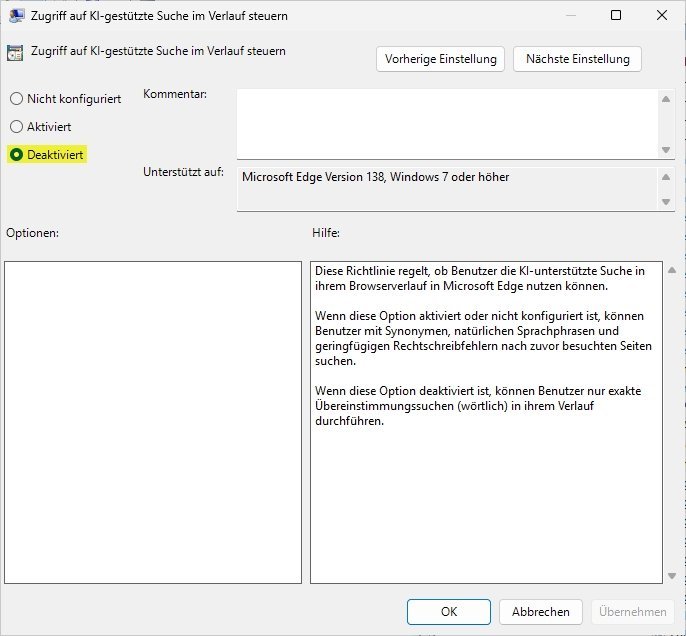
D) Disable AI search in history
This function analyzes the browsing history to detect synonyms or typos ("Fuzzy Search").
If deactivated, users can only search for exact term matches (verbatim) in the history. There is no need for semantic analysis.
- Path:
Computerkonfiguration > Administrative Vorlagen > Microsoft Edge - Policy: "Control access to AI-powered search in history"
- Value: Disabled
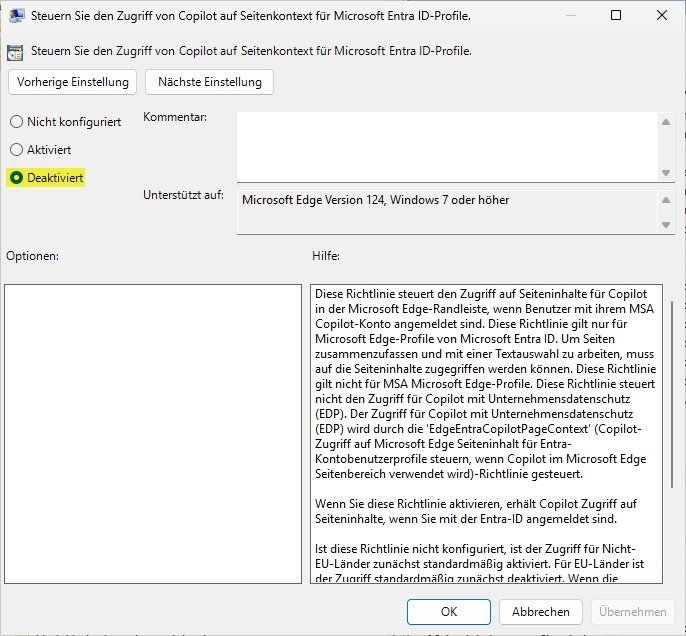
E) Lock page content for private MSA use (DLP)
This is the "seat belt" against shadow IT. This policy prevents the private consumer co-pilot (if a user uses his private MSA account in the company browser) from reading the content of internal websites.
Path: Computerkonfiguration > Administrative Vorlagen > Microsoft Edge
Policy: "Control access to page content for Copilot"
Value: Disabled
Important! This policy only applies to MSA accounts (personal use). For the business copilot (with EDP), a different policy applies (EdgeEntraCopilotPageContext). So we explicitly deactivate the insecure private path here.
- Search & Widgets
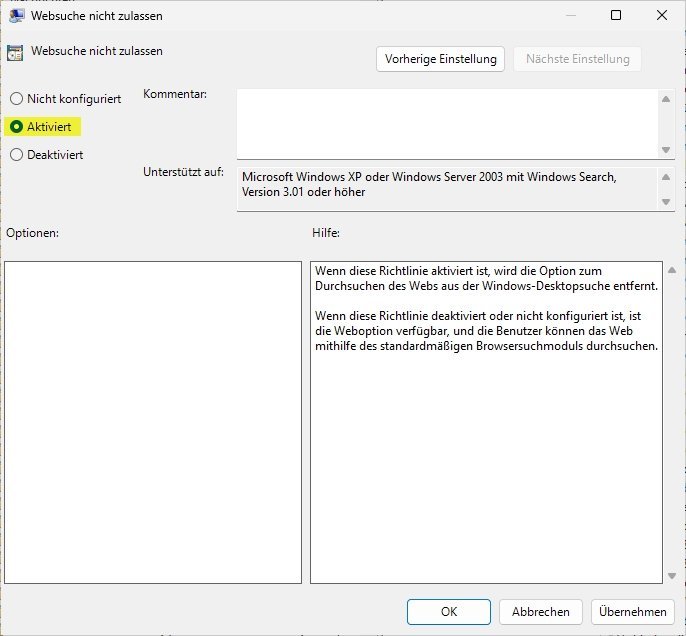
A) Disable web search in the Start menu
When a user types in the Start menu, Windows sends the request to Bing by default. This returns AI summaries and cloud suggestions. We want to keep that local.
- Path:
Computerkonfiguration > Administrative Vorlagen > Windows-Komponenten > Suche - Policy: "Don't allow web search"
- Value: Enabled
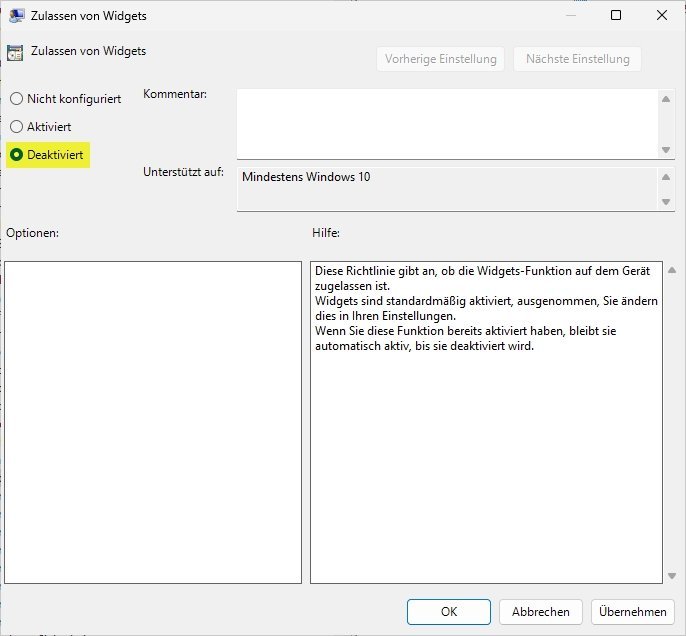
B) Disable widgets board
The widget board (weather, news, stocks) is a direct feed for Microsoft's content network and AI recommendations.
In a clean enterprise environment, this is usually unwanted noise and consumes resources unnecessarily (Widgets.exe).
- Path:
Computerkonfiguration > Administrative Vorlagen > Windows-Komponenten > Widgets - Policy: "Allow widgets"
- Value: Disabled
Outlook: even deeper into detail!
The settings shown here form the foundation, but the M365 universe offers far more adjusting screws. This was just the beginning of the configuration.
To truly manage an environment holistically, we still need to look at the specific policies for the Office apps and the Copilot app on Windows . The topic of Intune policies also plays a crucial role in a clean infrastructure.
Since this would go beyond the scope of this article, a separate article will follow in the next few days, which will be dedicated to these further topics in detail.
Conclusion & Application
Once configured, you'll need to force the clients to load the new policies. A simple gpupdate /force one is often enough for the registry part, but since we are deeply involved in the shell integration (taskbar), a restart or a re-login of the user is mandatory.
The architectural view: You've now built a multi-layered defense system. Even if a Windows update reactivates the Copilot process, the registry key for Recall will take effect. Even if the user opens the browser, the Edge policy blocks the AI chat. However, keep an eye on the release notes . Microsoft likes to rename services (from "Bing Chat" to "Copilot" to "Windows AI"). Your registry paths under WindowsAI are currently the most stable anchor, but could change in future builds (26H2+).

Sei der Erste und starte die Diskussion mit einem hilfreichen Beitrag.
Leave a comment
Dein Beitrag wird vor der Veröffentlichung kurz geprüft — fachlich, respektvoll und auf den Punkt ist hier genau richtig.