

After we have dealt with the basic dashboard in the first part (data protection in Copilot), we now get down to the nitty-gritty: The Copilot settings. While the overview shows us who is using Copilot, here we define how the AI handles data and where your tenant's boundaries are.
For IT administrators, this area is the most important tool to maintain the balance between maximum AI productivity and strict European data protection regulations. In this article, we'll look at how to make the most of the EU Data Boundary , control access to the web, and securely manage the connection of external agents.
In the User Access tab, you control how Copilot appears in different interfaces of your company and who gets access to special preview features. This is where you determine whether users can purchase licenses on their own and how deeply the AI is integrated into the admin interfaces.
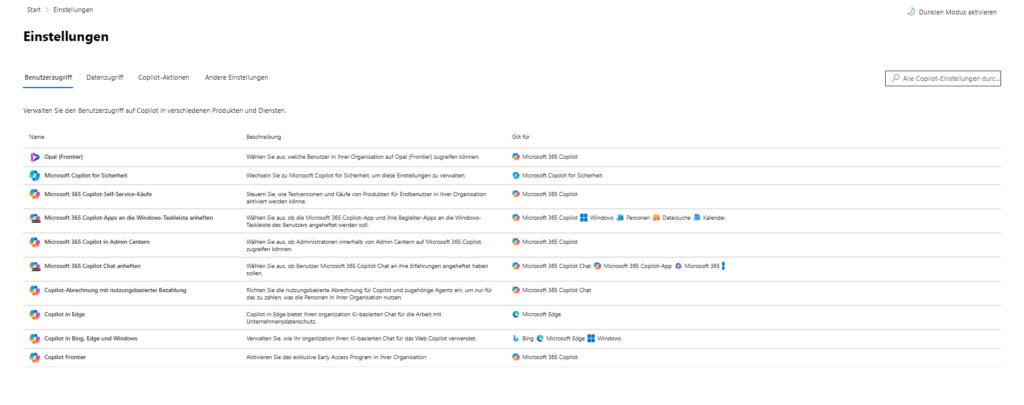
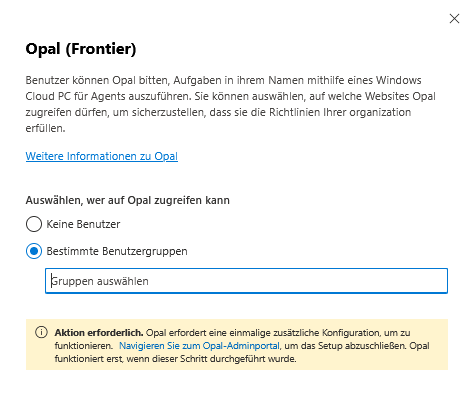
Opal (Frontier)

Microsoft Copilot for Security

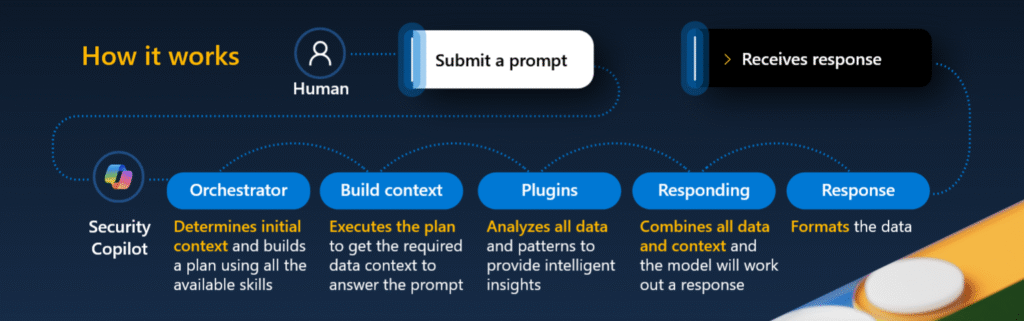
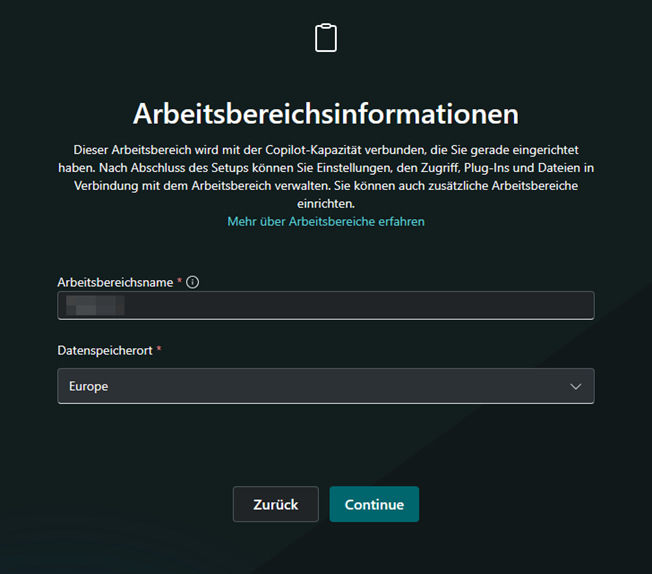
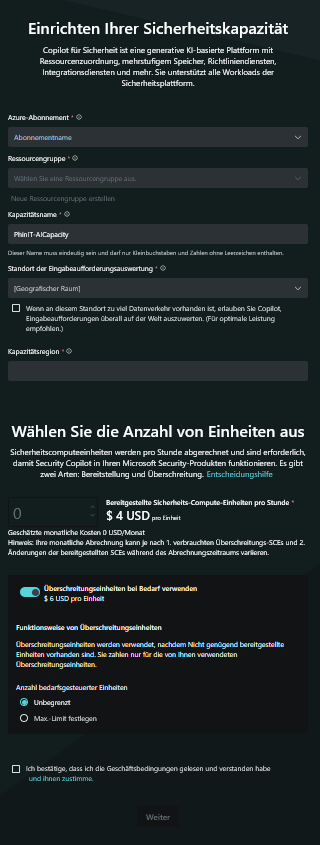
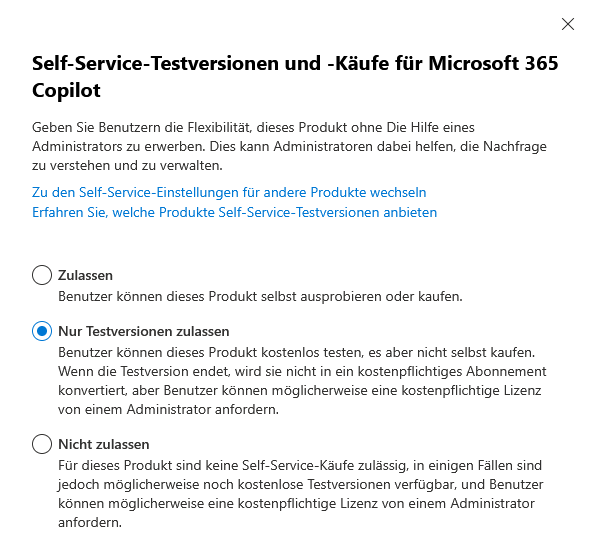
Microsoft 365 Copilot self-service purchases

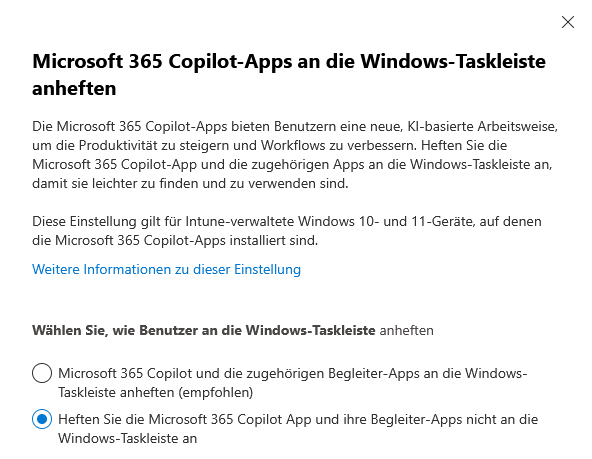
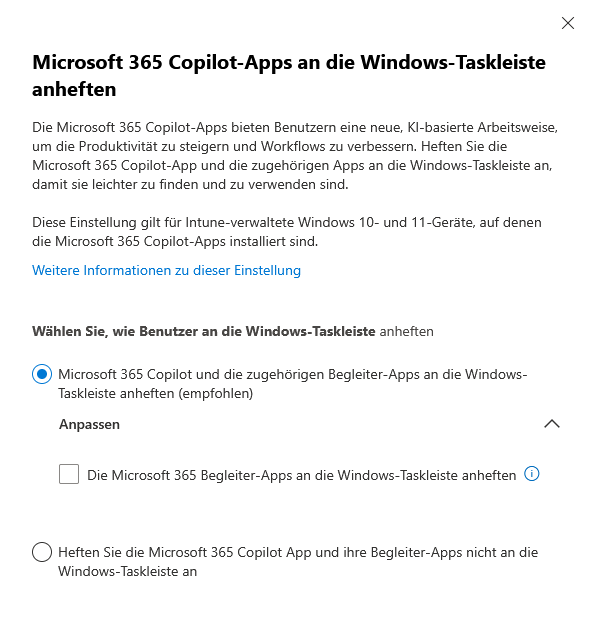
Pin Microsoft 365 Copilot apps to the Windows taskbar

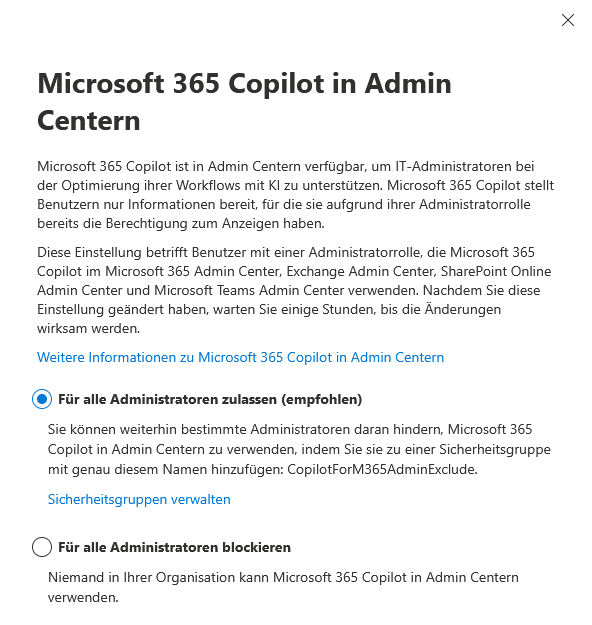
Microsoft 365 Copilot in admin centers

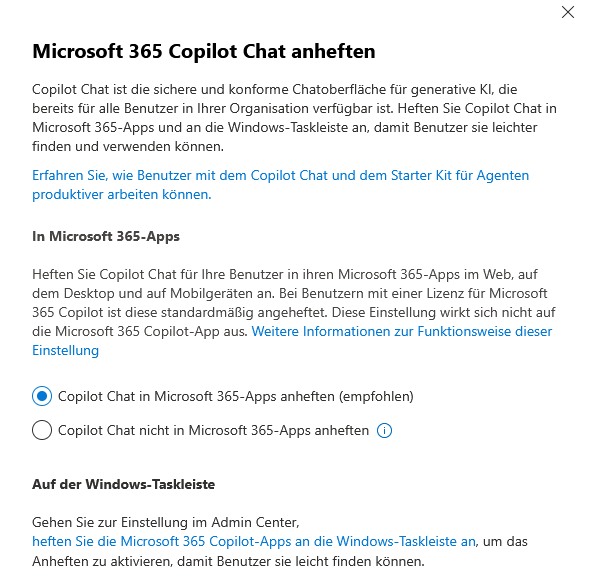
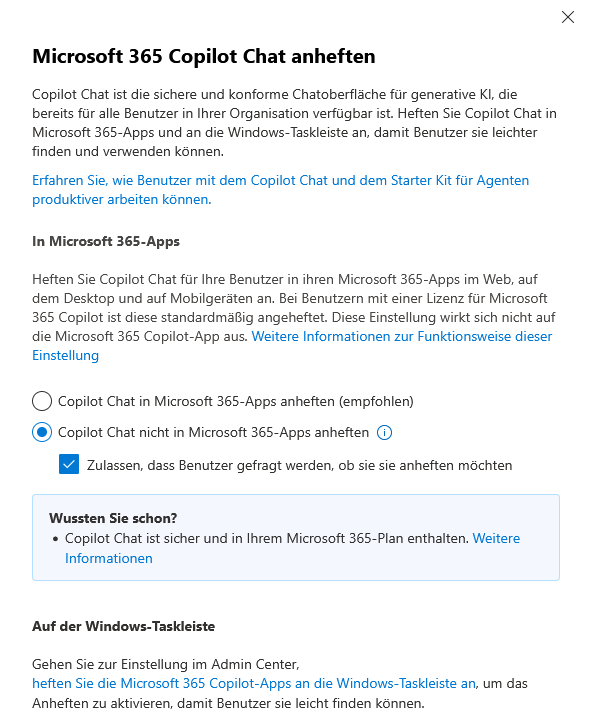
Pin Microsoft 365 Copilot Chat

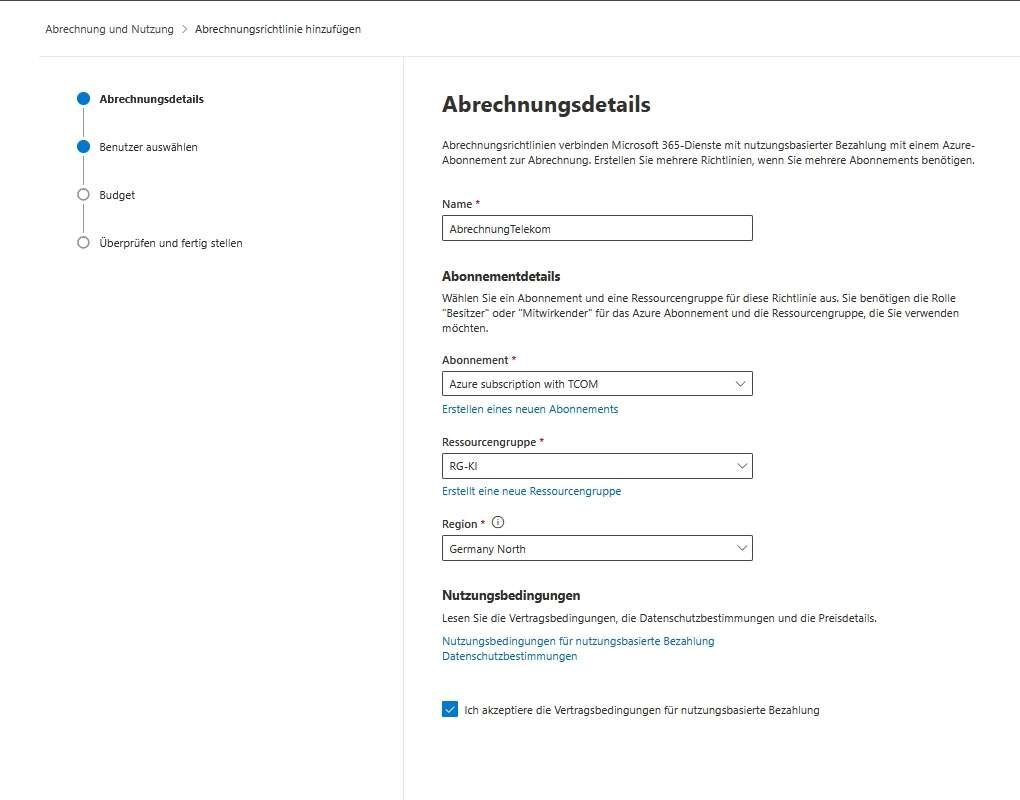
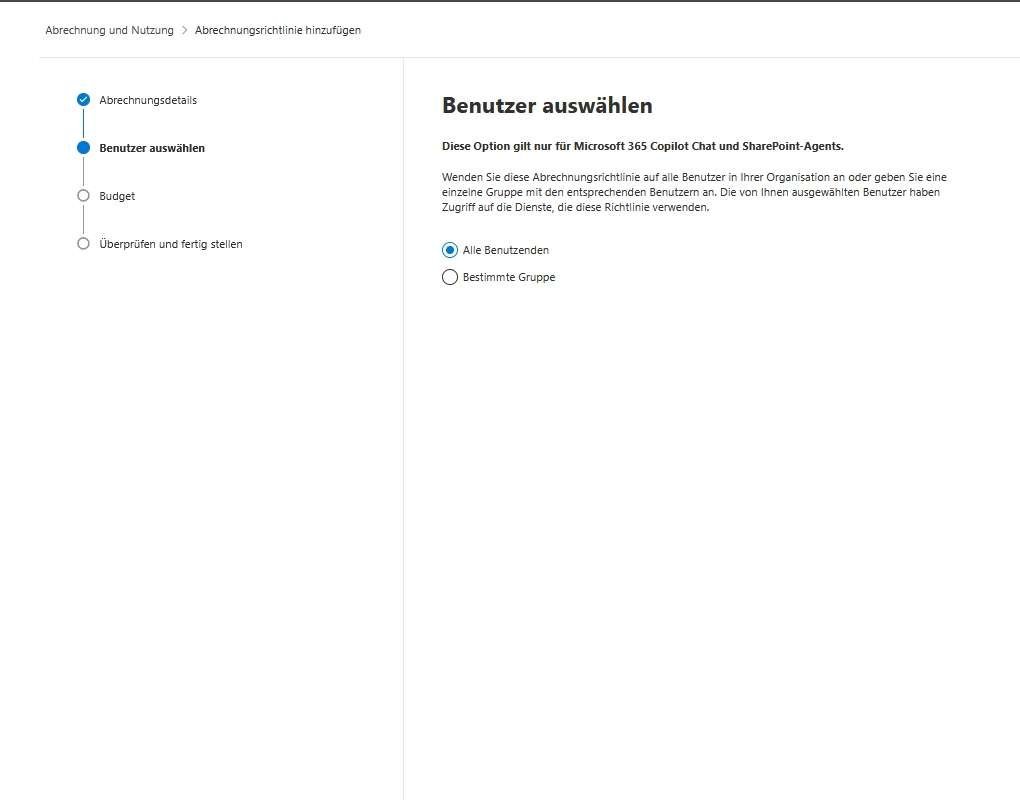
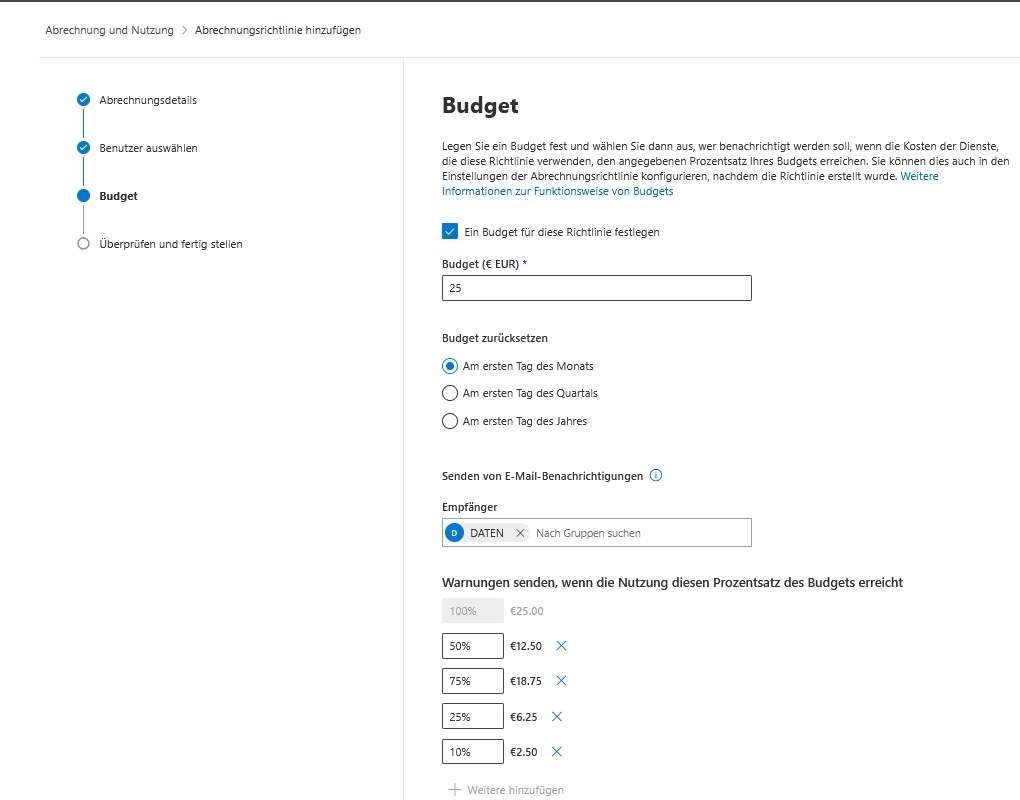
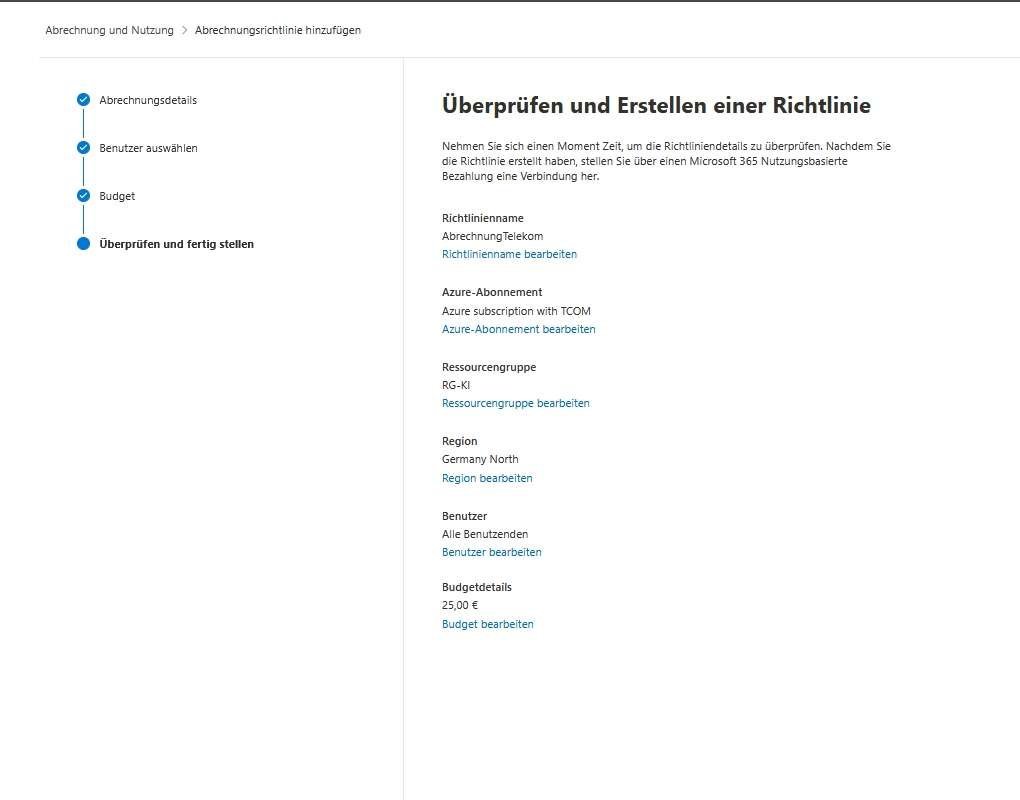
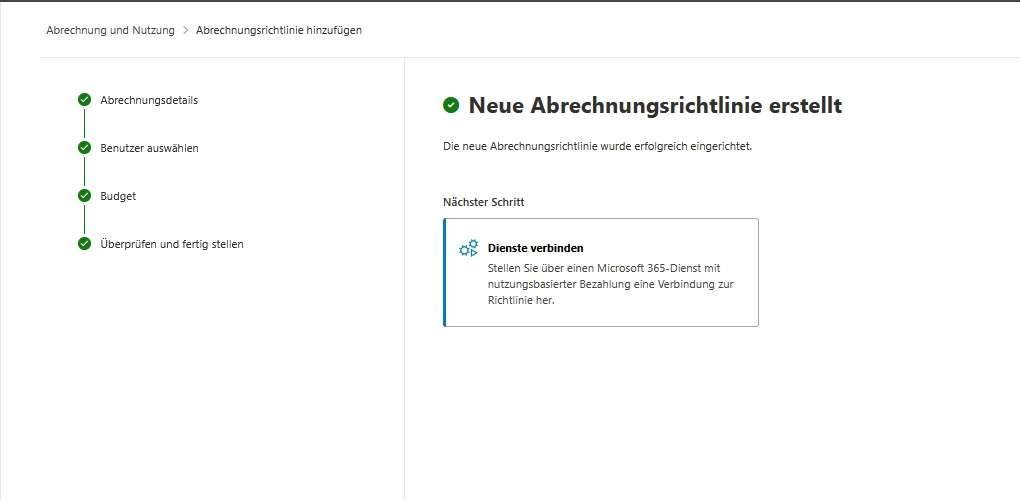
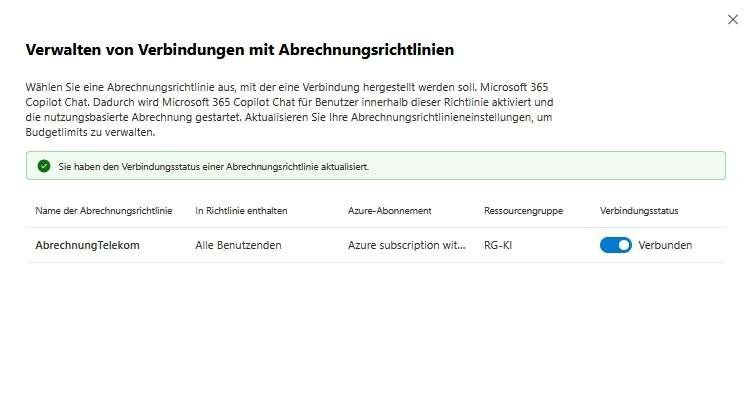
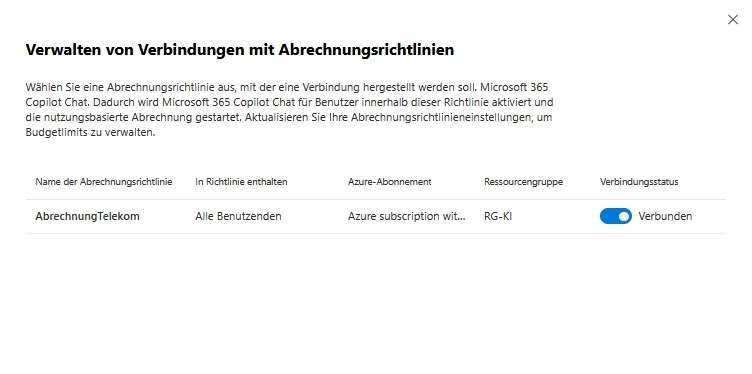
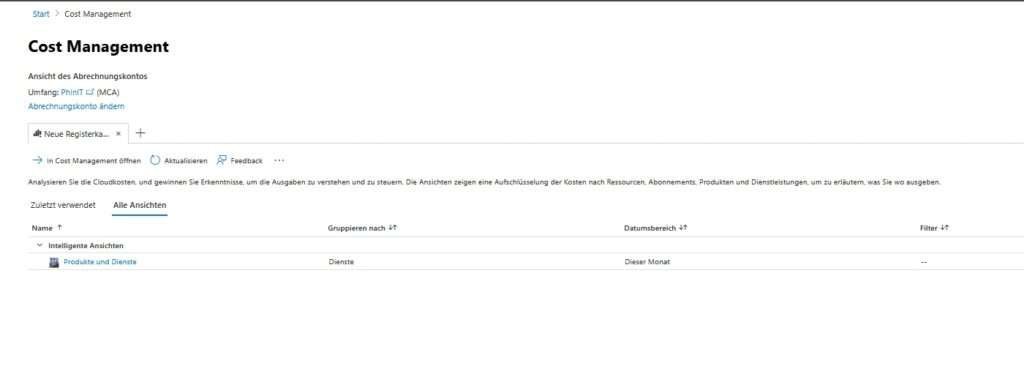
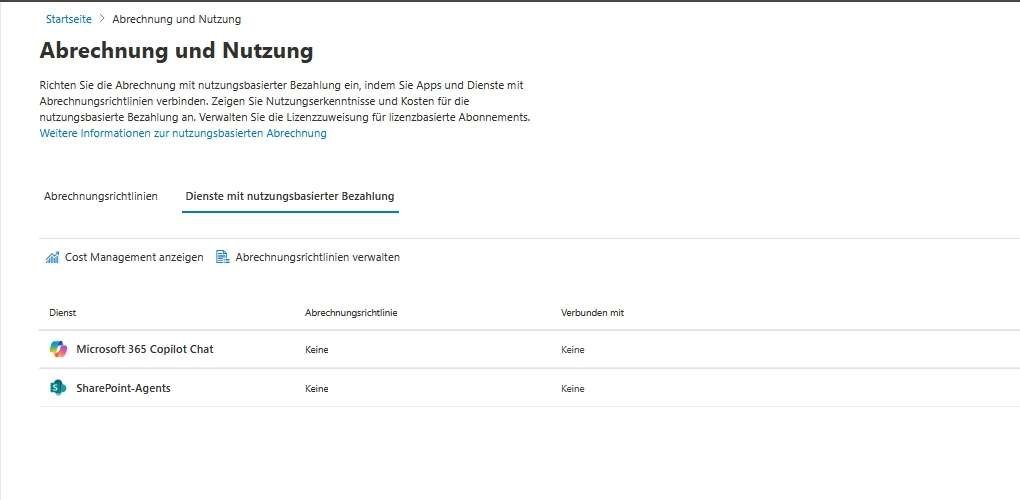
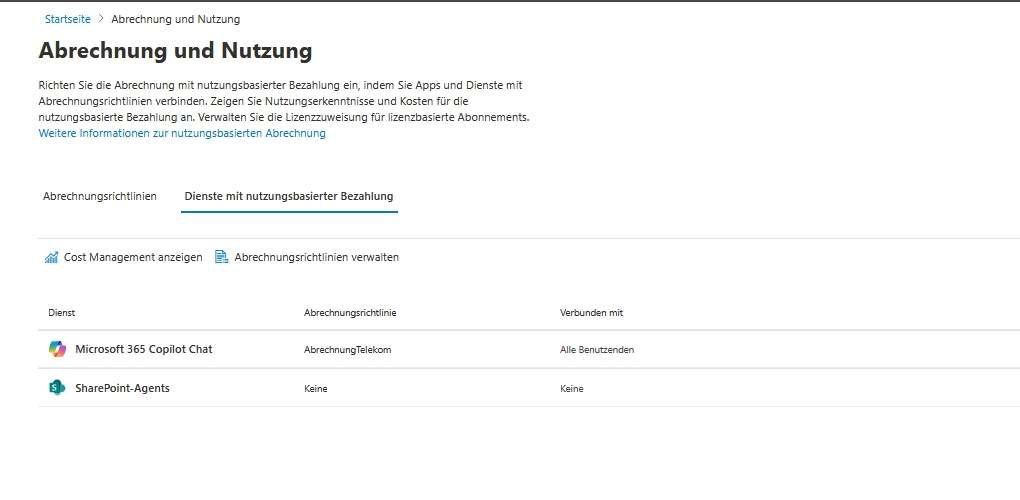
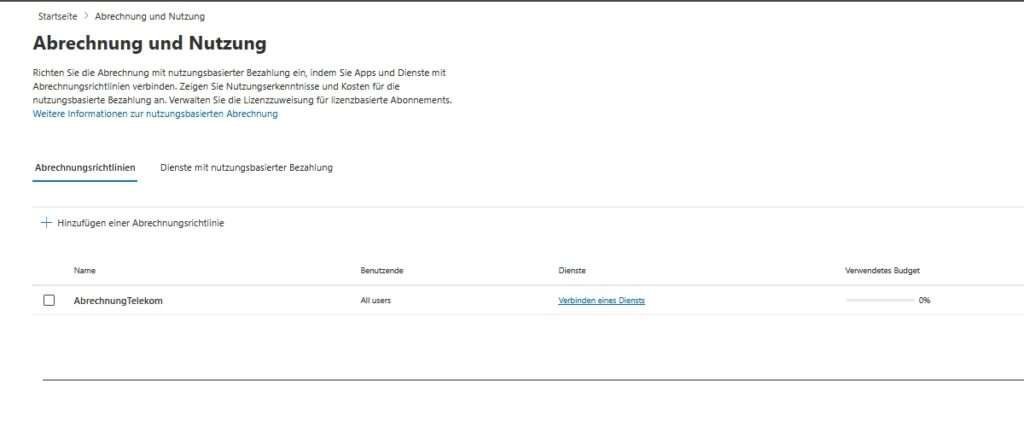
Copilot pay-as-you-go billing

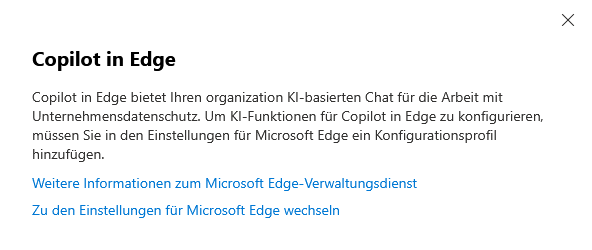
Copilot in Edge

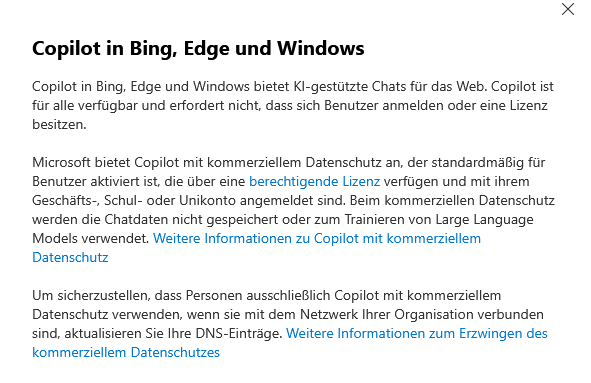
Copilot in Bing, Edge, and Windows

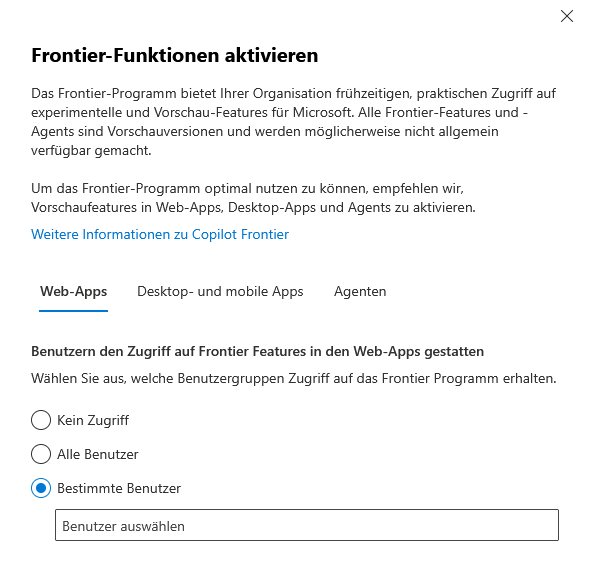
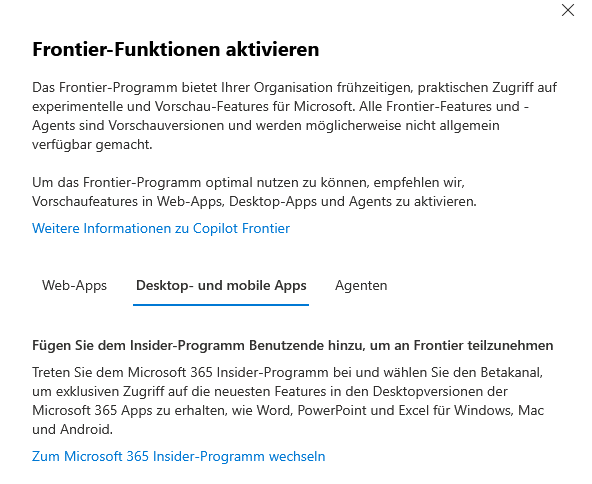
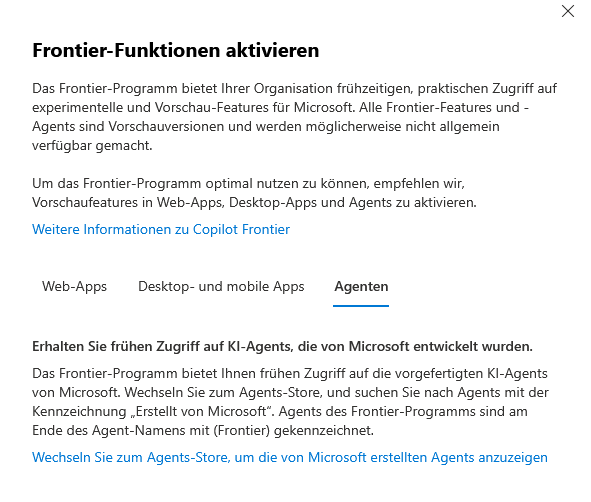
Copilot Frontier

This tab is the control center for the flow of information. While you control who is allowed to use Copilot in "User access", you define where Copilot gets its knowledge from (web vs. internal) and which AI models are allowed to work in the background.
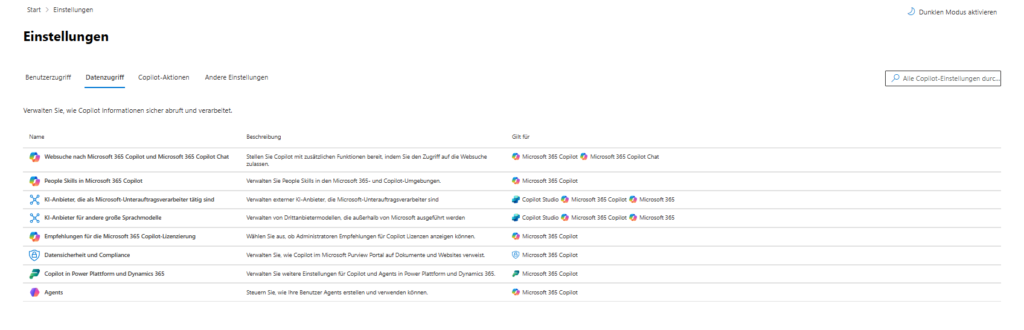
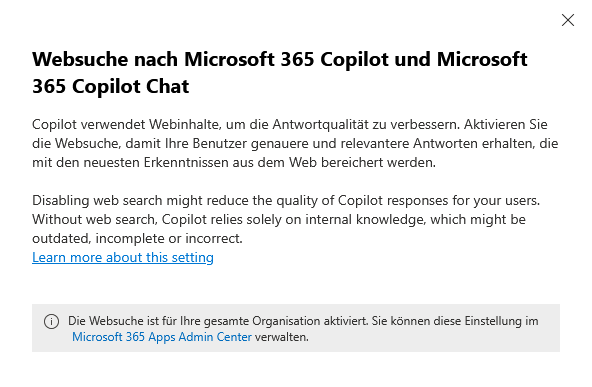
Web search for Microsoft 365 Copilot and Microsoft 365 Copilot Chat

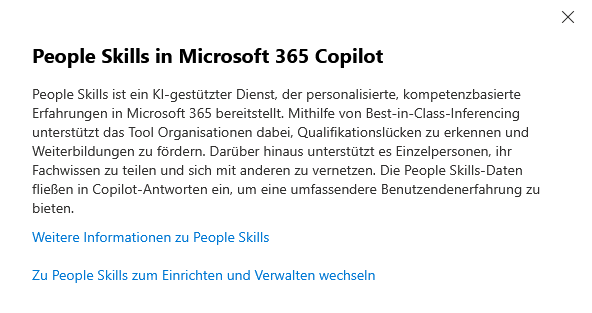
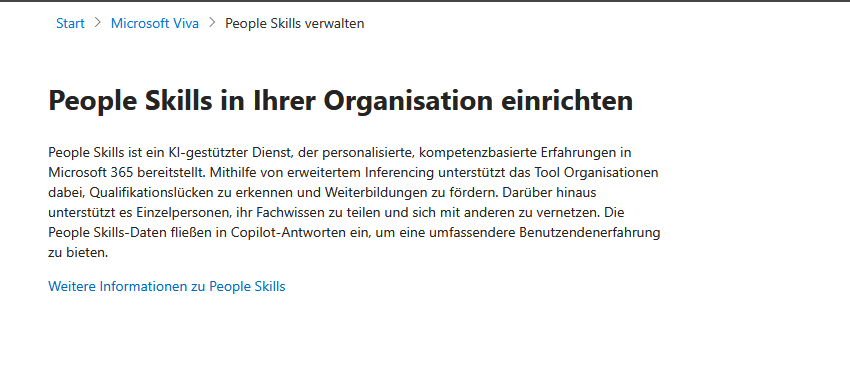
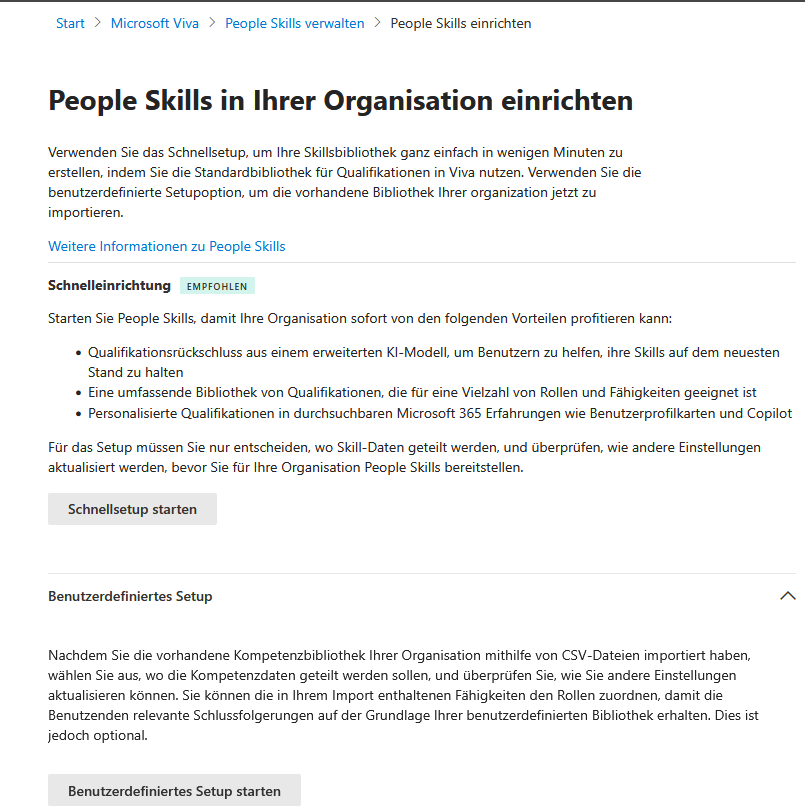
People Skills in Microsoft 365 Copilot

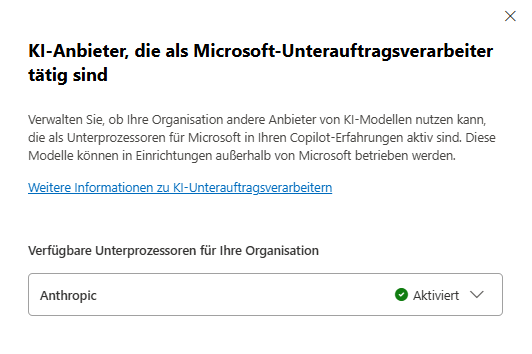
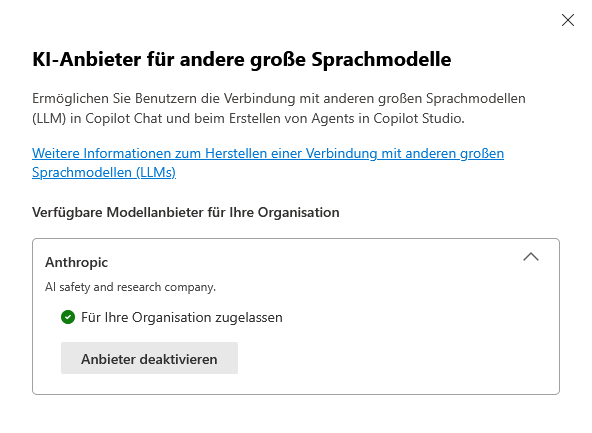
AI Providers & Sub-Processors (Important!)


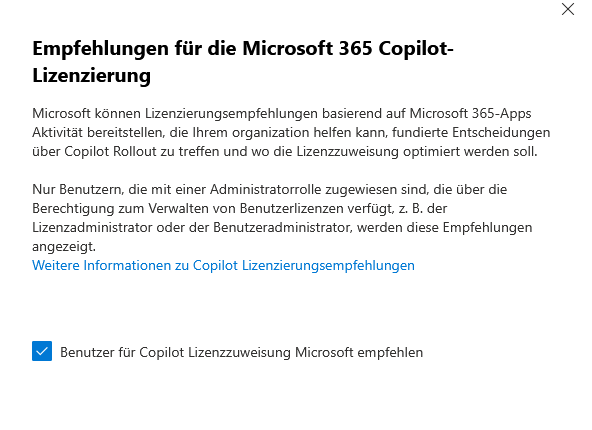
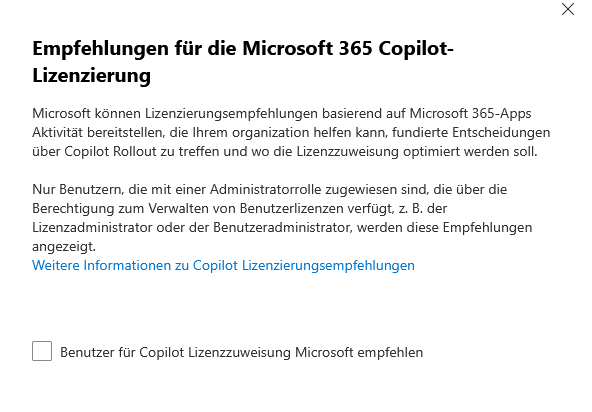
Recommendations for Microsoft 365 Copilot licensing

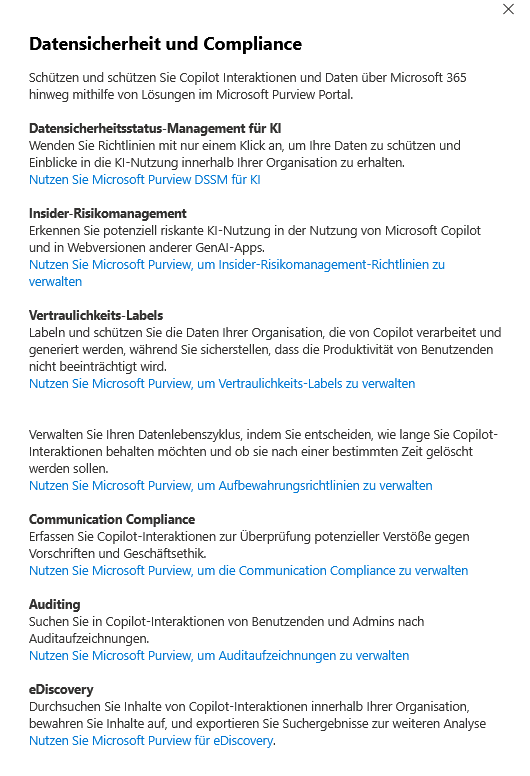
Data security and compliance

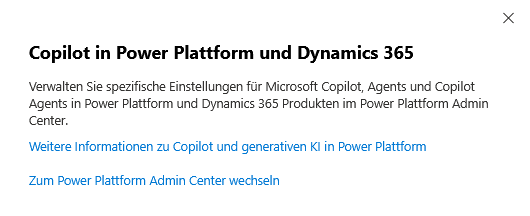
Copilot in Power Platform and Dynamics 365

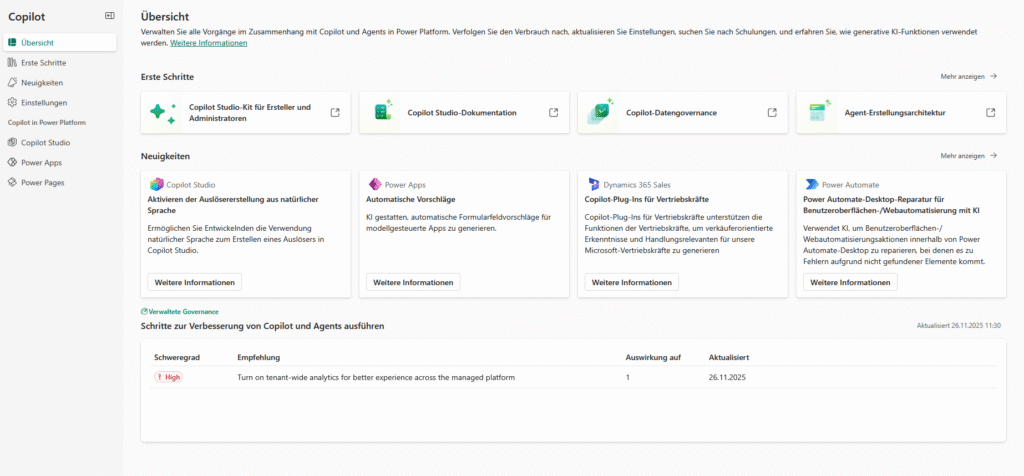
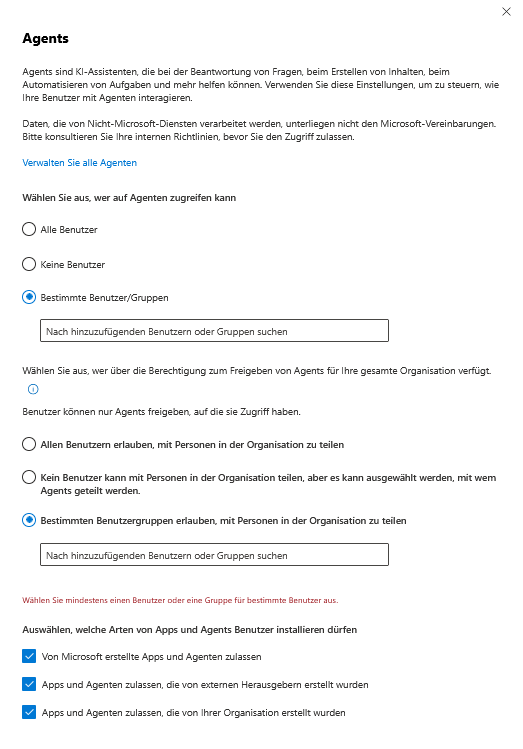
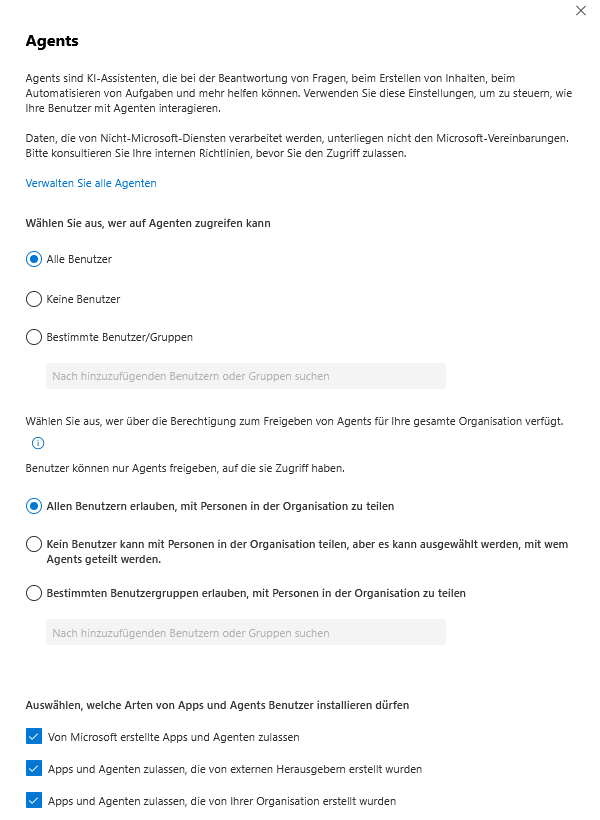
Agents

In the Copilot Actions tab, you leave the level of pure data sharing and define the specific behavior of the AI. This is no longer just about what Copilot is allowed to access, but what it should actively generate and how transparent it is to your users.
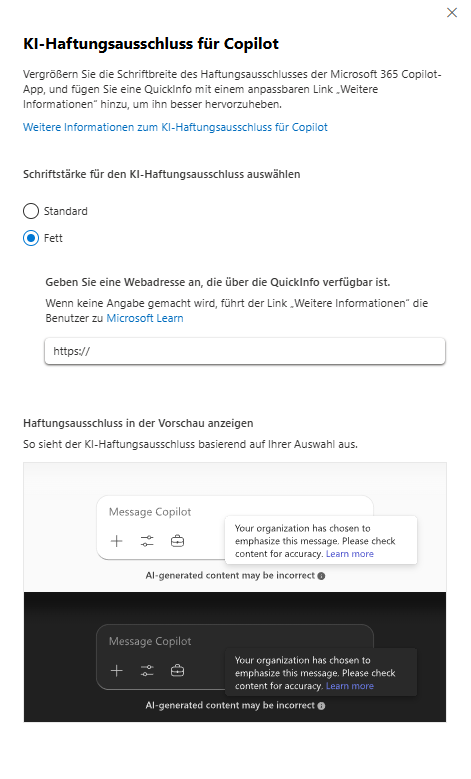
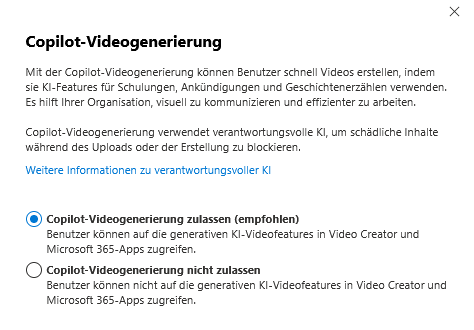
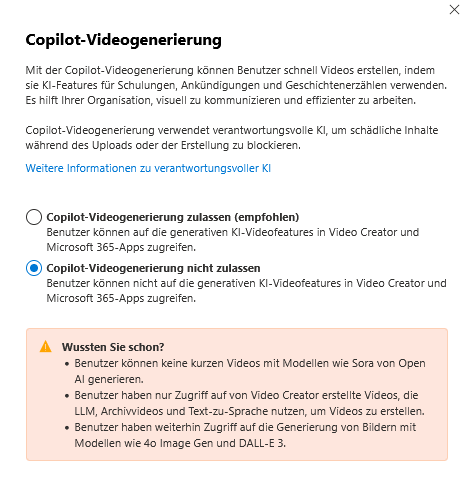
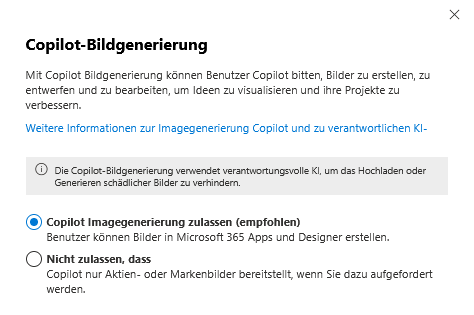
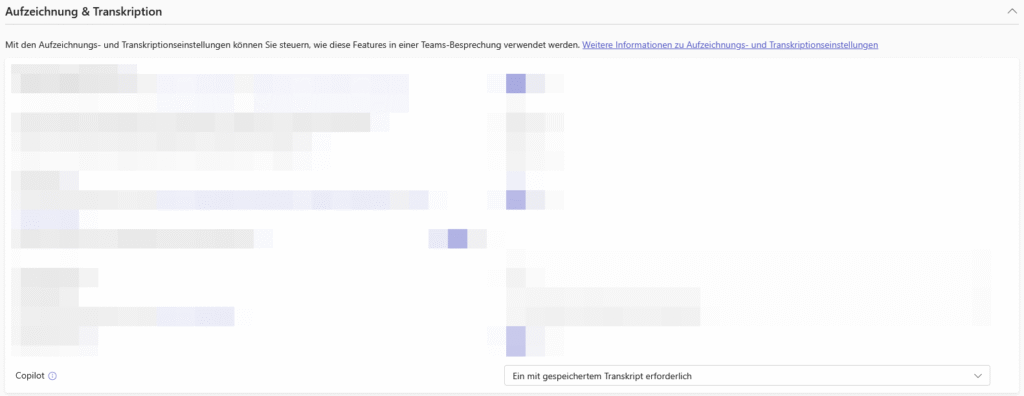
From mandatory disclaimers to the release of creative features (image and video generation) to sensitive control in Teams meetings: In this area, you will configure the balance between a modern user experience and your company's necessary compliance guidelines.
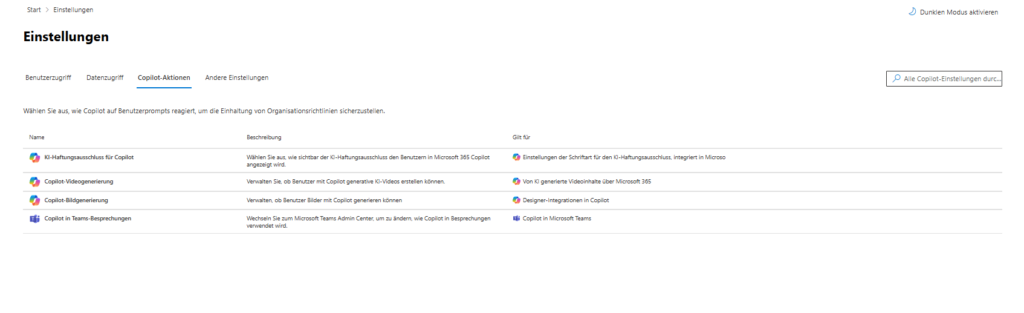
AI disclaimer for Copilot

Copilot Video Generation

Copilot image generation

Copilot in Teams meetings


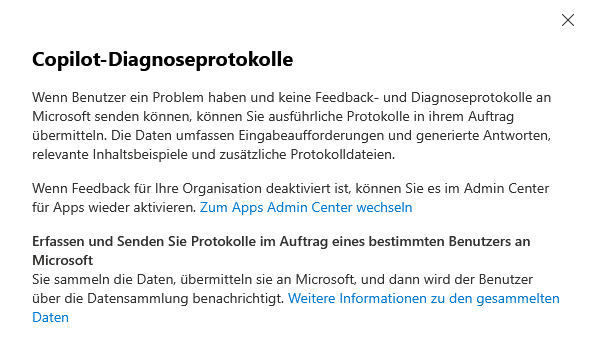
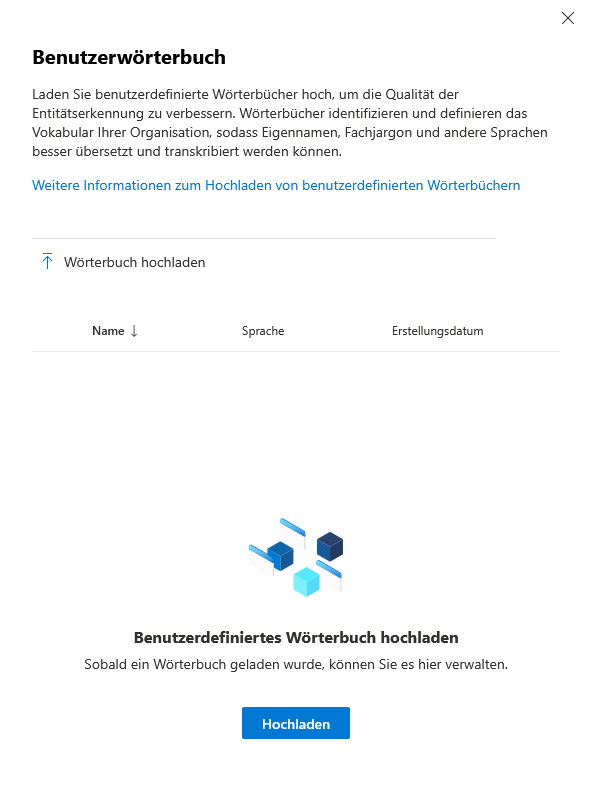
The Other Settings tab bundles administrative functions that do not directly control access or data flow, but concern operations and quality assurance. Here you will find tools for support cases and for customizing speech recognition.
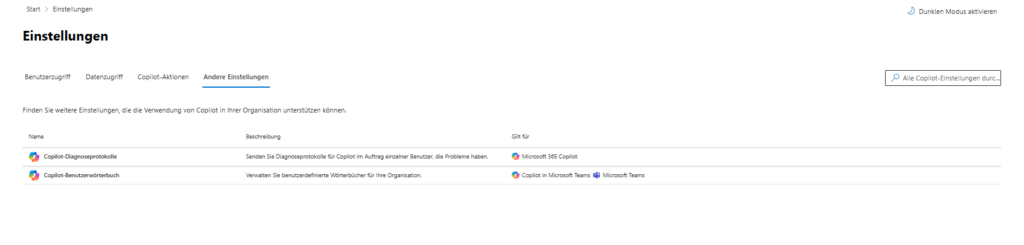
Copilot Diagnostic Logs

Copilot Custom Dictionary

The Human & Legal Factor
Now that we've adjusted the technical switches in the admin center, we need to broaden our view. A successful Copilot implementation stands and falls with transparency towards the workforce and awareness of new security risks.
Transparency & GDPR Compliance | Technically, you can activate Copilot, but legally you have to take your employees with you.
- Duty to provide information (Art. 13 GDPR): Proactively inform everyone concerned about the use of AI. Explain how prompts are processed, how long they are stored and what the purposes of the data processing are.
- Works council: The possibilities for performance monitoring (e.g. via admin feedback or logs) often make Copilot subject to co-determination. Clearly document which evaluations are technically possible and which are not carried out (voluntary commitment).
2. Data sovereignty for end users (My Account) | Data protection is not a one-way street. Give your users tools to maintain their own privacy.
- Self-administration: Show your employees the "My Account" portal. There they can view their own Copilot activity history and delete saved prompts and responses independently.
- Trust: Knowing that you can clean up your chat history massively increases the acceptance of AI tools.
Prompt Injection & Awareness Protection | Copilot brings with it new attack vectors that a classic firewall does not intercept.
- The danger: In "prompt injection" attacks, third parties try to circumvent the AI's security filters through manipulative inputs. Microsoft integrates technical "jailbreak" filters, but these are not a panacea.
- The human protective wall: Technical filters must be supplemented by organisational measures .
- Training: Regularly sensitize users never to enter passwords or highly critical secrets (e.g. private keys) in prompts.
- Critical handling: Content from external sources (e.g. a summarized phishing email or a manipulated website) can trick the AI. Users must learn to verify AI results at all times.
The Safety Net: Purview & DLP | As mentioned in the "Data Access" section, Microsoft Purview is your life insurance against data leakage.
- Automated protection: Use sensitivity labels and DLP guidelines to ensure that confidential data (HR files, patents) is not technically allowed to be processed or output by Copilot in the first place.
- Storage: Keep in mind that Copilot data is stored in special, hidden Exchange folders. Your retention policies must explicitly check whether this AI data should be stored for as long as regular emails or chats.
Sei der Erste und starte die Diskussion mit einem hilfreichen Beitrag.
Kommentar hinterlassen
Dein Beitrag wird vor der Veröffentlichung kurz geprüft — fachlich, respektvoll und auf den Punkt ist hier genau richtig.