
What you need to decide by August 31!
Starting October 1, 2026, Microsoft will begin disabling Exchange Web Services (EWS) in Exchange Online on a per-tenant basis. All tenants that have not taken action by then will be affected: The EWSEnabled parameter will be set to $false, and from that point on, EWS calls will fail. This was announced in Message Center entry MC1227454.
However, the actual deadline is earlier. By the end of August 2026, you can populate an allow list and set EWSEnabled to $true without your tenant being subject to the automatic shutdown process. If you miss this deadline, you can reactivate EWS via PowerShell after October 1, but this will result in a brief service interruption while the change takes effect.
Why the August deadline is more than just a date
Until the deadline, Microsoft will conduct so-called 'scream tests'—temporary shutdowns to identify remaining dependencies. If you proactively set EWSEnabled to $true now, Microsoft will exclude your tenant from these tests. This is the practical reason why the deadline matters: It doesn’t just protect you from the October shutdown—it protects you from unannounced outages before then.
The second reason is visibility. Microsoft sends monthly Message Center posts with tenant-specific EWS usage summaries. If you’ve ignored these posts, you won’t know your dependencies—and those will break in October.
What else will hit earlier
Starting October 2026, Microsoft will block EWS access for users without EWS license rights, such as certain kiosk and frontline worker licenses. The original deadline was set for late June but was postponed. If you have automations working with mailboxes of such users, they will fail regardless of your allow list.
Related: M365 EXO | EWS block for F1/F3 licenses starting October 2026, which details the license aspect.
Hybrid environments remain unaffected
EWS will not be deprecated for on-premises environments. In hybrid setups, it depends on where the mailbox resides: On-premises mailboxes can continue using EWS, while cloud mailboxes must switch to Microsoft Graph. Autodiscover helps applications automatically determine the mailbox location.
Final end date
On April 1, 2027, EWS will be permanently disabled in Exchange Online. At that point, administrators will also lose control over the EWSEnabled parameter. Microsoft states that no exceptions will be made.
Step 1: Evaluate the Message Center
Microsoft sends monthly tenant-specific EWS usage summaries. Check the Message Center for the entry on active Exchange Web Services applications. You’ll need the Global Administrator or Privacy Reader role for this. The framework is outlined in MC1227454, while the allow list itself was introduced with MC1447678.
This list is your starting point, but it’s not comprehensive enough for the allow list. It shows callers, not their owners, and doesn’t indicate whether a call comes from a production application or a forgotten test script.
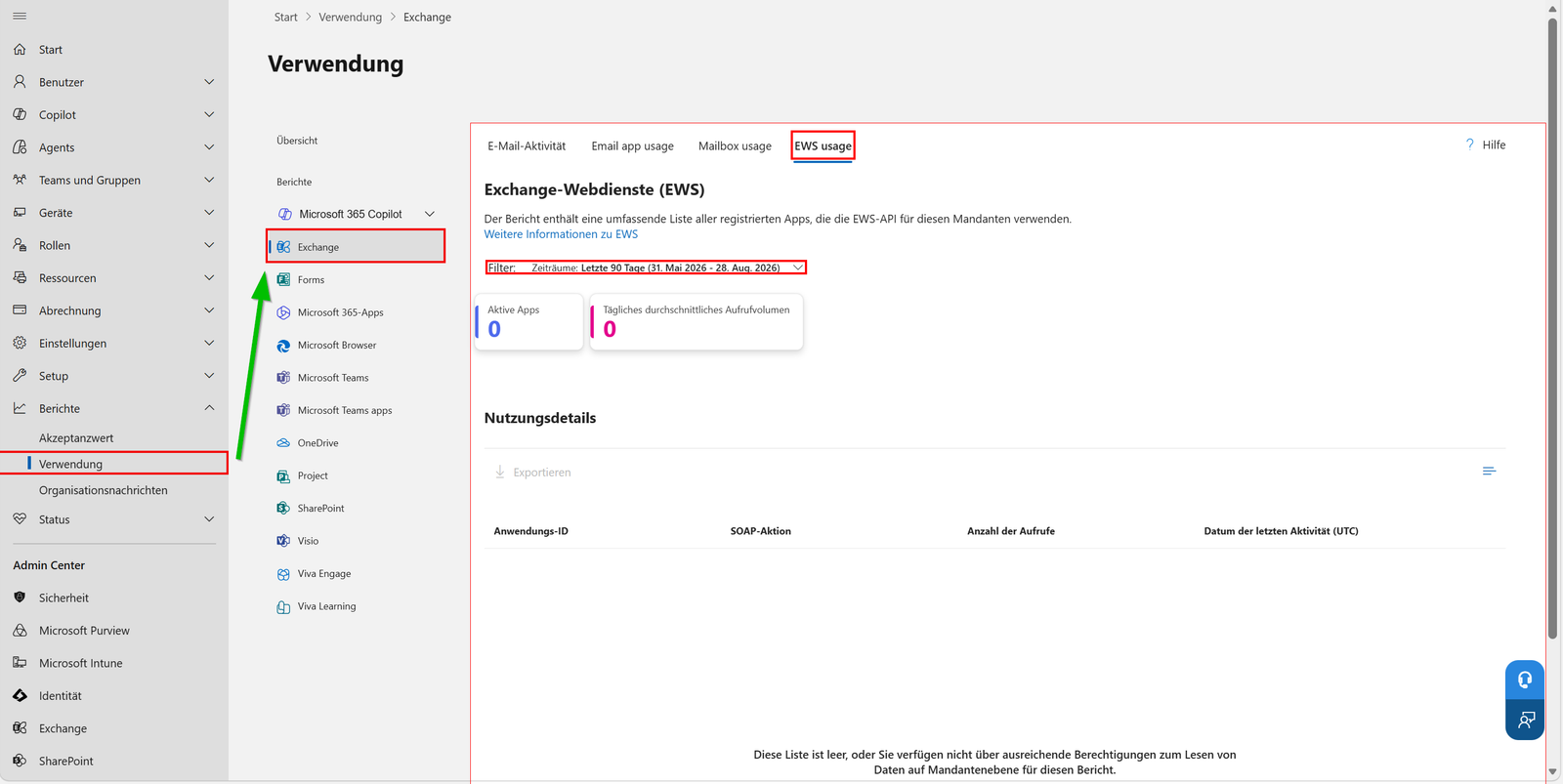
Step 2: Find app registrations with EWS permissions
The service through which EWS permissions are granted is called Office 365 Exchange Online and has the fixed application ID 00000002-0000-0ff1-ce00-000000000000. Using this service principal, you can find all app registrations that have EWS permissions.
Connect-MgGraph -Scopes "Application.Read.All","AuditLog.Read.All","Directory.Read.All"

$exoAppId = "00000002-0000-0ff1-ce00-000000000000"
$exoSp = Get-MgServicePrincipal -Filter "appId eq '$exoAppId'"

# Anwendungsberechtigungen, die auf Exchange Online zeigen
$assignments = Get-MgServicePrincipalAppRoleAssignedTo -ServicePrincipalId $exoSp.Id -All

$assignments | Select-Object PrincipalDisplayName, PrincipalId, AppRoleId |
    Sort-Object PrincipalDisplayName
The relevant roles are full_access_as_app for application permissions and EWS.AccessAsUser.All for delegated access. This distinction isn’t cosmetic—it determines which Graph migration path is viable for each application.
Microsoft provides a dedicated script for this evaluation called Exchange-App-Usage-Reporting. It identifies app registrations and service principals with EWS permissions and correlates them with sign-in activity.
Related: M365 Entra ID | Restricting access for multi-tenant apps, for third-party apps from other tenants.
Step 3: Sort by last sign-in
An app registration with EWS permissions isn’t necessarily a problem. An app registration with EWS permissions that signed in yesterday is.
$since = (Get-Date).AddDays(-30).ToString("yyyy-MM-ddTHH:mm:ssZ")

foreach ($a in $assignments) {
    $signIns = Get-MgAuditLogSignIn -Filter "appId eq '$($a.PrincipalId)' and createdDateTime ge $since" -Top 1
    [PSCustomObject]@{
        App           = $a.PrincipalDisplayName
        AppId         = $a.PrincipalId
        LetzteAnmeldung = if ($signIns) { $signIns.CreatedDateTime } else { "keine in 30 Tagen" }
    }
}
Apps with recent activity take priority because they’ll be the first to disrupt operations when blocked. Apps without recent sign-ins aren’t automatically harmless—they fall into the 'requires validation' category, not 'can be removed.' A script that runs quarterly simply won’t appear in a 30-day window.
For each active app, three questions need clarification: Who is the business owner, which mailbox areas does the app touch (mail, calendar, contacts), and which mailboxes are affected? The last point is critical because, starting October 2026, Microsoft will block EWS for users without EWS license rights, such as kiosk and frontline worker licenses. This block applies regardless of your allow list.
Related: M365 EXO | EWS block for F1/F3 licenses starting October 2026, which details the license aspect.
Step 4: Read the current tenant status
Connect-ExchangeOnline

Get-OrganizationConfig -RetrieveEwsOperationAccessPolicy |
    Format-List EwsEnabled, EwsAllowedAppIDs
The RetrieveEwsOperationAccessPolicy parameter is mandatory. Microsoft only reads the list for performance reasons if you explicitly request it. Without this flag, you’ll get an empty field and might mistakenly assume the configuration is empty.
If the parameter isn’t yet settable in your tenant: The display via Get-OrganizationConfig works everywhere, but the write function is being rolled out in stages.
Step 5: Set the allow list
Set-OrganizationConfig -EwsEnabled $true `
    -EwsAllowedAppIDs "11111111-2222-3333-4444-555555555555,aaaaaaaa-bbbb-cccc-dddd-eeeeeeeeeeee"
The list is a comma-separated enumeration of application IDs, documented in Set-OrganizationConfig. The key point: A Set operation replaces the existing list entirely. There’s no individual operation for adding or removing entries. If you only want to add one app, you must first read the existing list and reassemble it.
$current = (Get-OrganizationConfig -RetrieveEwsOperationAccessPolicy |
    Select-Object -ExpandProperty EwsAllowedAppIDs)

$neu = "99999999-8888-7777-6666-555555555555"
$updated = @($current, $neu) | Where-Object { $_ } | Select-Object -Unique

Set-OrganizationConfig -EwsAllowedAppIDs ($updated -join ",")
Don’t forget Microsoft’s first-party apps. Office and Power Query for Excel also use EWS. If they appear in your usage report, include them in the list—or you’ll block Excel queries while thinking you’re only locking out third-party software.
To lift the restriction by application ID, set the parameter to $null. Then EwsEnabled alone will apply again.
Conclusion
The end-of-August deadline isn’t a hard cutoff—it’s your last quiet window. If you set your allow list by then, you can migrate to Graph in a planned manner afterward. If you wait, you’ll migrate under pressure and have to explain to management why the invoice archive suddenly stopped fetching emails. Inventorying app registrations takes half a day. The October outage will take longer.

💬 Comments
0 KommentareSei der Erste und starte die Diskussion mit einem hilfreichen Beitrag.
Leave a comment
Dein Beitrag wird vor der Veröffentlichung kurz geprüft — fachlich, respektvoll und auf den Punkt ist hier genau richtig.