

Microsoft Entra ID P1 licenses are a hurdle for many SMBs and IT departments when it comes to just one feature: dynamic groups. While Microsoft charges monthly fees per user for automated group memberships, the same logic can be mapped with on-board tools, some PowerShell and Azure Automation. The goal is a "pseudo-dynamic group" that maintains itself without you having to pay extra for each user.
Native dynamic groups are based on rules that are evaluated in the background by the Entra service. With our DIY approach, we take care of this evaluation ourselves. We use the Microsoft Graph API to filter users by specific criteria and match group memberships at regular intervals.
The Architecture of Pseudo-Dynamics
To build reliable automation, you need an Azure Automation account and a managed identity. The use of a managed identity is imperative, as it allows the elimination of stored client secrets or passwords and thus minimizes the risk of credential leaks.
The Managed Identity receives the permissions Group.ReadWrite.All and User.Read.All. As soon as the runbook starts, it authenticates itself to the graph, identifies the target users and performs a delta match. This matching ensures that only necessary changes are written, which prevents API throttling.
Step 1: Create the base group
First, you need a standard Microsoft 365 Group (Unified Group). Since we control the dynamics manually, the GroupTypes must be set to , Unified but without the attribute DynamicMembership.
# Verbindung zum Graph herstellen (Lokal für die Ersteinrichtung)
Connect-MgGraph -Scopes "Group.ReadWrite.All"

$groupParams = @{
    Description = "Automatisierte Gruppe für die Marketing-Abteilung"
    DisplayName = "Marketing-Team (Auto)"
    MailEnabled = $true
    SecurityEnabled = $true
    MailNickname = "marketing-auto"
    GroupTypes = @("Unified")
}

$targetGroup = New-MgGroup @groupParams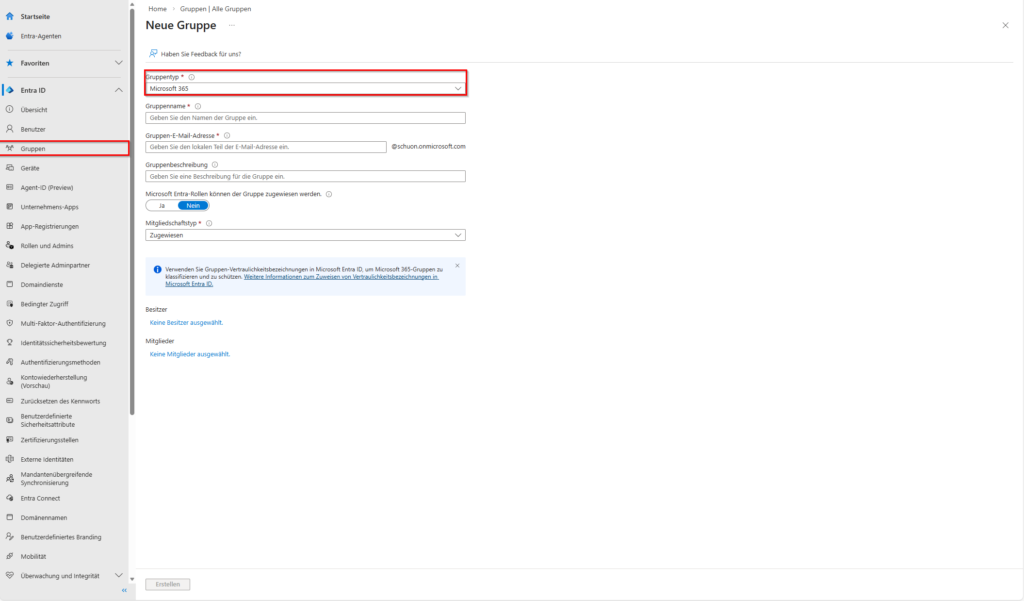
Step 2: The crux of the matter with filtration
A common pain point when using is Get-MgUser the limited filtering ability of the graph endpoint. Simple queries like jobTitle eq 'Manager' work fine, but complex searches or partial matches are often blocked.
To work around this problem, we extensionAttributes use (or onPremisesExtensionAttributes). These fields are extremely valuable, which allows you to set specific flags that don't clash with the official job titles. For example, if you want to enter all project managers, but the titles vary between "Senior Project Manager" and "Lead PL", set this extensionAttribute15 to the value ProjectLeadin the local AD or directly in the Entra ID.
# Abfrage der User, die dem Kriterium entsprechen
$criteria = "onPremisesExtensionAttributes/extensionAttribute15 eq 'ProjectLead'"
$matchingUsers = Get-MgUser -Filter $criteria -All -Property "Id", "DisplayName"
Step 3: The Delta Sync Algorithm
Simply deleting and re-adding all members is inefficient and leads to massive problems in Teams or SharePoint for large groups. Instead, we calculate the difference between the actual state (current members) and the target state (filtered users).
The Graph API allows a maximum of 20 changes per request for batch operations. We therefore have to break down the list of users to be added into packages.
# Aktuelle Mitglieder abrufen
$currentMembers = Get-MgGroupMember -GroupId $targetGroup.Id -All | Select-Object -ExpandProperty Id

# Wer muss rein?
$usersToAdd = $matchingUsers.Id | Where-Object { $_ -notin $currentMembers }

# Wer muss raus?
$usersToRemove = $currentMembers | Where-Object { $_ -notin $matchingUsers.Id }

# Bulk-Add (Max 20 pro Batch)
foreach ($batch in (0..([Math]::Ceiling($usersToAdd.Count / 20) - 1))) {
    $start = $batch * 20
    $end = [Math]::Min($start + 19, $usersToAdd.Count - 1)
    $ids = $usersToAdd[$start..$end]

    if ($ids) {
        $values = $ids | ForEach-Object { "https://graph.microsoft.com/v1.0/directoryObjects/$_" }
        $params = @{ "members@odata.bind" = $values }
        Update-MgGroup -GroupId $targetGroup.Id -BodyParameter $params
    }
}
Step 4: Automation in the Azure portal
To make the script a "service", you upload it as a runbook to your Azure Automation account.
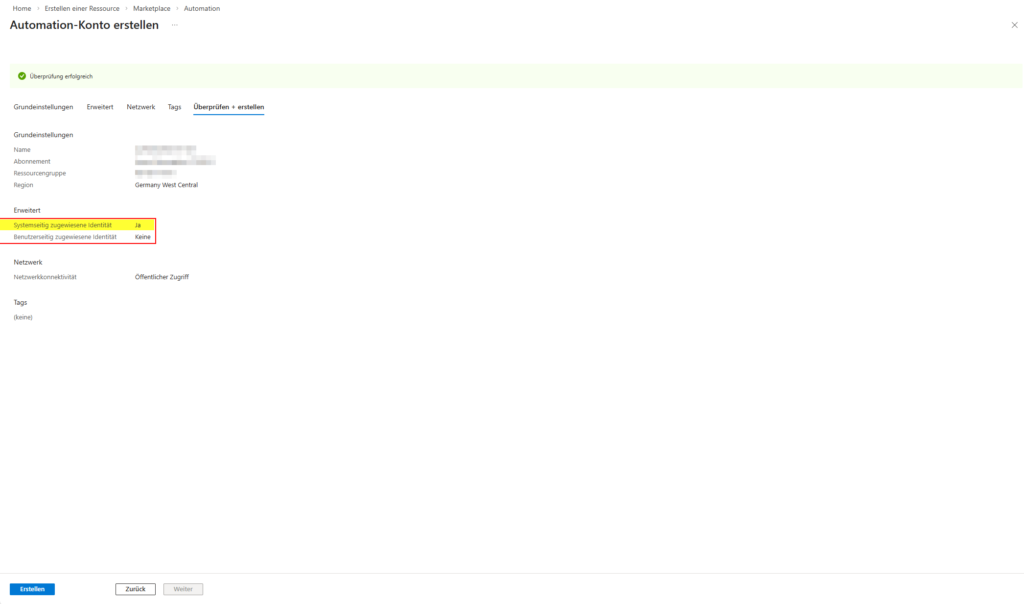
- Create an Automation Account (workflow see images below).
- Enable System-assigned Managed Identity.
- Assign the Graph permissions to the Identity via PowerShell (this is not possible via the UI!).
To set the permissions, use the following snippet locally with your admin account:
$MI_ID = "Deine-Managed-Identity-Object-ID"
$GraphApp = Get-MgServicePrincipal -Filter "AppId eq '00000003-0000-0000-c000-000000000000'"
$Role = $GraphApp.AppRoles | Where-Object { $_.Value -eq "Group.ReadWrite.All" }

New-MgServicePrincipalAppRoleAssignment -ServicePrincipalId $MI_ID `
    -PrincipalId $MI_ID `
    -ResourceId $GraphApp.Id `
    -AppRoleId $Role.Id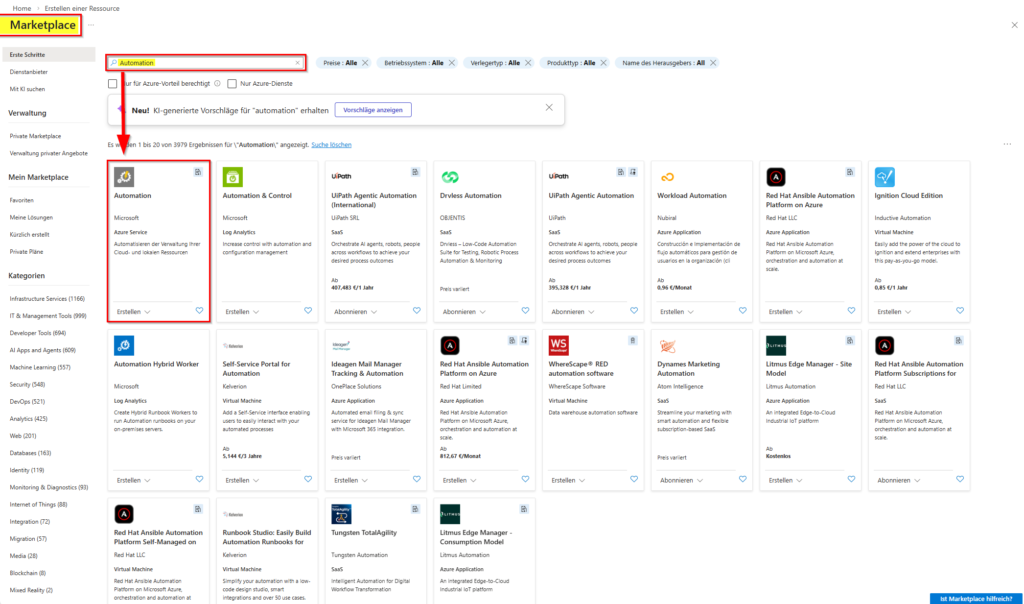
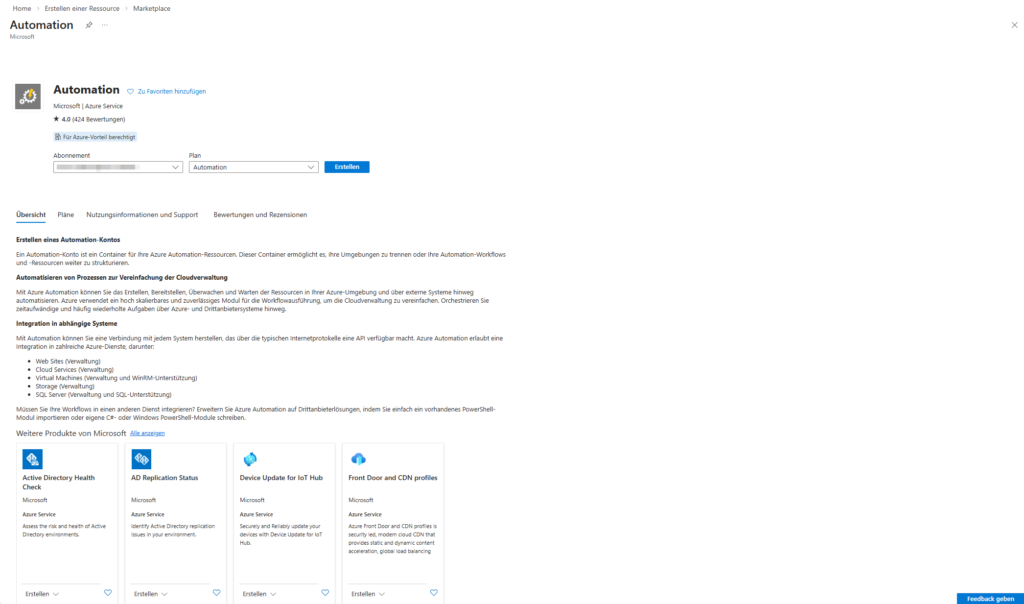
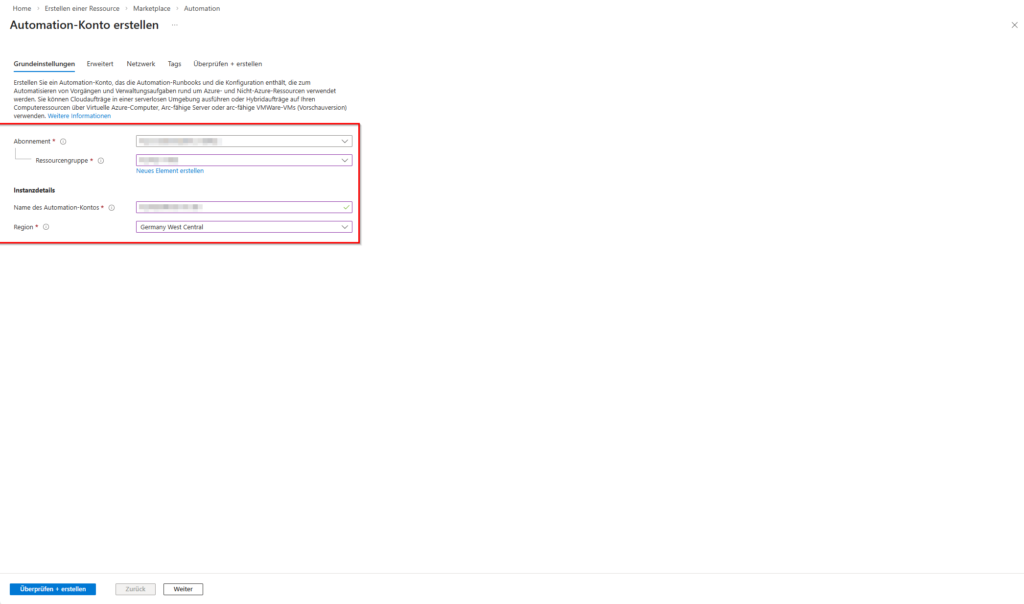


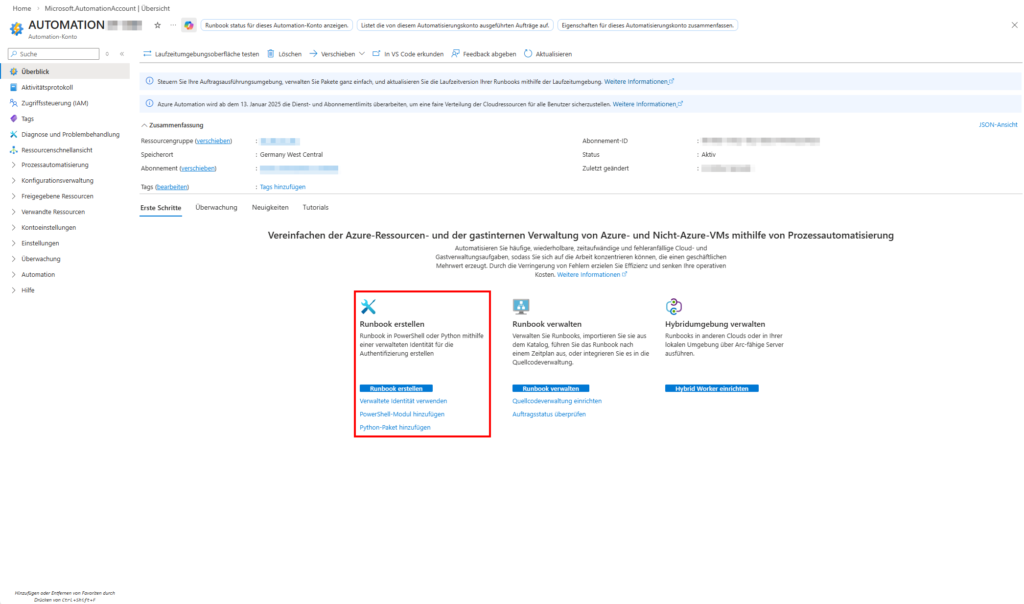
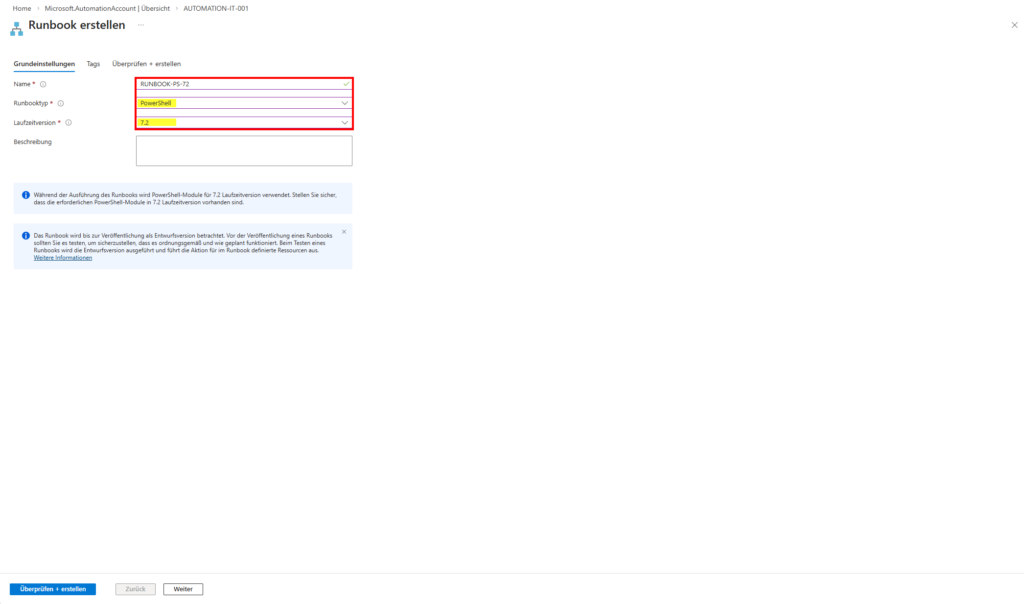
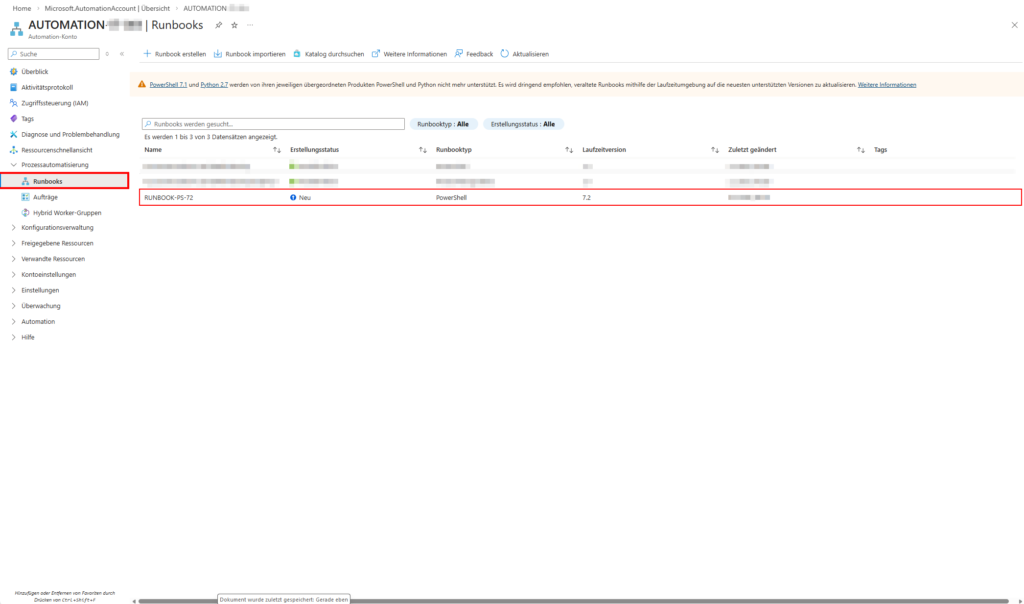
- Create a PowerShell runbook ((workflow see images below - PowerShell version 7.2).
- Paste the code and replace
Connect-MgGraphit withConnect-MgGraph -Identity.
Conclusion and critical appraisal
Building your own dynamics engine saves significant licensing costs, but entails operational responsibility. You are now the "provider" of this feature. If the runbook fails due to an API change, no more members will be updated.
From a security point of view, this path is highly solid, as long as you adhere to the principle of least privilege. The managed identity should never be given rights, but should be Global Admin strictly limited to the required graph scopes. Another advantage over native dynamic groups is flexibility: you can implement complex logic that goes beyond simple attribute matches – for example, "All users who haven't been logged in for 30 days" or "Members based on data from an external SQL database".
In terms of performance, this approach only reaches its limits with very large tenants (over 10,000 users in a group). Here you would have to switch to advanced batching methods or Azure Functions in order not to exceed the runtime limits of Azure Automation (3 hours per job). However, for most scenarios, running a runbook on an hourly or daily basis is the ideal balance between timeliness and cost savings.
In practice, you should always weigh up: If your organization needs the security features of Entra P1 (like Conditional Access) anyway, the native dynamic group is preferable. However, if you are purely interested in automating standard distribution lists or Teams access, the PowerShell way described here is the technically cleaner and more economical solution.
further links
| Source | URL |
| Microsoft Learn | https://learn.microsoft.com/en-us/graph/api/user-get |
| Microsoft Learn | https://learn.microsoft.com/en-us/graph/api/group-update |
| GitHub | https://github.com/microsoftgraph/msgraph-sdk-powershell |
| Practical 365 | https://practical365.com/diy-dynamic-microsoft-365-group/ |
Sei der Erste und starte die Diskussion mit einem hilfreichen Beitrag.
Kommentar hinterlassen
Dein Beitrag wird vor der Veröffentlichung kurz geprüft — fachlich, respektvoll und auf den Punkt ist hier genau richtig.