

Under the menu item "Messaging Settings" you define globally what is technically possible in chats and channels.
Here you make the decision between a casual WhatsApp atmosphere and a strictly regulated compliance environment.
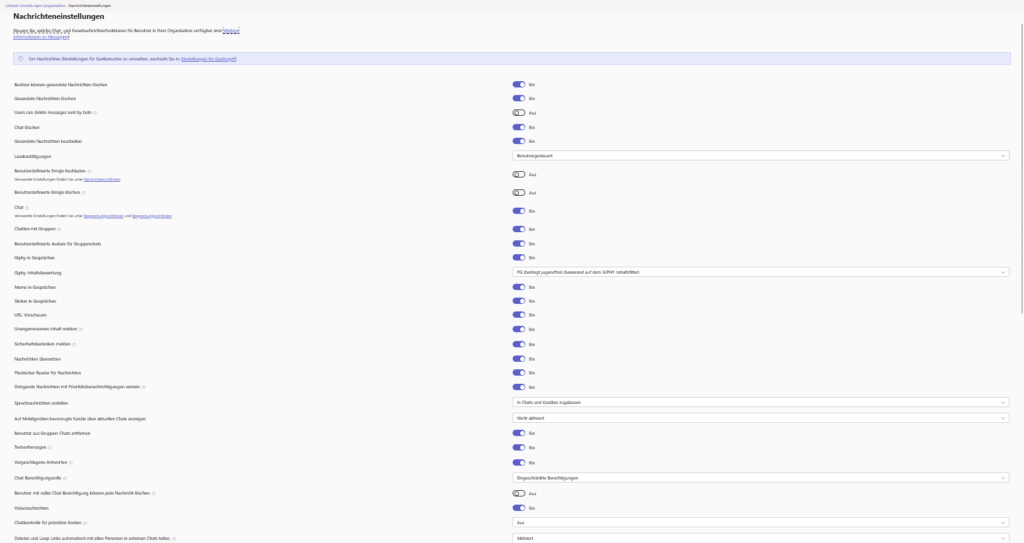
Compliance & Control (Delete & Edit)
Right above you will find the settings that often trigger discussions between the works council, IT and compliance department.
- Delete/edit sent messages:
- The scenario: An employee makes a typo or accidentally posts something in the wrong chat.
- The decision:
- A: User-friendly. Anyone can correct their typo or quickly delete the "fail".
- From: Maximum audit security. In highly regulated industries (e.g., banking), every message often needs to remain permanently documented.
- Delete chat: This is a newer feature that allows users to remove entire 1:1 or group chat histories from their view.
- Read receipts:
- Here you can specify whether users can see when their message has been read ("Read" checkmark).
- Tip: You can set this to "User Controlled". So everyone can decide for themselves whether they want this "pressure" or not.

Culture & Fun (emojis, giphys & memes)
Teams isn't just work, it's also social interaction. Microsoft offers many tools here to lighten the mood – but you have the handbrake.
- Custom Emojis (New!):
- This is a fairly new feature. Your users can upload their own emojis (e.g., the company logo or inside jokes).
- Admin Control: You can control whether the feature is generally active here. However, you can regulate exactly who is allowed to upload or delete in more detail in the message guidelines.
- Giphys, Stickers & Memes:
- A picture is worth a thousand words. Giphys loosen up everyday work.
- Important: Pay attention to the "Giphy Content Rating". Set it to Moderate or Strict to automatically filter adult content (NSFW) from search results.


Features & Inclusion
Hidden here are powerful functions that increase accessibility and productivity.
- Translating messages:
- Must-have: If you work internationally, be sure to leave this switch on. It allows users to translate messages into their own language by right-clicking. A real gamechanger for cooperation across national borders.
- Immersive Reader:
- An important inclusion feature. It can read messages, change text size, or improve focus. Leave this enabled to support colleagues with visual or reading impairments.
- Voice Messages & Video Messages:
- Love it or hate it: Users can record and send short audio or video clips (like WhatsApp). This is often faster than typing, but can be annoying in an open-plan office.


4. Safety (The Invisible Shield)
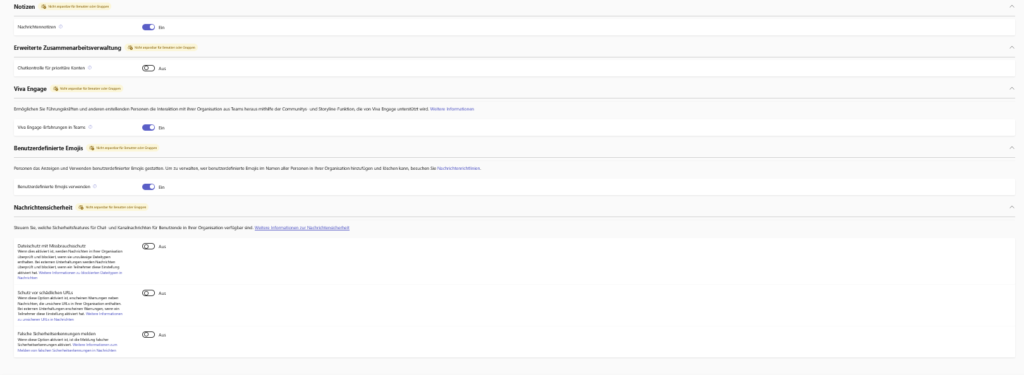
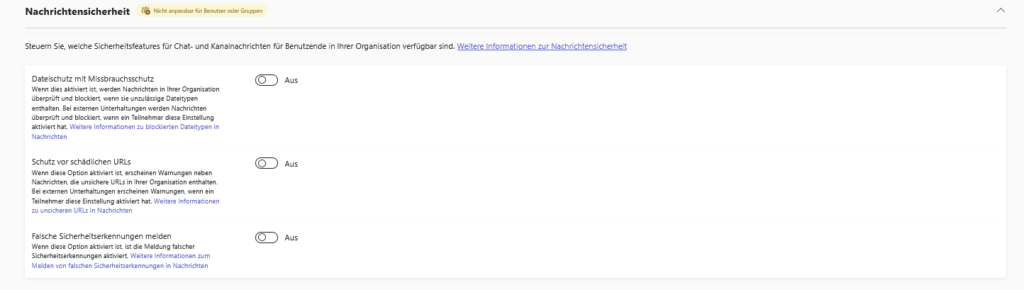
At the bottom of the page (in the screenshot under "Security features") you will find settings that you should urgently check . They protect your organization from attacks that come via chat.
- Protection against malicious URLs (Safe Links):
- Mandatory setting: If enabled, Microsoft will check every link posted in the chat in the background. If a user clicks on a phishing page, Teams immediately blocks access. Tune in!
- File protection with abuse protection:
- This somewhat unwieldy term (Weaponizable File Protection) means that Teams checks file attachments for malicious content. Since chats are often used as a gateway for malware, this is an essential line of defense.
Viva Engage & Co.
Finally, let's take a look at networking. You'll find toggles like "Viva Engage experiences in Teams" or "Automatically share files and loop links." These attitudes aim to break down silos. If you use Viva Engage (formerly Yammer) as your enterprise social network, enabling it here ensures seamless integration into the Teams interface.

Conclusion on the message settings
This is where you define the "vibe" of your company.
- Are you an easy-going start-up? Then allow Giphys, stickers, custom emojis, and editing messages.
- Are you a strict authority? Then you will be rather restrictive with Giphys and deleting messages.
The following applies to all of them: The security features (Safe Links & File Protection) should always be active.
Sei der Erste und starte die Diskussion mit einem hilfreichen Beitrag.
Kommentar hinterlassen
Dein Beitrag wird vor der Veröffentlichung kurz geprüft — fachlich, respektvoll und auf den Punkt ist hier genau richtig.