
To align compliance requirements with modern AI support, Microsoft is introducing a crucial innovation for Teams meetings: AI Meeting Recap without transcript storage. Previously, an intelligent summary (Intelligent Recap) was technically inseparable from the permanent storage of a transcript or recording. This presented administrators in regulated industries with a dilemma: either forego the productivity benefits of Copilot or violate internal retention policies.
The solution lies in the processing of transient data (Live Meeting Context). Instead of writing the spoken word into a persistent file in SharePoint or OneDrive, the AI processes the audio stream in real-time in memory, generates the summary, and discards the source data immediately after the meeting ends. As a result, the digital footprint remains minimal while the value for participants is preserved.
Architecture and Functionality
In the classic configuration of Microsoft 365 Copilot, every summary is based on the MeetingTranscript object, which is stored in the organizer's "Transcripts" folder after the session ends. With the new feature, listed under Roadmap ID 558286, the data flow changes fundamentally.
As soon as the option "Recap without transcript storage" is activated, Copilot accesses the live audio feed. The speech-to-text conversion occurs temporarily. The resulting insights – such as tasks, decisions, and topic blocks – are extracted and stored as part of the Intelligent Recap in the Teams calendar object. However, the actual word-for-word transcript is never physically stored on a storage medium.
Administrative Control in the Tenant
You control this feature primarily through the existing AI and Copilot policies in the Microsoft Teams Admin Center. It is not a separate tool, but an extension of the existing Copilot infrastructure. If you have deactivated AI features at the tenant level, this option will also be unavailable.
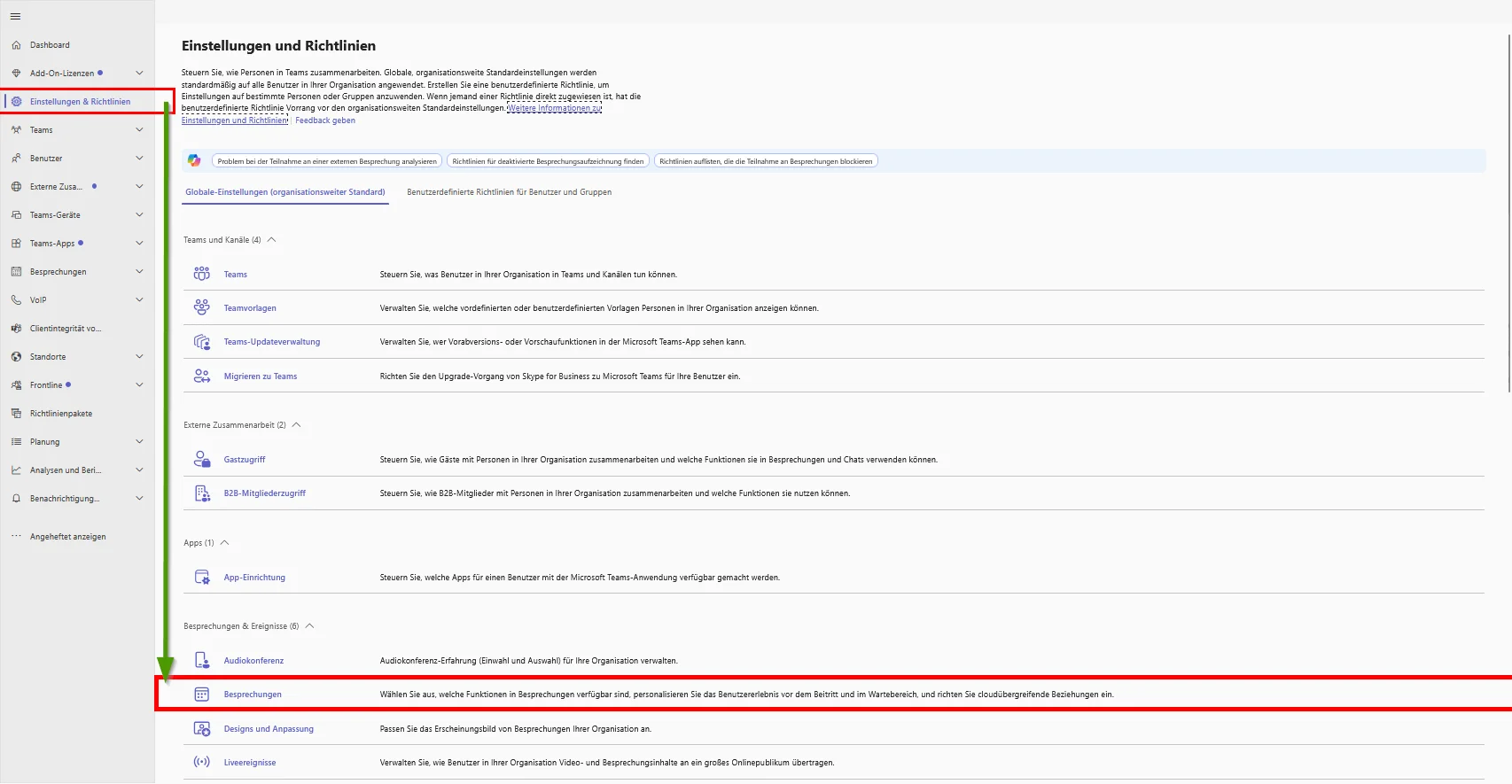
In the policies, you will find granular control for Copilot in the future. You can determine whether organizers have permission to use Copilot "only during the meeting" (without transcript) or "during and after the meeting" (with transcript). The default setting for tenants where Copilot is already active will be set to "On," which is why you must proactively adjust your governance rules.
Practical Guide: How to Configure the Feature as an Organizer
To guide your users as an administrator, you must understand the activation process. The setting can be made both in advance in the meeting options and ad-hoc during an ongoing call.
Step 1: Preparation in the Meeting Options
Before the meeting starts, the organizer navigates to the options of the calendar entry.
- Open the appointment in the Teams calendar.
- Click on Options and then on More options.
- Find the section Copilot and AI.
- Select the option Recap without transcript storage from the dropdown menu.
Step 2: Control During the Live Session
Should the decision only be made during the meeting, Teams provides a visual indication and control in the top left corner of the window.
- Click on the Copilot icon in the top bar.
- An indicator for the AI mode appears in the top left corner.
- Here, the organizer or a participant with a Copilot license can toggle the AI processing.
Important: If this option is selected, no transcript tab will be available after the meeting. Only the AI-generated notes and tasks will appear in the "Recap" tab.
Technical Implications for Compliance
From a data security perspective, this feature is a significant advancement for "zero-retention" scenarios. Since no transcript exists, eDiscovery requests (Microsoft Purview) cannot access the wording of the meeting. Only the final summary is subject to retention policies for Exchange elements (as the recap is linked to the calendar event).
You must note that this feature is exclusively available for users with a Microsoft 365 Copilot (Premium) license. Users with standard licenses can participate in the meeting but can neither start the recap mode nor view the resulting summary in its entirety if they are not explicitly authorized.
Conclusion and Administrative Assessment
The introduction of the transcriptless recap in June 2026 (General Availability) solves one of the biggest adoption problems of AI in companies: the fear of permanent logging of sensitive conversations. Technically, the implementation is consistent as it decouples temporary speech processing from permanent storage.
From a security standpoint, the solution is to be assessed positively as it reduces the attack surface for data exfiltration. Where no transcript is stored, none can be stolen through compromised accounts. However, a new challenge arises for IT governance: you must ensure that users understand that without a transcript, no subsequent verification of the AI summary is possible. If the AI "hallucinates" in the summary, there is no source to verify the statement.
My recommendation: Update your internal training materials and your Service Desk's help documentation. Clearly communicate that the recap without transcript is a "flight recorder mode": the AI listens and notes the most important points, but the "tape" is not running. In highly regulated environments, you should check the tenant-wide defaults and, if necessary, restrict them to "Organizers only" to avoid uncontrolled AI summaries in sensitive executive meetings.
Sei der Erste und starte die Diskussion mit einem hilfreichen Beitrag.
Kommentar hinterlassen
Dein Beitrag wird vor der Veröffentlichung kurz geprüft — fachlich, respektvoll und auf den Punkt ist hier genau richtig.