The integration of Microsoft 365 Copilot does not take place via a single "off switch", but is deeply anchored in the DNA of Office applications. An administrator who wants to keep control here must understand that we are dealing with a Hydra problem : A head is cut off (e.g. by license revocation), but the "teaser" button in the Word client grows back and generates unnecessary support calls.
The goal of this article is the radical reduction of the UI surface. We want to prevent the user from being visually confronted with Copilot even before the data governance homework has been done. It's all about surface hygiene and peace and quiet in operation.
Microsoft 365 Apps | Registry or GPO?
Microsoft 365 Apps are managed classically via Administrative Templates (ADMX). But the reality in grown IT landscapes is often complex: Outdated templates in the Central Store, delays in replication or conflicts with the Cloud Policy Service (OCPS) often lead to the standard guidelines ("administrative templates") in the editor being missing or not working properly on the client.
We therefore need a method that is more robust than waiting for new ADMX files.
- Registry intrusion
Instead of relying on unstable GUI settings, we enforce configuration directly in the registry. This is the surgical way to hide Copilot without paralyzing the entire office suite or affecting other cloud functions.
Important: There are two paths depending on how your office is managed (On-Premises GPO vs. Cloud Policy). When in doubt, bet both.
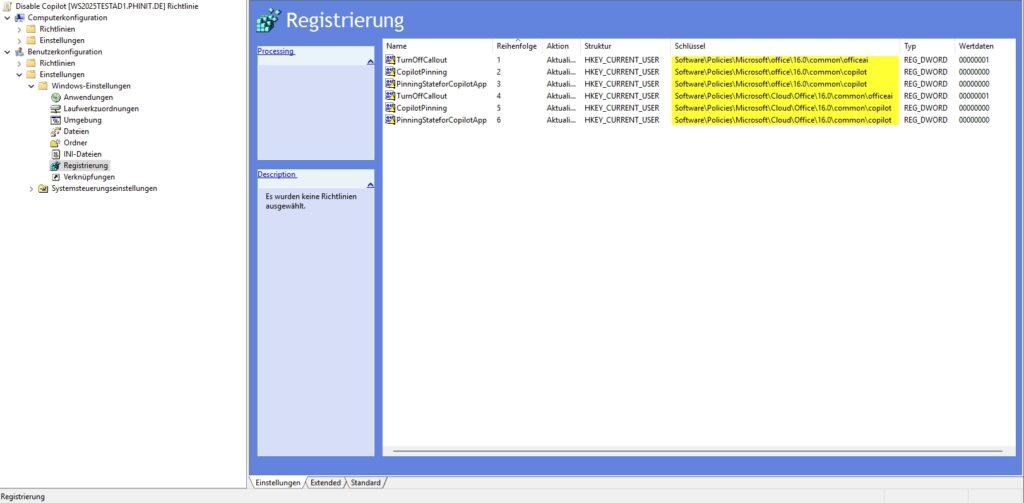
To build the GPO object:
- Navigate to
Benutzerkonfiguration>Einstellungen>Windows-Einstellungen>Registrierung. - Right-click >
Neu>Registrierungselement. - As an action, select Mandatory Update . This ensures that the key is created if it is missing, or corrected if it is incorrect.

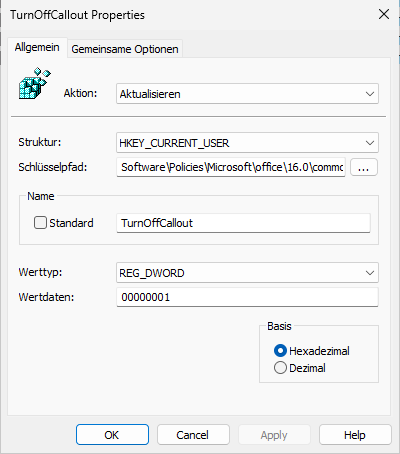
Path A: Classic (On-Premises / Hybrid)
This is the standard for policies that come directly from your on-premises Active Directory.
HKCU\Software\Policies\Microsoft\office\16.0\common\officeai- Value:
TurnOffCallout(DWORD) =1
Effect: This tells the client hard not to render the Copilot popup and the button in the ribbon.
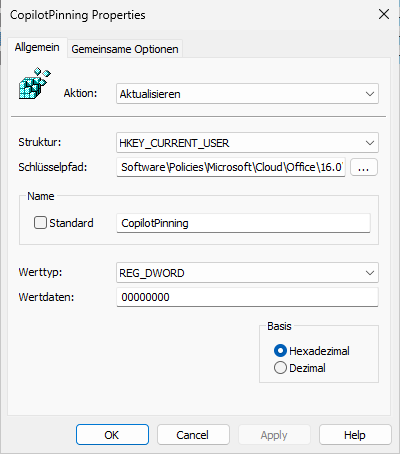
Path B: Cloud Path (OCPS / Modern Management)
When you distribute policies via config.office.com , they often end up in a special cloud hive. Here we also have to prevent the app from "pinning".
HKCU\Software\Policies\Microsoft\Cloud\Office\16.0\common\copilot- Value 1:
CopilotPinning(DWORD) =0 - Value 2:
PinningStateforCopilotApp(DWORD) =0
Effect: This prevents the colorful Copilot icon from getting stuck prominently in the sidebar or in the app launcher.
- GPO safety net
Registry entries are good for quick effect, but true governance needs guidelines. We are building a "defense in depth" here: In addition to simply deactivating Copilot, we check critical accompanying settings. In this way, we prevent workarounds by resourceful users and stop annoying marketing teasers even before they appear.
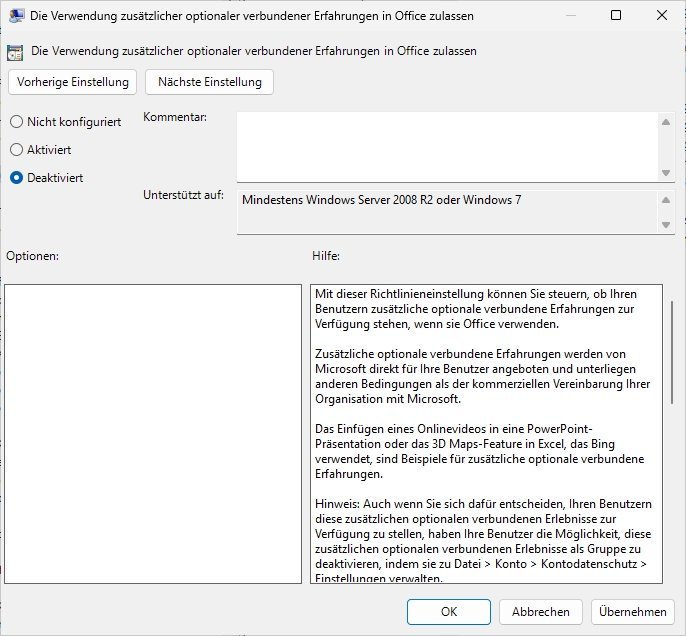
The "Atomic Bomb Option": Connected Experiences
If you want (or have to) be absolutely sure, you cut off the line to the Microsoft Cloud completely.
Path: Privacy > Trust Center
Setting: "Allow the use of additional optional connected experiences" to Disabled.
Warning: Be aware of what you are doing here. This kills not only Copilot, but also useful features such as 3D maps in Excel, online image searches or smart lookups. Clarify this with the specialist departments beforehand, otherwise the phone will no longer stop ringing.
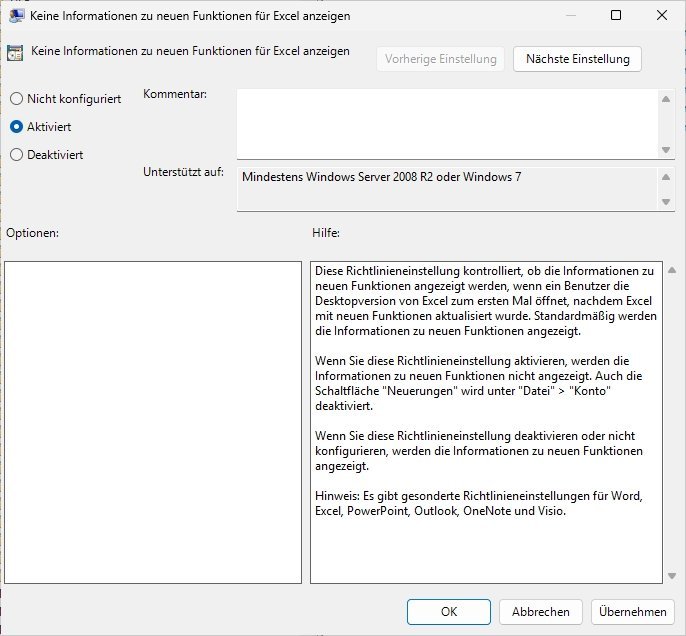
Suppress marketing: "novelties"
Even if Copilot is technically disabled, Office often annoys with "Coming Soon" pop-ups. This only creates confusion or unnecessary desire among users ("Why don't we have this?").
Setting: "What's New" / "Don't show information about new features" -> Enable.
Effect: Rest in the box. No teasers for features you haven't released yet.
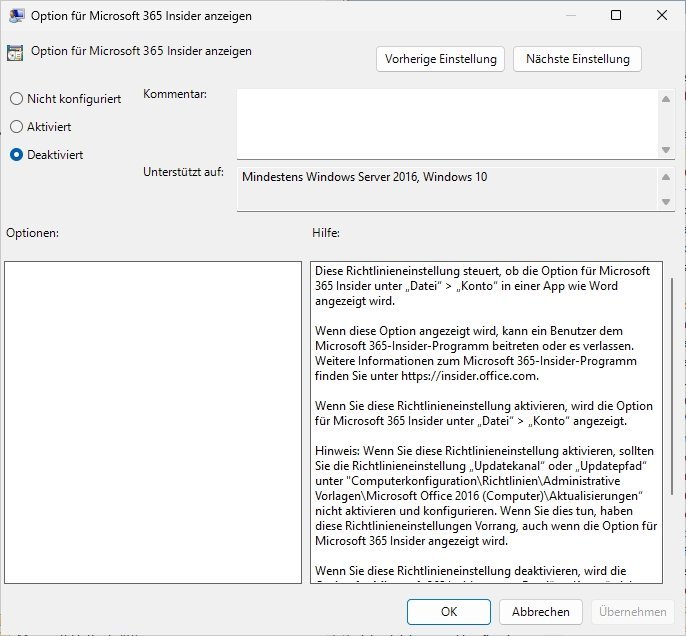
Prevent Shadow IT: Block Beta Channels
Microsoft often rolls out AI features first in the "Current Channel (Preview)". Ambitious users like to try to switch there to circumvent blocks.
Setting: "Show options for Microsoft 365 Insiders" -> disabled.
Effect: You retain sovereignty over the update channel and prevent untested code (and uncontrolled AI) in the production network.
The fine line: "Enable Writing Assistant"
You'll stumble across the "Enable Writing Assistant" policy (under Miscellaneous). This is where tact is required.
Classification: This primarily controls the Microsoft Editor (spell and style checker), not the big Generative AI Copilot.
Recommendation: If you have a strict "Zero Trust" strategy against any AI help, disable it. But be fair to your users: you also take away their better grammar suggestions. To meet only the privacy-critical LLM chat, the registry method (level A) or the trust center policy (point 1) is the more precise way.
Intune | Apps - Guidelines for Microsoft 365 Apps
We use the Cloud Policy Service via Intune to bind policies directly to the user identity. This ensures that governance requirements also apply to unmanaged devices (BYOD) as soon as the user logs in.
Since the global "kill switch" is often missing in this view (license-dependent), we build a digital fence ("containment"). We're not disabling the feature itself, but its interaction and data processing capabilities.
Step 1: Create the policy
In the Intune admin center, go to: Create apps > policies for Office apps (under Policies). >
- Name: M365 Apps - Copilot Hardening
- Description: Restriction of the AI interface and data use (containment).
- Scope: Here, select "This policy configuration applies to users...". Select the appropriate security group (e.g. "All Users" or a pilot group).


Step 2: The configuration
Search for "Copilot" in the configuration area. Based on the available options, we set the following settings to minimize the attack surface:
| Settings Name (Search)Configuration | The Architecture Effect (Why We Do It) | |
| Pin Microsoft 365 Copilot Chat | Disables | the most important UI setting. If you disallow pinning, the Copilot icon will disappear from the app bar (Rail) in Outlook, Teams, and M365. It's not a technical kill switch, but it does massively clean up the interface. |
| Allow web search in Copilot | Disables | data governance (grounding). If a user does have access (e.g. via web versions), we cut off the way to the public Internet here. Copilot is limited to internal data and is not allowed to send data to Bing. |
| Create and view Copilot pages and notebooks | Disabled | Prevents Copilot from integrating with Loop components and OneNote. This closes an often overlooked "back door" to AI use. |
| Code previews for AI-generated content... | Disables | security hardening. It prevents Copilot from rendering executable code, which lowers the risk of accidental execution or prompt injection attacks. |
| Multi-account access to Copilot... | Disables | Shadow-IT Blockade. Prevents users from adding their personal Microsoft account (MSA) to use Copilot Pro and copy company data into it. |
| Adapting responsible AI protections... | Disabled | (Optional) Disables adjustments to the content filter. We leave this at standard (or strict) to minimize hallucinations. |
| Copilot AI Disclaimer | disables | pure cosmetics. A feature we want to hide doesn't need a disclaimer. |


In Teams, client settings do not apply. The control over AI functions lies solely in the backend at the meeting policies. For architects, this raises the crucial compliance question: How do we deal with the spoken word?
Microsoft distinguishes between volatile processing (data is only in RAM for a short time, no audit trail) and persistent processing (compulsion to transcribe). Since "volatile" is often difficult to audit and "persistent" can be sensitive in terms of data protection, many companies choose the "hard kill".
Teams Admin Center


- Path: Teams admin center > meetings > meeting policies.
- Setting: Look for the "Recording and Transcription" section.
- Value: Set the dropdown for "Copilot" to Off .
Note on replication: Changes to Teams policies are notoriously slow. It can take up to 24 hours for the Copilot button to actually disappear for all users. Plan this into your communication and don't open premature support tickets with Microsoft.
PowerShell (The "Hard Kill")
The GUI in the Teams admin center often lags behind or is confusing. PowerShell is more precise here.
# Verbindung herstellen
Connect-MicrosoftTeams

# Prüfen der aktuellen Global Policy
Get-CsTeamsMeetingPolicy -Identity Global | Select-Object Copilot

# Deaktivieren (Hard Kill)
Set-CsTeamsMeetingPolicy -Identity Global -Copilot Disabled
The Parameter Trap (Architect-Knowledge) | It's essential to understand the nuances of the parameter -Copilot if you don't set it up Disabled :
Disabled: Copilot is not available in meetings for the assigned users. The button is missing or grayed out.Enabled: This is the "modern" default setting (often called "copilot only"). Copilot can be activated without saving a transcript. The data is processed fleetingly. Data protection view: Good, because there are no logs left. Compliance view: Bad as there is no audit trail (who asked what?).EnabledWithTranscript: Copilot forces transcription to start. Without a transcript, no co-pilot. This creates a persistent.docxfile in OneDrive/SharePoint.
Service Plan Stripping (The License Level)
This is the architecturally cleanest solution. UI hides are ultimately just "Security through Obscurity". If you revoke the user's service-level right, the Microsoft backend rejects any API call. This also prevents "shadow access" via direct URL calls or web versions that ignore local registry keys.
The challenge: Copilot is often not a single "on/off" switch, but hides in sub-plans (service plans) within your E3/E5 or add-on SKUs. We have to remove them surgically.
Relevant Service Plans (as of 2026):
COPILOT_FOR_M365_ENTERPRISE: The actual paid add-on.BING_CHAT_ENTERPRISE: The "Commercial Data Protection" protection for Bing search (often included in E3/E5).COPILOT_INDIVIDUAL: Often appears with private MS accounts or Pro licenses.
The Modern Architect Way (Microsoft Graph)
Connect-MgGraph -Scopes User.ReadWrite.All, Directory.ReadWrite.All
$UserId = "user@domain.com"
$SkuId = "6fd2c87f-b296-42f0-b197-1e91e994b900" # Beispiel E5

# Pläne definieren, die deaktiviert werden sollen
$PlansToDisable = @("COPILOT_FOR_M365_ENTERPRISE", "BING_CHAT_ENTERPRISE")

# IDs ermitteln und Lizenz updaten
$SkuInfo = Get-MgSubscribedSku | Where-Object {$_.SkuId -eq $SkuId}
$DisabledIDs = $SkuInfo.ServicePlans | Where-Object {$_.ServicePlanName -in $PlansToDisable} | Select -ExpandProperty ServicePlanId
Set-MgUserLicense -UserId $UserId -AddLicenses @{SkuId = $SkuId; DisabledPlans = $DisabledIDs} -RemoveLicenses @()
Tip: ALWAYS check the current names of your tenant SKUs via Graph Explorer or Get-MgSubscribedSku, as Microsoft occasionally rotates the ServicePlan IDs and names before scripting.
Conclusion & Assessment
The measures described here are much more than just technical troubleshooting. You have to understand: The client configuration (registry/GPO) is primarily UI governance. It is used for surface hygiene to dampen "Fear of Missing Out" (FOMO) among users and to relieve the support hotline.
However, you can never achieve a real, watertight "deactivation" on the client alone, but only through the combination of UI cleanup and license revocation (service plan stripping) in the backend.
Don't think of this technical blockade as a permanent condition, but as a strategic tool. Use the gained peace of mind ("strategic pause") to do your homework: Clean up permissions, implement sensitivity labels and toughen your tenant. Because only if the data quality is right, the Semantic Index will later become an advantage instead of a security risk.

Sei der Erste und starte die Diskussion mit einem hilfreichen Beitrag.
Leave a comment
Dein Beitrag wird vor der Veröffentlichung kurz geprüft — fachlich, respektvoll und auf den Punkt ist hier genau richtig.