
Long paths under Windows have been the natural enemy of any structured filing system for decades. Especially within the Microsoft 365 ecosystem, the default nomenclature OneDrive - <Organization Name> often leads to reaching the magic limit of 260 characters faster than you can say "file synchronization." Until now, you couldn’t bend this root folder name without ugly registry hacks.
With the new policy that Microsoft has been rolling out since mid-March 2026, this is changing fundamentally.
The Problem: The Path Length Trap
A user's default path typically starts at C:\Users\Username\OneDrive - Company Name Ltd. If your company has a long name, you are already occupying 40 to 60 characters before the first subfolder like "Projects" or "Marketing" even begins. Since Windows caps at 260 characters in standard Explorer mode (without long-path activation), deeply nested SharePoint libraries or complex folder structures inevitably lead to synchronization errors. Through the new policy "Set a custom name for the OneDrive sync folder," you can now shorten this root name globally or for specific user groups, thereby gaining valuable characters for the actual file structure.
Technical Implementation
Control is managed via a new Administrative Template (ADMX) that sets a specific registry key in the HKLM branch. This links your organization's Tenant ID with a freely selectable string.
Registry Path: HKLM\SOFTWARE\Policies\Microsoft\OneDrive\CustomSyncRootFolderName
Value Name: [Your-Tenant-ID]
Value Type: String (REG_SZ)
Value Data: [Your desired name]How-To: Configuring Custom OneDrive Folder Name
Before you start, ensure that OneDrive client version 26.026.0209.0004 or higher is installed. The rollout of policy support is happening server-side and will be completed worldwide by early April 2026.
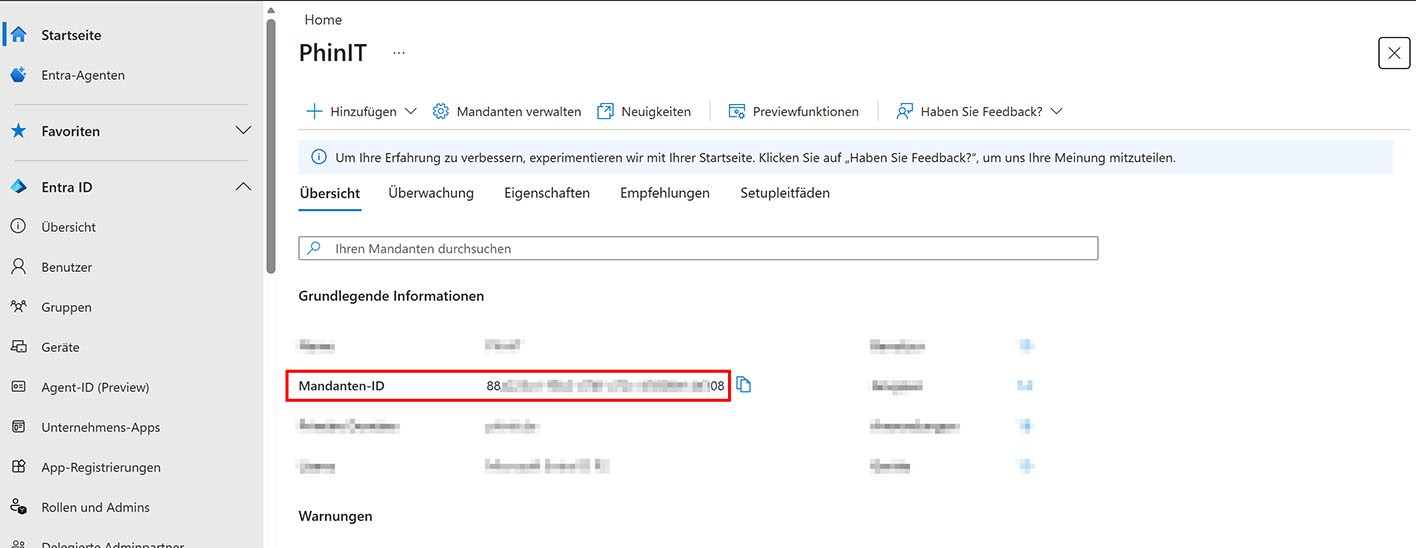
Step 1: Determining the Tenant ID
You need the unique ID of your Microsoft 365 tenant. The fastest way to find this is in the Microsoft Entra Admin Center.
Step 2: Configuration via Group Policy (GPO)
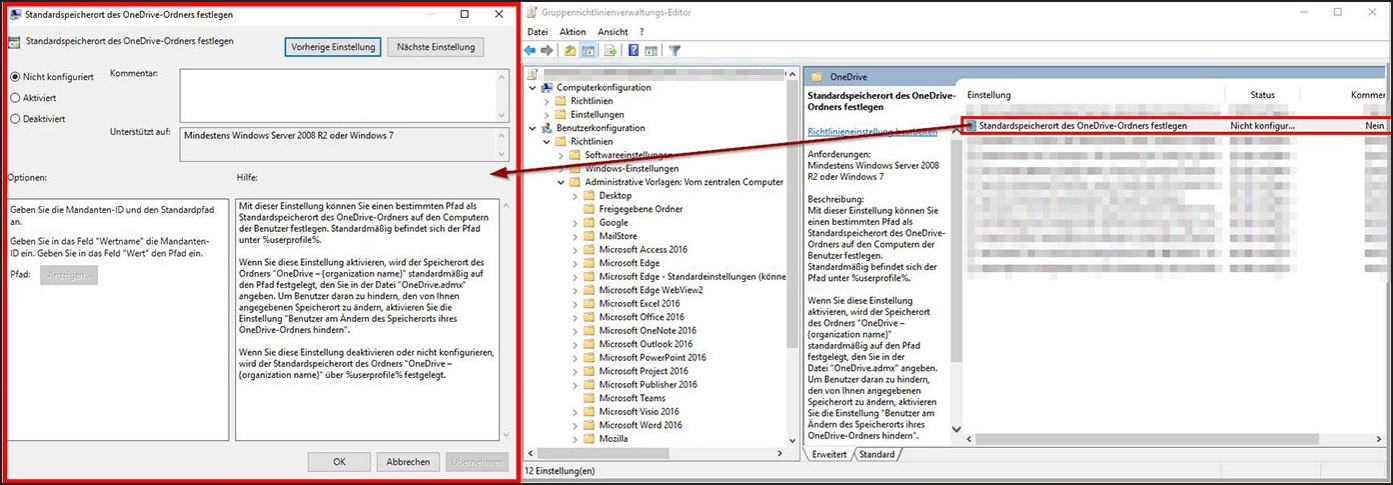
Open the Group Policy Editor for your domain or locally on a test client.
- Navigate to: Computer Configuration > Administrative Templates > OneDrive.
- Look for the setting: Set a custom name for the OneDrive sync folder.
- Select "Enabled".
- Click "Show" to maintain the list of names.
- Under "Value name", enter your Tenant ID and under "Value", enter the desired short name (e.g., "Cloud" or a short acronym of your company).
Step 3: Migration of existing profiles (The critical part)
This is where the biggest operational pitfall lies: the policy takes effect immediately for new setups. Existing synchronizations do not automatically change their name in the file system. To force the new name for an active user, they must unlink and reconnect their account.
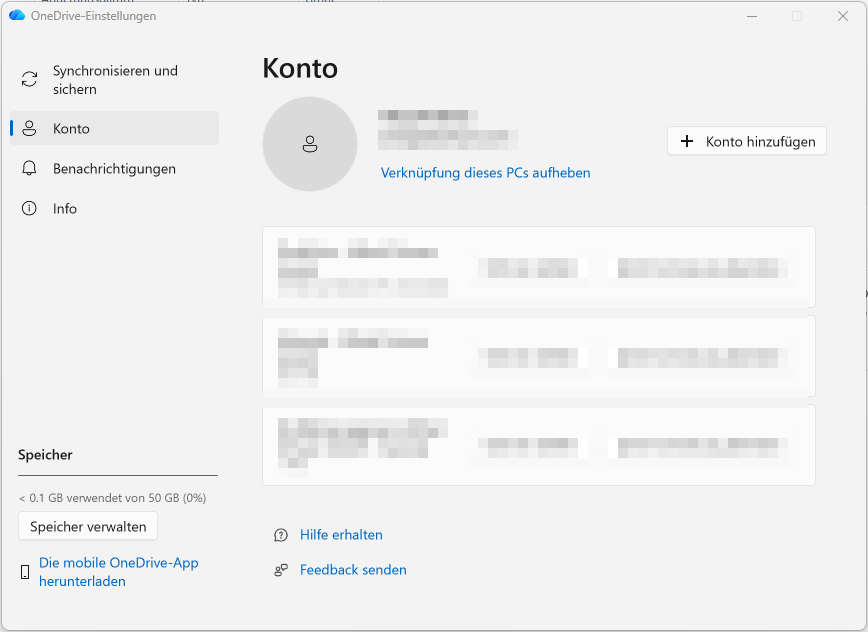
- Click on the OneDrive icon in the taskbar > Settings (gear icon) > Account.
- Select "Unlink this PC".
- After unlinking, delete (or move for safety) the old folder OneDrive - OldName.
- Sign the user in again. OneDrive now creates the local path with the name defined in the GPO.
Conclusion and Administrative Assessment
The introduction of CustomSyncRootFolderName is a long-overdue tool for administrators struggling with the legacy 260-character restriction. Nevertheless, the rollout is not a sure-fire success.
From a technical standpoint, the solution is solid as it applies directly at the level of the synchronization engine. However, the biggest hurdle is the user experience for existing customers. The necessity to unlink and reconnect the account (Unlink/Relink) is a massive performance factor for large amounts of data. If a user has 200 GB synchronized locally, a relink can mean hours of background activity for checksum comparison, even if the files are already present.
Particularly tricky: the display name in the Windows Explorer navigation pane often remains at the old name (OneDrive - Company Name), while the physical path under C:\Users...\ already uses the new short name. This leads to confusion for support.
My advice: Use this policy primarily for greenfield scenarios or as part of a hardware refresh. If you roll it out in an existing fleet, strictly combine it with a PowerShell script that cleans up the old folder to avoid massive disk space consumption through duplicate files. Security is not negatively affected by this change, as the permission structure (NTFS) is inherited by the new folder as soon as the sync client initializes the path.

Sei der Erste und starte die Diskussion mit einem hilfreichen Beitrag.
Leave a comment
Dein Beitrag wird vor der Veröffentlichung kurz geprüft — fachlich, respektvoll und auf den Punkt ist hier genau richtig.